How to Manage Templates in Elementor (Save, Reuse, Import & Export)
To manage templates in Elementor, save the designs you reuse as templates, insert them from the editor’s template library, and keep them organized under Elementor > Templates. You can save a full page or a single container, then rename, edit, delete, import or export it whenever you need to.
This guide covers where Elementor stores your templates, how to save pages and containers, how to insert them into new pages, how to keep your library tidy, and how to import and export templates without leaving the Elementor editor.
Key takeaways
- Save a full page from the arrow next to Publish, or a single container by right-clicking its handle and choosing Save as Template.
- Insert saved templates from the folder icon in the editor, under the My Templates tab. Each insert is an independent copy.
- Organize templates under Elementor > Templates, where you can rename, edit, delete, import and export them.
What Are Elementor Templates?
Elementor templates are saved designs you can reuse instead of rebuilding them. A template can be a full page, such as a landing page, or a single container, such as a pricing table, hero section or contact form. Once saved, a template can be placed on any page of your site in a few clicks.
Saving your best layouts as templates keeps your design consistent across pages, speeds up new builds, and gives you a backup of designs you might otherwise lose while editing.
Where Are Your Saved Elementor Templates Stored?
Your saved Elementor templates are stored in two places that show the same library. In the WordPress dashboard, they are listed under Elementor > Templates. Inside the Elementor editor, they appear when you click the folder icon and open the My Templates tab.
| Where | What you can do there |
|---|---|
| Elementor > Templates (dashboard) | See every saved template, rename it, edit it with Elementor, delete it, and import or export .json files |
| Folder icon > My Templates (editor) | Insert a saved template into the page you are editing, and import or export templates without leaving the editor |
When you save a template, you can keep it as a Site Template, stored on the current site, or as a Cloud Template, stored in your Elementor account so every connected site can use it. Cloud Templates need Elementor Pro.
Addon Elements for Elementor
Want More Creative Blocks Worth Saving as Templates?
Addon Elements for Elementor adds flip boxes, timelines, comparison tables and more, so the containers you save and reuse stand out on every page.
How Do You Save a Full Page as a Template?
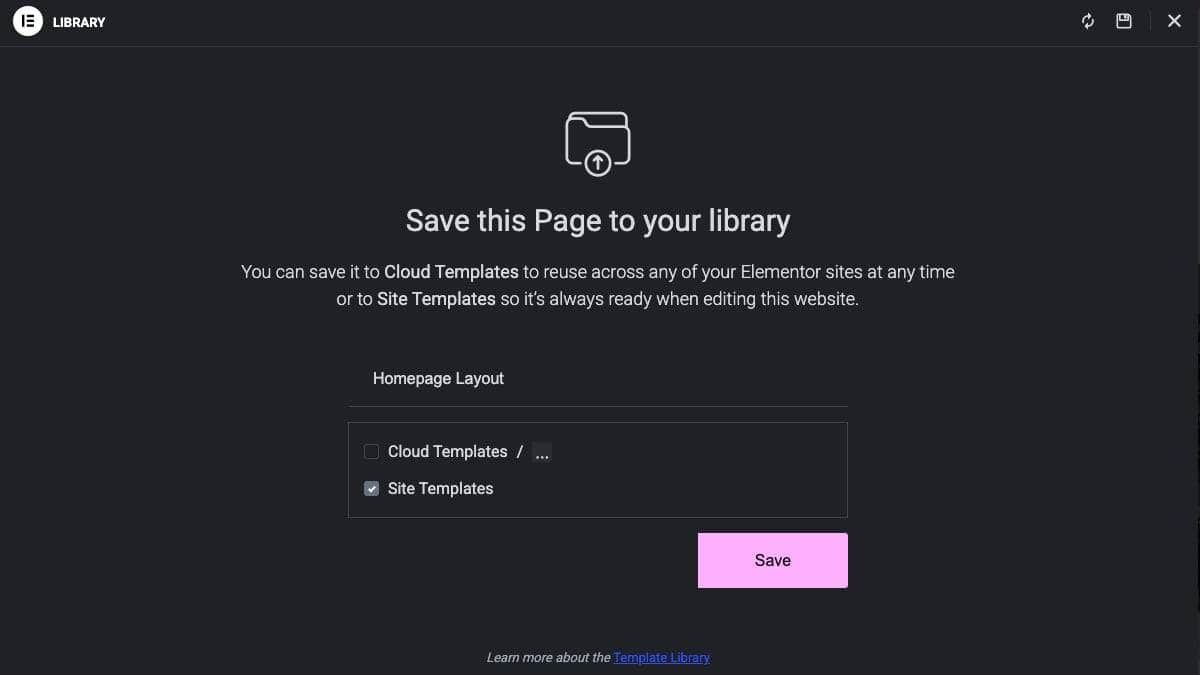
To save a full page as a template, open the page in Elementor, click the arrow next to the Publish or Update button, choose Save as Template, name it and click Save. The whole layout is then stored in your template library, ready to insert on another page.
- Go to Pages > All Pages, find the page and click Edit with Elementor.
- Click the small arrow next to the Publish or Update button.
- Choose Save as Template from the menu.
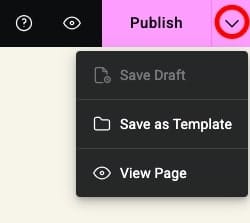
- Give the template a clear name, such as “Service landing page”.
- Choose where to keep it: tick Site Templates to store it on this site, or Cloud Templates (Elementor Pro) to use it on every site connected to your Elementor account.
- Click Save.
How Do You Save a Single Container as a Template?
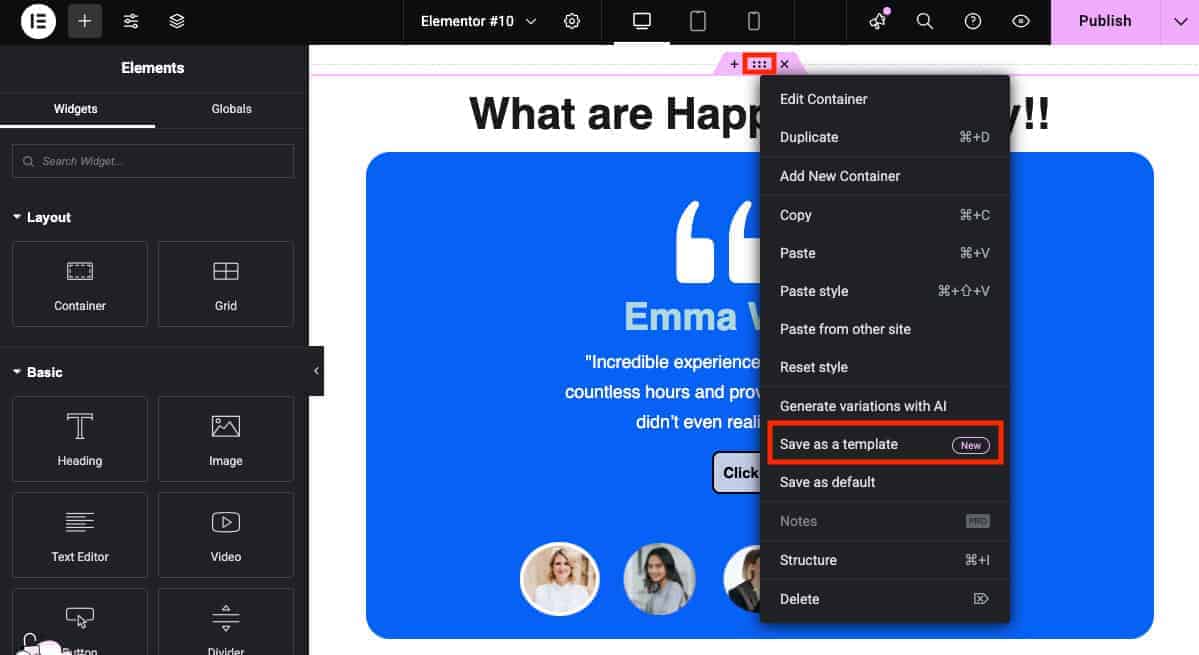
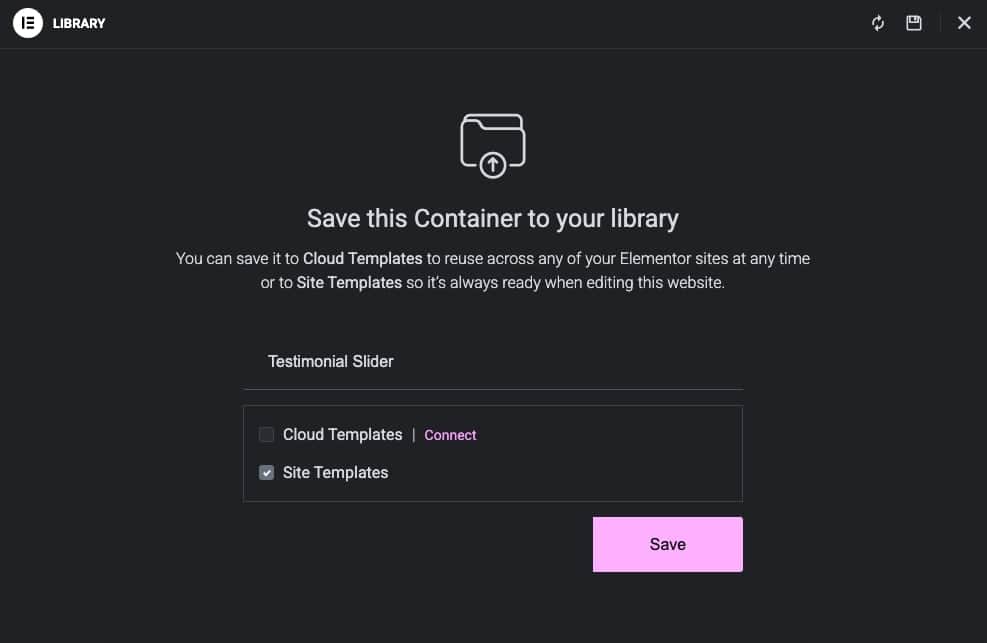
To save a single container as a template, right-click the container’s six-dot handle in the Elementor editor, choose Save as Template, give it a name and click Save. This is the quickest way to reuse blocks such as a testimonial section, a call to action or a pricing table.
- Open the page in Elementor and find the container you want to keep.
- Hover over the container until the six-dot handle appears, then right-click it.
- Choose Save as Template.
- Name the template so it is easy to find later, such as “Pricing table, three plans”.
- Click Save. The container now appears in your template library.
How Do You Insert a Saved Template Into a Page?
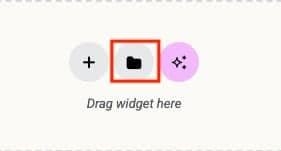
To insert a saved template, open a page in Elementor, click the folder icon in the canvas, go to the My Templates tab and click Insert next to the template you want. Elementor places a copy of the design on the page, which you can then edit freely.
- Open any page with Elementor.
- Click the folder icon in the canvas area.
- Switch to the My Templates tab to see your saved templates.
- Click Insert next to the template you want.
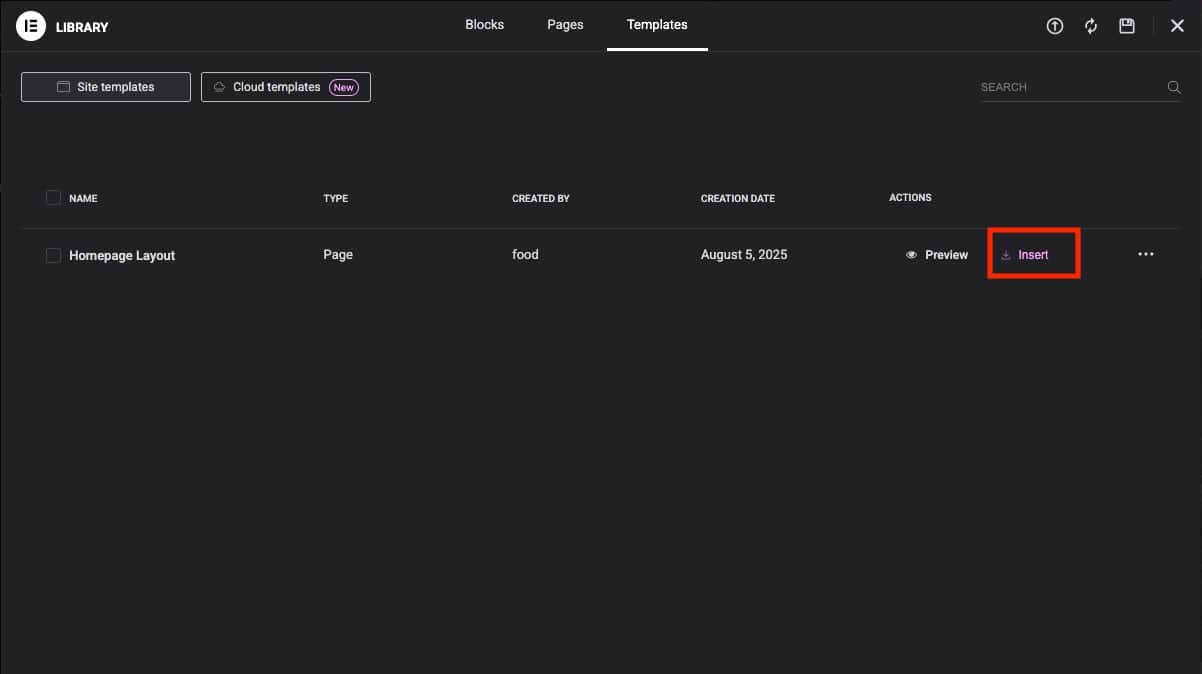
Because each insert is a copy, changes you make on the page do not affect the saved template, and changes to the saved template do not affect pages where you already inserted it.
How Do You Rename, Edit or Delete a Saved Template?
You rename, edit and delete saved templates from Elementor > Templates in the WordPress dashboard. Hover over a template to see its actions: Quick Edit to rename it, Edit with Elementor to change its design, and Trash to remove it.
Rename a template
Hover over the template, click Quick Edit, change the Title and click Update. Clear names, such as “Hero, dark background” or “Footer CTA, newsletter”, make the library much easier to search as it grows.
Edit a template
Hover over the template and click Edit with Elementor. Make your changes and click Update. The new version is used the next time you insert the template; pages that already use it keep their own copy.
Delete a template
Hover over the template and click Trash. Deleted templates stay in the Trash view, where you can restore them or click Delete Permanently. Pages where you already inserted the template are not affected.
How Do You Import and Export Templates Inside the Editor?
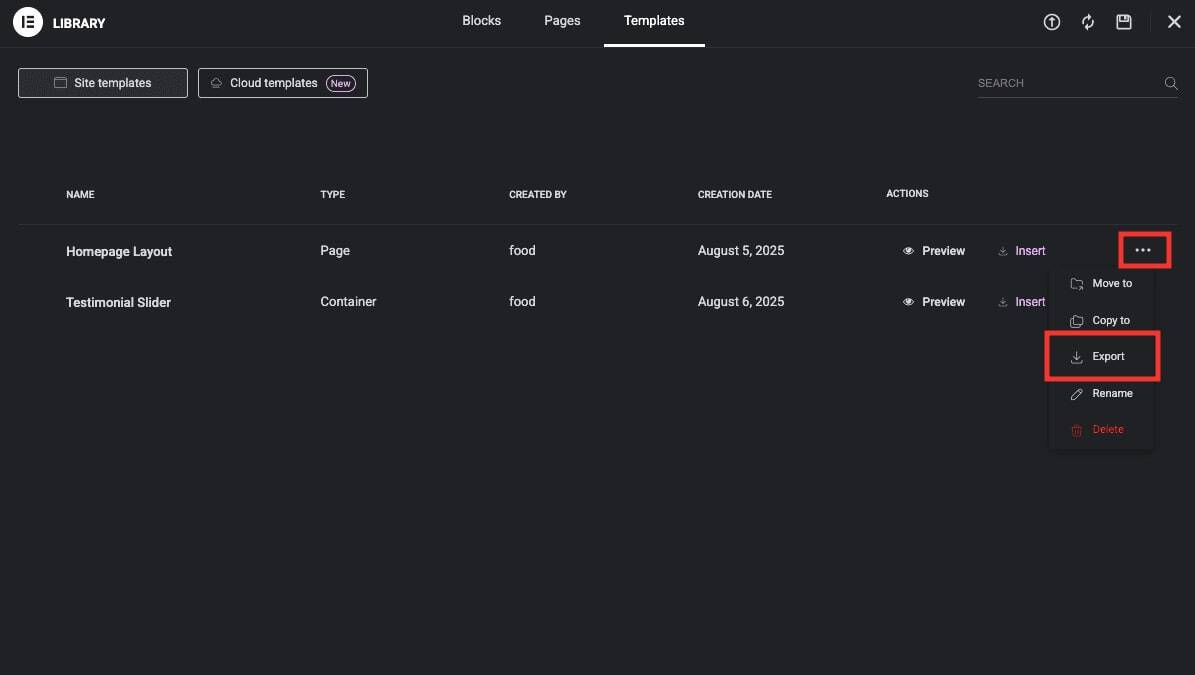
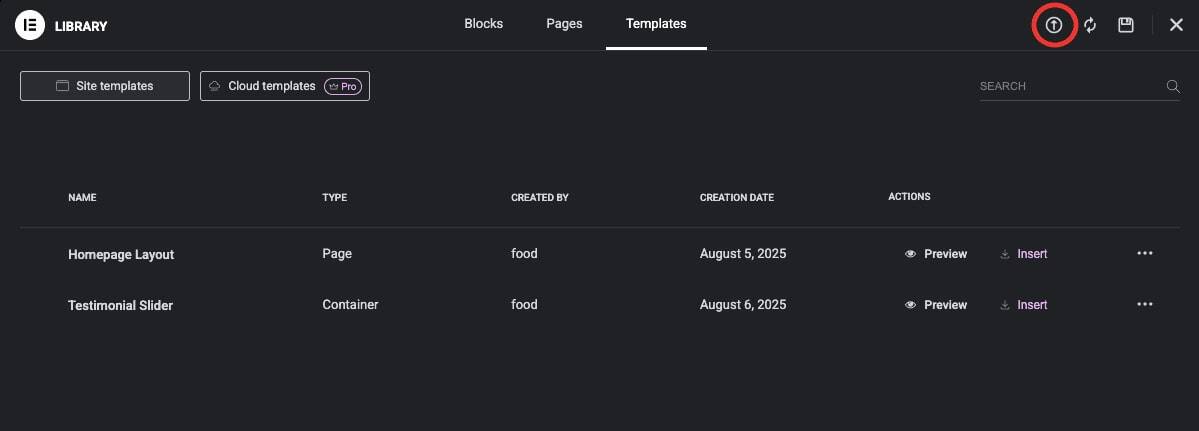
Inside the Elementor editor, you export a template from the My Templates tab through its three-dot menu, which downloads it as a .json file. To import, click the upload arrow at the top of the template library and choose a .json file from your computer. Both work without leaving the page you are editing.
Export a template from the editor
- Click the folder icon in the canvas and open the My Templates tab.
- Hover over the template, click the three-dot menu and choose Export.
- The template downloads as a .json file, ready to import on another site.
Import a template from the editor
- Click the folder icon in the canvas and open the template library.
- Click the upload arrow at the top of the library.
- Choose the .json file from your computer and click Open.
Note: If Elementor shows “Error occurred, this source does not support import”, import the file from the dashboard instead: go to Elementor > Templates, click Import Templates, choose the file and click Import Now.
For moving templates between sites, including full Website Kits with global colors and fonts, see our guide on how to import and export Elementor templates.
Frequently Asked Questions
How do I reuse design blocks across pages in Elementor?
Save the container as a template by right-clicking its handle and choosing Save as Template, then insert it on any page from the folder icon under My Templates. Each page gets its own copy, so you can adjust it without changing the original.
Can I use saved templates in Elementor Free?
Yes. Elementor Free lets you save full pages and containers as templates, insert them on any page, and import or export them as .json files. Cloud Templates, which share one library across several sites, need Elementor Pro.
Is it possible to share Elementor templates with clients or team members?
Yes. Export the template as a .json file and send it. The other person imports it from Elementor > Templates > Import Templates on their site. Any addon widgets used in the template must be installed on their site too.
Can I use my saved templates on other websites?
Yes. Export the template as a .json file on one site, then import it on the other site from Elementor > Templates > Import Templates. Our guide to importing and exporting Elementor templates covers the full process, including Website Kits.
Does editing a saved template update pages that already use it?
No. When you insert a saved template, Elementor places a copy of its content on the page. Editing the saved template later only changes future inserts, not pages that already use it. For content that should update everywhere at once, such as a header, use Theme Builder templates in Elementor Pro.
What is the difference between Site Templates and Cloud Templates?
Site Templates are saved on the current WordPress site and appear in its template library. Cloud Templates, an Elementor Pro feature, are saved to your Elementor account so you can use them on any site connected to that account.
What Should You Do Next?
Start by saving the containers you rebuild most often, such as your hero, pricing and call-to-action sections, and give each one a clear name. Insert them on new pages instead of starting from scratch, and clean out templates you no longer use every few months.
If your page layouts rely on Flexbox and Grid containers, our guide to Flexbox and Grid in Elementor helps you build containers that are easier to reuse. For more creative blocks worth saving, Addon Elements for Elementor adds widgets you can drop into any template.