How to Set Up Maintenance Mode in Elementor
Elementor has a free, built-in maintenance mode. Go to Elementor > Tools > Maintenance Mode, choose Maintenance or Coming Soon, pick a template and save. Visitors then see your custom page while you work, and logged-in users still see the real site.
Use it when you test plugins, fix bugs, switch themes, apply security updates or redesign pages. This guide covers creating the maintenance page, switching the mode on, choosing between the two modes, and what to check when it does not seem to work.
Key takeaways
- Elementor has a free, built-in maintenance mode under Elementor > Tools > Maintenance Mode.
- Maintenance Mode returns HTTP 503 for short updates, while Coming Soon returns HTTP 200 for sites that are not launched yet.
- Logged-in users still see the real site, so always check your maintenance page in an incognito window.
What Is the Difference Between Maintenance Mode and Coming Soon?
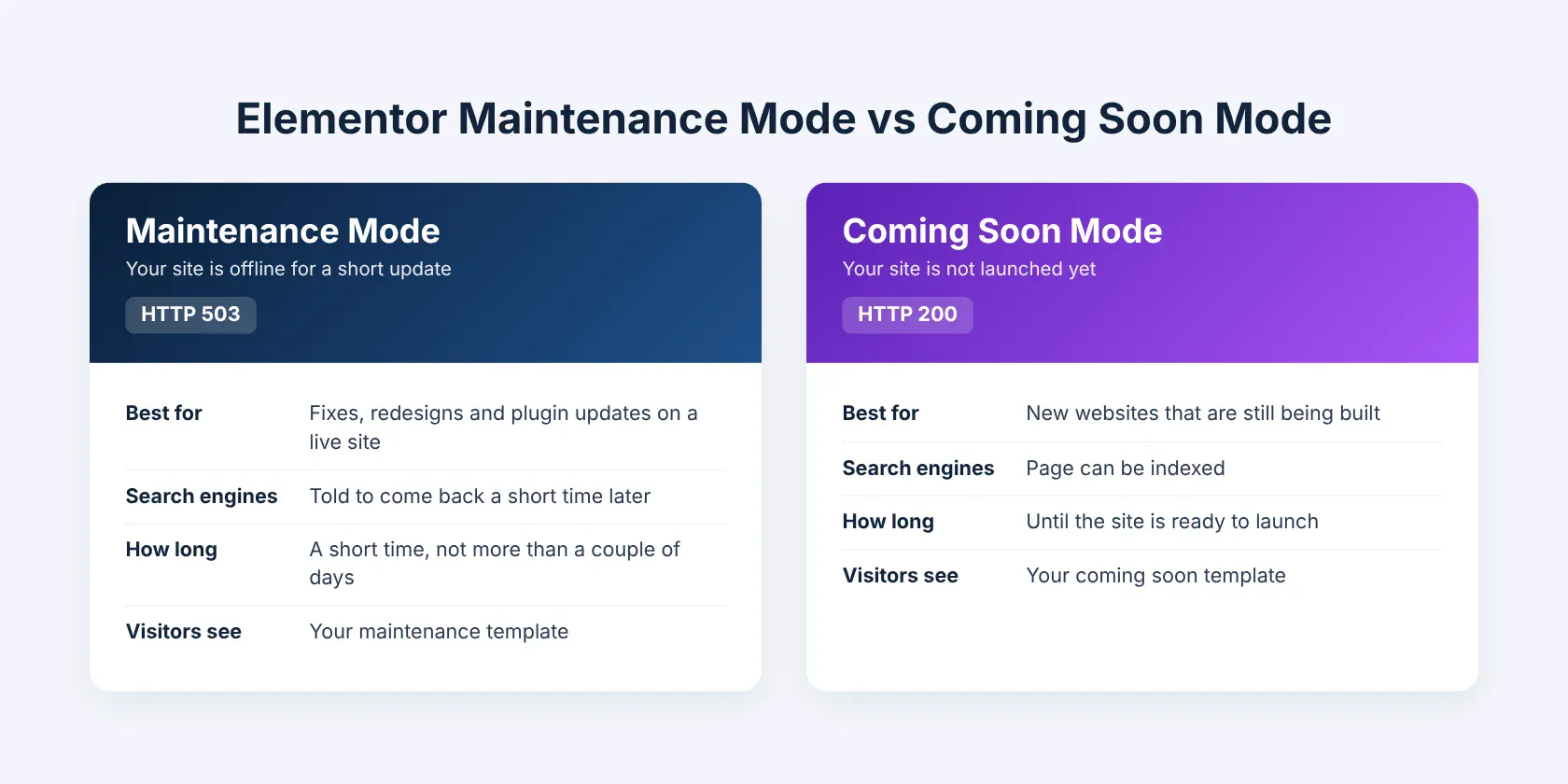
Maintenance Mode returns an HTTP 503 code, which tells search engines your site is down for a short time and to come back later. Coming Soon returns an HTTP 200 code, which means the page can be indexed as normal.
Use Maintenance Mode for quick work on a live site, such as plugin updates or a redesign. Use Coming Soon for a brand new site that is not ready to launch. Elementor itself recommends not keeping Maintenance Mode on for more than a couple of days.
How to Create a Maintenance Mode Template in Elementor
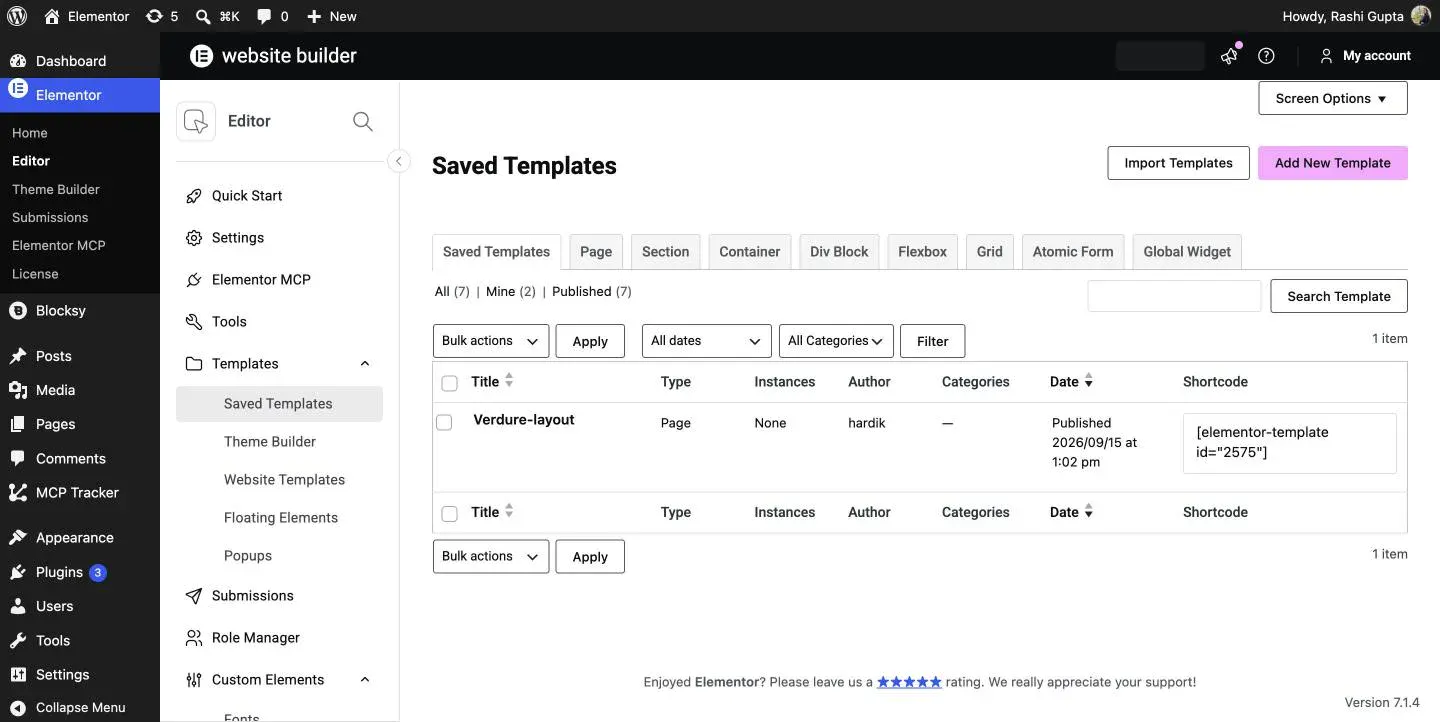
Your maintenance page is an Elementor template with the Page type, created from the Saved Templates screen. If you are new to templates, our guide on managing templates in Elementor explains how to save, edit and organise them.
First, go to Elementor > Templates > Saved Templates and click Add New Template.
Choose Page as the template type and give it a name, for example Maintenance Mode. Then click Create Template to open it in the Elementor editor.
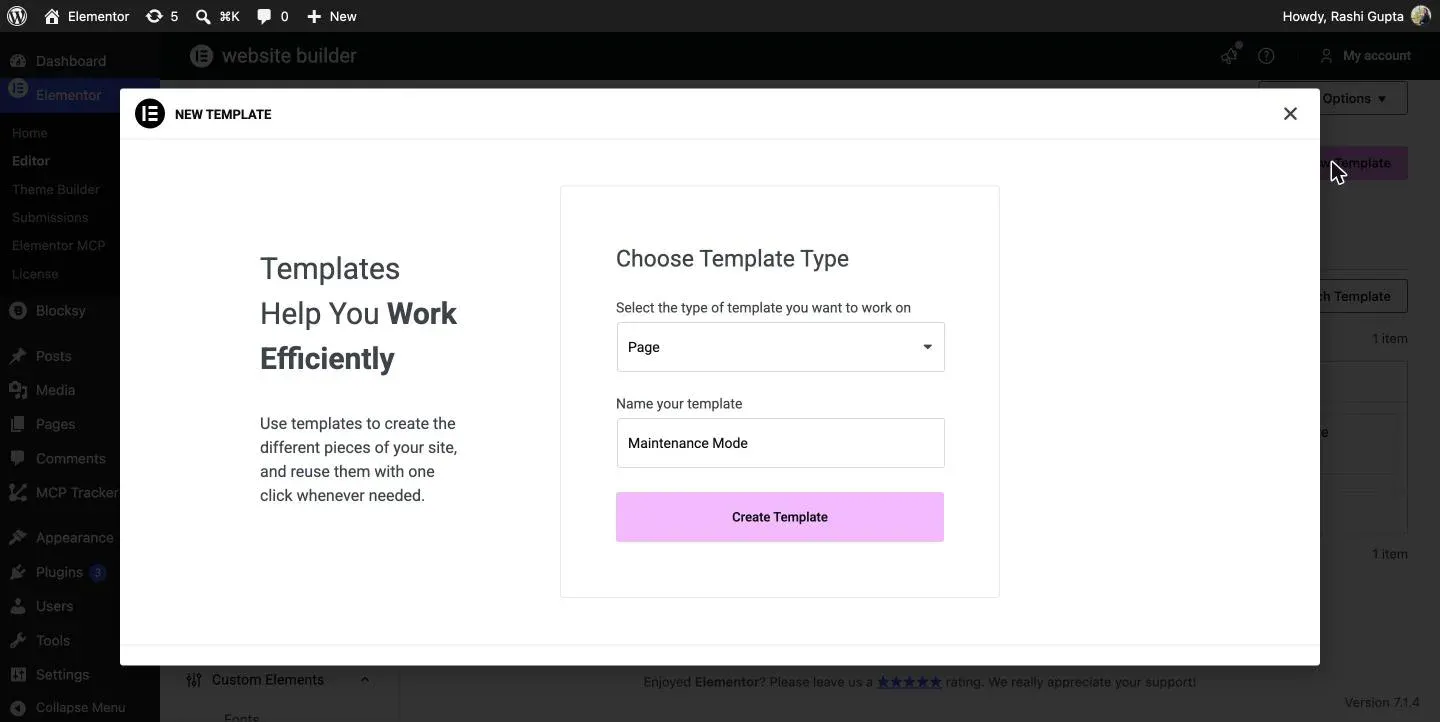
Notes: Use the Page template type. Elementor only lists Page templates in the maintenance mode settings, so other types will not show up later.
How Do You Design the Maintenance Page?
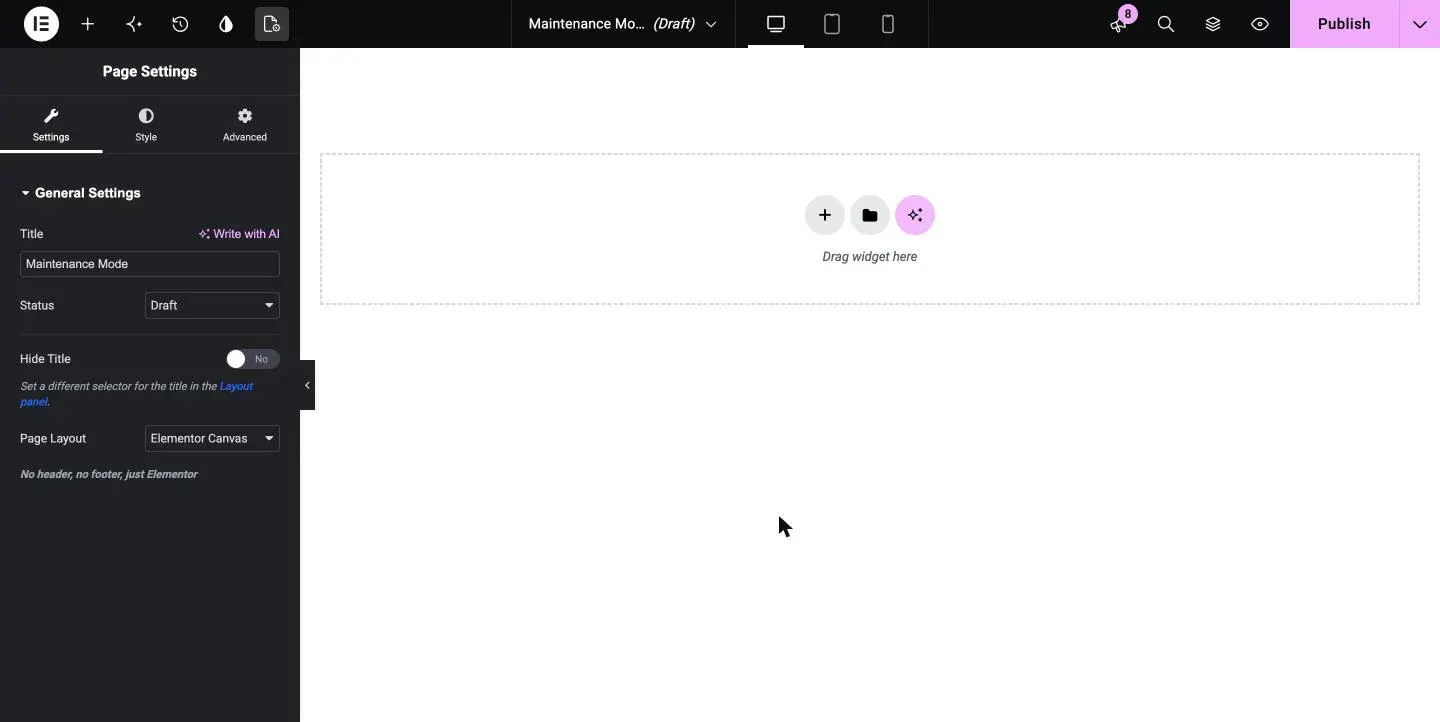
Set the page layout to Elementor Canvas so your theme header and footer do not appear, then add a short message for visitors.
Set the page layout to Elementor Canvas
In the editor, open Page Settings and choose Elementor Canvas under Page Layout. Elementor describes it as no header, no footer, just Elementor, which gives you a clean full-screen page.
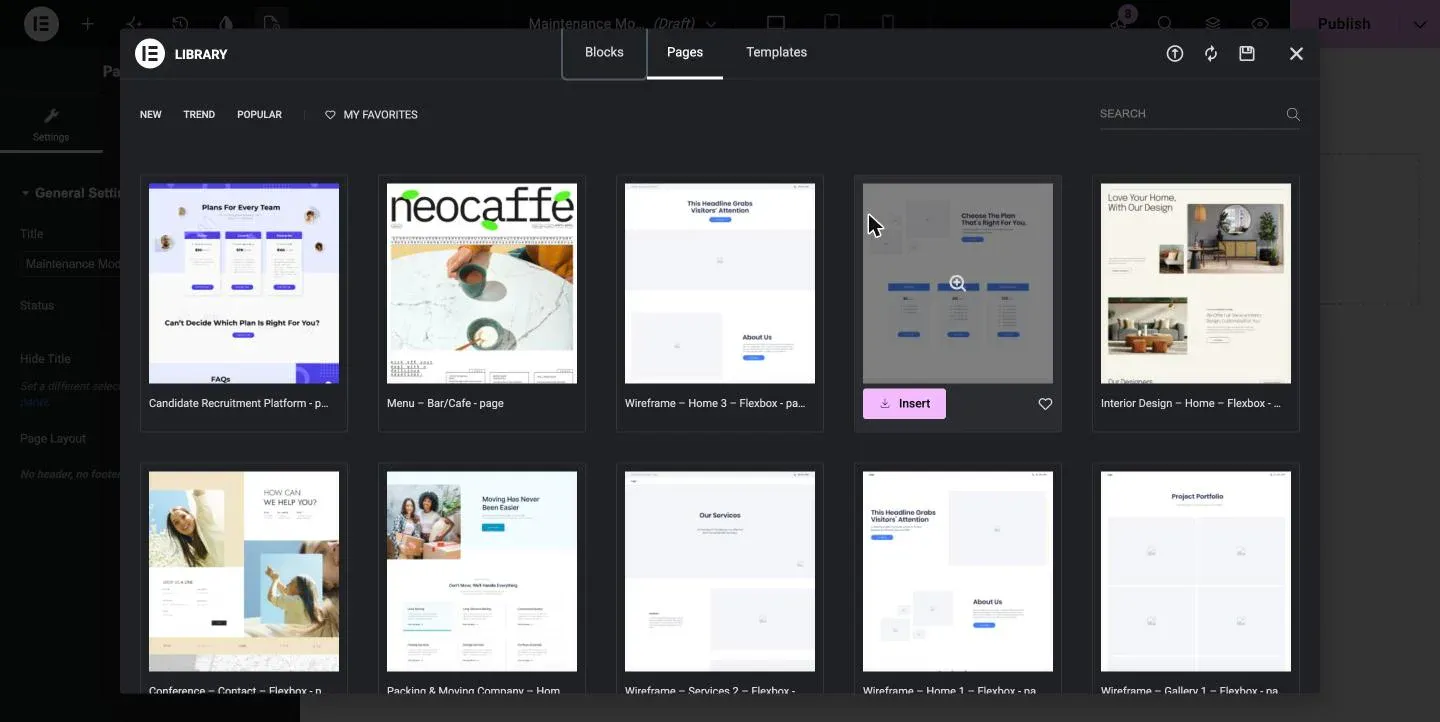
Start from a library page or build your own
Click the folder icon in the editor to open the template library, browse the Pages tab and insert a design you like. You can also build a simple layout yourself, which is often quicker for a maintenance page.
A good maintenance page only needs a few elements:
- A Heading widget for the main message, such as We’ll Be Back Soon
- A Text Editor widget with a short explanation
- A Countdown widget to show when the site returns
- A Social Icons widget so visitors can still reach you
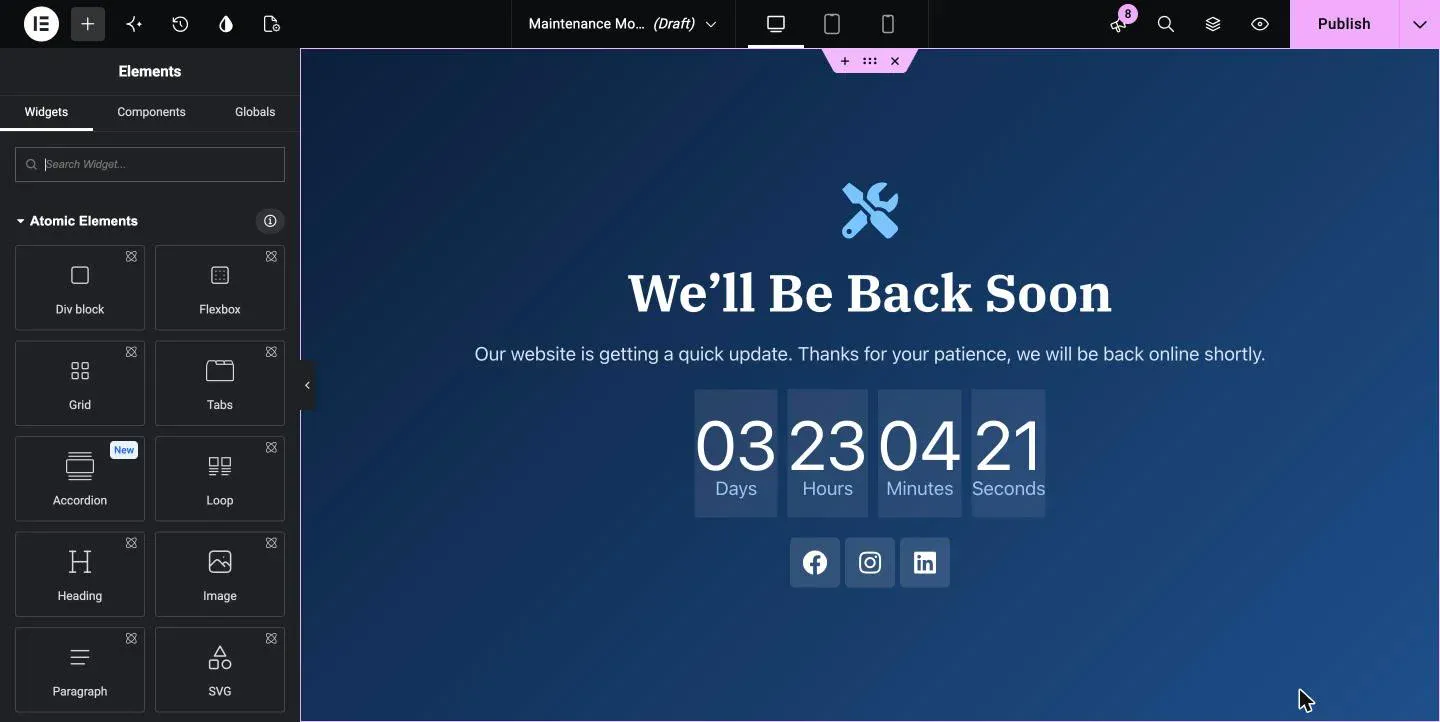
Tips: The Countdown widget is part of Elementor Pro. On the free version, write the expected return time in the text instead.
When you are happy with the design, click Publish.
How Do You Turn On Maintenance Mode in Elementor?
Go to Elementor > Tools, open the Maintenance Mode tab, choose a mode, choose who can still see the site, select your template and click Save Changes.
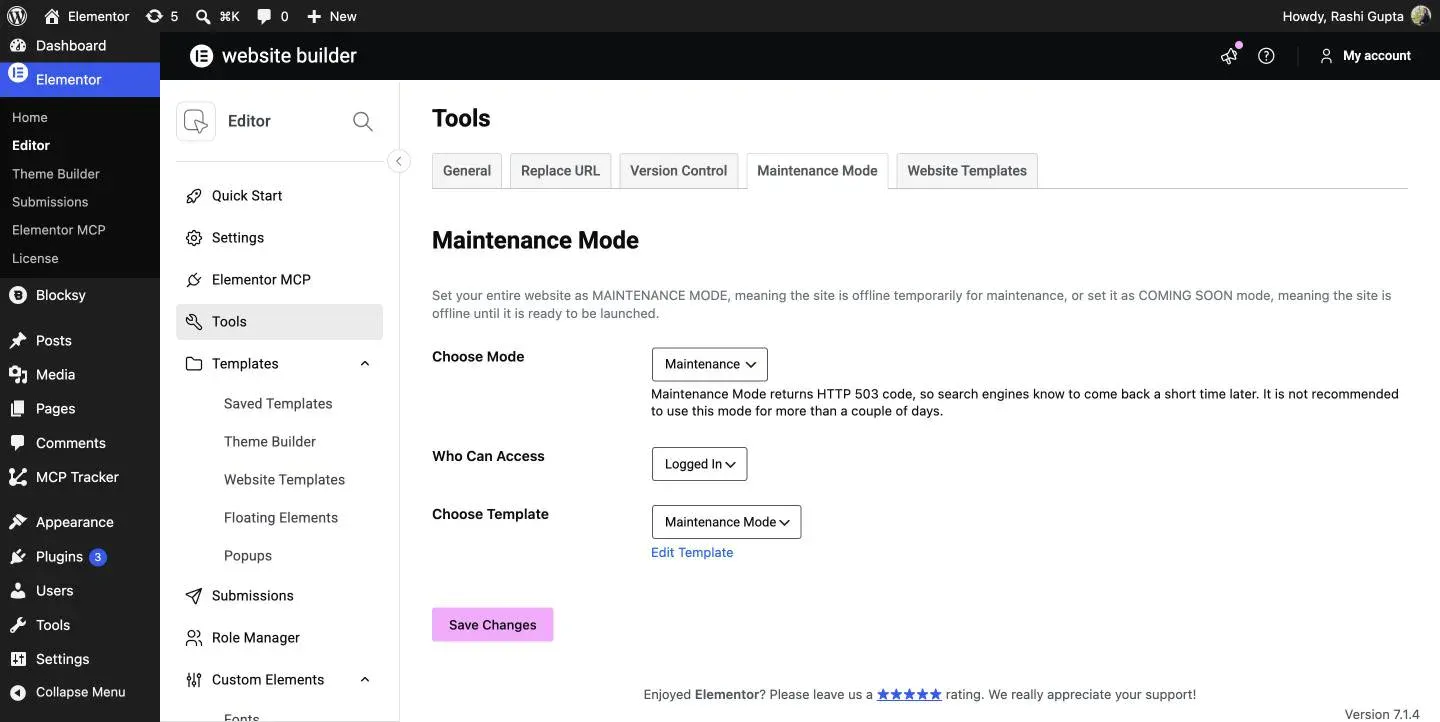
Choose Mode switches between Disabled, Coming Soon and Maintenance. Who Can Access is set to Logged In, so anyone logged in to WordPress still sees the real site. Choose Custom instead if you want to pick specific roles, such as Administrator or Editor. Choose Template lists your Page templates, so select the one you just created.
Important: Maintenance Mode is meant for short updates. Switch it off as soon as your work is done, because leaving a 503 page up for days can affect how search engines treat your site.
To check that it works, open your site in a private or incognito window, or log out. When you are done, return to the same tab, set Choose Mode to Disabled and save.
Why Is Elementor Maintenance Mode Not Working?
In most cases it is working and you simply cannot see it because you are logged in. Check these points:
- You are logged in. Logged-in users skip the maintenance page by default. Test in an incognito window, or set Who Can Access to Custom.
- No template is selected. Elementor needs a template before the mode can work, so pick one under Choose Template.
- The template is not a Page. Only Page templates appear in the Choose Template list.
- An old version is cached. Elementor clears the cache of WP Rocket, W3 Total Cache, WP Super Cache and WP Fastest Cache automatically. If you use another cache plugin or server cache, clear it yourself.
For more detail, see Elementor’s own maintenance mode documentation.
Frequently Asked Questions
What is Website Maintenance Mode in Elementor?
Maintenance Mode is a feature in Elementor that lets you display a temporary message or page while making backend changes to your WordPress site.
How do I put my Elementor site in maintenance mode?
Go to Elementor > Tools > Maintenance Mode, choose Maintenance or Coming Soon, set who can access the site, select your template and click Save Changes.
What is the difference between Maintenance Mode and Coming Soon Mode in Elementor?
Maintenance Mode returns an HTTP 503 response, telling search engines the site is temporarily unavailable. Coming Soon Mode returns HTTP 200, meaning the site is active and can be indexed.
Do I need Elementor Pro to use Maintenance Mode?
No, Elementor’s Maintenance Mode feature is available in the free version of the plugin.
Can I see my site while maintenance mode is on?
Yes. Logged-in users see the normal site by default. To let only certain roles through, set Who Can Access to Custom and choose the roles.
How do I turn off Maintenance Mode once I’m done?
Go to Elementor > Tools > Maintenance Mode, set Choose Mode to Disabled and click Save Changes. Visitors will see your normal site again.