Audio Player

The Audio Player widget lets you add a customizable audio player and playlist to an Elementor page. It supports self-hosted audio files and external audio URLs, five player layouts, track images and details, repeat and shuffle controls, streaming-service links, and an optional sticky player.
The Audio Player widget is available with Addon Elements for Elementor Pro.
Content
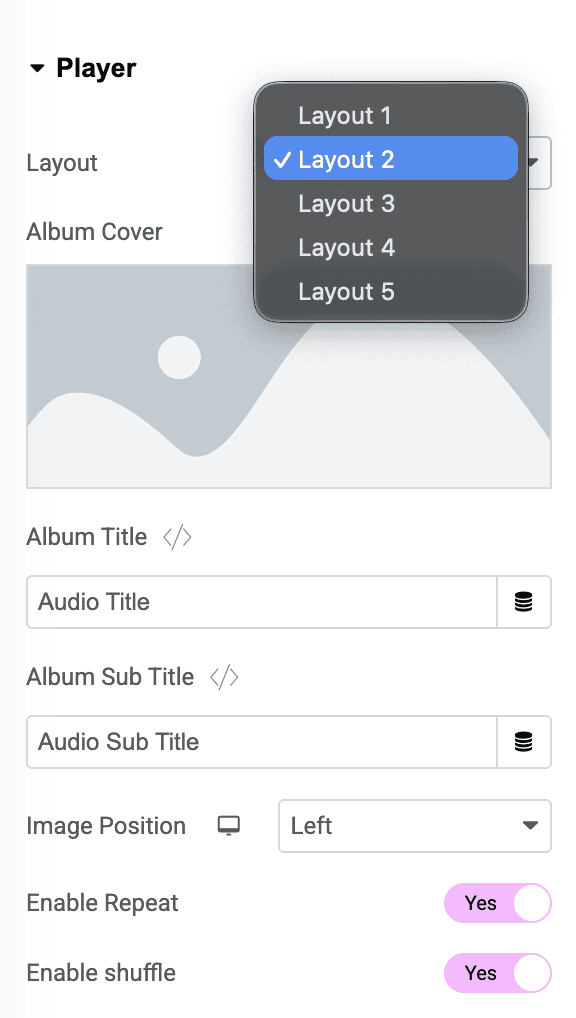
Player
- Layout: Choose from five available Audio Player layouts.
- Album Cover: Select the main image displayed with the player.
- Album Title: Enter the album title. This control is available with Layout 2 and supports dynamic tags.
- Album Sub Title: Enter the album subtitle. This control is available with Layout 2 and supports dynamic tags.
- Image Position: Place the player image at the top, left, or right. This responsive control is available for supported layouts.
- Enable Repeat: Display and enable the repeat control.
- Enable Shuffle: Display and enable the shuffle control.
Controls
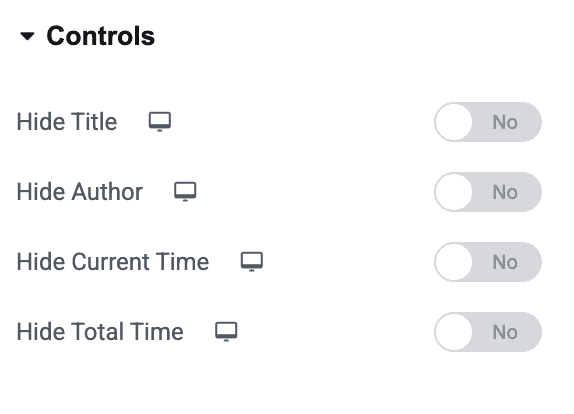
Use this section to control which player details appear on different devices.
- Hide Title: Hide the current track title.
- Hide Author: Hide the current track author.
- Hide Current Time: Hide the elapsed playback time. Available for supported layouts.
- Hide Total Time: Hide the total track duration. Available for supported layouts.
- Hide Volume: Hide the volume control. Available with Layout 3.
Audio List
- List Heading: Enter the playlist heading. This option is available with Layout 3 and supports dynamic tags.
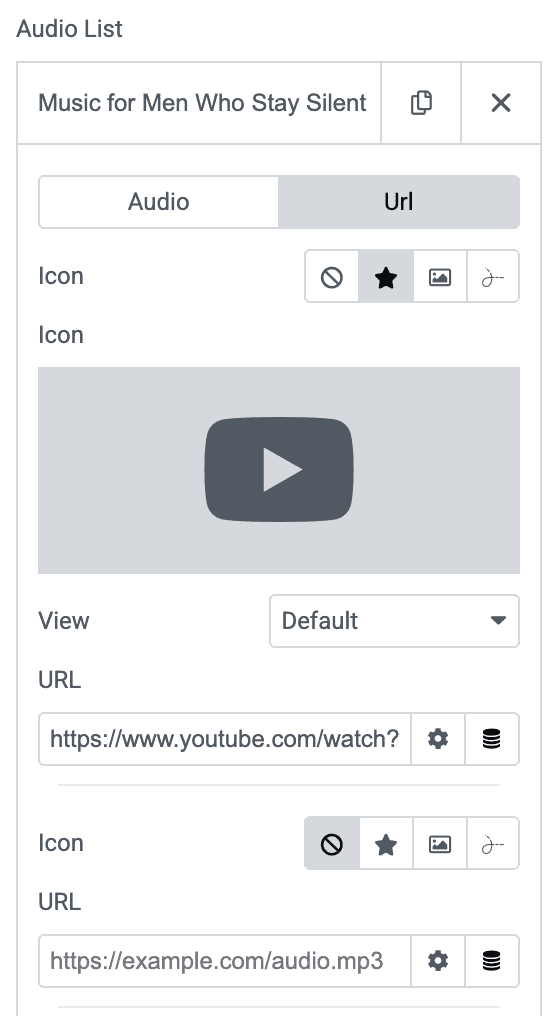
- Audio List: Add, remove, duplicate, and reorder tracks using the repeater.
For every track, configure the following settings under the Audio tab:
- Audio Title: Enter the track title.
- Audio Author: Enter the artist, author, speaker, or other attribution.
- Audio Image: Select an image for the track.
- Audio Source: Choose Self Hosted or External URL.
- Choose Audio File: Select an audio file from the WordPress Media Library when using Self Hosted.
- External URL: Enter the audio file URL when using External URL.
Under the URL tab, you can add up to five optional external links for each track. Each link supports an icon, image, or Lottie animation and can be used for services such as Amazon Music, Spotify, YouTube Music, Apple Music, or a custom destination.
- Hide On Mobile: Hide the external service links on mobile devices.
- List Icon: Choose the icon, image, or Lottie animation used to open or identify the playlist.
- Show Audio Image: Use each track’s Audio Image as the album cover when that track is active.
- Hide List Duration: Hide track durations in the playlist.
- Always On: Keep the playlist visible at all times. This option is available with Layouts 1 and 4.

Sticky Player
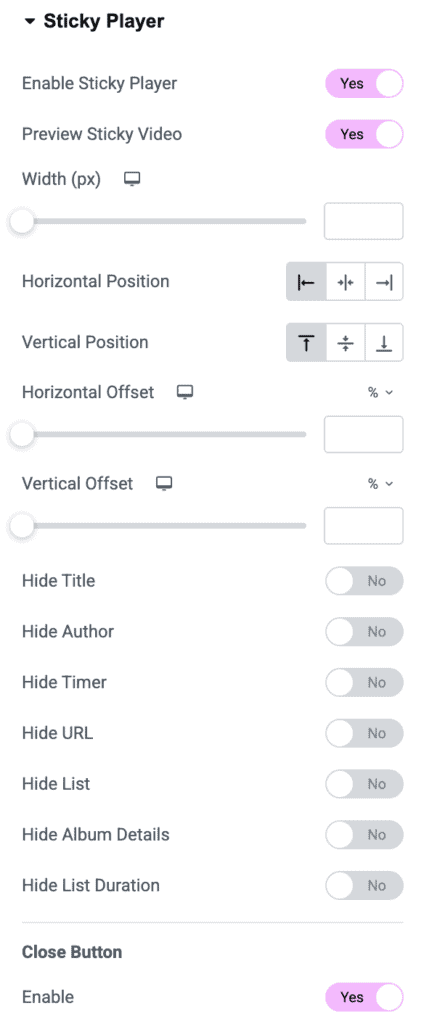
The Sticky Player keeps the audio player visible after the original player moves outside the browser viewport.
- Enable Sticky Player: Enable the sticky-player behavior.
- Preview Sticky Video: Preview the sticky player while editing the page.
- Width: Set the sticky player width. Responsive settings are available.
- Horizontal Position: Position the sticky player on the left, center, or right.
- Vertical Position: Position the sticky player at the top, middle, or bottom.
- Horizontal Offset: Adjust the horizontal distance from the selected edge.
- Vertical Offset: Adjust the vertical distance from the selected edge.
- Hide Title: Hide the track title in the sticky player.
- Hide Author: Hide the track author in the sticky player.
- Hide Image: Hide the album or track image in the sticky player.
- Hide Timer: Hide the playback timer in supported layouts.
- Hide URL: Hide external track links in supported layouts.
- Hide List: Hide the playlist in supported layouts.
- Hide Album Details: Hide the album title and subtitle in Layout 2.
- Hide List Duration: Hide track durations in the sticky playlist.
- Close Button – Enable: Allow visitors to close the sticky player.
The available visibility controls vary according to the selected player layout.
Style
Player
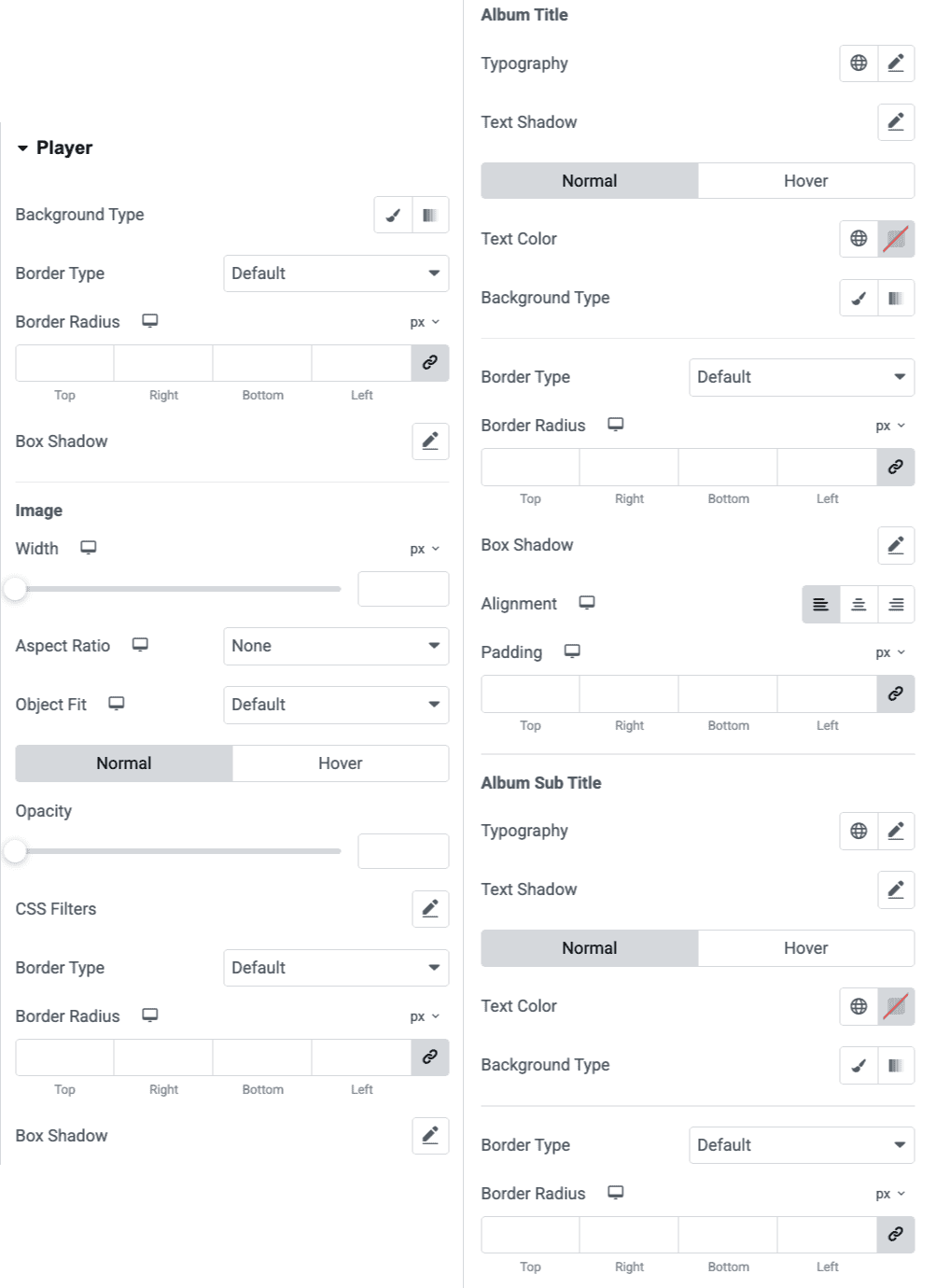
Style the main player container and its content. Available controls vary according to the selected layout.
- Set the player height, background, border, border radius, padding, and box shadow.
- Customize the album or track image width, aspect ratio, object fit, opacity, hover opacity, transition duration, and border radius.
- Style the Album Title, Album Sub Title, Audio Title, and Audio Author using typography, normal and hover colors, background, borders, border radius, alignment, and padding controls.
- Customize the hamburger or playlist-toggle icon size, default color, and hover color where applicable.
Audio Controls
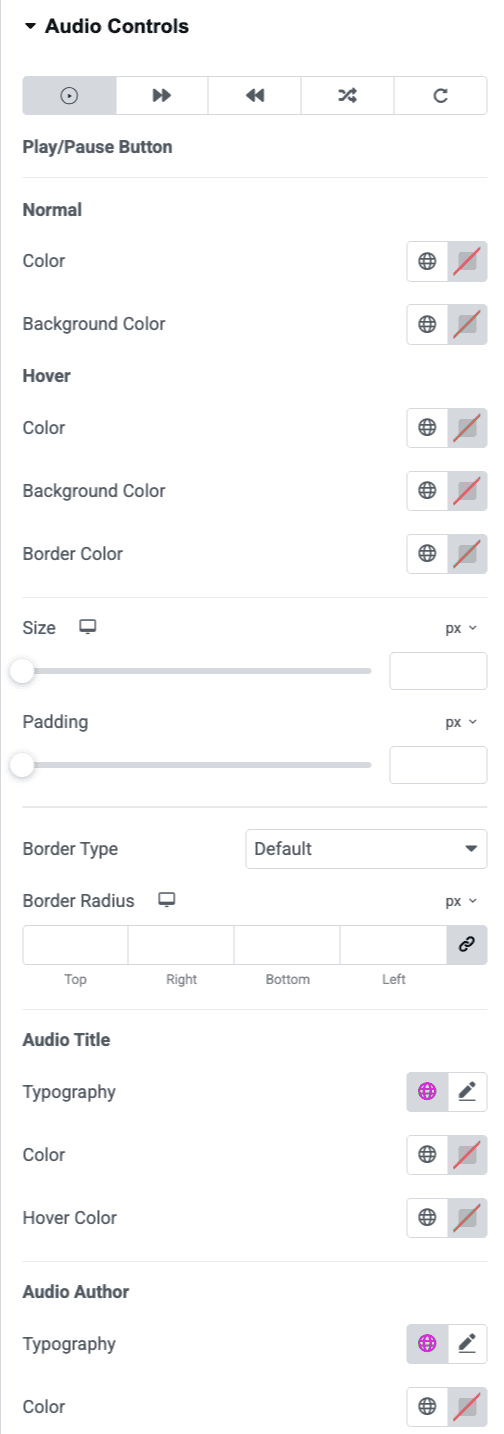
The Audio Controls section contains separate tabs for the player buttons and track information.
- Customize the Play/Pause, Next, Previous, Shuffle, and Repeat buttons.
- Set each button’s normal and hover colors, background colors, border, size, padding, and border radius.
- Style the Audio Title, Audio Author, and Audio Timer colors and typography.
- Adjust the controls wrapper padding, alignment, and icon gap.
Progress Bar
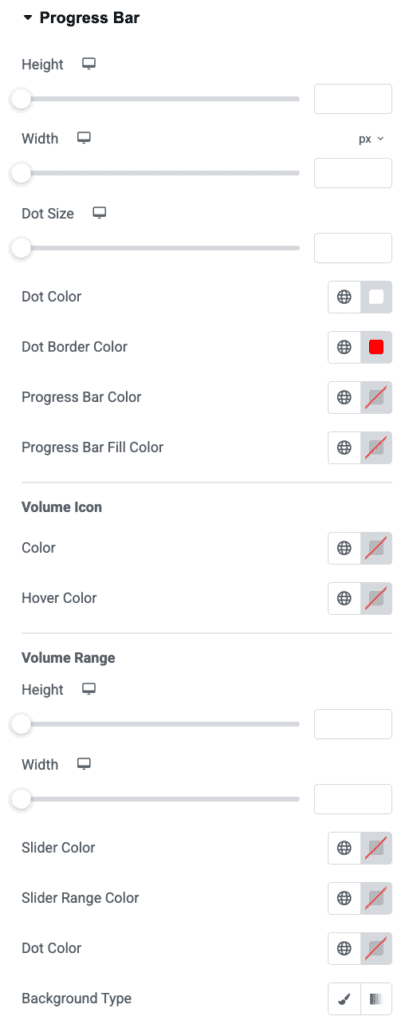
- Height: Set the progress bar height.
- Width: Set the progress bar width.
- Dot Size: Adjust the size of the draggable progress indicator.
- Dot Color: Set the indicator color.
- Dot Border Color: Set the indicator border color.
- Progress Bar Color: Set the unplayed portion’s color.
- Progress Bar Fill Color: Set the played portion’s color.
The same section also contains controls for the volume interface:
- Customize the volume icon size, color, and hover color.
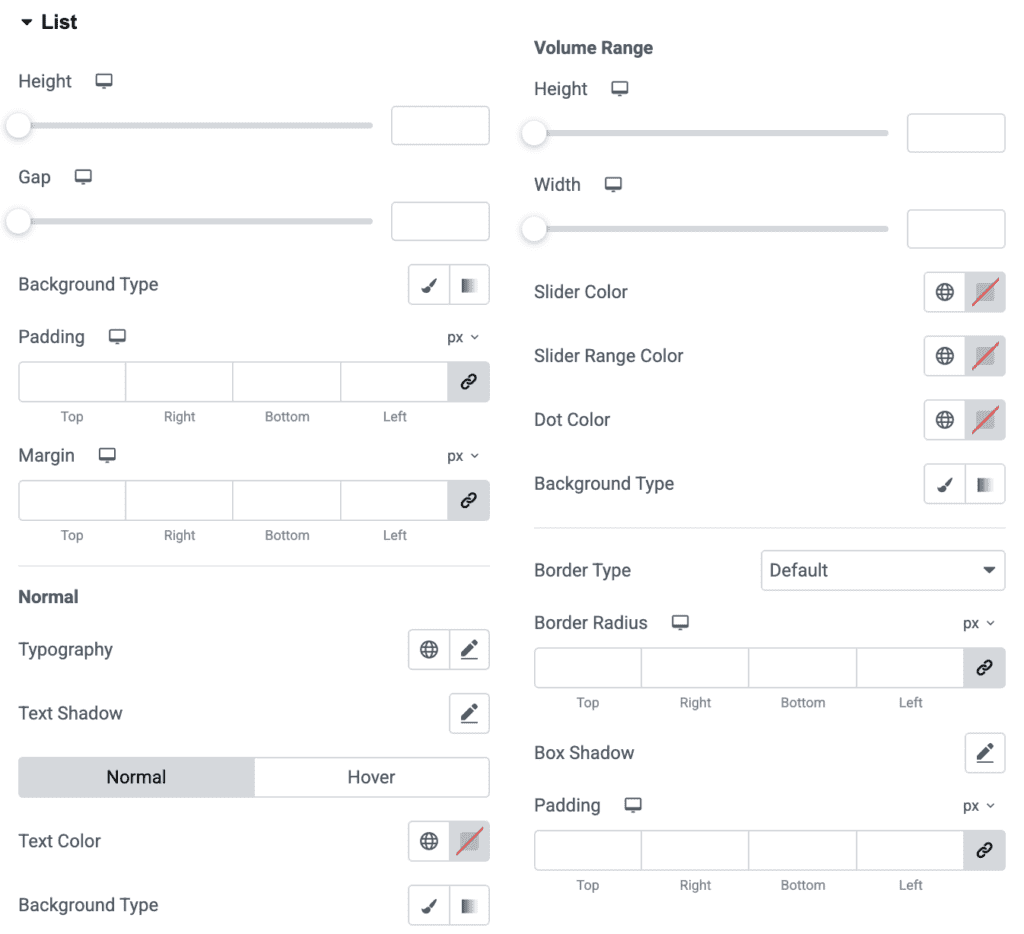
- Set the volume range height and width.
- Customize the slider, filled range, and slider-dot colors.
- Adjust the volume range border radius and padding.
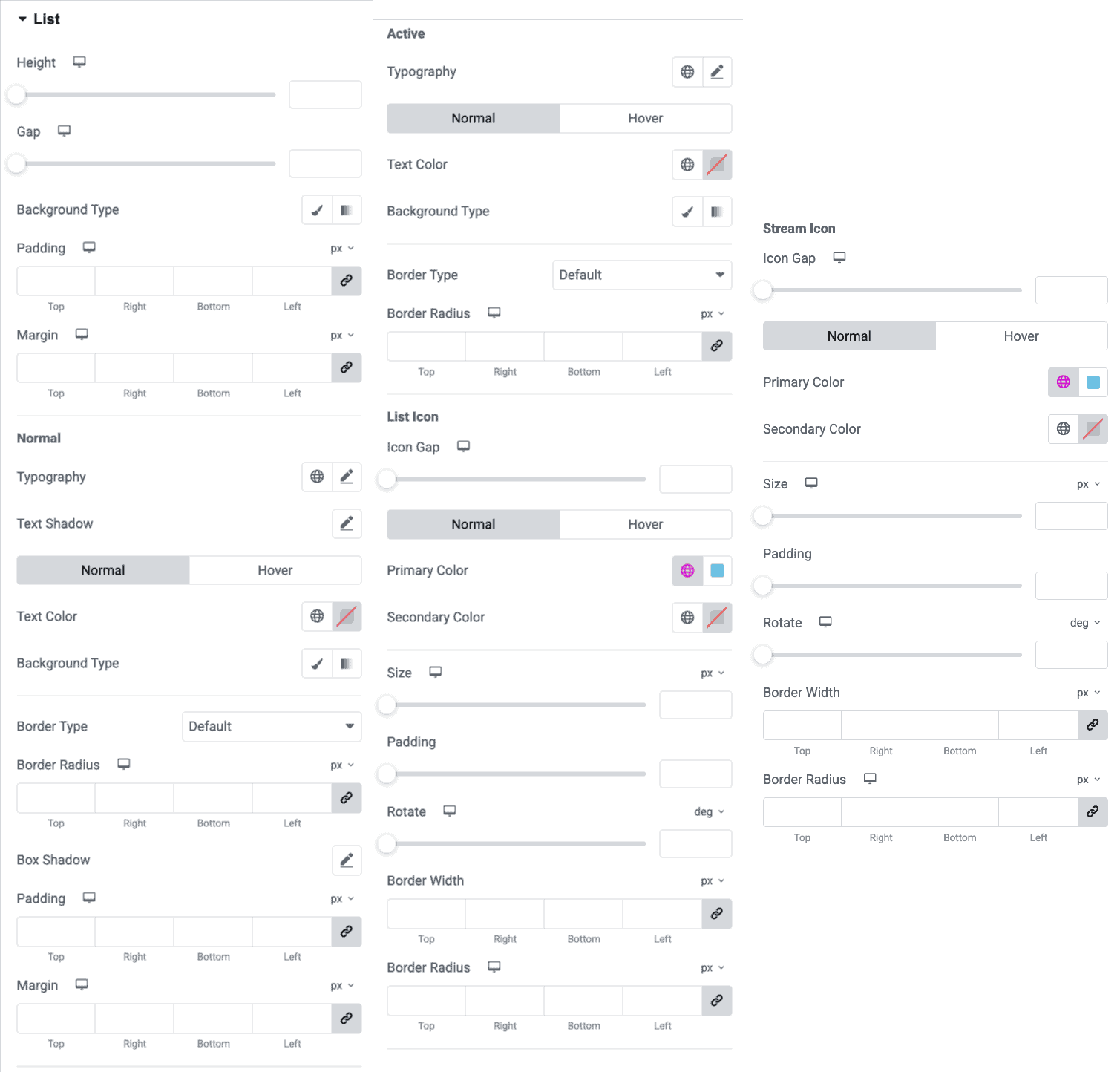
List
- Set the playlist height, width, item gap, padding, and margin.
- Customize normal, hover, and active playlist-item typography, colors, backgrounds, borders, border radius, padding, and margin.
- Style the List Heading typography and color.
- Adjust the List Icon and Stream Icon spacing and their available graphic-style controls.
Sticky Player
This section appears when Enable Sticky Player is enabled.
- Customize the sticky-player image width, height, object fit, opacity, hover opacity, transition duration, and border radius.
- Style the sticky track title and author, including typography, color, background, border, and padding where available.
- Adjust the sticky playlist gap and padding.
- Customize the close icon size, color, background color, hover color, and padding.