
How to Create a Sticky Audio Player in Elementor

A sticky audio player keeps the player visible while visitors scroll through a page. When the original Audio Player moves outside the browser viewport, a smaller sticky version appears at the position you choose, allowing the audio and playback controls to remain accessible.
This guide explains how to create and customize a sticky audio player using Addon Elements for Elementor Pro.
Before You Begin
Make sure the following plugins are installed and activated:
- Elementor
- Addon Elements for Elementor Pro
You should also have at least one audio file uploaded to the WordPress Media Library or available through a direct external audio URL.
Step 1: Add the Audio Player Widget
- Open the required page with Elementor.
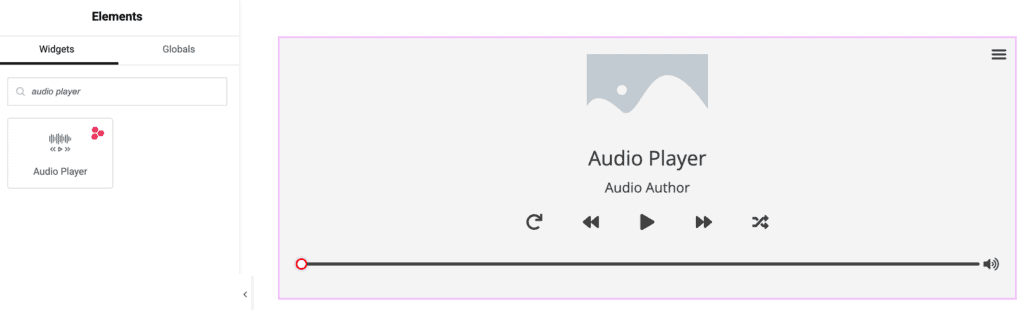
- Search for Audio Player in the Elementor widget panel.
- Drag the Audio Player widget onto the page.
Step 2: Choose a Player Layout
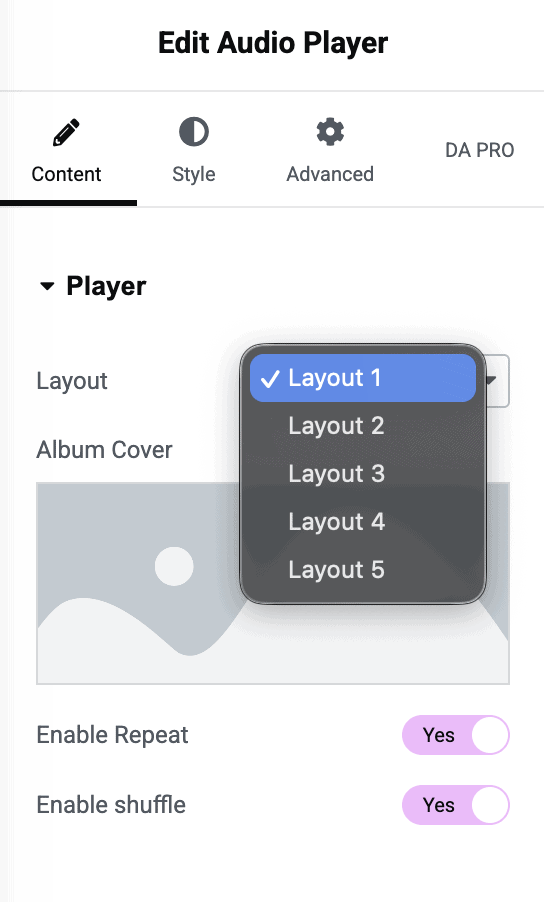
- Open the Player section under the Content tab.
- Select one of the five available layouts.
- Add an Album Cover if required.
- Configure the available title, subtitle, image position, repeat, and shuffle settings.
The layout you choose also determines which details can be displayed or hidden in the sticky version.
Step 3: Add an Audio Track
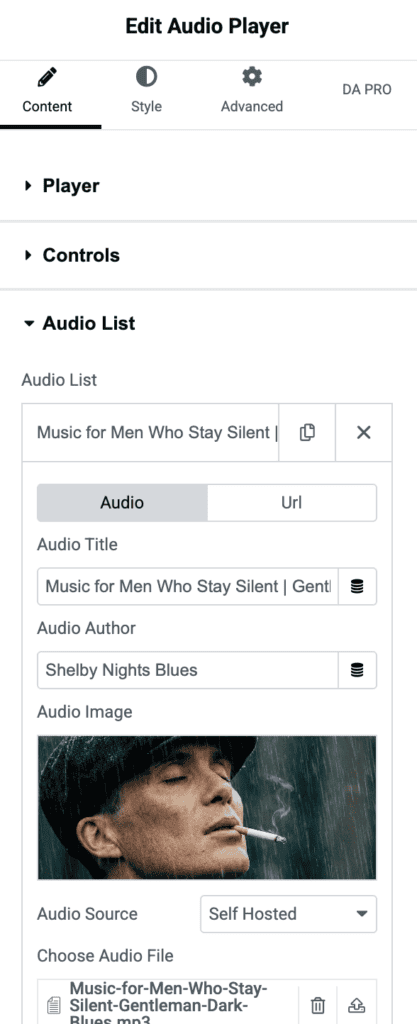
- Open the Audio List section.
- Expand an existing list item or click Add Item.
- Enter the Audio Title and Audio Author.
- Select an Audio Image if required.
- Choose the Audio Source:
- Select Self Hosted to choose an audio file from the WordPress Media Library.
- Select External URL to enter a direct audio-file URL.
- Add more tracks if you want to create a playlist.
Step 4: Enable the Sticky Player
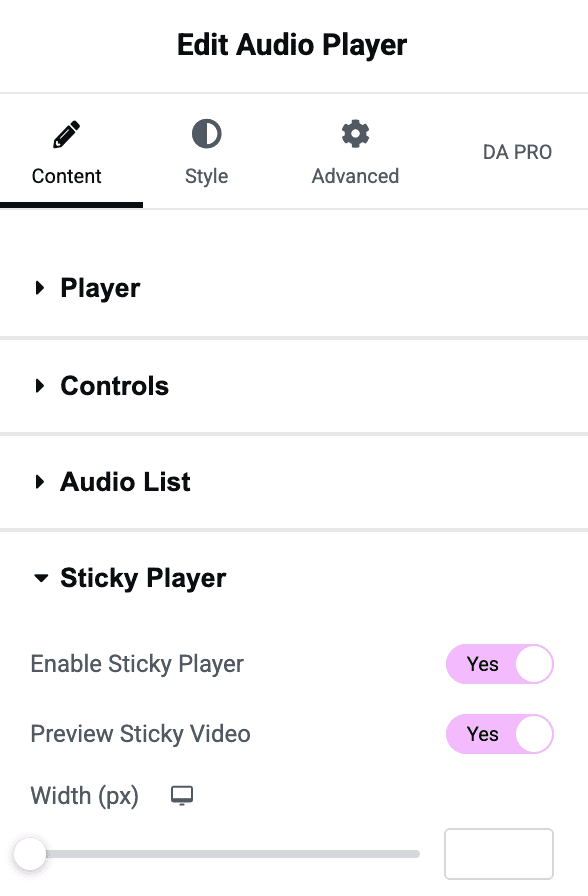
- Open the Sticky Player section.
- Enable Sticky Player.
- Enable Preview Sticky Video if you want to preview the sticky state inside the Elementor editor.
- Set the sticky player Width for desktop, tablet, and mobile.
The sticky player appears on the frontend after the original player moves outside the visible browser area.
Step 5: Set the Sticky Player Position
Use the position controls to decide where the sticky player appears:
- Horizontal Position: Choose Left, Center, or Right.
- Vertical Position: Choose Top, Middle, or Bottom.
- Horizontal Offset: Adjust the distance from the selected left or right edge. This control is available when the horizontal position is not Center.
- Vertical Offset: Adjust the distance from the selected top or bottom edge. This control is available when the vertical position is not Middle.
Configure the responsive settings carefully so that the sticky player does not cover important content on smaller screens

Step 6: Choose What Appears in the Sticky Player
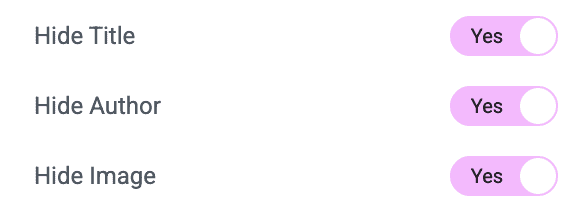
Depending on the selected layout, you can simplify the sticky player by enabling the available visibility options:
- Hide Title
- Hide Author
- Hide Image
- Hide Timer
- Hide URL
- Hide List
- Hide Album Details
- Hide List Duration
Only the controls supported by the selected layout will appear. On smaller screens, hiding nonessential details can help keep the sticky player compact.
Step 7: Enable the Close Button
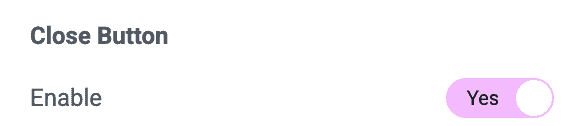
- Find the Close Button settings inside the Sticky Player section.
- Enable the close button to let visitors dismiss the sticky player.
Providing a close button is recommended because a fixed player occupies part of the visitor’s screen, especially on mobile devices.
Step 8: Style the Sticky Player
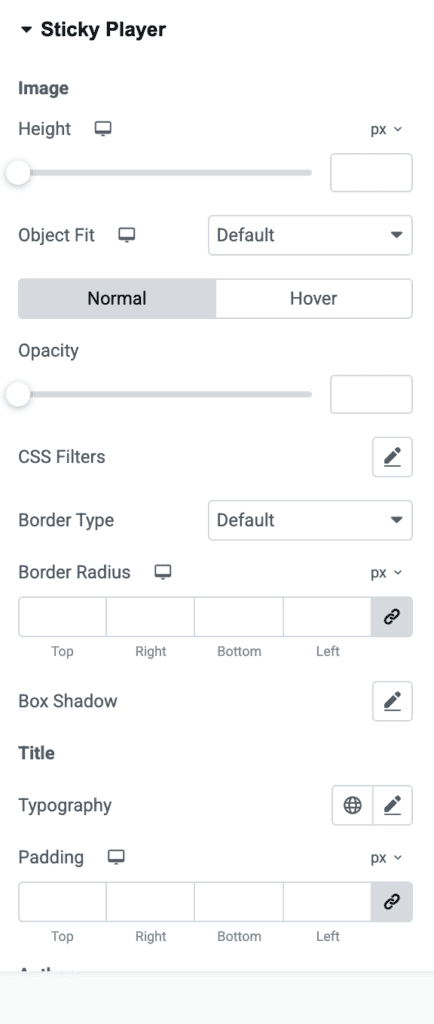
- Open the Style tab.
- Open the Sticky Player section.
- Customize the available settings for the image, title, author, playlist, and close icon.
- Style the player’s general controls, progress bar, and playlist through their respective Style sections.
The Sticky Player Style section is displayed only when Enable Sticky Player is enabled.
Step 9: Test the Sticky Players
- Update the Elementor page.
- Preview the page on the frontend.
- Start playing an audio track.
- Scroll until the original Audio Player moves outside the viewport.
- Confirm that the sticky player appears at the selected position.
- Test playback, playlist navigation, positioning, and the close button.
- Repeat the test on desktop, tablet, and mobile.
If the Sticky Player Does Not Appear
- Make sure Enable Sticky Player is enabled.
- Test the published or previewed frontend page, not only the Elementor editing canvas.
- Scroll far enough for the original player to move outside the browser viewport.
- Check whether the configured width or offsets position the player outside the visible screen.
- Verify that the selected track uses a valid self-hosted audio file or direct external audio URL.
- Clear the site and browser cache after changing the widget settings.
Your sticky audio player is now ready to keep audio controls accessible while visitors browse the page.