
Wrapper Link
The Wrapper Link feature lets you make an entire Elementor section or column clickable. Instead of adding a link only to a heading, image, or button, you can assign a single destination URL to the complete section or column.
This is useful for creating clickable service boxes, promotional areas, feature cards, banners, and other grouped content built with Elementor sections and columns.
Note: In Addon Elements for Elementor 1.4.4, Wrapper Link is available for Elementor Sections and Columns. It is not available for Flexbox Containers.
Enable Wrapper Link
- Edit the page with Elementor.
- Select the section or column that you want to make clickable.
- Open the Style tab.
- Expand the AE – Wrapper Link section.
- Enable Link.
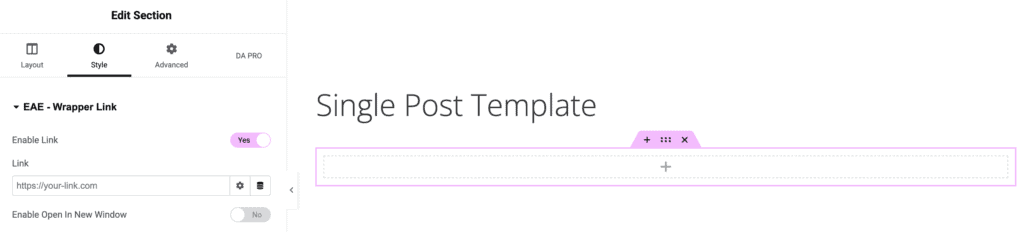
AE – Wrapper Link Settings
- Enable Link: Enable this option to make the selected section or column clickable.
- Link: Enter the destination URL. Dynamic tags are also supported, allowing the destination to be populated dynamically where applicable.
- Enable Open In New Window: Enable this option to open the assigned link in a new browser tab or window.
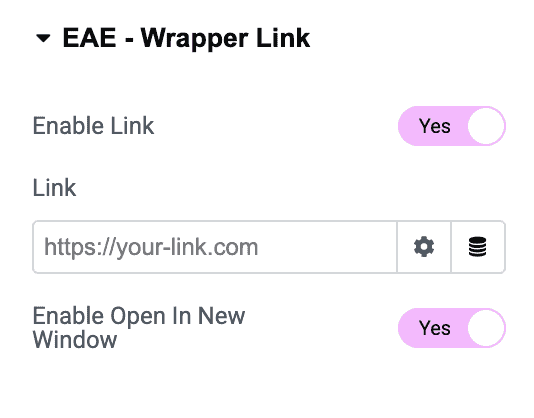
After configuring the settings, update the page and test the linked section or column on the frontend.
Important Considerations
- Avoid placing buttons, text links, or other separately linked elements inside a section or column that uses Wrapper Link. Clicking a nested link may also trigger the wrapper link and create conflicting navigation behavior.
- Use one clear destination for the complete section or column.
- Make the clickable design visually understandable by using appropriate hover styling, cursor behavior, or other visual cues.
- Test the result on desktop, tablet, and mobile after publishing.