Preset Rules
A Preset Rule is a saved, reusable set of conditions that controls whether an element shows or hides – for example, “logged in AND viewing a Product page AND it’s currently the weekend.” Build the condition once, then attach it to any Section, Column, Container, or Widget instead of rebuilding the same logic every time.
Note: Preset Rules is a Pro feature.
Where to find it
Go to Dynific Templates → Presets → Rules (the Query tab next to it opens Preset Query — see that article).
Rule types available
Rules are organized into categories, chosen from a grouped Type dropdown when building a rule row:
- User – Login Status, Specific User, User Role, User ID, User Meta, User Capability, Author of Current Post.
- Content – Current Post, Current Page, Child Page / Parent Page, Post ID, Post Slug, Post Type, Post Meta, Sticky Post, Featured Image, Page Template.
- Query Context – Singular, Archive, Search Results, 404 Page, Front Page.
- Taxonomy – Category, Tag, Current Term, Parent Term, Custom Taxonomy, Current Taxonomy Archive, Term Meta.
- Author – Current Author, Specific Author, Author Archive.
- Device – Device Type (Desktop / Tablet / Mobile), detected from the visitor’s browser.
- Date & Time – Date, Day of Month, Day of Week, Month, Year, Time Range, Business Hours, Scheduled Visibility.
- Advanced Custom Fields – one rule per ACF field type: Text, Choice, True/False, Post, Taxonomy, Date Time, Image, Relationship. Requires ACF (free or Pro) to be active.
- ACF – a single general “ACF Field” rule where you type any field name directly; it works across most ACF field types. Requires ACF active.
- Cookie / Session – Cookie (Exists / Does Not Exist / Value Equals / Value Does Not Equal / Value Contains).
- URL – Query String, URL Contains.
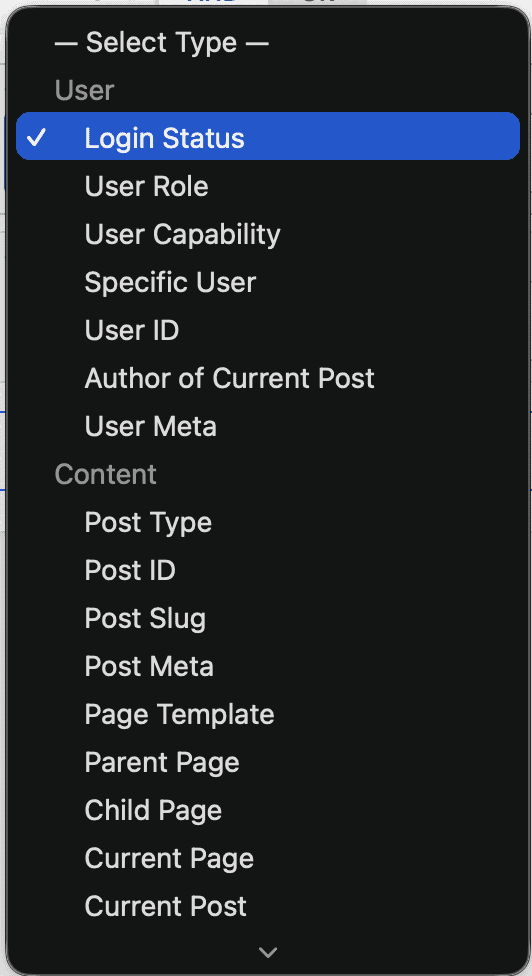
Note: You’ll see two ACF-related groups in the Type dropdown — “Advanced Custom Fields” (8 rules, one per field type) and “ACF” (1 general field-name rule). Either can be used; the general “ACF” rule is the simpler option if you just need to check a field by name.
Building a rule set
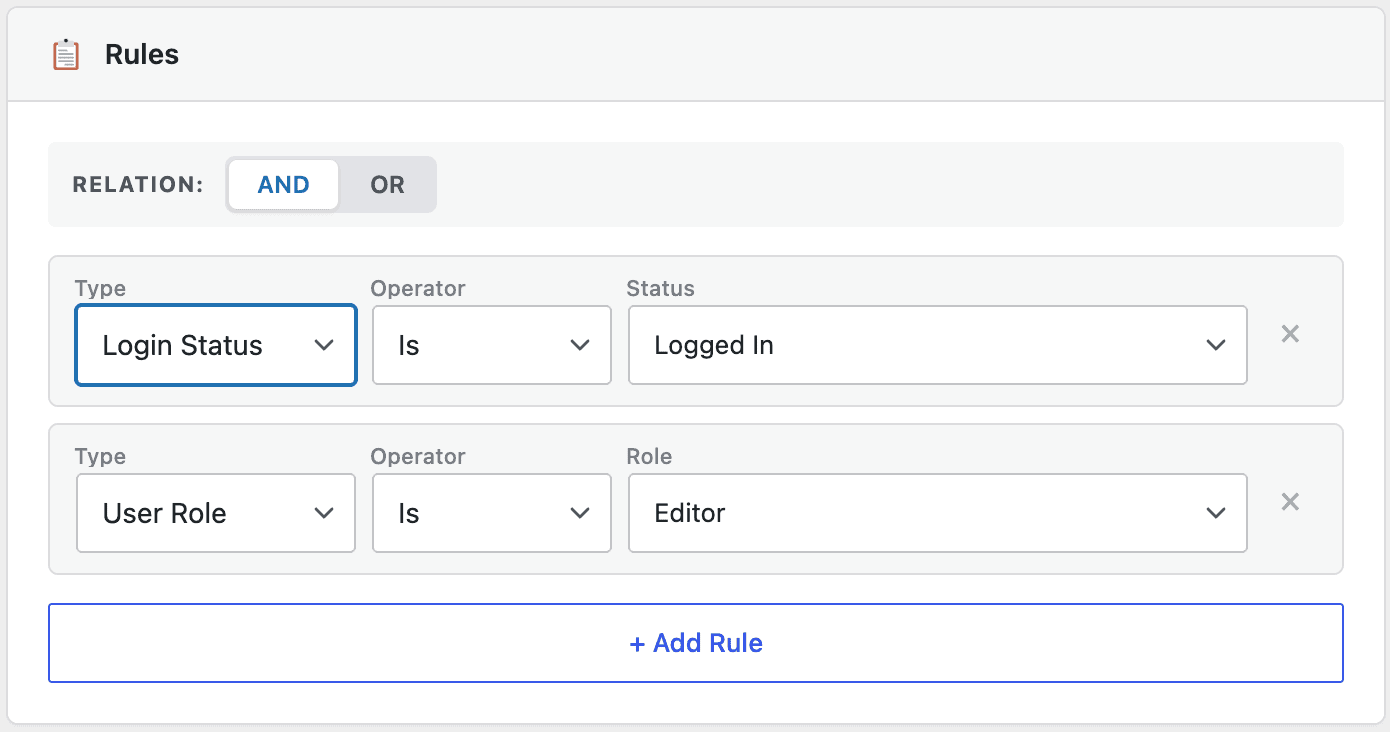
- Choose AND (“all rules must match”) or OR (“any rule can match”) using the relation toggle at the top of the Rules card.
- Click + Add Rule to add a condition row. Pick a Type, then an Operator (varies by rule type — e.g. Is / Is Not, Exists / Does Not Exist / Value Equals), then fill in whatever value fields that rule needs (a single text/number field, a dropdown, or multiple fields like Cookie’s Name + Value, or Business Hours’ start time, end time, and days).
- Repeat for as many conditions as you need. Remove a row with its individual delete control.
A sidebar “How it works” tab walks through this flow, and – once the preset is saved – a “Usage” tab shows the PHP snippet for evaluating this rule set directly, with a Copy button.
Attaching a Preset Rule to an element
Preset Rules aren’t applied from the Presets screen itself. Instead, you’ll find the Dynamic Rule section under the DA Pro tab in any DA Widget or Container.
- Enable: turns Dynamic Rule on for this element.
- Preset Rules: choose “None (use rules below)” or select a saved preset by name. Selecting a preset hides the manual rule-builder controls – the preset fully takes over.
- Show/Hide: choose whether the element shows when the condition(s) match, or hides when they match.
- Render HTML: if Yes, the element’s markup still outputs but is hidden with CSS. If No, the markup isn’t rendered at all.
- Fallback: choose what displays instead when the element is hidden – Text, an DA Template, or a Saved Section – with a matching picker appearing once selected.
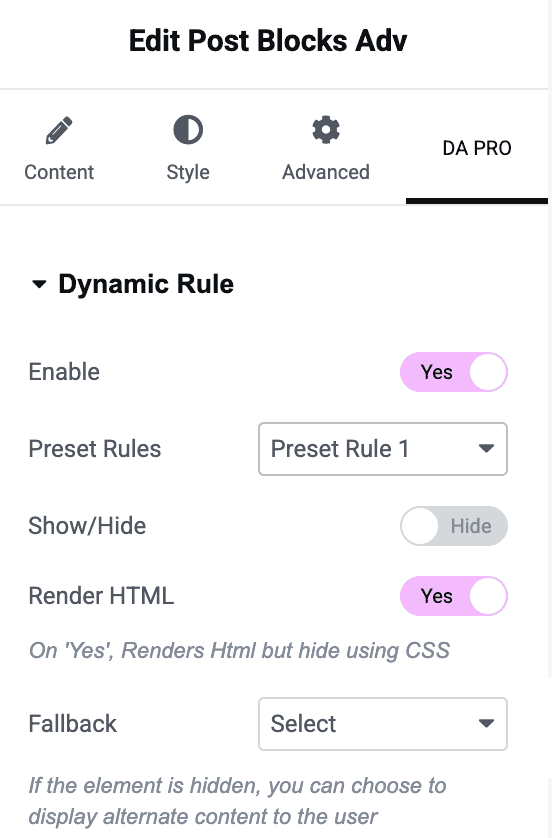
So the workflow is: build the condition once under Presets → Rules, then on any section, column, container, or widget, turn on Dynamic Rule and pick that preset from the dropdown.
Managing your presets
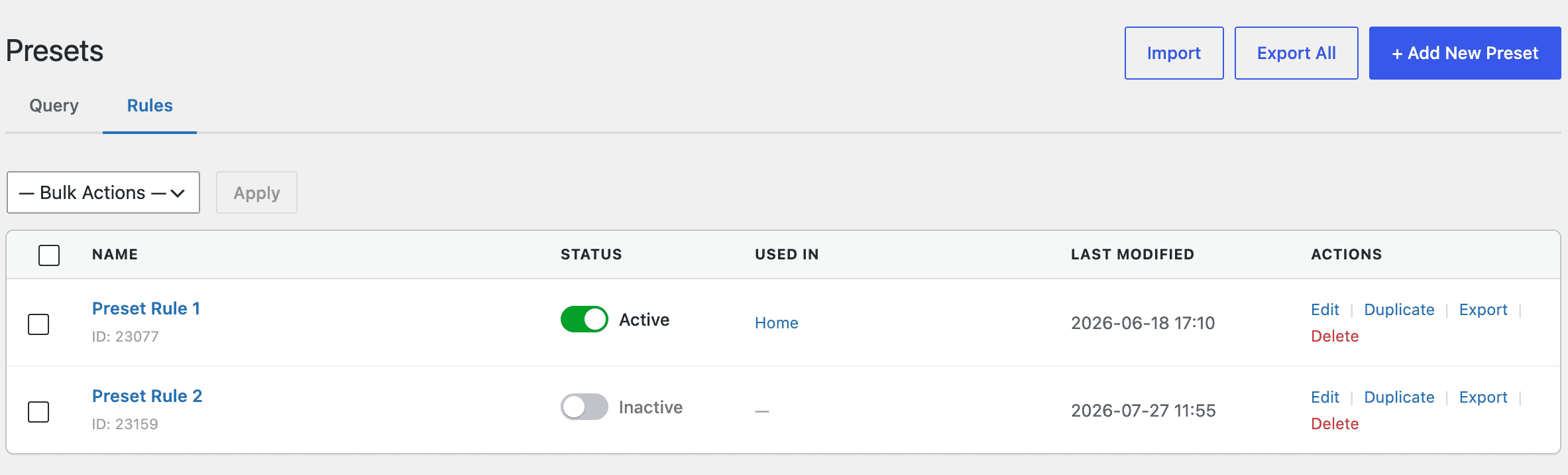
The Rules tab’s list table shows the same layout as Preset Query: Name (with preset ID), a clickable Status toggle, Used In (elements using this rule set), Last Modified, and row actions – Edit, Duplicate, Export, Delete – plus bulk actions and Import/Export All at the top of the table.