Design 404 Template Using Elementor
A 404 page appears when a user tries to access a page that doesn’t exist. Instead of showing a default error message, you can design a custom 404 page to guide users back to your website and improve user experience.
With Dynific Addons for Elementor, you can fully customize your 404 page using Elementor, adding images, text, buttons, or any layout you prefer.
Before You Start
Make sure you have the following:
- Elementor plugin installed and activated
- Dynific Addons for Elementor plugin installed
Steps to Create a Custom 404 Page in Elementor
Here are the steps you can follow to create a 404 template in Elementor.
Step 1: Create a New 404 Template
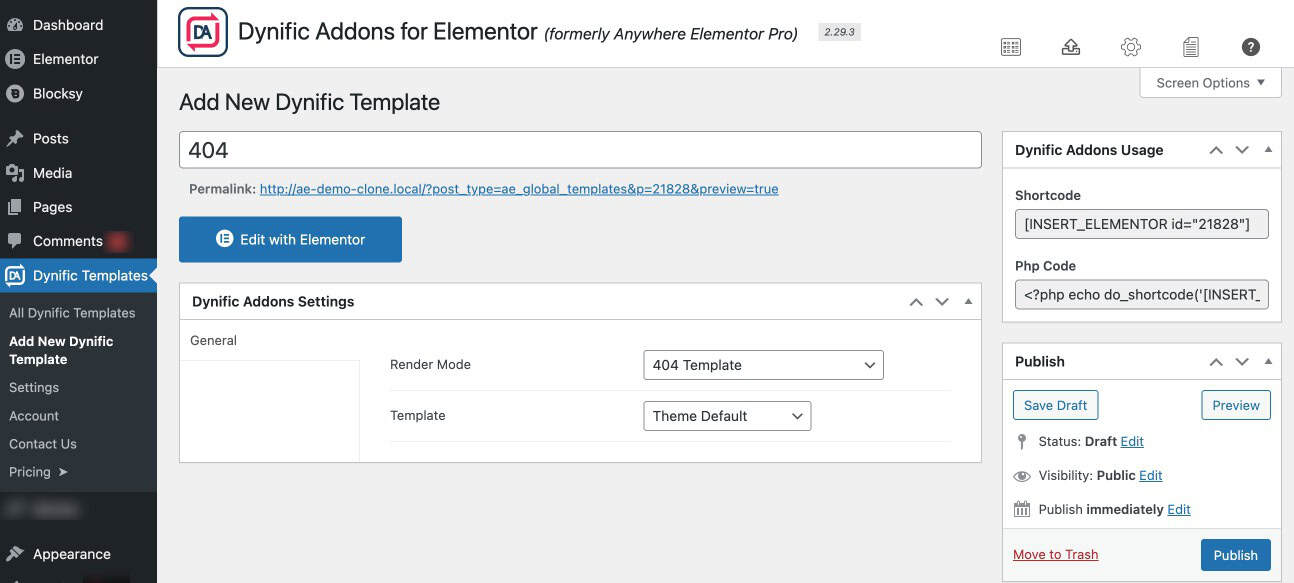
- Go to Dynific Addon Template -> Add New
- Under “Dynific Addons for Elementor Settings” set Render Mode as 404 Template.
- Elementor Canvas – Check if you want to use the Elementor Canvas template for the 404 Page. Otherwise, your 404 Page layout will be displayed with the default header and footer of your theme.
Step 2: Design the 404 Page in Elementor
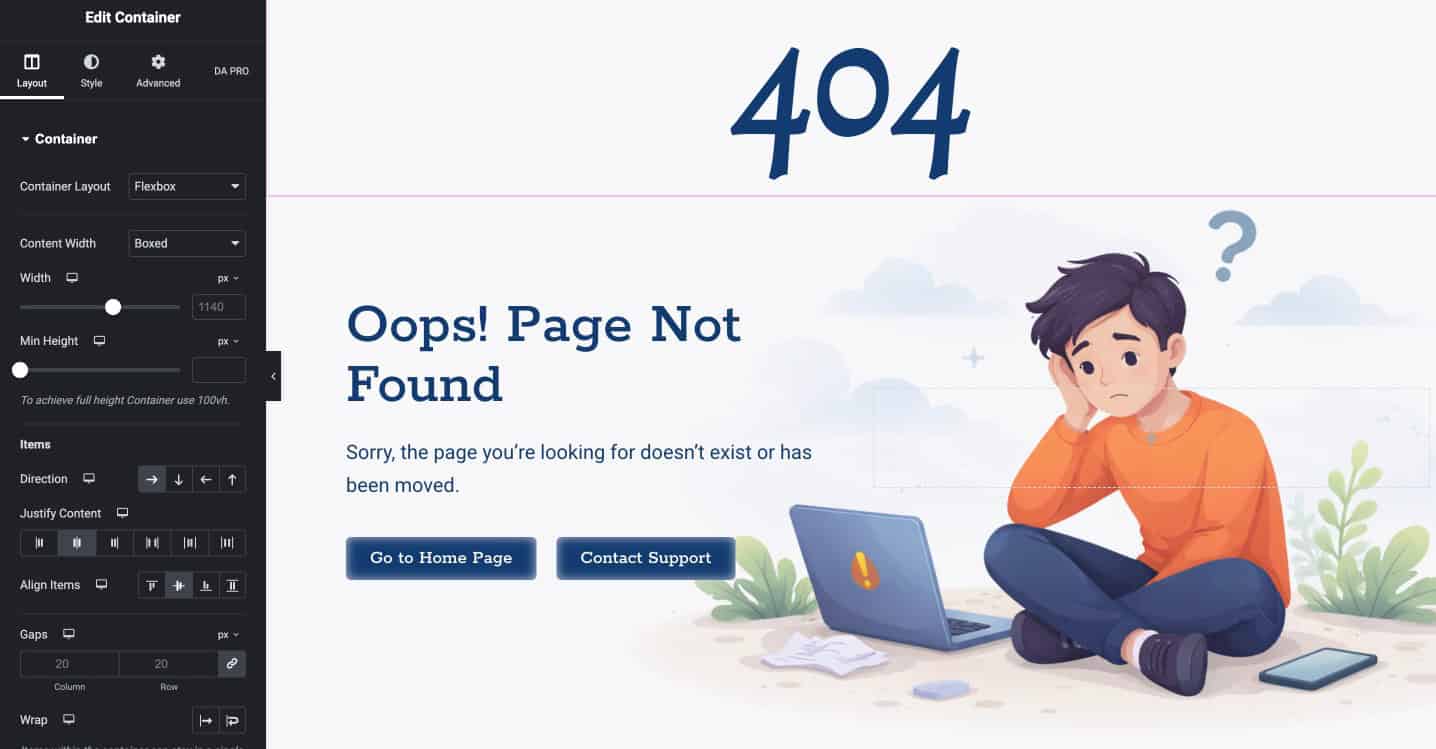
Next, start designing your 404 page.
You can use Elementor and Dynific Addons widgets to create a layout that fits your website design. Add elements like headings, text, buttons, images, or any other sections based on your needs.
This page should help users understand that the page is not available and guide them to continue browsing your website.
Step 3: Publish and Preview the Template
Once your design is ready:
- Click Publish
- The template will automatically apply as your website’s 404 page
- To check your 404 page add any random text after your website URL, and you will be able to see the 404 pages in action.