DA – Dynamic Map
DA – Dynamic Map widget allows you to build a Google map from Custom Field and ACF Map Field. It lets you add and link markers directly from custom post types. Additionally, using Dynamic Maps, you can add your custom layouts to style the info window and marker listing.
Content
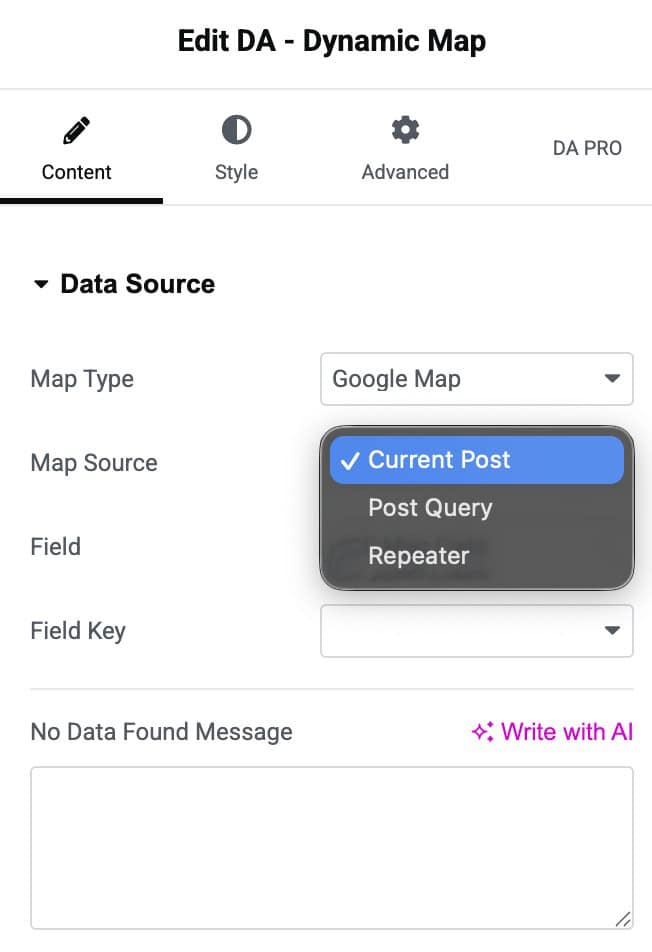
Data Source
- Map Type: Google Map
- Map Source: Select the data source for map locations like the Current Post, Post Query, and Repeater fields.
- Field: Select the field type, a Custom Field, or an ACF map field.
- Repeater Field: Choose the repeater field from which you display data(applicable when selected Repeater as Map source).
- Field Key: Enter the field name or slug.
- No Data Found Message: Custom message to display if map data is not found.
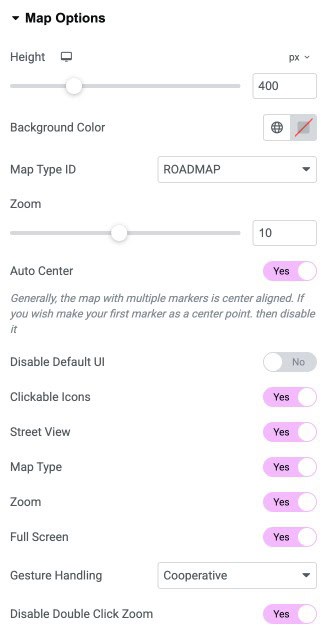
Map Options
- Height: Set the height of the map.
- Background Color: Choose a background color.
- Map Type Id: Select map type – Roadmap, Satellite, hybrid and terrain.
- Zoom: Set the zoom level of the map.
- Disable Default UI: Enable it to disable the default Google Maps UI.
- Clickable Icon: Toggle to disable the clickable feature
- Street View Control: Toggle to enable the Street View controls like
- Map Type Control Show or hide the map type control on the map.
- Zoom: Show or hide to display the zoom control on the map
- Full-Screen Control: Show or hide the full-screen control on the map
- Gesture Handling: Select gesture types to be applied on the map.
- Disable the double click zoom: Disable the zoom on double click.
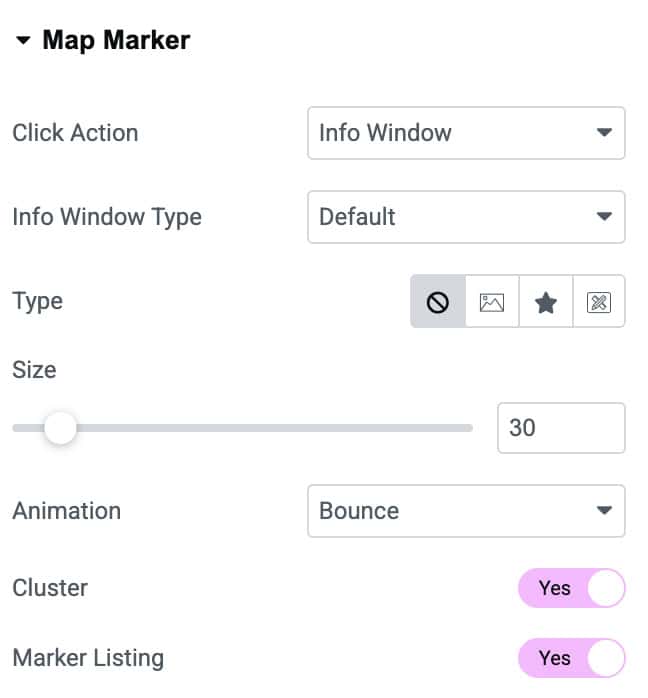
Map Marker
- Click Action: Select the action to be performed when the marker is clicked. Choose Info window to open on marker click or open post on click.
- Info Window Type: Choose a default layout or a created block layout.
- Marker Type: Choose a default marker style or an icon or image. You can also display a dynamic marker using the custom field slug.
- Animation: Select an animation effect for your markers.
- Clusters: Useful if you have many number markers, as it makes it earlier for visitors to understand the map as a whole.
- Marker Listing: Enable to list markers in a grid or carousel layout.
Marker Listing
If the marker listing option is enabled, you will see additional settings to list out the markers in a grid or carousel.
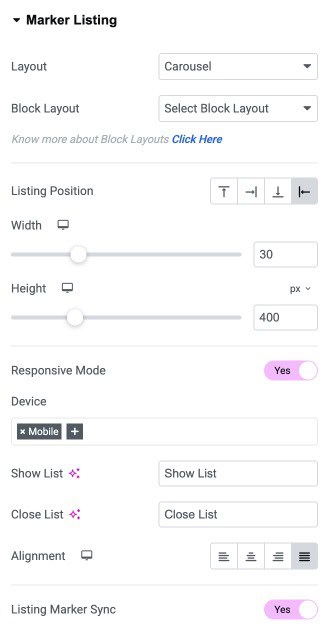
- Layout: Choose the marker listing style like in a Grid or carousel.
- Block Layout: Select the layout created to list the markers.
- Listing Position: Set the position for displaying the marker list like top or bottom of the map or left, right.
- Width: Set the listing width
- Height: Adjust the list height.
- Responsive: Enable to apply responsive mode.
- Device: Add responsive devices like mobiles and tablets.
- Show Lists: A link name to open the list.
- Close List. Link to Close the list.
- Alignment: Adjust the alignment of the show List button.
- List Marker Sync: Enable to display markers in Sync.
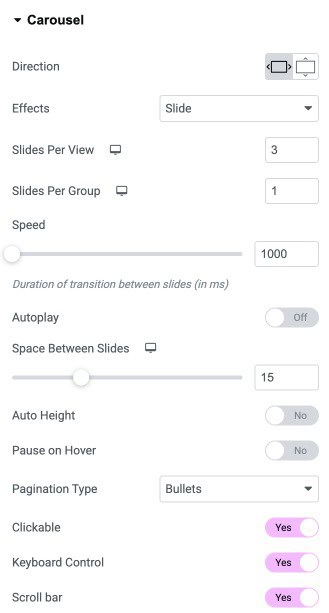
Carousel
- Direction: Choose whether the carousel slides move horizontally or vertically.
- Effects: Select the transition animation style between slides.
- Slides Per View: Set how many slides are visible at the same time.
- Slides Per Group: Decide how many slides should move together in each transition.
- Speed: Adjust the slide transition duration in milliseconds.
- Autoplay: Enable automatic sliding without user interaction.
- Space Between Slides: Control the gap between each slide.
- Auto Height: Automatically adjust carousel height based on slide content.
- Pause on Hover: Pause autoplay when the cursor hovers over the carousel.
- Pagination Type: Choose the style of pagination such as bullets or fraction.
- Clickable: Allow users to click pagination dots to switch slides.
- Keyboard Control: Enable arrow key navigation for the carousel.
- Scroll Bar: Add a draggable scrollbar for slide navigation.
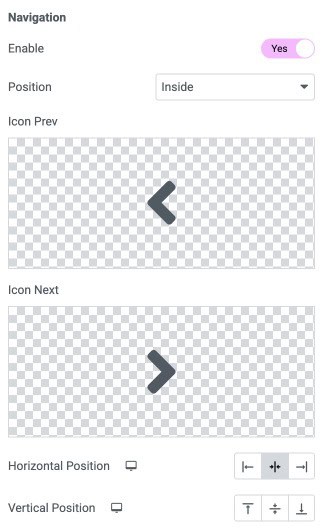
Navigation
- Enable: Enable the option to display the navigation in carousel.
- Position: Choose the position to display arrows.
- Icon Prev: Select the prev icon.
- Icon Next: Select the next icon.
- Vertical Position: Adjust the vertical position,
- Horizontal Position: Specify the horizontal position.
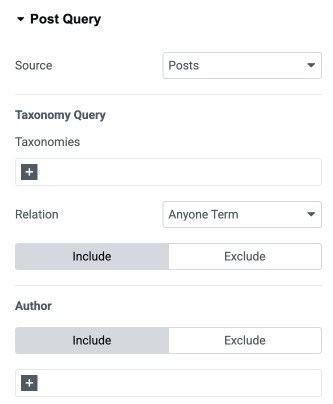
Post Query
If the Map Source is Post Query, there are some additional settings to filter out your post data.
- Source: Select the source of the Post type to be fetched. The source can be a post, page, or custom post type, or you can manually select the post.
- Taxonomy Query
- Taxonomies: Select the taxonomy terms to filter posts based on Categories, Tags, and Formats.
- Relation: Select relation to Any One Term or All Terms.
- Author: Select the author’s name whose post you want to Include or Exclude.
- Date Query
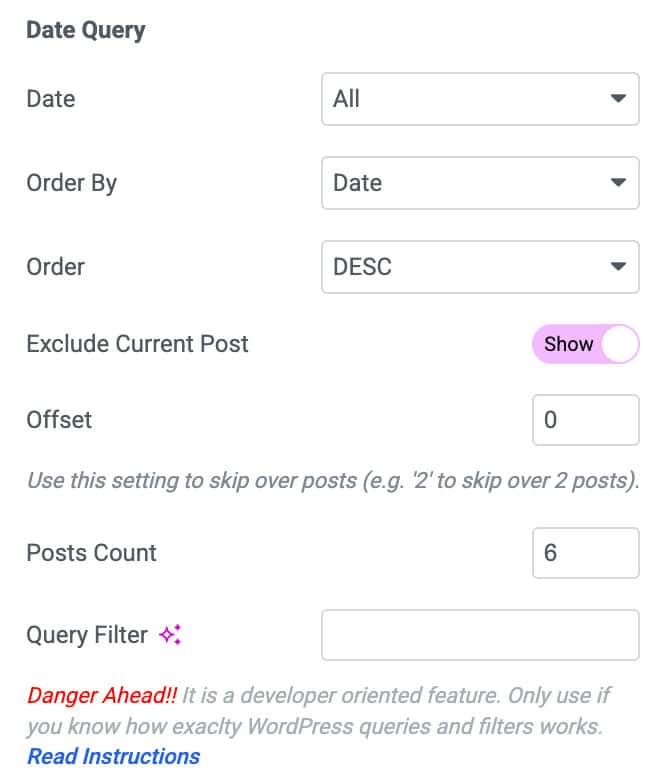
- Date: You can display posts for a specific period.
- Order By: In this, you can order your post in a particular manner. You can use different options like Date, Title, etc., to filter your post.
- Order: It sorts your post in ascending or descending order based on the criteria selected in the Order By option.
- Exclude Current Post: Enable it if you do not want to display your latest post in the block.
- Order By: In this, you can order your post in a particular manner. You can use different options like Date, Title, etc., to filter your post.
- Post Count: You can use the Post Count option to display a specific number of posts on a single page. It takes a numeric value that signifies the number of posts to be displayed.
- Offset: Use this setting to skip over posts (e.g., “2” to skip over 2 posts).
- Query Filter: You can add your custom code to filter the posts here.
Map Style
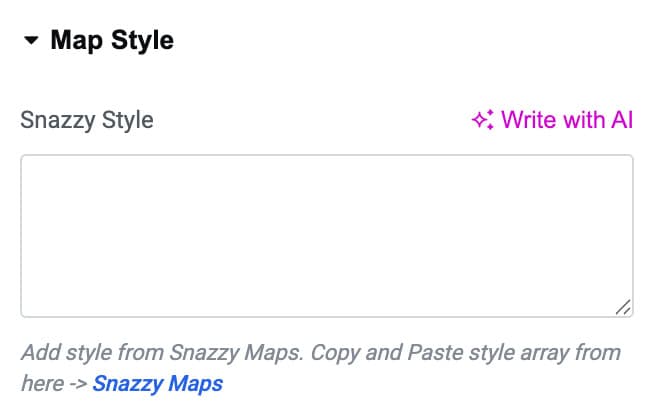
If you wish to give your map a different style, paste any Snazzy Map style here.
Widget Title
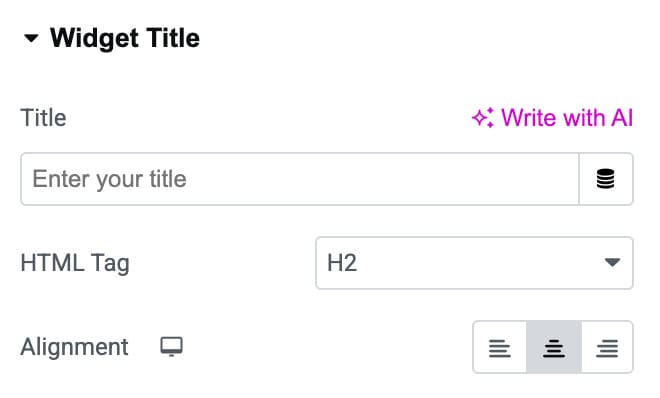
- Title: Enter the map title
- HTML tag: Choose the HTML tag to render the title
- Alignment: Set alignment for the title text
Style
Map
Marker
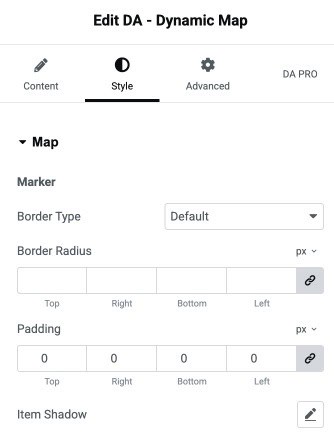
- Border Type: Choose the border style for the map marker container.
- Border Radius: Adjust the roundness of the marker’s edges.
- Padding: Add inner spacing around the marker content.
- Item Shadow: Apply a shadow effect to the marker for added depth.
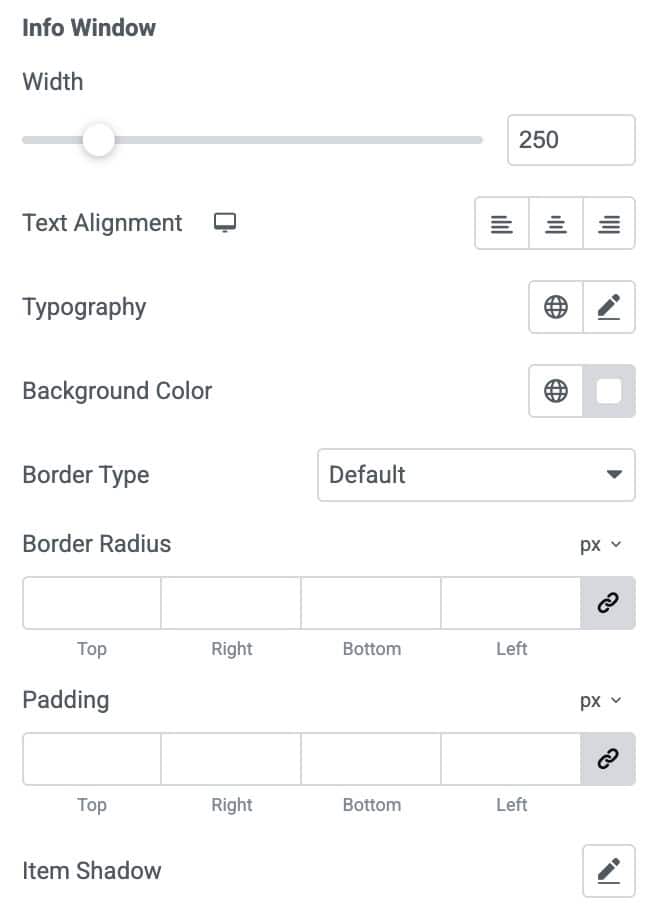
Info Window
- Width: Set the overall width of the info window displayed on the map.
- Text Alignment: Align the info window text to left, center, right, or justified.
- Typography: Customize font style, size, weight, and other text properties.
- Background Color: Apply a background color behind the info window content.
- Border Type: Choose the border style for the info window container.
- Border Radius: Round the corners of the info window by adjusting the radius.
- Padding: Add inner spacing around the content inside the info window.
- Item Shadow: Apply a shadow effect to the info window for visual depth
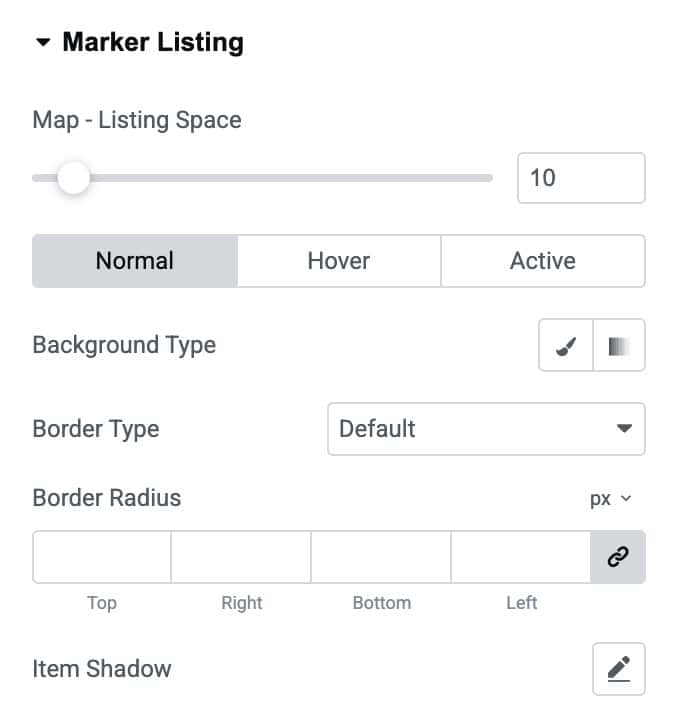
Marker Listing
- Map – Listing Space: Adjust the spacing between the map and the marker listing area.
- Normal / Hover / Active: Customize styles for default, hover, and active listing states.
- Background Type: Set a solid or gradient background for the marker listing.
- Border Type: Choose the border style for each listing item.
- Border Radius: Round the corners of listing items by adjusting the radius.
- Item Shadow: Add a shadow effect to marker listing items for visual depth.
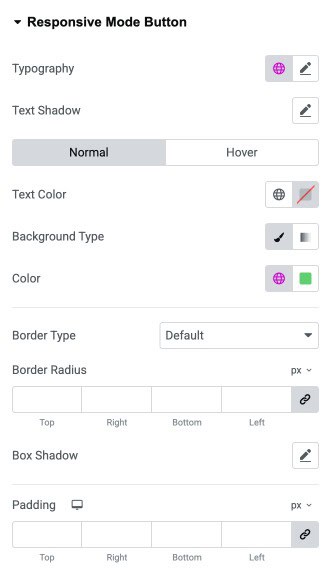
Responsive Mode Button
- Typography: Customize the font style, size, weight, and formatting of the responsive mode button text.
- Text Shadow: Add a shadow effect to the button text for enhanced visibility and depth.
- Normal / Hover: Style the button differently for regular and hover states.
- Text Color: Set the text color for the responsive mode button.
- Background Type: Choose between solid or gradient background styles for the button.
- Color: Select background color when a solid background type is applied.
- Border Type: Choose a border style for the responsive mode button.
- Border Radius: Round the button’s corners to achieve smooth or sharp edges.
- Box Shadow: Add shadow effects around the button to create elevation or emphasis.
- Padding: Adjust the inner spacing of the button for proper sizing and alignment.
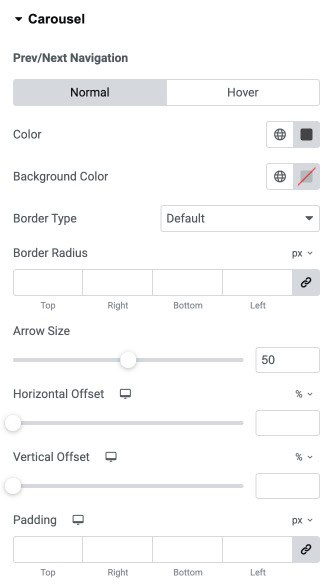
Carousel
Prev/Next Navigation
Normal / Hover
- Color: Set the arrow icon color for better visibility and contrast.
- Background Color: Apply a background color behind the arrow button.
- Border Type: Choose a border style for the navigation buttons.
- Border Radius: Adjust the roundness of the navigation button corners.
- Arrow Size: Control the size of the arrow icons.
- Horizontal Offset: Move the arrows left or right using percentage-based positioning.
- Vertical Offset: Shift the arrows up or down relative to their default position.
- Padding: Add internal spacing inside the arrow container for size and spacing adjustments.
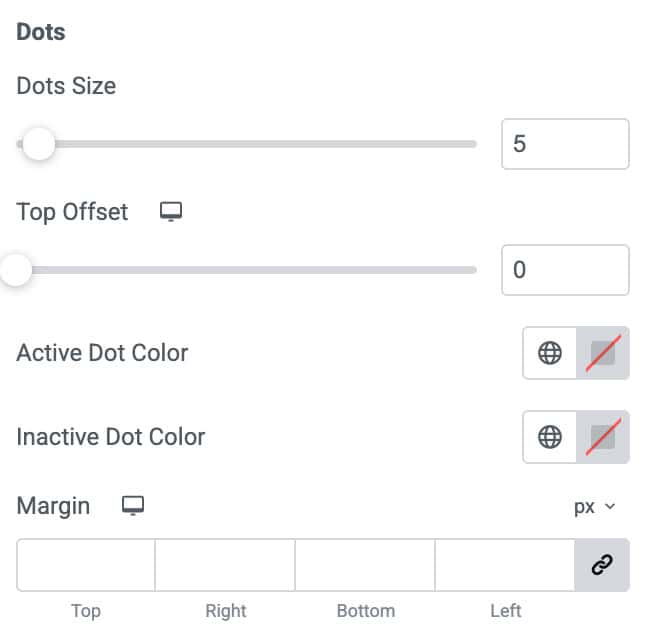
Dots
- Dots Size: Adjusts the size of each navigation dot.
- Top Offset: Moves the dots vertically above or below their default position.
- Active Dot Color: Sets the color of the currently active slide’s dot.
- Inactive Dot Color: Sets the color of all inactive dots.
- Margin: Adds outer spacing around the dots container
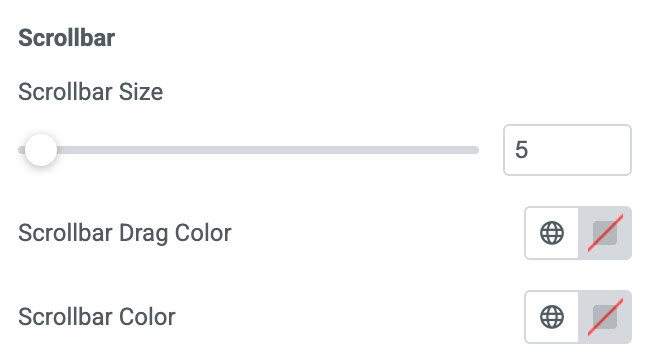
Scroll Bar
- Scrollbar Size: Controls the thickness of the scrollbar.
- Scrollbar Drag Color: Sets the color of the draggable part of the scrollbar.
- Scrollbar Color: Sets the base track color of the scrollbar.
Widget Title
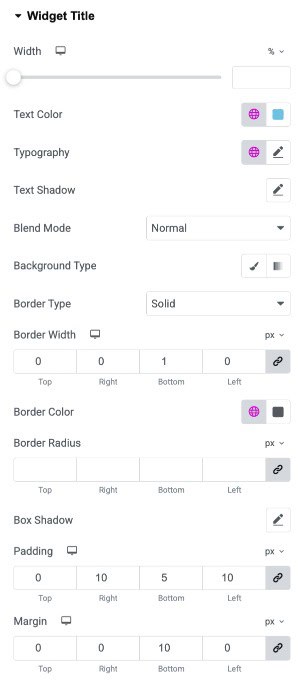
- Width: Defines the width of the widget title area.
- Text Color: Sets the color of the widget title text.
- Typography: Controls font family, size, weight, style, and spacing for the title text.
- Text Shadow: Adds shadow effects to the title text.
- Blend Mode: Determines how the title blends visually with background elements.
- Background Type: Sets the background as solid or gradient.
- Border Type: Selects the style of the border (solid, dashed, dotted, etc.).
- Border Width: Defines the border thickness on each side.
- Border Color: Sets the border color.
- Border Radius: Rounds the corners of the title container.
- Box Shadow: Adds shadow to the widget title block.
- Padding: Adds inner spacing inside the title container.
- Margin: Adds outer spacing around the widget title.