
Duplicate DA Templates
Duplicate lets you clone an existing DA Template instead of building a variation from scratch. The copy includes the Elementor design, all template settings (display conditions, layout meta, etc.), and its category/tag assignments — so you can tweak one aspect of a template without touching the original.
Requirements
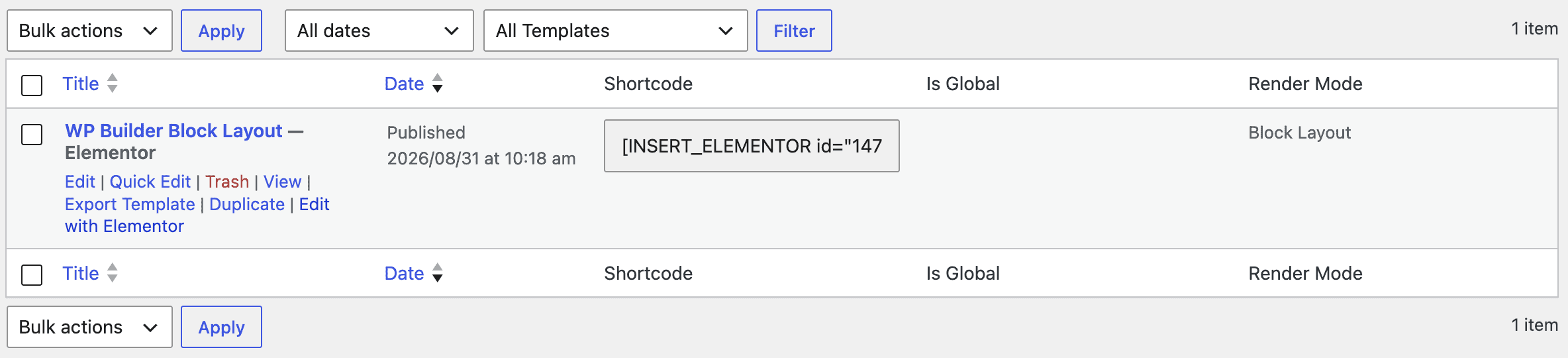
- The template must be built with Elementor and have saved Elementor content. Templates with no Elementor data yet won’t show a Duplicate link.
How to Duplicate a Template
- Go to Dynific Addons → DA Templates.
- Hover over the template you want to copy.
- Click Duplicate in the row actions that appear below the title.
- You’ll be redirected back to the templates list with a “Template duplicated successfully!” notice.
The new template:
- Is created as a Draft, titled
[Original Title]-copy. - Has the same Elementor content and all custom fields/meta as the original (display conditions, hook settings, etc.).
- Keeps the same taxonomy terms (categories/tags) as the original.
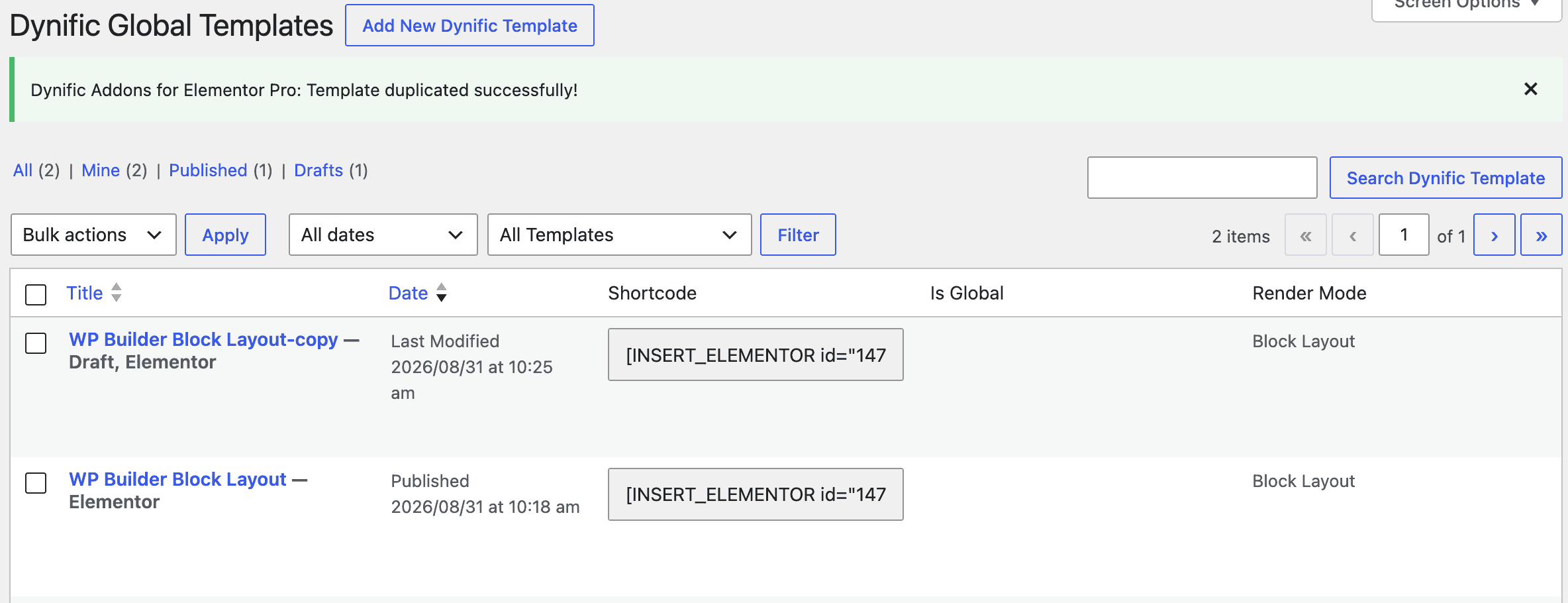
Note: Duplicating doesn’t copy the original’s status — even a Published template is duplicated as a Draft, so you can review and publish it deliberately.