How to Generate an Instagram Feed Access Token?
To get an Instagram access token, create a free app in Meta for Developers, add the Instagram product, connect your Instagram professional account and click Generate token. Copy the token and paste it into your Instagram feed widget. It works with Business and Creator accounts and lasts 60 days.
This guide covers what the token is, what you need first, every step to get it, how long it lasts, and how to fix the most common token problems so your Instagram feed keeps working on your WordPress site.
Key takeaways
- You need an Instagram professional account (Business or Creator) and a free Meta for Developers account.
- The token comes from your Meta app: add the Instagram product, connect your account, and click Generate token.
- Tokens from the App Dashboard last 60 days. Generate a new one before then, or your feed stops updating.
What Is an Instagram Access Token?
An Instagram access token is a long code that gives a website permission to read your Instagram posts through Meta’s official API. Instagram does not let websites pull posts without permission, so the token proves that you, the account owner, allowed your site to show your feed.
WordPress feed widgets, such as the Instagram Feed widget in Addon Elements for Elementor, use the token to load your latest photos and videos. Without a valid token, the widget has nothing to display.
What Do You Need Before You Get an Instagram Access Token?
Before you start, you need three things: an Instagram professional account, a free Meta for Developers account, and your website address. The process takes about ten minutes once these are ready.
- An Instagram professional account. Business and Creator accounts both work. You can switch for free in the Instagram app under your account settings.
- A Meta for Developers account. Sign up at Meta for Developers with your Facebook login.
- Your website URL, which you add to the app as its platform.
Important: Personal Instagram accounts no longer work with Meta’s Instagram API. If your account is personal, switch it to Business or Creator before you start, or the token steps will not show your account.
Addon Elements for Elementor
Got your token? Show your Instagram feed in Elementor
Paste the token into the Instagram Feed widget and display your latest posts as a grid or carousel that matches your site design.
How Do You Get an Instagram Access Token?
To get the token, create a Business app in Meta for Developers, add your website as a platform, add the Instagram product, connect your Instagram account, and generate the token from the Instagram API setup page. Each stage is shown below with screenshots.
Note: Meta updates its developer dashboard often, so button names may differ slightly from the screenshots. The order of the steps stays the same.
Create an app in Meta for Developers
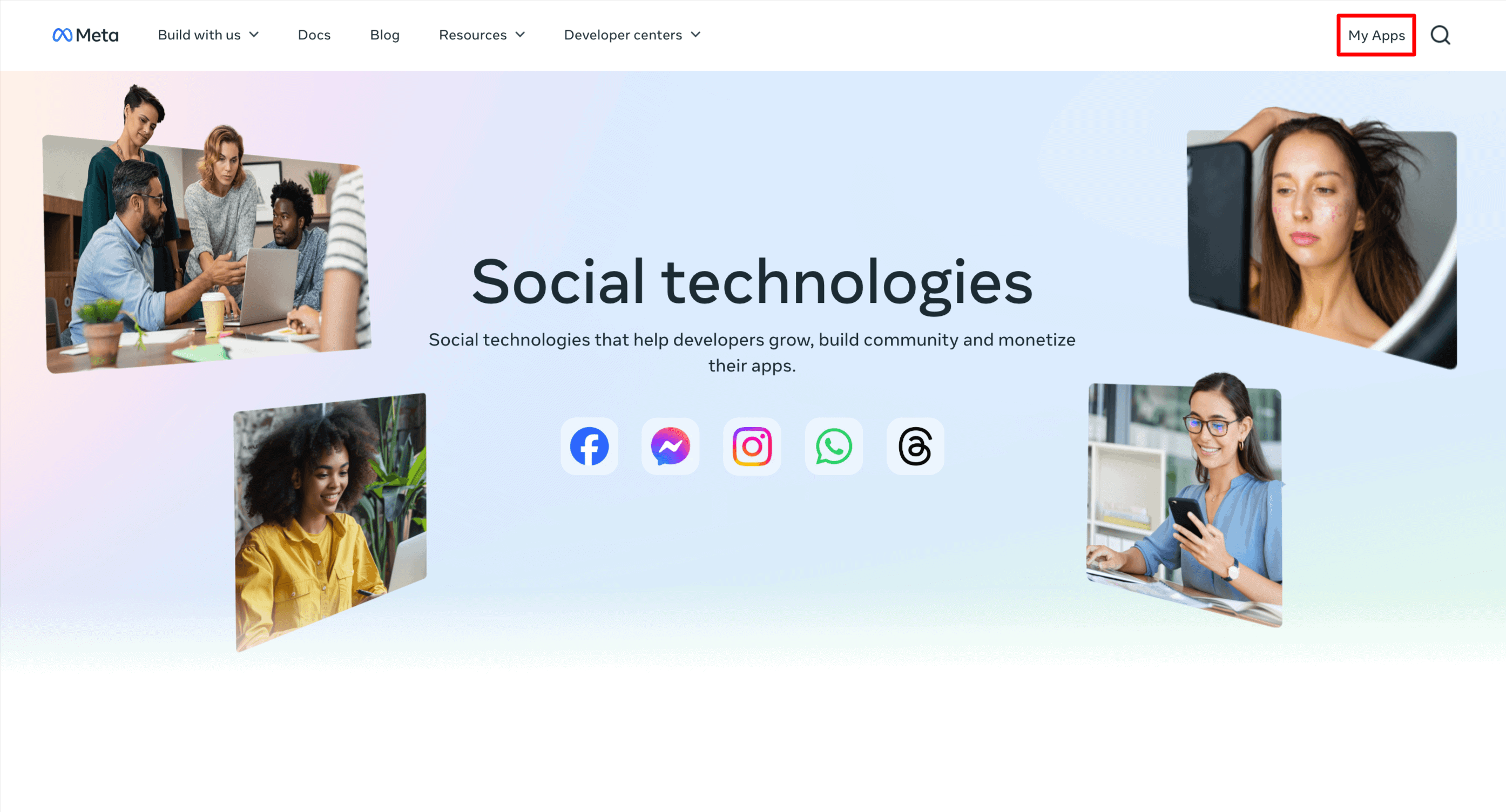
Sign in to Meta for Developers and click My Apps in the top right corner.
Click Create App, enter an app name and contact email, and click Next.
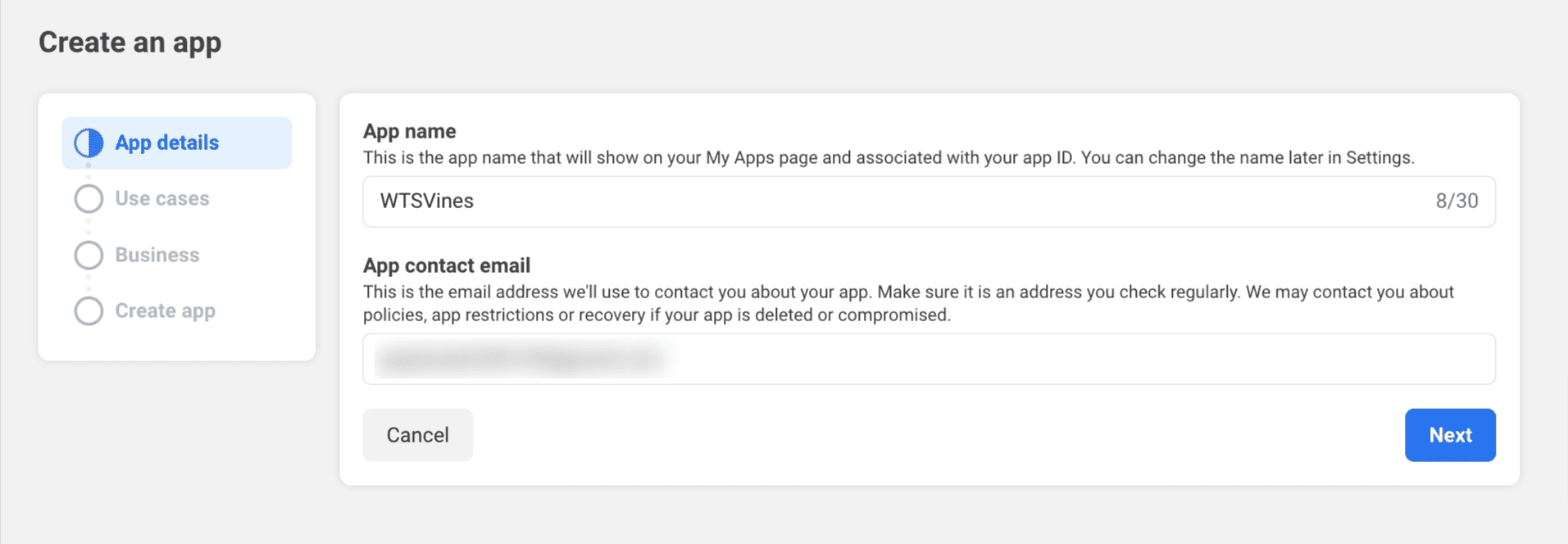
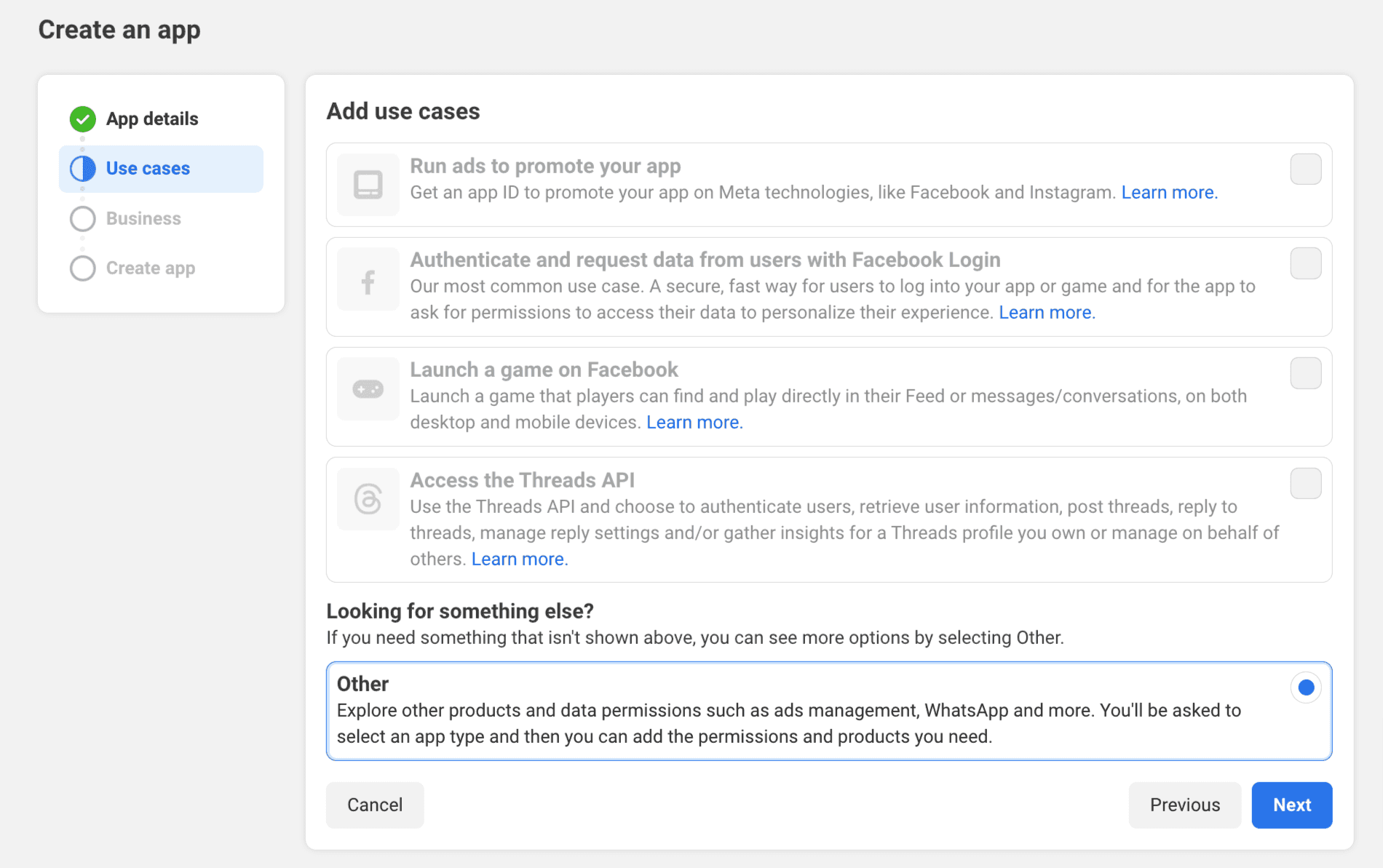
Choose Other as the use case and click Next.
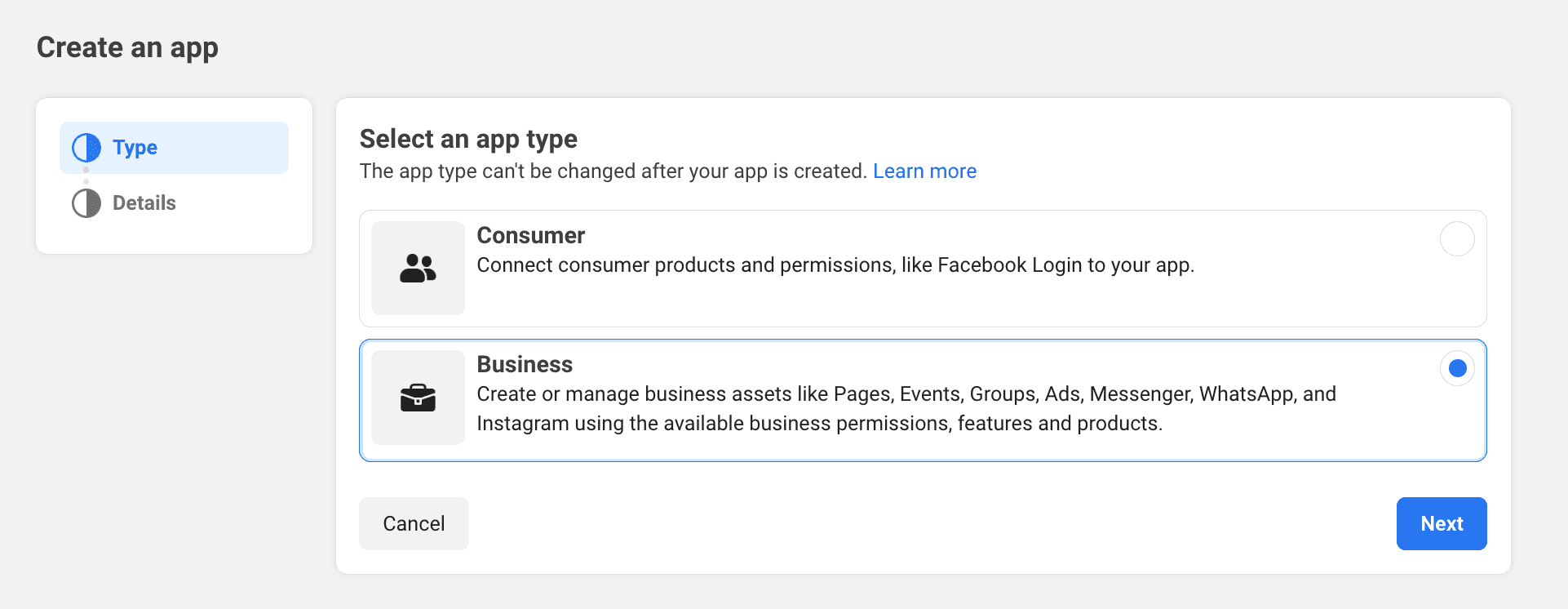
Select Business as the app type and click Next.
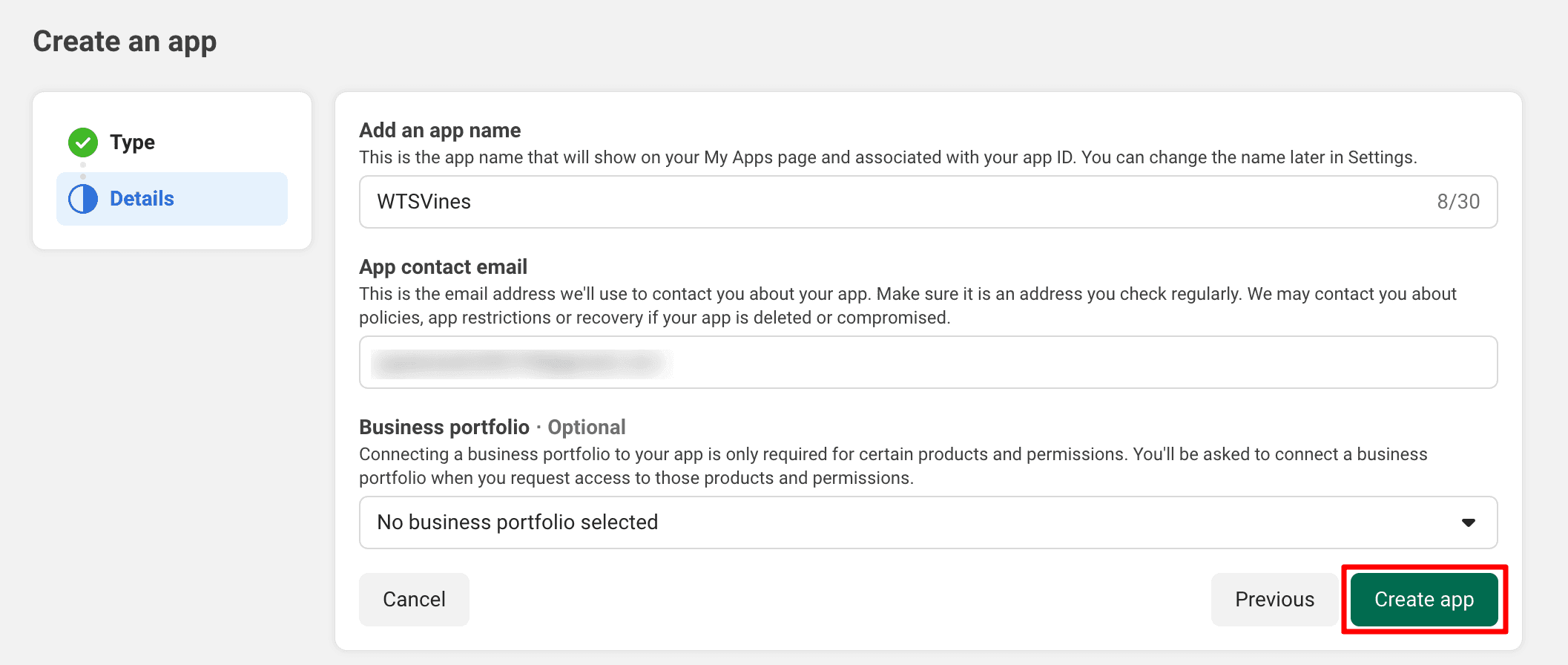
Review the details and click Create App. Meta may ask for your Facebook password to confirm.
Add your website as a platform
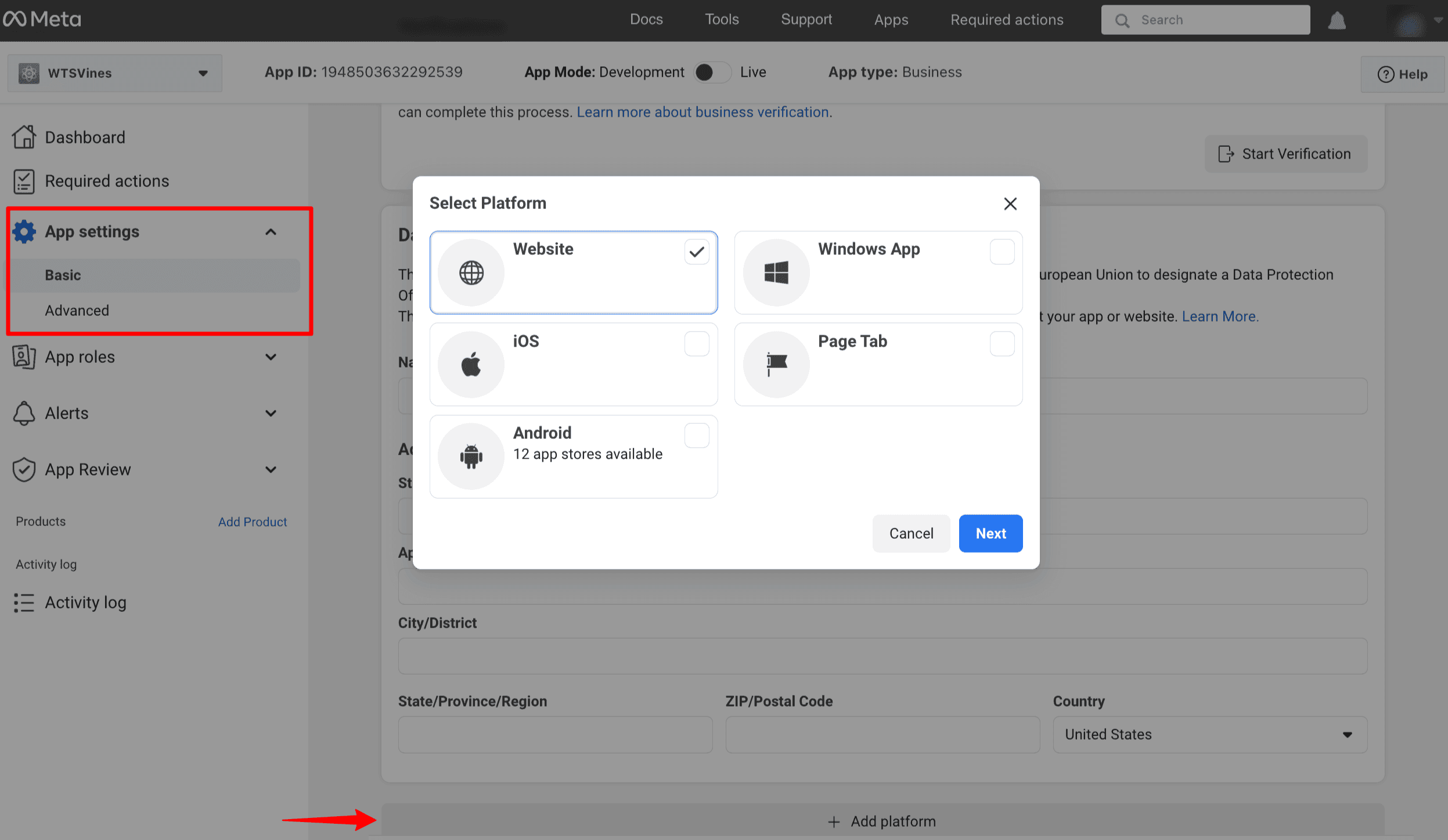
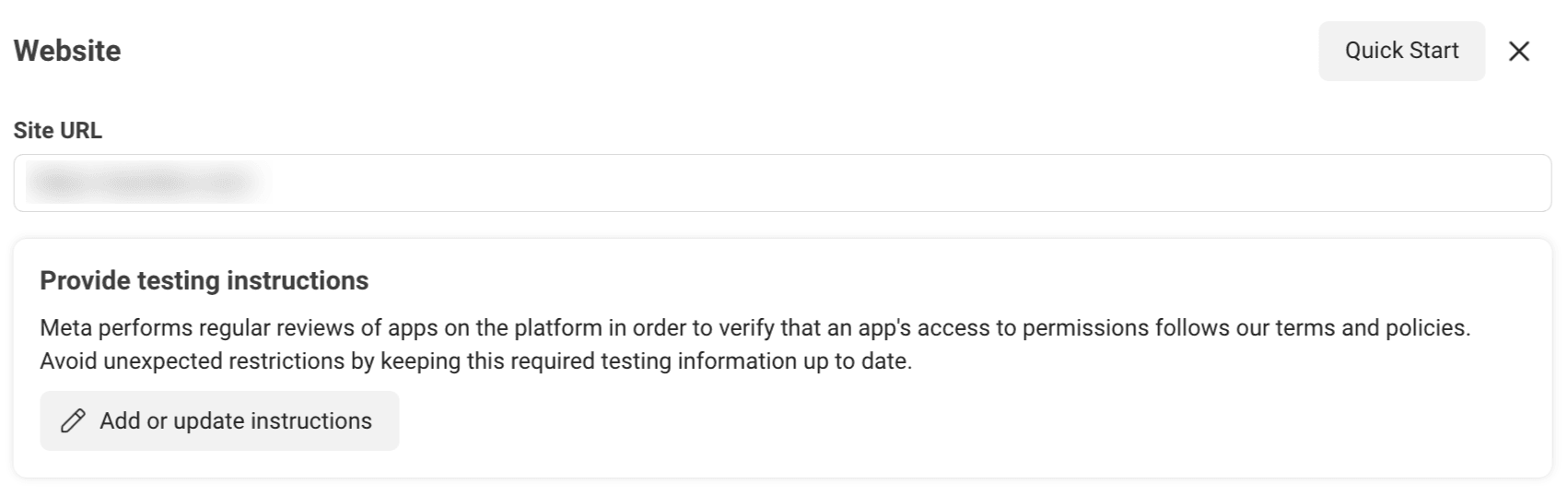
In your new app, go to App Settings > Basic, scroll to the bottom and click Add Platform. Choose Website, click Next, enter your site URL in the Site URL field and save the changes.
Add the Instagram product
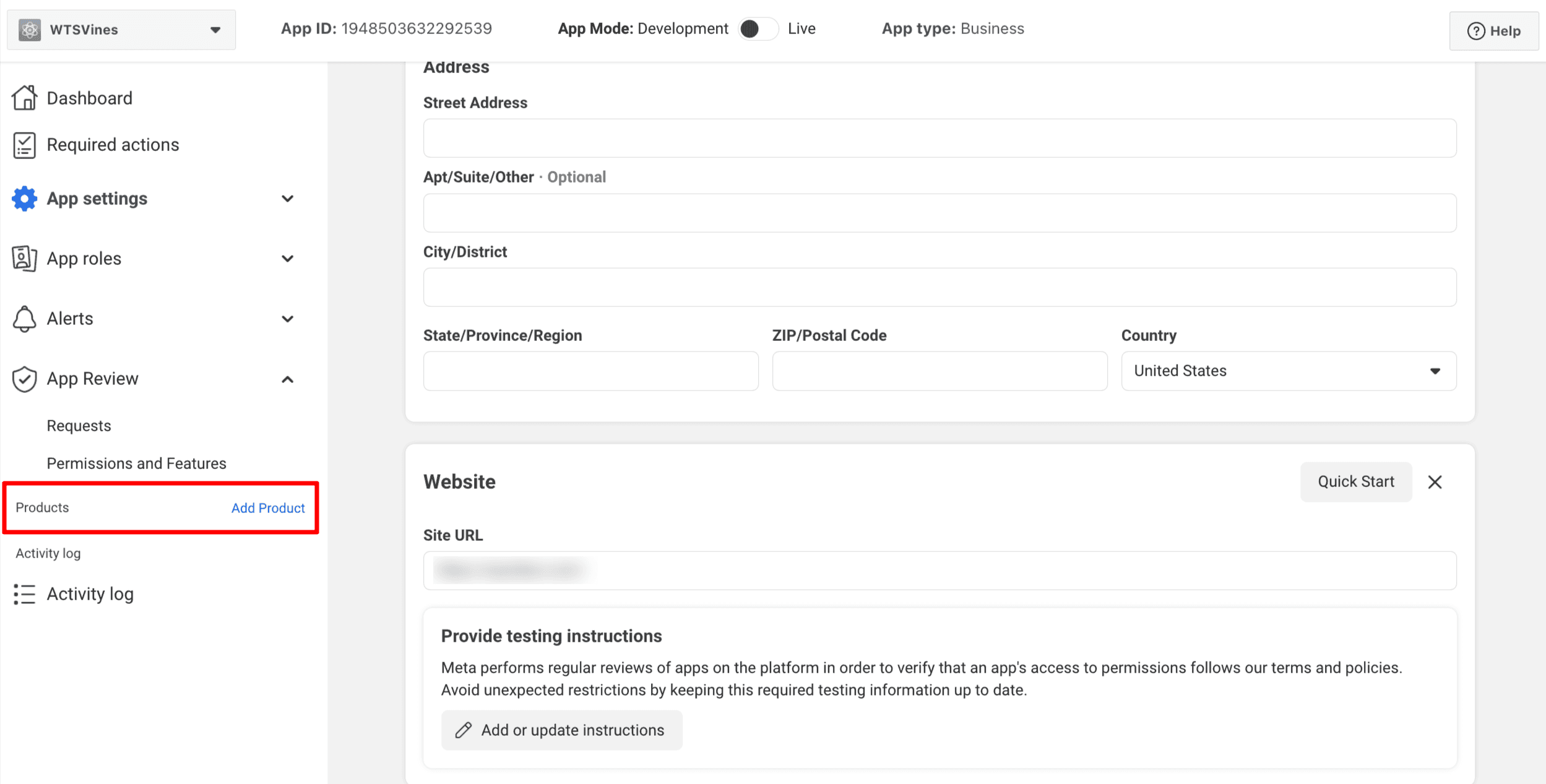
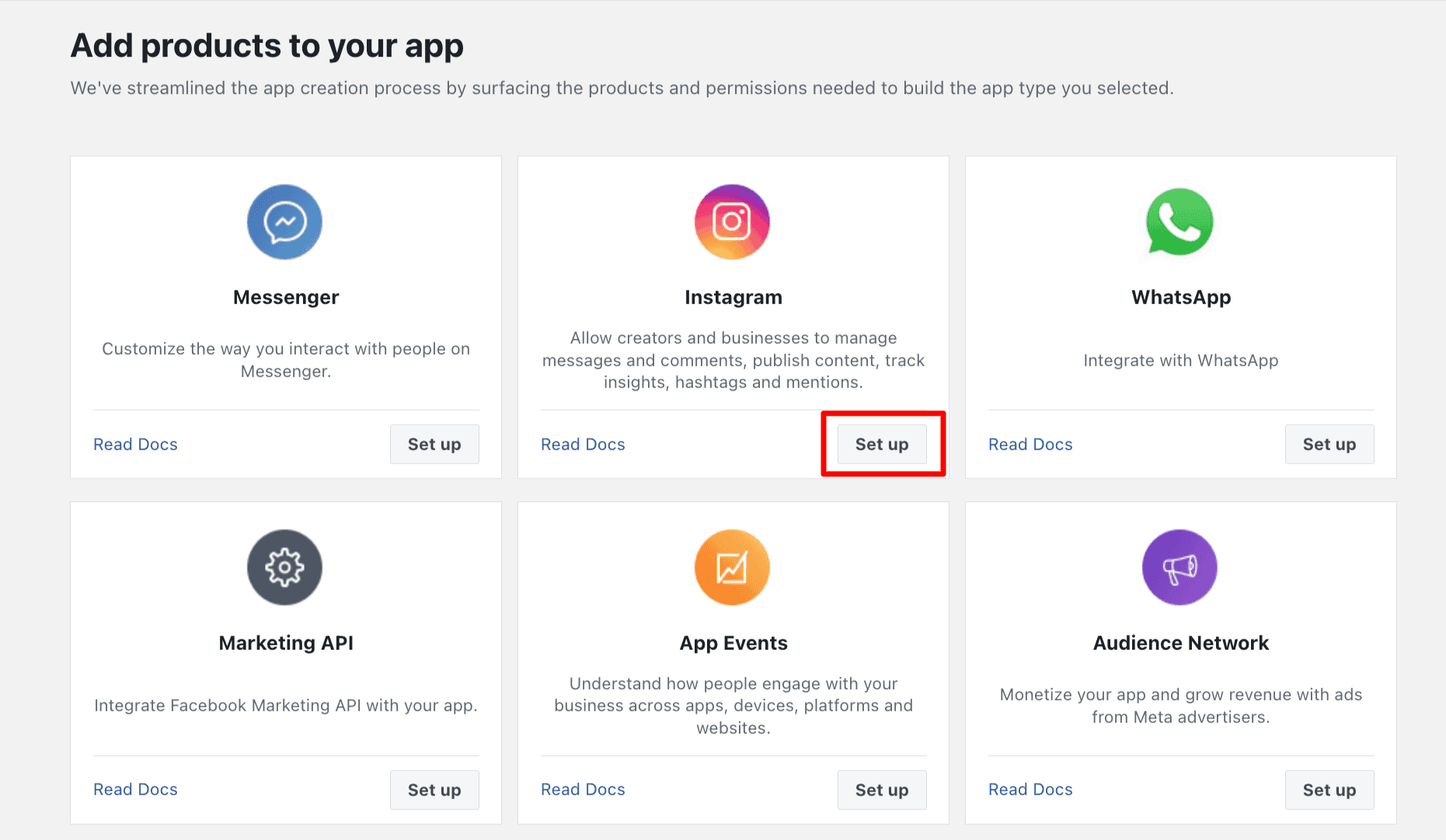
From the app dashboard, click Add Product, scroll to Instagram and click Set Up. This opens the Instagram API setup page, where you connect your account.
Connect your Instagram account
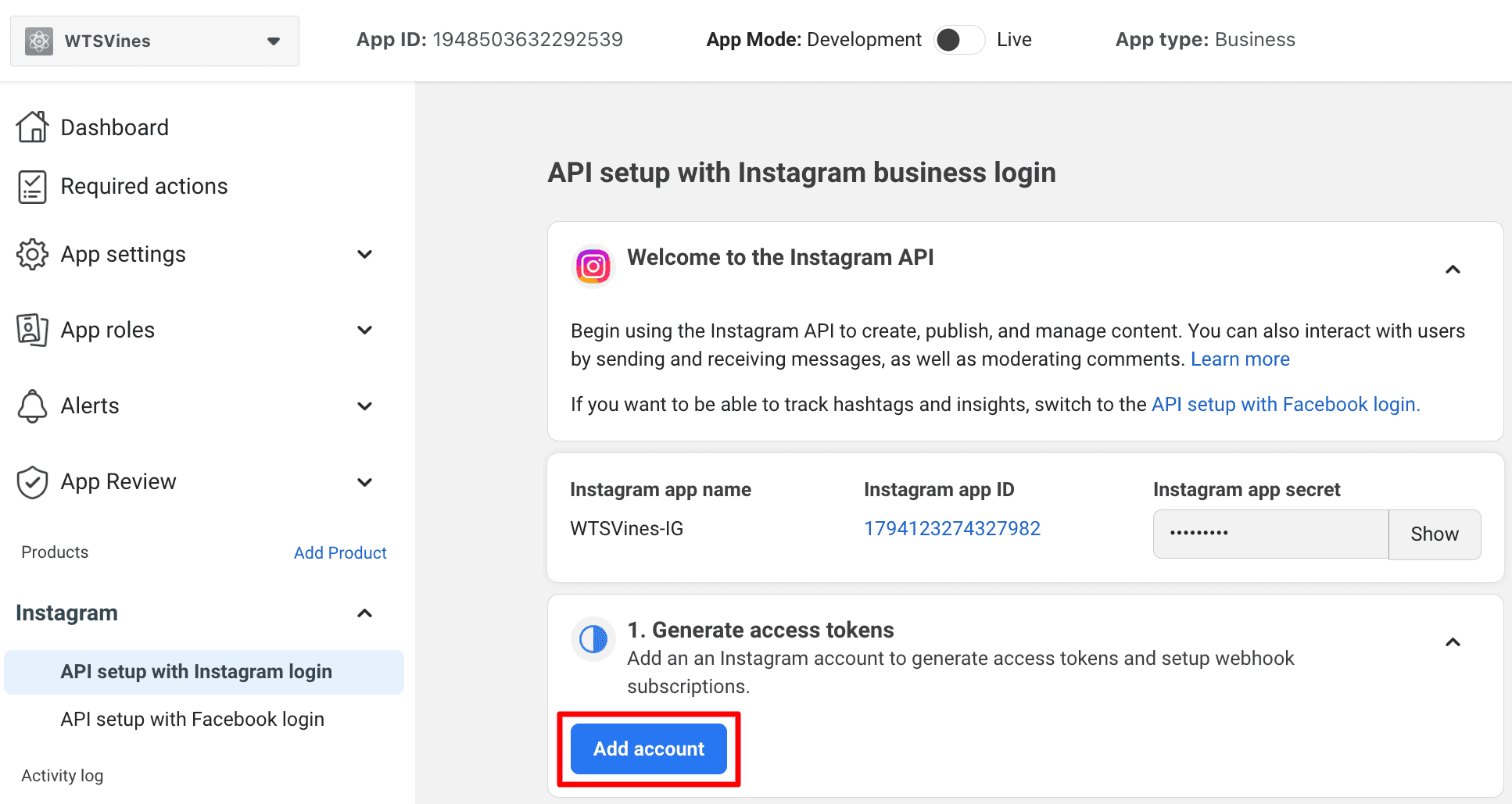
On the Instagram API setup page, find Generate access tokens and click Add account. Read the information, click Continue, log in with your Instagram professional account and allow the permissions Meta asks for.
Generate and copy the token
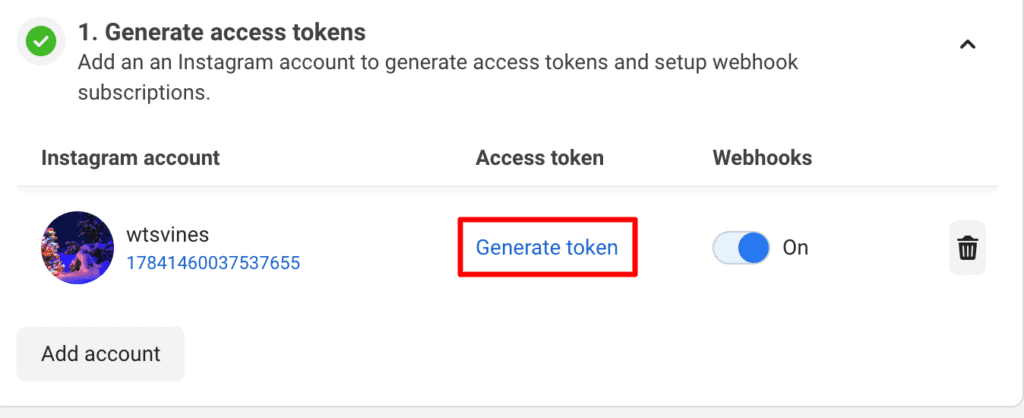
Back on the setup page, click Generate token next to your account and allow the permissions again. Meta then shows your access token.
Copy the token and paste it into the Instagram Feed widget’s token field in Elementor.
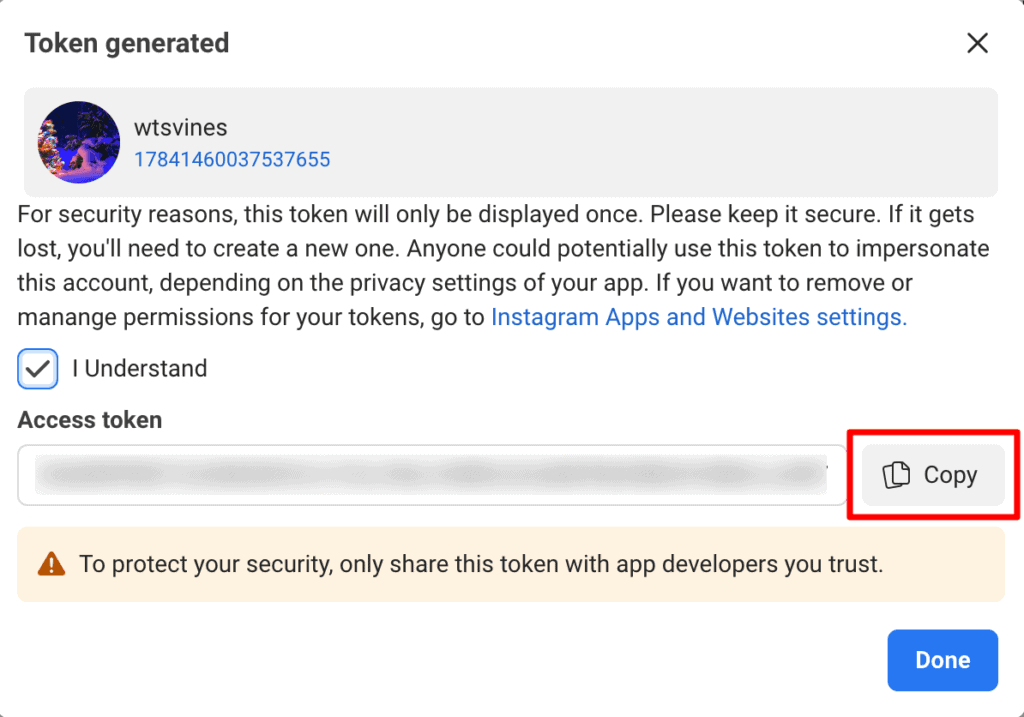
Tip: Copy the token straight away and keep it somewhere safe, such as your password manager. Meta shows it only once, and closing the window means generating a new one.
How Long Does an Instagram Access Token Last?
An Instagram access token generated from the Meta App Dashboard lasts 60 days. When it expires, your Instagram feed stops loading new posts. To keep it working, return to your app’s Instagram API setup page before the 60 days end, click Generate token again and replace the old token in your feed widget.
Tip: Set a calendar reminder for about 50 days after you generate the token, so you renew it before your feed breaks.
Why Is Your Instagram Access Token Not Working?
Most token problems come from using a personal account, an expired token, or a token copied incompletely. The table below lists the common symptoms and how to fix each one.
| Problem | Likely cause | Fix |
|---|---|---|
| Your account does not appear on the setup page | The Instagram account is personal | Switch it to a Business or Creator account in the Instagram app, then add it again |
| The feed worked before and stopped updating | The token is more than 60 days old | Generate a new token and paste it into the widget |
| The widget shows an invalid token error | Part of the token was not copied | Generate the token again and copy the whole code |
| The feed shows another account’s posts | A different account was connected in the app | Add the correct Instagram account and generate its token |
| You cannot find the Instagram setup page | The Instagram product was not added to the app | Open the app dashboard, click Add Product and set up Instagram |
Frequently Asked Questions
What is an Instagram Access Token?
An Instagram access token is a long code that gives a website or app permission to read your Instagram posts through Meta’s official API. Feed widgets, such as the Instagram Feed widget in Addon Elements for Elementor, use it to show your latest posts on your site.
Can I get an access token for a personal Instagram account?
No. Meta’s current Instagram API only works with professional accounts, so switch your account to Business or Creator in the Instagram app first. The switch is free, and your existing posts and followers stay as they are.
Do I need a Facebook Developer account to generate the token?
Yes. You create a free Meta for Developers account, then an app inside it, and generate the token from that app’s Instagram settings. You log in with your Facebook account to create it.
What should I do after generating the token?
Copy the token and paste it into the Instagram Feed widget in Elementor, then choose your layout and number of posts. Our guide on displaying an Instagram feed in Elementor walks through every setting.
Will my Instagram feed automatically update on my site?
Yes. While the token is valid, the feed widget pulls your newest posts, so new Instagram posts appear on your site without extra work. When the token expires, the feed stops updating until you add a new one.
How long does an Instagram access token last?
A token generated from the Meta App Dashboard is a long-lived token that lasts 60 days. Before it expires, go back to your app’s Instagram API setup page, generate a new token and replace the old one in your feed widget.
Where do I find my Instagram access token later?
Meta shows the token once, when you generate it, so copy it straight away. If you lose it, open your app in Meta for Developers, go to the Instagram API setup page and click Generate token again to get a new one.
What Should You Do Next?
With your token copied, the next step is putting your feed on the page. Our guide on how to display an Instagram feed in Elementor shows how to add the Instagram Feed widget, paste the token and style the layout.
Remember to renew the token before the 60 days are up, and your feed will keep showing your newest posts without any further work.