How to Display an Instagram Feed in Elementor
To add an Instagram feed in Elementor, install Addon Elements for Elementor, drag the Instagram Feed widget onto your page, and paste your Instagram access token into its Profile settings. Then choose how many posts to show, pick a Grid, Flex, Masonry or Carousel layout, and style it to match your site, with no code.
This guide covers what you need first, each setup step, which layout to choose, how to style the feed, and how to fix a feed that is not showing.
Key takeaways
- You need Elementor, Addon Elements for Elementor, an Instagram professional account and an Instagram access token.
- Add the Instagram Feed widget, paste your token in its Profile settings, and choose how many posts and which content types to show.
- Pick a layout (Grid, Flex, Masonry or Carousel), turn on Lightbox if you like, and renew your token every 60 days to keep the feed updating.
What Do You Need to Add an Instagram Feed in Elementor?
To add an Instagram feed in Elementor, you need four things: Elementor, the Addon Elements for Elementor plugin, an Instagram professional account, and an Instagram access token. The token connects the widget to your account so it can load your posts.
- Elementor, installed and active.
- Addon Elements for Elementor, which includes the Instagram Feed widget.
- An Instagram professional account, either Business or Creator.
- An Instagram access token. Our guide on how to get an Instagram access token shows how to create one in Meta for Developers.
Important: Personal Instagram accounts no longer work with Meta’s Instagram API. Switch your account to Business or Creator in the Instagram app before you generate the token.
How Do You Add an Instagram Feed in Elementor?
To add the feed, open your page in Elementor, add the Instagram Feed widget, paste your access token in the Profile settings, choose the content and number of posts, and set up the profile link. Each step is shown below.
Add the Instagram Feed widget
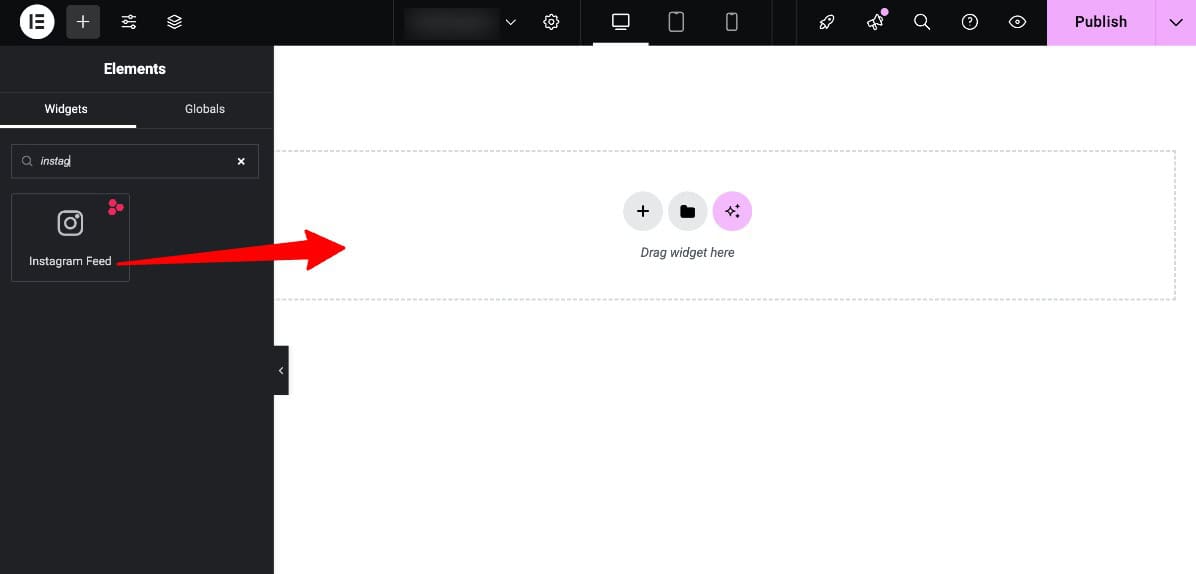
Open the page in Elementor, search for Instagram Feed in the widgets panel and drag it to where the feed should appear.
Paste your access token
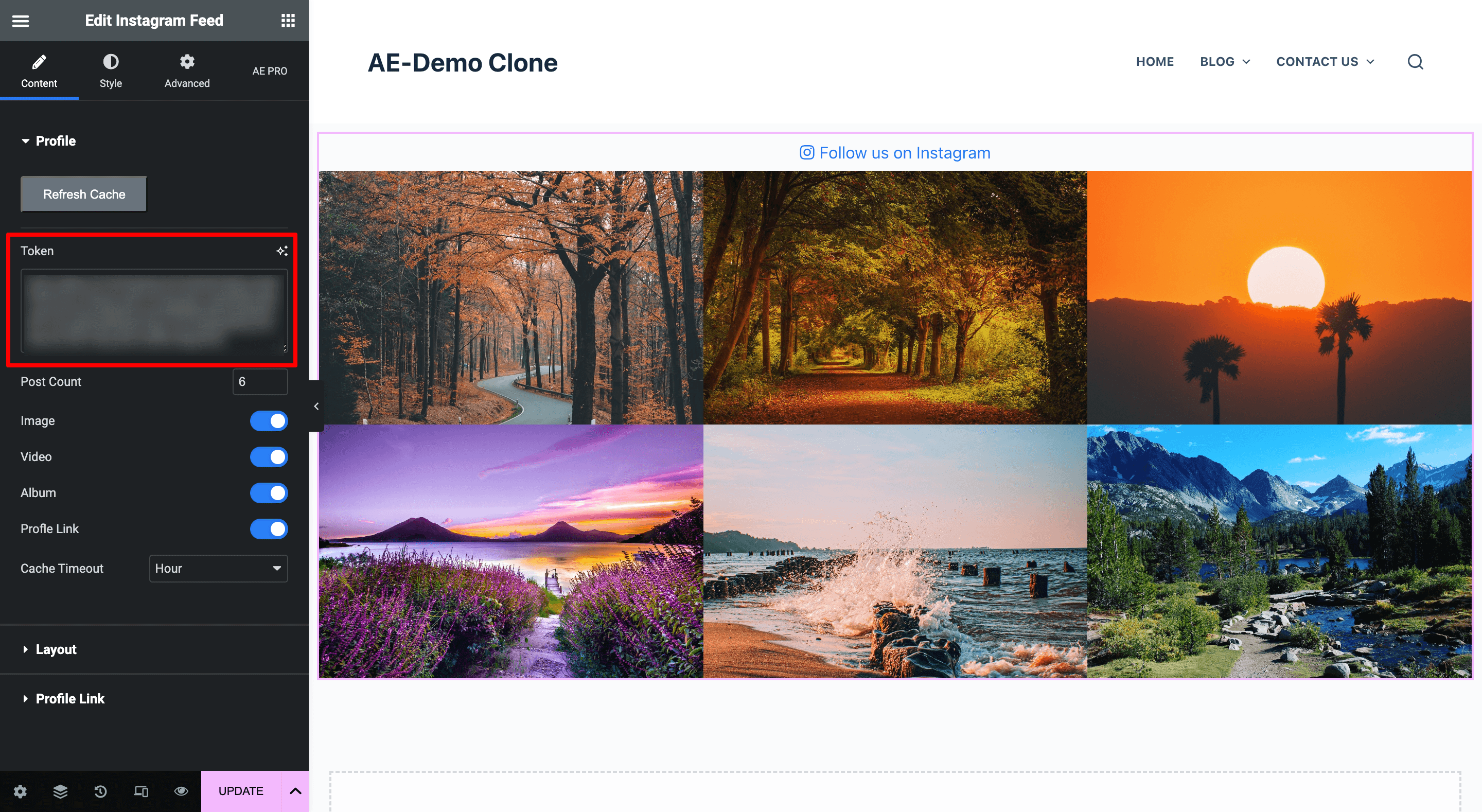
In the widget’s Content tab, open Profile and paste your token into the Token field. The feed loads in the editor once the token is valid.
Choose what the feed shows
In the same Profile section, set Post Count to the number of posts you want, and turn Image, Video and Album on or off to choose the post types. Cache Timeout sets how often the widget checks Instagram for new posts, and Refresh Cache loads the latest posts straight away.
Set up the profile link
Turn on Profile Link to add a “Follow us on Instagram” style button. In its settings, choose the position and alignment, the icon and text, and where the link goes when visitors click it.
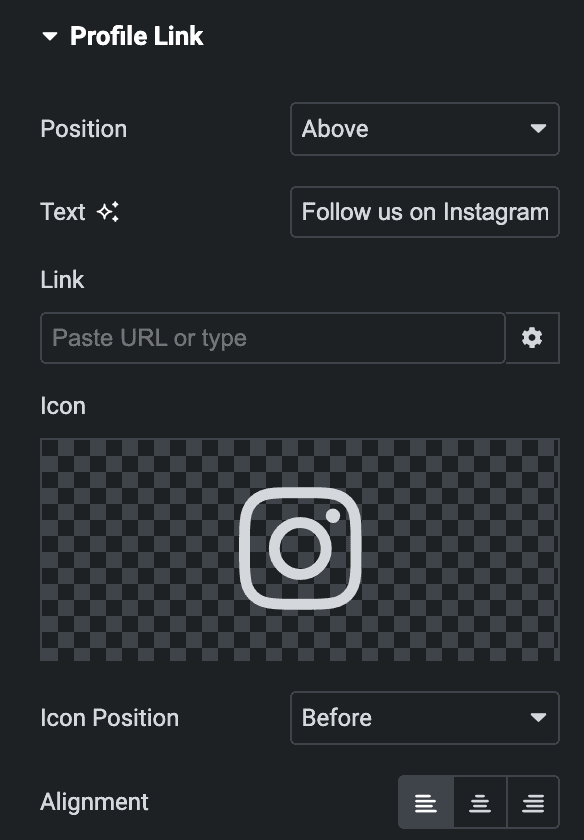
Tip: Keep the post count between six and twelve. It shows enough of your feed to look active without slowing down the page.
Addon Elements for Elementor
Want your Instagram posts on your site ?
The Instagram Feed widget shows your latest photos, videos and albums as a grid, masonry, flex or carousel layout, with a built-in lightbox.
Which Layout Should You Use for Your Instagram Feed?
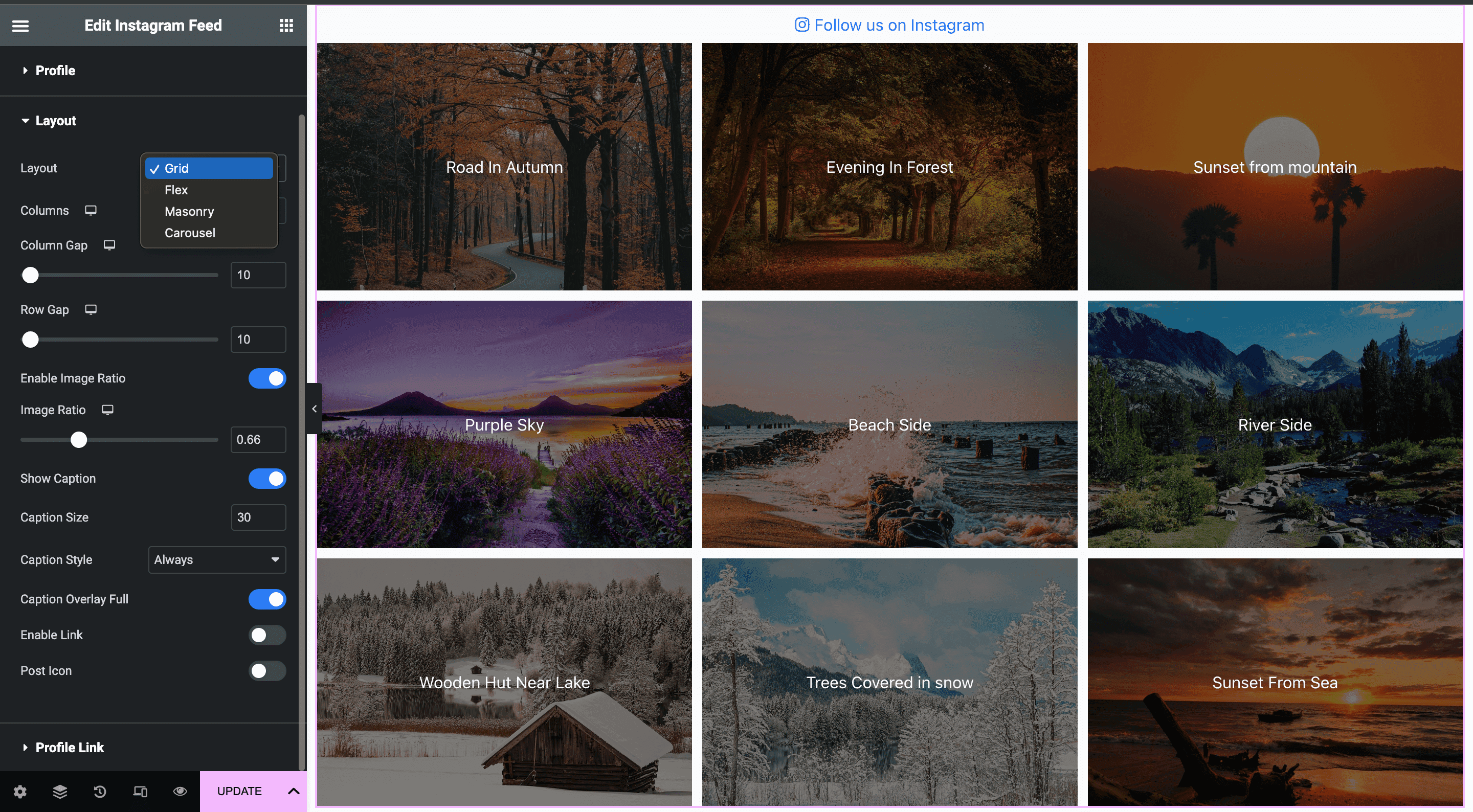
The Instagram Feed widget offers four layouts: Grid, Flex, Masonry and Carousel. Grid suits a tidy gallery, Masonry suits posts with mixed image heights, Flex gives you more control over item sizes, and Carousel saves space by sliding through posts. You choose the layout in the widget’s Layout section.
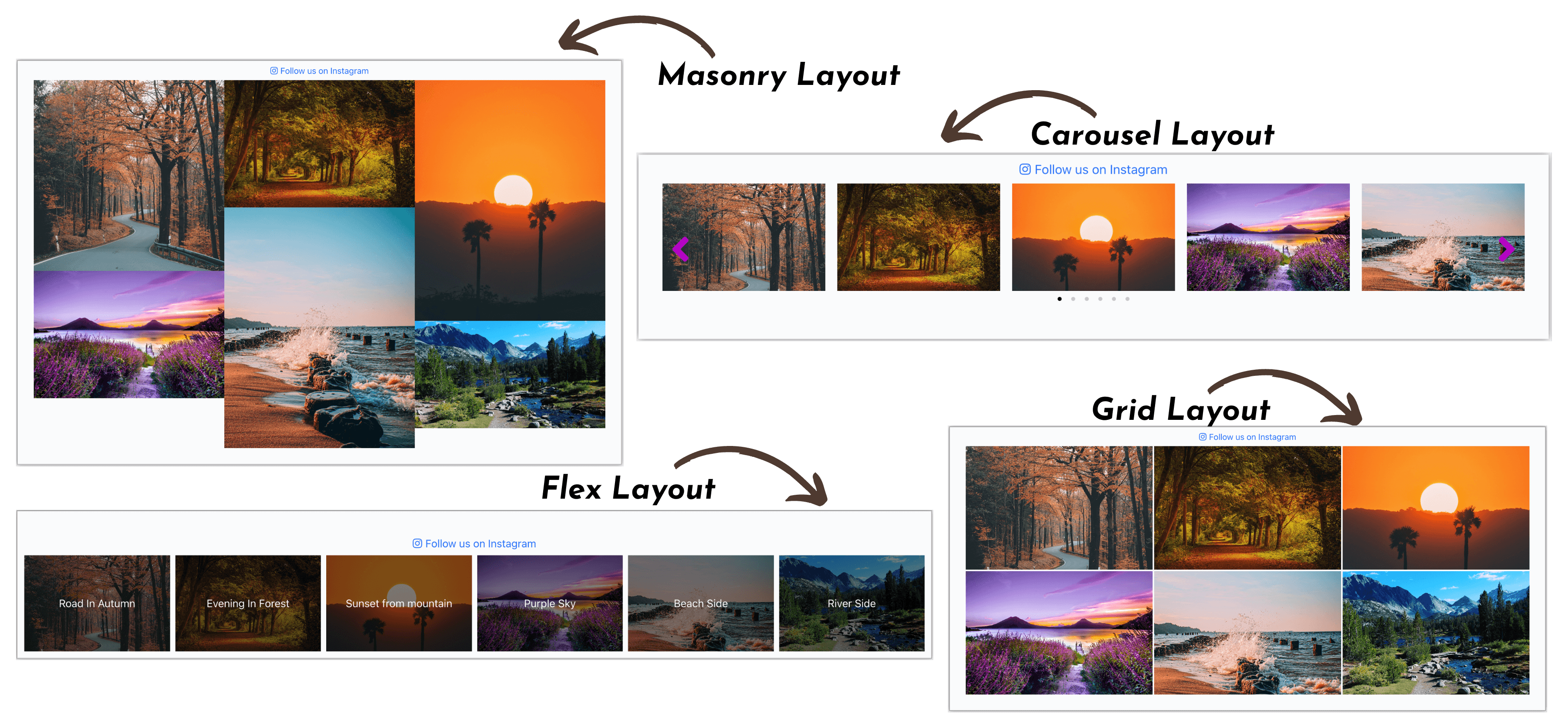
| Layout | Best for |
|---|---|
| Grid | A neat gallery of square posts in equal rows and columns |
| Masonry | Posts with different image heights, arranged like a Pinterest board |
| Flex | Custom item widths and spacing for more design control |
| Carousel | Showing many posts in a small space, with autoplay and slide effects |
Carousel settings
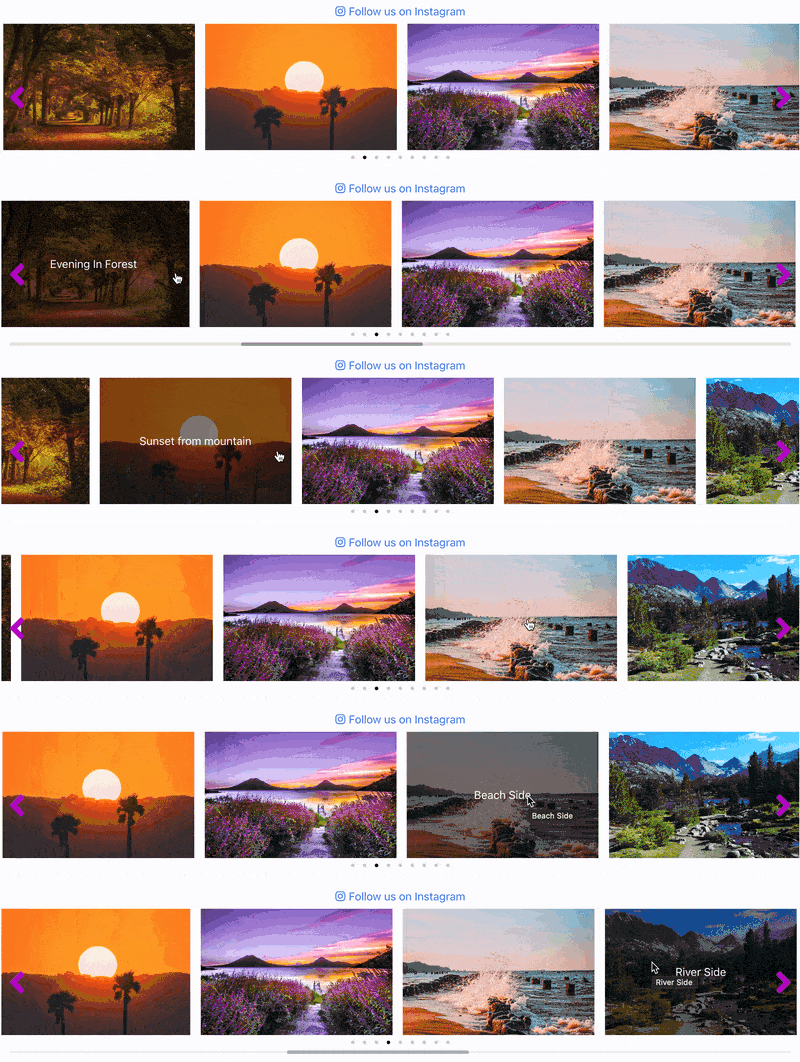
The Carousel layout adds autoplay, looping, slide effects such as fade, flip and coverflow, pause on hover, and pagination as bullets, a progress bar or a fraction. You can also show previous and next arrows.
Lightbox view
Turn on Lightbox in the Layout section so posts open in a full-screen popup when clicked. The lightbox can loop through posts, autoplay videos, show thumbnails and add share buttons for Facebook, Twitter and Pinterest.

How Do You Style Your Instagram Feed?
You style the feed in the widget’s Style tab. There you can add hover effects to images, show images in grayscale until hovered, animate captions, round the corners, add shadows, and set the typography and colors of the profile link, so the feed matches the rest of your site.
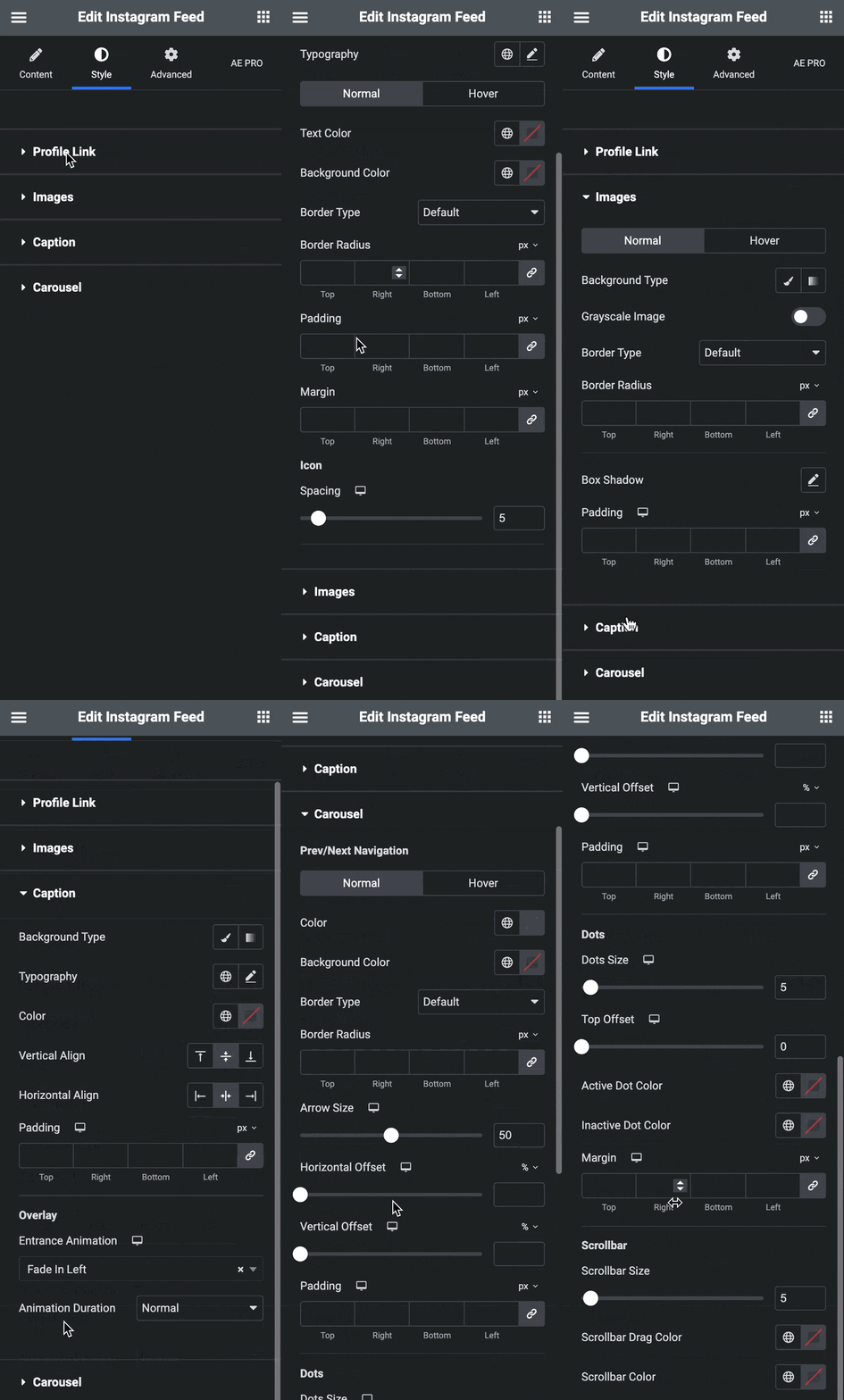
The Instagram Feed documentation lists every style setting in detail.
Why Is Your Instagram Feed Not Showing in Elementor?
An Instagram feed usually stops showing because the access token has expired, the account is personal instead of professional, or a cache is serving old content. The table below covers the common causes and fixes.
| Problem | Likely cause | Fix |
|---|---|---|
| The feed worked before and stopped updating | The token is more than 60 days old | Generate a new token and paste it in the widget’s Token field |
| The widget shows no posts at all | The token is invalid or was copied incompletely | Generate the token again and copy the whole code |
| Your account cannot be connected | The Instagram account is personal | Switch it to a Business or Creator account and generate a new token |
| Videos or albums are missing | Those post types are turned off | Turn on Video and Album in the Profile settings |
| New posts do not appear | The widget or site cache is still serving old content | Click Refresh Cache in the widget and clear your site cache |
What Should You Do Next?
Add the feed to one page first, such as your homepage or contact page, and check it on mobile. If you have not created your token yet, start with our guide on getting an Instagram access token, and set a reminder to renew it every 60 days.
Addon Elements for Elementor also includes other widgets you can pair with your feed, so your social content and the rest of your design stay consistent.
Note: Tokens from the Meta App Dashboard last 60 days. Set a reminder to renew yours before then so the feed never goes blank.
Addon Elements for Elementor
Add an Instagram feed to Elementor
Show your latest Instagram posts in a grid or carousel, plus timelines, flip boxes and more, all without writing code.
Frequently Asked Questions
How to add Instagram feed in Elementor?
Install Elementor and Addon Elements for Elementor, open your page in Elementor and drag in the Instagram Feed widget. Paste your Instagram access token in the widget’s Profile settings, choose the number of posts and a layout, then update the page.
Can I control the number of posts shown in the Instagram feed?
Yes. In the widget’s Profile settings, set Post Count to the number of posts you want. You can also set a Cache Timeout, which controls how often the widget checks Instagram for new posts.
What is an Instagram Access Token, and why do I need it?
An Instagram access token is a code that gives your website permission to read your Instagram posts through Meta’s official API. The widget needs it to load your feed, and a token from the Meta App Dashboard lasts 60 days.
How do I connect my Instagram account to the widget?
Generate an access token for your Instagram professional account in Meta for Developers, then paste it into the Token field in the widget’s Profile settings. Our access token guide shows every step.
What should I do if the feed isn’t showing up?
Check that your token has not expired, that your Instagram account is a Business or Creator account, and that Image, Video or Album is turned on in the widget. Then click Refresh Cache in the widget and clear your site cache.
Can I show Instagram videos and albums in Elementor?
Yes. In the Instagram Feed widget’s Profile settings, turn on Image, Video and Album to choose which post types appear. Turn on Autoplay in the Lightbox settings if you want videos to play as visitors move between posts.