Advanced Custom Fields(ACF) Complete Guide For Beginners
ACF, short for Advanced Custom Fields, is a WordPress plugin that lets you add your own fields to posts, pages and custom post types, such as an event date, a price or a location. You build the fields in a visual editor, fill them in on each post, and show the data on your site, all without writing code.
This beginner guide explains what ACF is, which field types it offers, and how to create field groups, custom post types and taxonomies in ACF step by step. It finishes with how to display ACF fields on your site with no code. To follow along, install and activate the free Advanced Custom Fields plugin from Plugins > Add New Plugin.
Key takeaways
- ACF is a WordPress plugin that adds custom fields, such as prices, dates or locations, to posts, pages and other content.
- Since ACF 6.1, you can also create custom post types and taxonomies inside ACF, with no extra plugin or code.
- To show ACF data on your site without code, use Dynific Addons for Elementor, which reads ACF fields directly in Elementor.
What Is ACF (Advanced Custom Fields) in WordPress?
ACF is a free WordPress plugin for adding structured content that the default editor cannot hold on its own. Instead of typing an event date or a product price into the main text, you give it a dedicated field, so every post stores that information in the same place and the same format.
Advanced Custom Fields is a WordPress plugin that lets you add custom fields to posts, pages, custom post types, users, and more. These fields allow you to collect and display structured content such as event dates, prices, locations, images, and more.
ACF also has a paid version, ACF Pro, which adds more advanced field types and an Options Page for site-wide settings. Everything in this guide works with the free version unless it says otherwise.
What Field Types Does ACF Offer?
ACF groups its field types into categories: Basic, Content, Choice, Relational, Advanced and Layout. Most are free, while a handful of advanced types such as Repeater, Flexible Content and Gallery need ACF Pro. Pick the field type that matches the data you want to store, and editors get the right input for it.
| Category | Examples | Free or Pro |
|---|---|---|
| Basic | Text, Text Area, Number, Range, Email, URL, Password | Free |
| Content | Image, File, WYSIWYG Editor, oEmbed | Free (Gallery is Pro) |
| Choice | Select, Checkbox, Radio Button, Button Group, True / False | Free |
| Relational | Link, Post Object, Page Link, Relationship, Taxonomy, User | Free |
| Advanced | Google Map, Date Picker, Date Time Picker, Time Picker, Color Picker | Free |
| Layout | Message, Accordion, Tab, Group | Free (Repeater, Flexible Content and Clone are Pro) |
If you want to keep related fields together, such as an image, title and button for a hero section, our guide to the ACF Group field shows how.
Dynific Addons for Elementor
Want to Show ACF Fields in Elementor Without Code?
Dynific Addons for Elementor displays text, image, Repeater, Group and Flexible Content fields with ACF (DA) dynamic tags and widgets, without Elementor Pro.
How Do You Create a Field Group in ACF?
To create a field group in ACF, go to ACF > Field Groups and click Add New. Name the group, add your fields, set the location rules that decide where the fields appear, and click Save Changes. A field group is simply a set of fields that show up together on the edit screen.
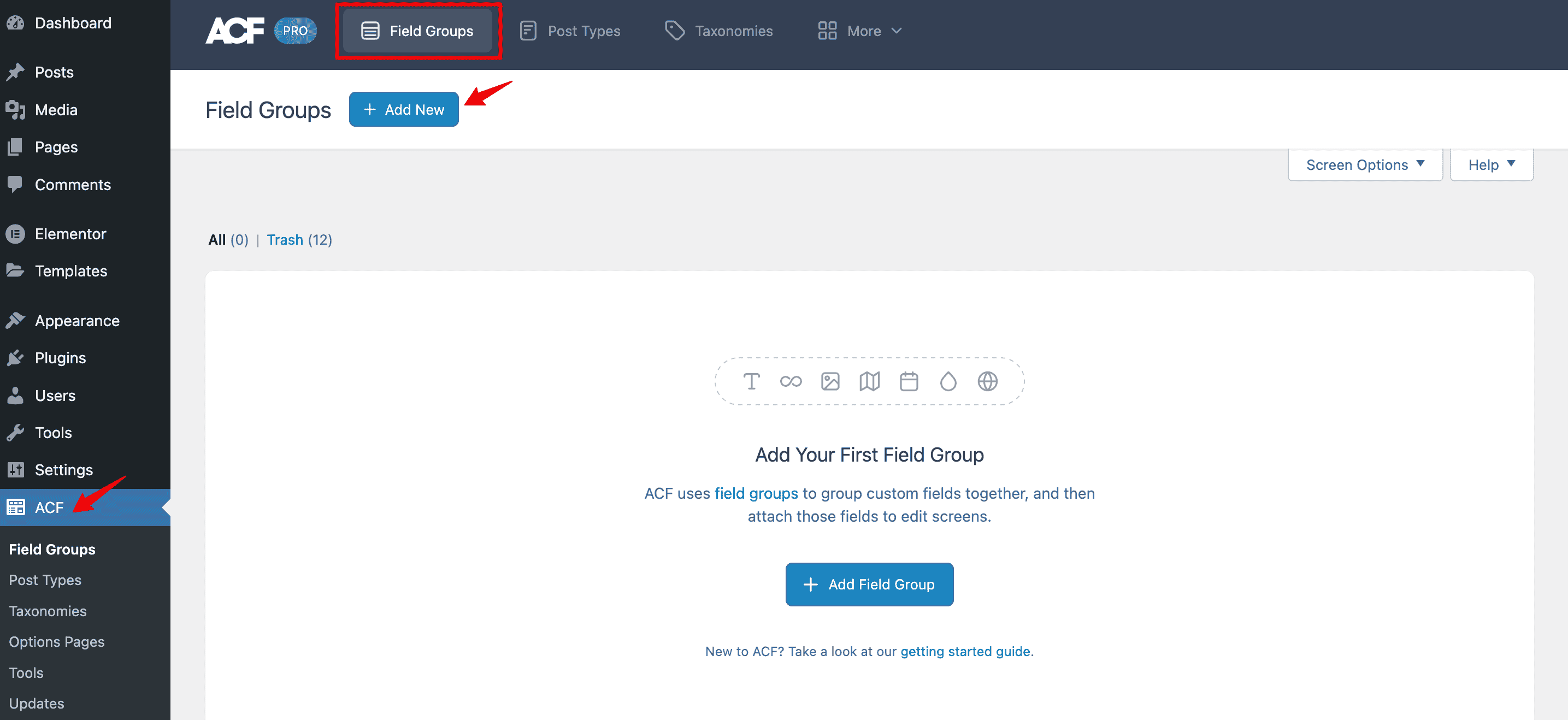
Type a name for the field group, then set up the first field. Each field needs a Field Type, which decides what kind of data it stores, a Field Label that editors see, and a Field Name used behind the scenes, which ACF fills in from the label. Optional settings such as a Default Value or a Character Limit help keep entries consistent.
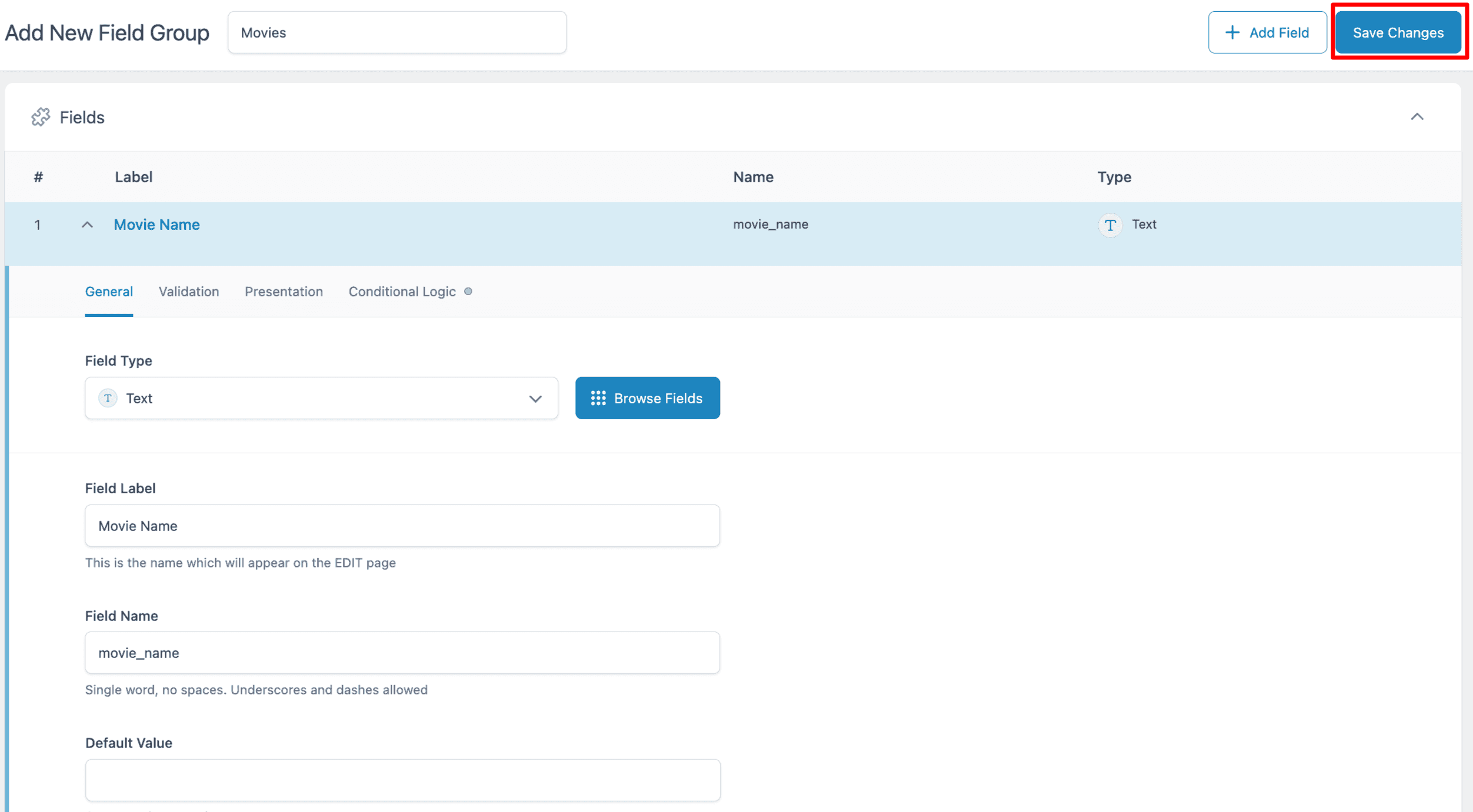
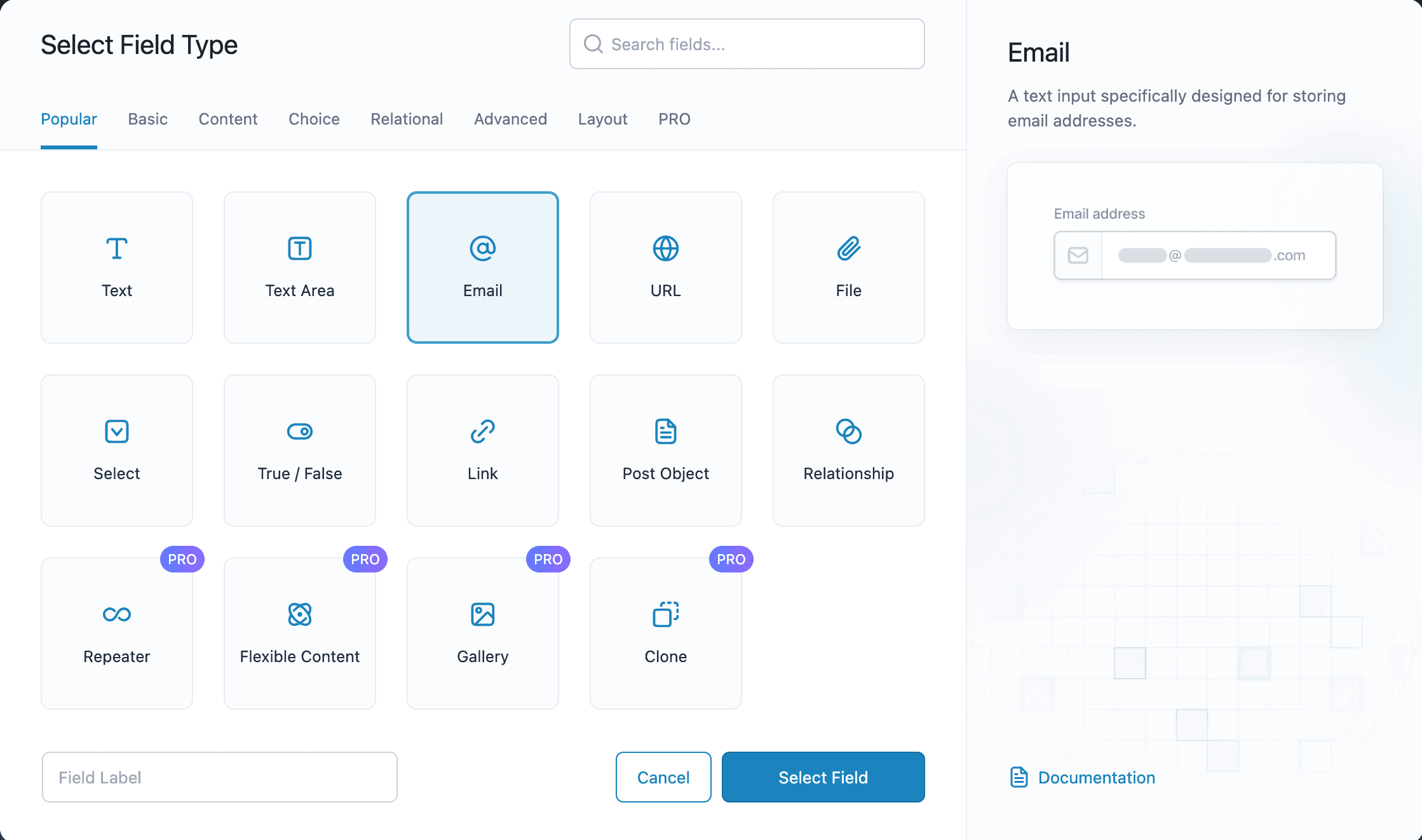
To pick a different field type, click Browse Fields. A window opens with tabs for each category, and clicking a field shows a short description, a preview and a link to its documentation.
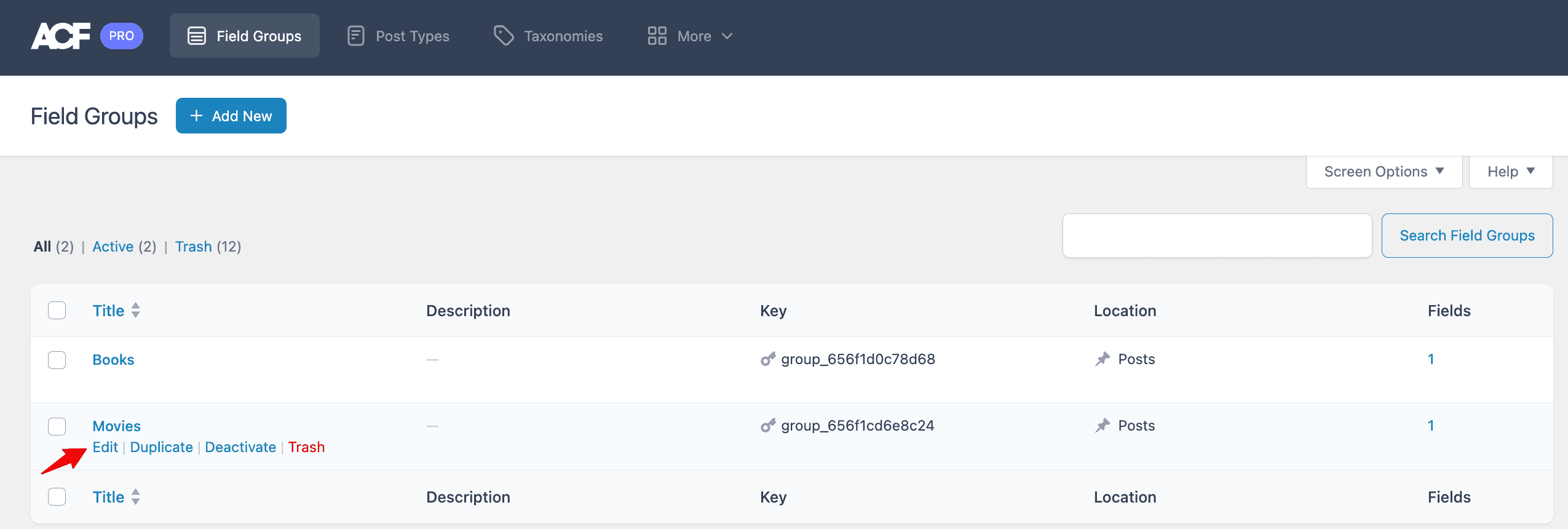
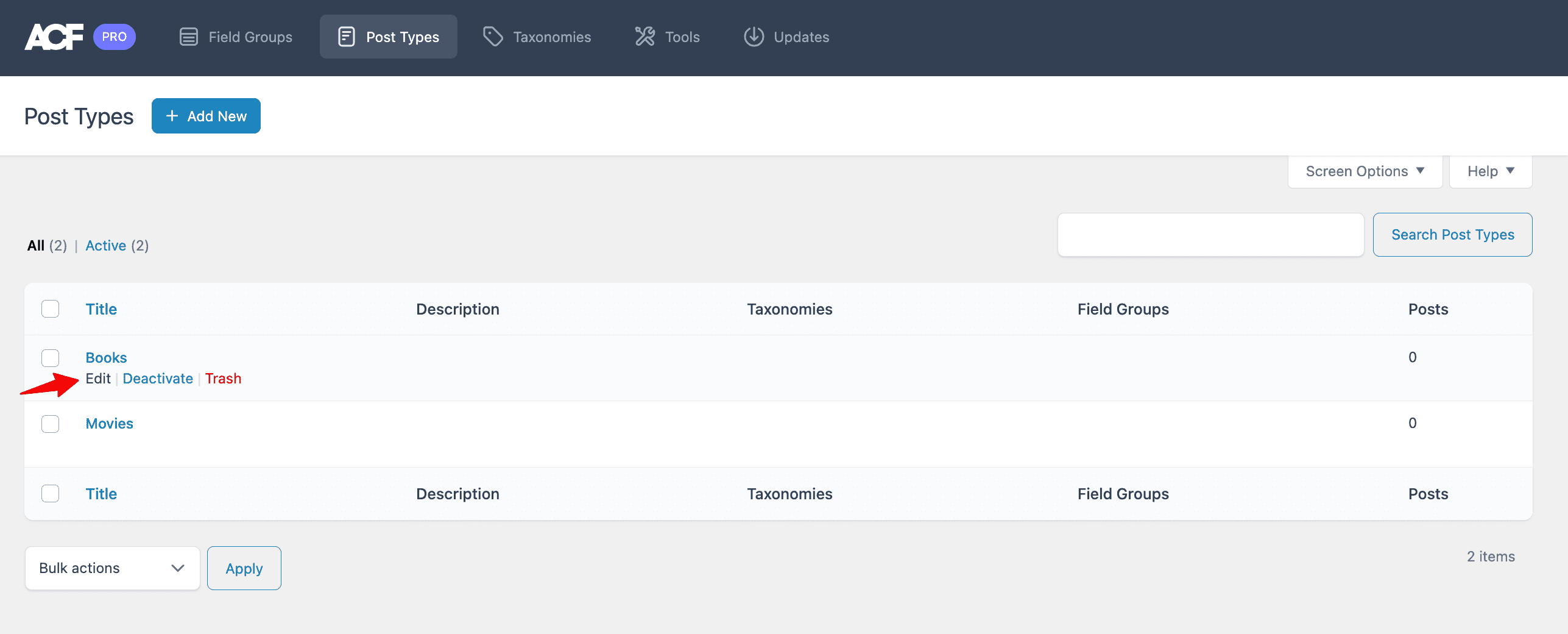
Click Save Changes when you are done. To change a field group later, open ACF > Field Groups and click Edit under its name; every setting is available again.
Need the same fields on another site? Our guide to importing and exporting ACF field groups moves them in a few clicks.
How Do You Create a Custom Post Type in ACF?
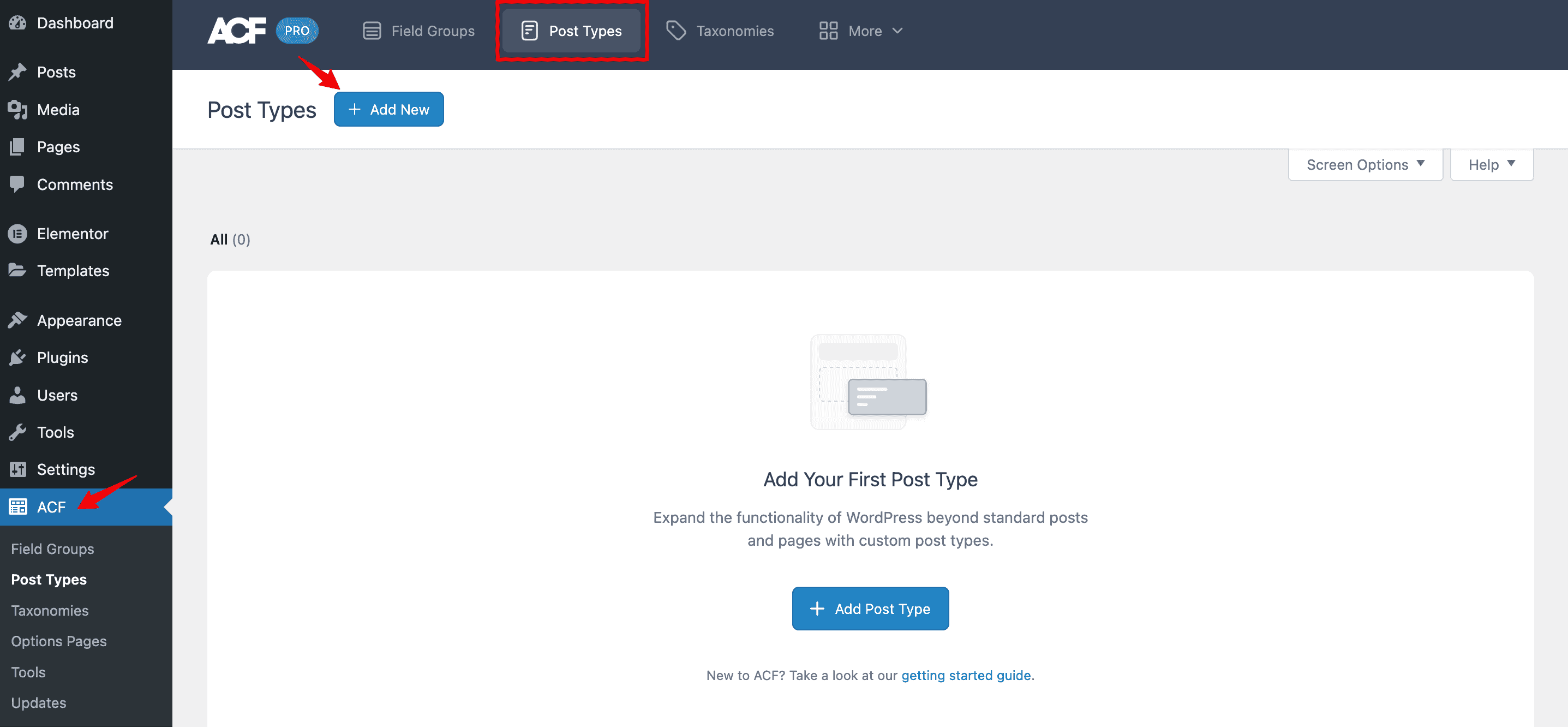
To create a custom post type in ACF, go to ACF > Post Types, click Add New, enter a plural and singular label, and click Save Changes. The new post type, such as Movies or Events, then appears in your WordPress dashboard menu with its own list of posts.
Start with the Plural Label, such as Movies, and the Singular Label, such as Movie. ACF builds the Post Type Key from the singular label, and you can change it if needed. Under Taxonomies, attach any existing taxonomies you want to use for sorting these posts.
The Public toggle decides whether the post type appears in the dashboard and on the front of your site. Hierarchical, which is off by default, lets items have parent and child items, like WordPress Pages. Turn on Advanced Configuration to see the full list of registration settings.
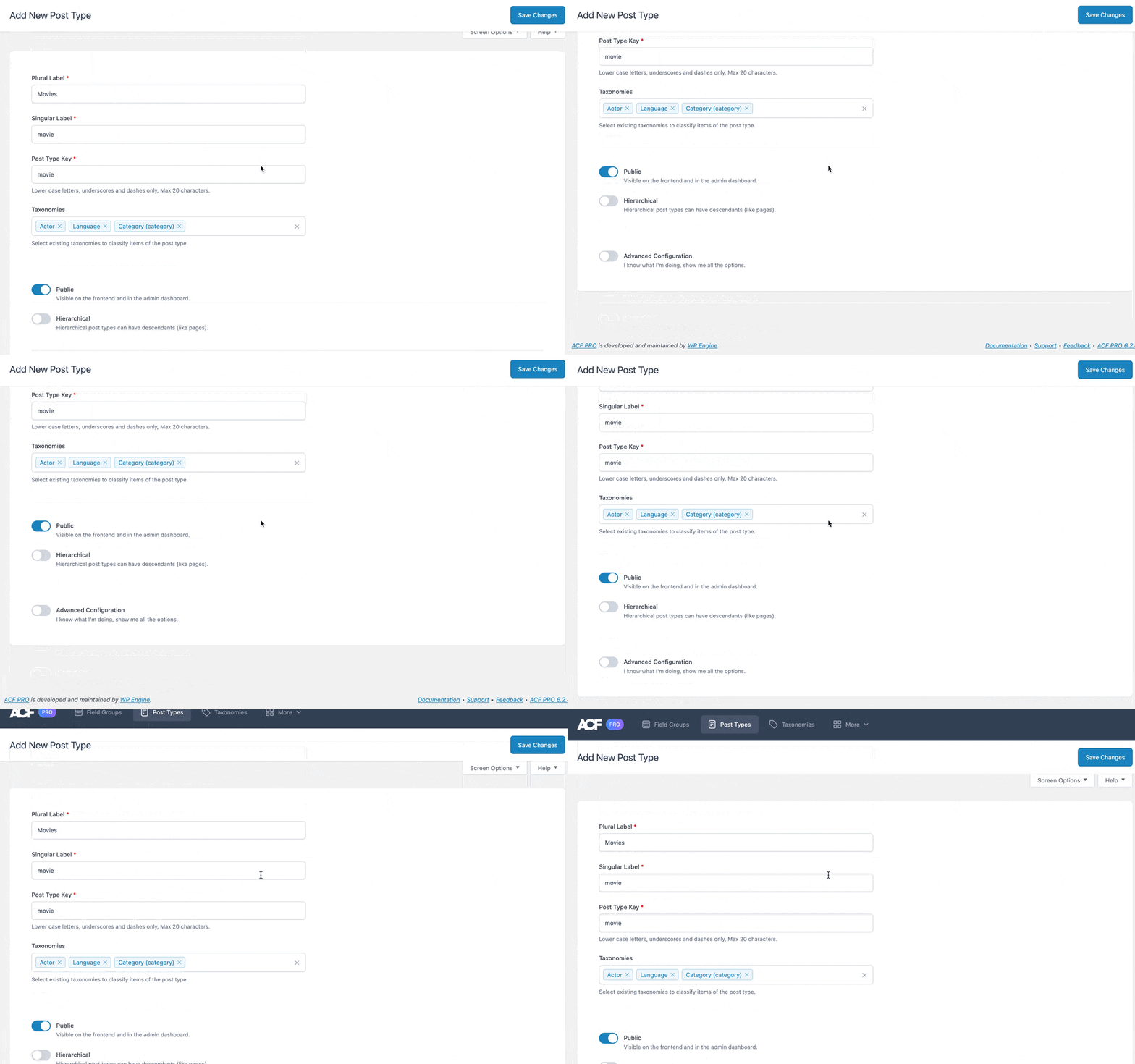
To change a post type later, open ACF > Post Types and click Edit under its name.
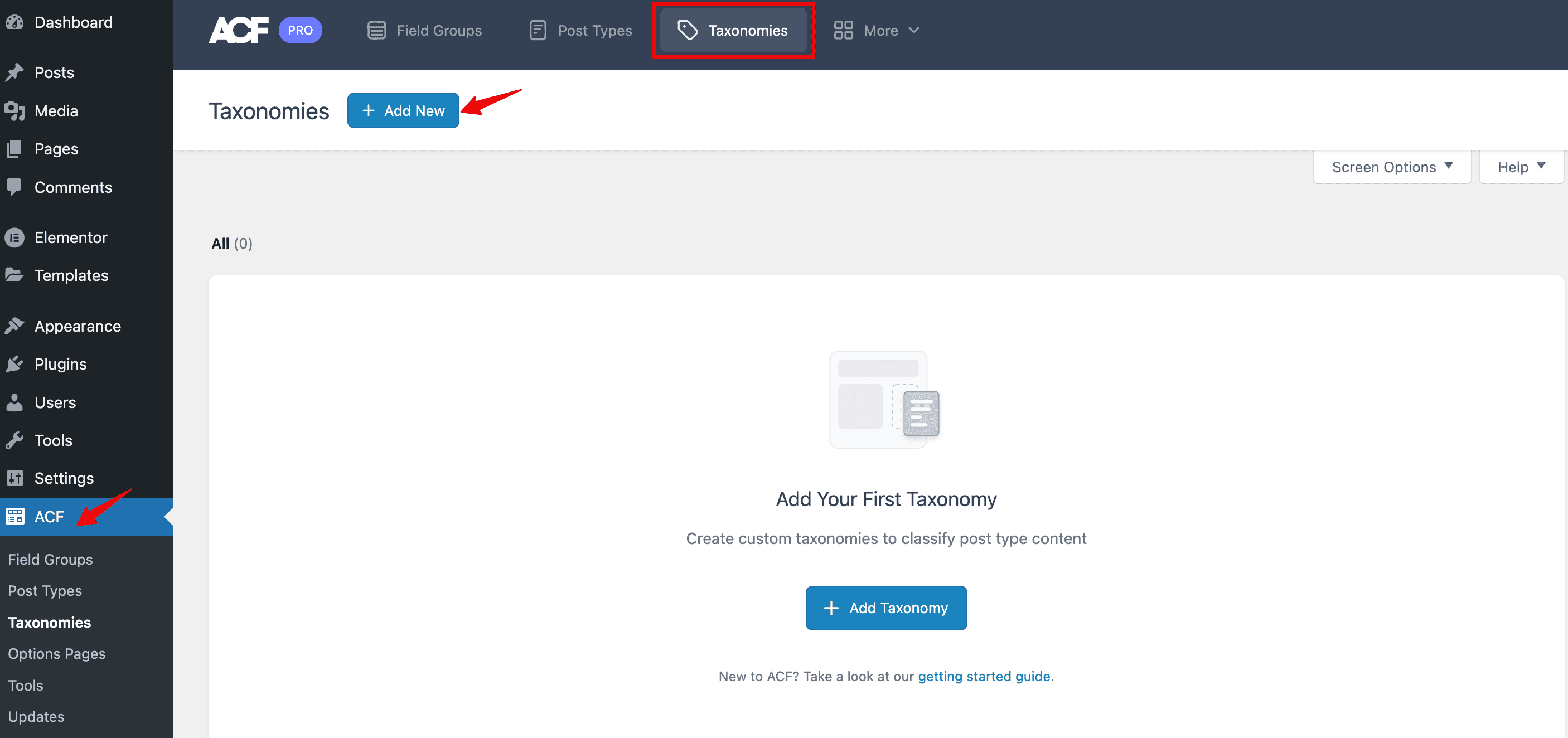
How Do You Create a Taxonomy in ACF?
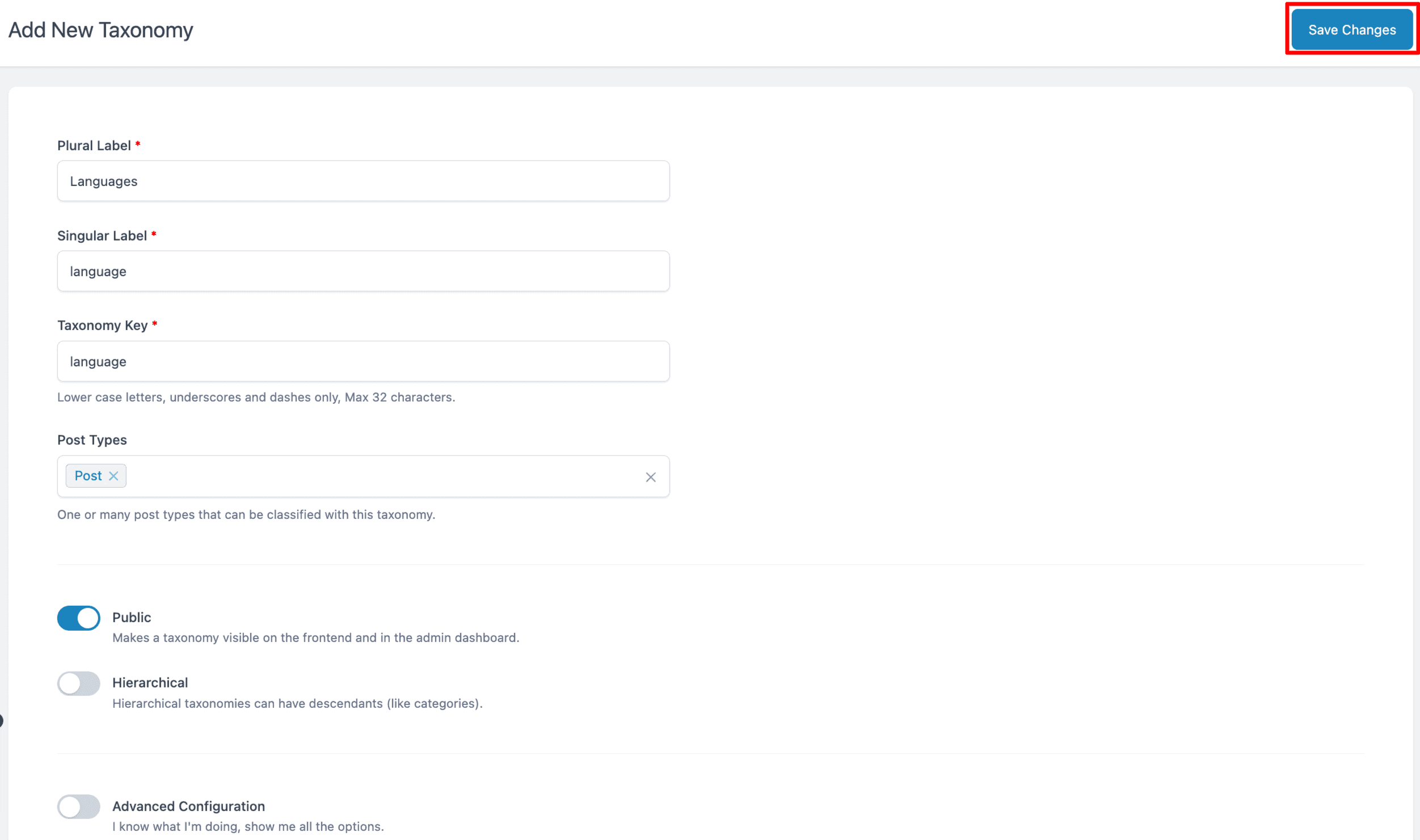
To create a taxonomy in ACF, go to ACF > Taxonomies, click Add New, enter a plural and singular label, choose the post types it applies to, and click Save Changes. A taxonomy groups posts, the way Categories and Tags do, so visitors can browse related content.
Enter the Plural Label and Singular Label, and ACF creates the Taxonomy Key for you. Under Post Types, pick which post types can use this taxonomy, such as Movies. Public controls whether the taxonomy shows in the dashboard and on your site, and Hierarchical lets terms have parents and children, like Categories. Turn on Advanced Configuration for every other setting.
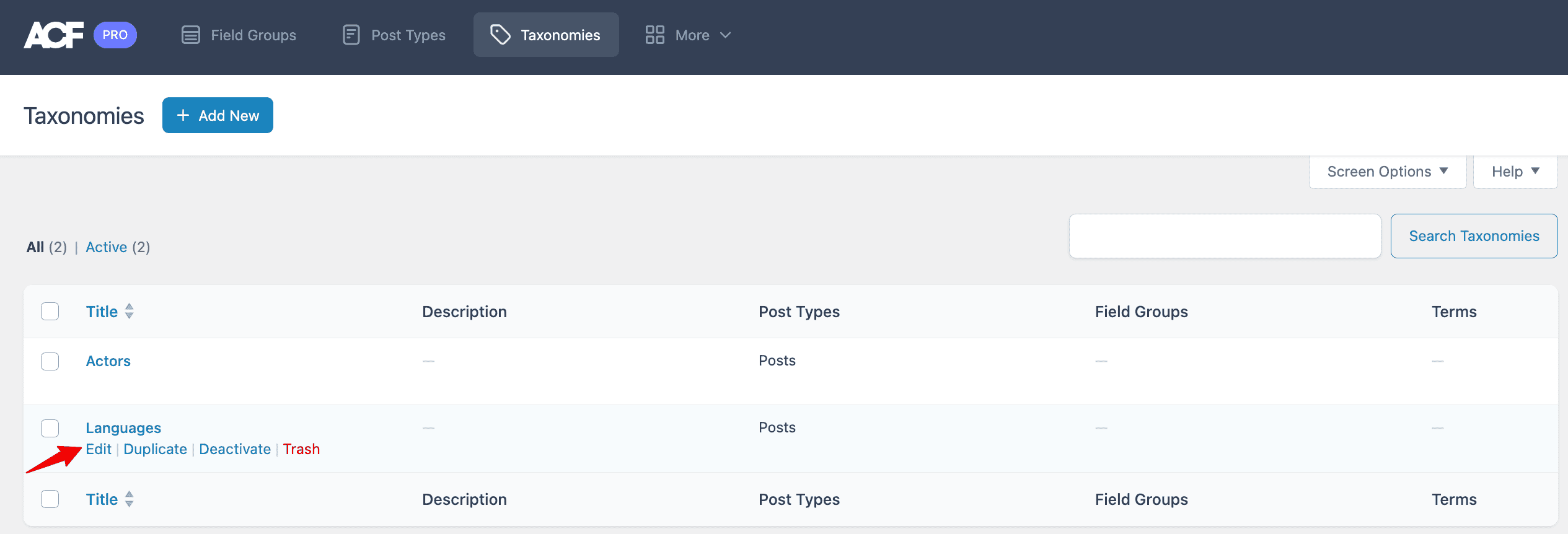
To change a taxonomy later, open ACF > Taxonomies and click Edit.
How Do You Add Terms to a Taxonomy?
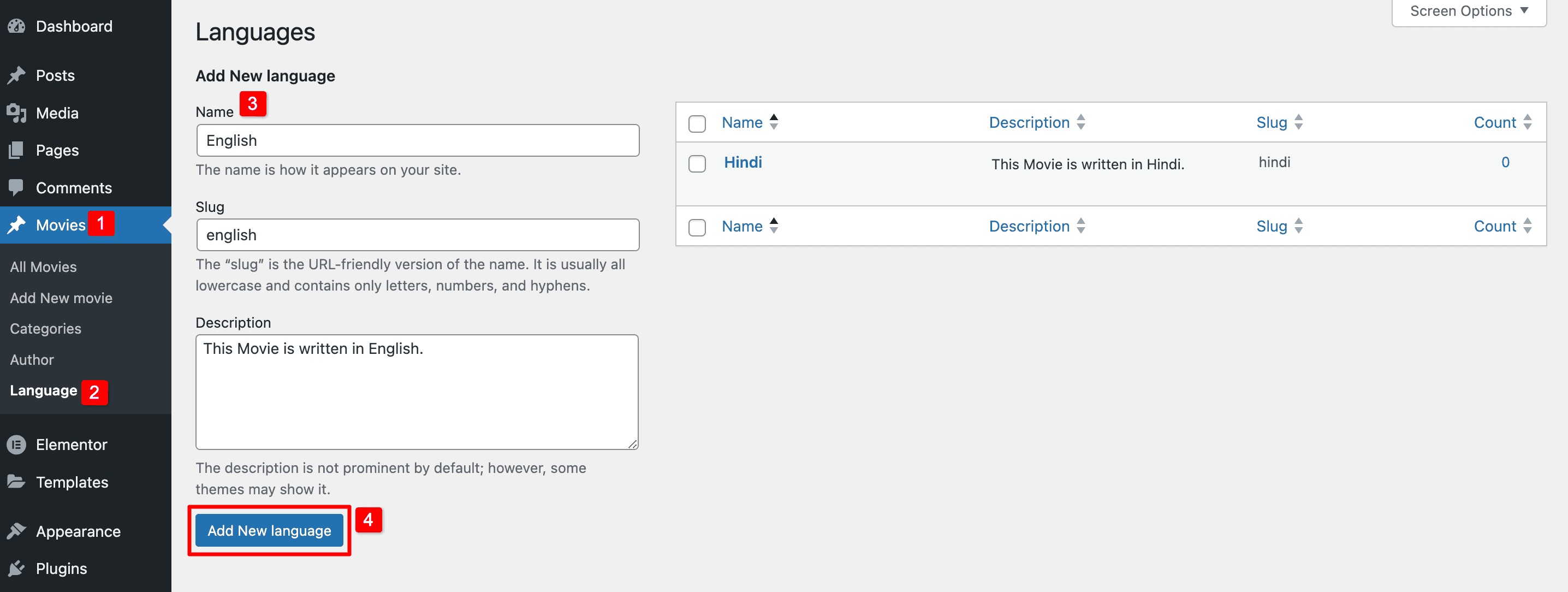
Open your custom post type in the WordPress dashboard menu, such as Movies, and click the taxonomy, such as Language. Type the term name, add a slug and an optional description, then click the Add New button for that taxonomy.
How Do You Add Categories to a Custom Post Type?
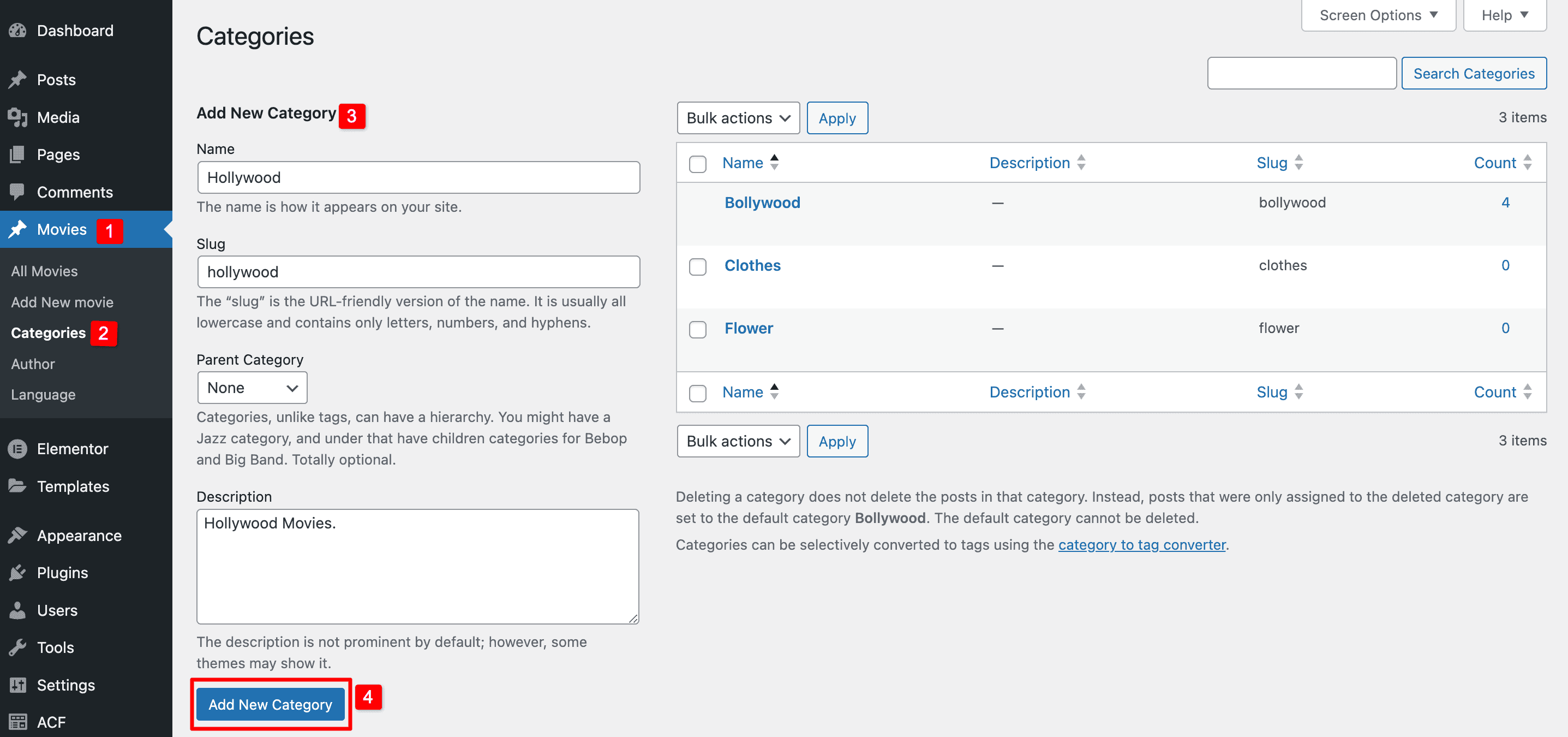
If you attached Categories to your post type, open the post type in the dashboard menu and click Categories. Enter a name and slug, choose a parent category if needed, add a short description and click Add New Category.
How Do You Display ACF Fields Without Code?
To display ACF fields without code, use Dynific Addons for Elementor. It adds ACF (DA) dynamic tags that work inside native Elementor widgets, plus dedicated widgets for Repeater, Flexible Content and Gallery fields. You place a widget, pick the ACF field, and the value shows on every post that uses the template, without Elementor Pro.
- Create a single post template for your post type in Elementor.
- Add a native widget, such as a Heading or Image, where the field should appear.
- Click the Dynamic Tags icon and choose the matching option under ACF (DA).
- Select your ACF field, then preview a post that has data filled in.
Our tutorial on how to display ACF fields in Elementor without Elementor Pro covers every major field type step by step.
What Should You Do Next?
Start small: create one field group with a couple of fields, attach it to a post type, and fill in a few posts. Once that works, add custom post types and taxonomies to give your content a clear structure, and explore the ACF Options Page in ACF Pro for settings used across your whole site.
Still choosing a custom fields plugin? Our comparison of ACF vs Pods explains what each one does. When your fields are ready, Dynific Addons for Elementor helps you put that data into your designs without touching a template file.
Frequently Asked Questions
What is Advanced Custom Fields (ACF)?
ACF is a powerful plugin that allows you to create and manage custom fields, custom post types, and taxonomies to enhance the structure and functionality of your WordPress site.
What types of fields can I create using ACF?
ACF offers field types in six categories: Basic, Content, Choice, Relational, Advanced and Layout. The free version covers text, number, image, file, select, relationship, date picker, Group and many more. Repeater, Flexible Content, Gallery and Clone fields need ACF Pro.
Can I manage existing custom post types, custom fields, and taxonomies in ACF?
Yes, ACF provides an “Edit” option for post types, custom fields, and taxonomies, allowing you to change configurations without re-registering them manually.
Is ACF free or paid?
ACF has a free version with basic features. The Pro version offers more advanced options like repeaters, flexible content, and more.
Can I use ACF with Elementor or other page builders?
Yes. ACF works with Elementor and other page builders. In Elementor, Dynific Addons for Elementor lets you show ACF fields, including Repeater, Group and Flexible Content fields, through ACF (DA) dynamic tags and widgets, without Elementor Pro and without code.
Should you use ACF or Custom Post Type UI?
If you already use ACF, you usually do not need Custom Post Type UI. Since version 6.1, ACF registers custom post types and taxonomies as well as custom fields, so one plugin covers all three. Custom Post Type UI only registers post types and taxonomies, so you would still need a separate plugin for fields.