How To Create Single Post Template
Using Dynific Addons for Elementor, you can create beautiful templates for your blog posts. It gives you the freedom to design your template the way you like and apply the single post template to all the posts or only to a specific one.
Steps to Create Single Post Template
To create a post template using Dynific Addons for Elementor, follow the below-mentioned steps:
- Navigate to your WordPress Admin dashboard and Go to Dynific Addon Templates -> Add New.
- Now, under the Dynific Addons for Elementor Settings, do the following configuration:

- Render Mode: Post Template
- Post Type: Post
- Preview Post: Select any existing post. Just type the first few characters of the title of your existing post, and it will populate the options to select.
- Auto Apply: Check this to apply it to all blog posts, making it a Global Template. (You can also design multiple single templates and apply them conditionally. We will get into this later.)
- Template: Select how your theme will render it on the front end. Elementor Full Width will give you much better control over the content area while keeping the Header-Footer provided by your theme.
- After you are done with configuration settings, edit this template in the Elementor editor.
- In Elementor, add appropriate widgets to get the dynamic content from the posts. Here, we have used the Dynific Addons for Elementor widgets to get content from the posts. You can also use Elementor’s native widgets for dynamic content functionality.
Read more about How To Get Dynamic Content
Final Look
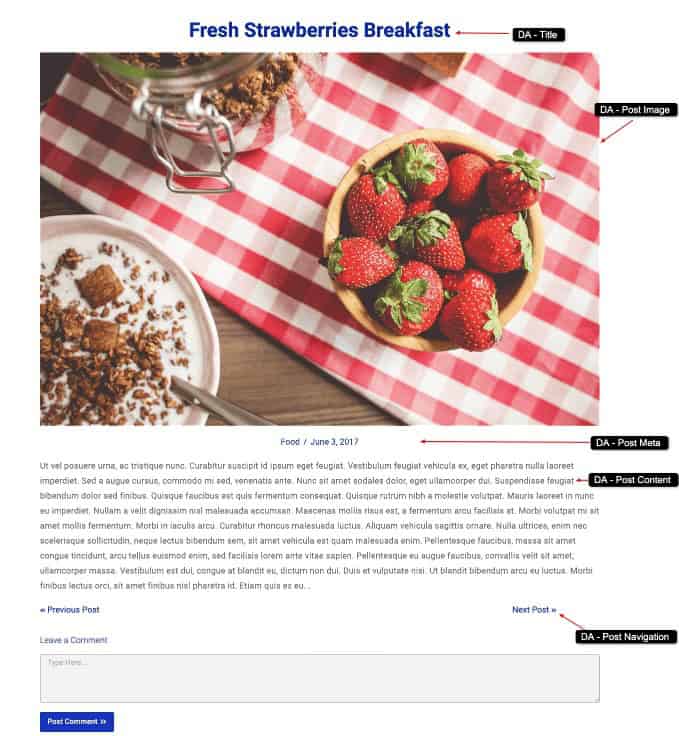
Here is the final look of what the Single Post Template should look like; moreover, you can design it the way you like.