
Create WooCommerce Single Product Page Layout Using Elementor
Creating a unique and highly converting WooCommerce single product page is essential for giving customers a smooth shopping experience. With Elementor and DA Templates, you can design every part of the product page visually without touching any code.
In this guide, we’ll walk you through how to create a custom WooCommerce single product page layout using Elementor, preview it live, and even apply different layouts to different products.
Steps to Create WooCommerce Single Product Page
Create an Dynific Addon Template
- Log in to your site admin.
- Go to Dynific Addon Templates -> Add New Template
Configure Template Layout Settings
- Set sidebar or header settings based on your preference.
- For the best distraction-free editor experience, it is recommended to use Elementor Canvas. This will not affect the final product page layout.
Configure Template Settings
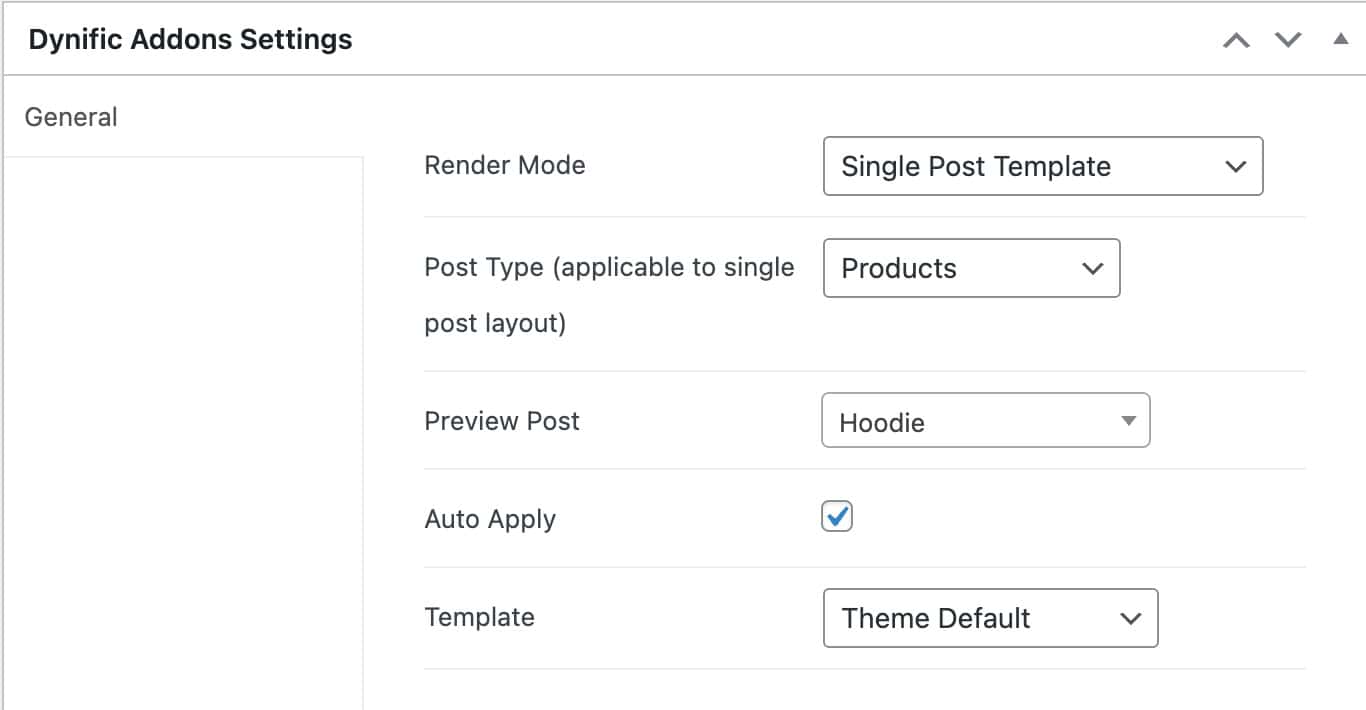
Below the content area, locate the Dynific Addons for Elementor Settings meta box and configure the following:
- Render Mode: Post Template
- Preview Post: Enter the product name you want to preview in Elementor
- Post Type: Product
- Auto Apply: Check if you want to apply this template to all products automatically
Start Designing in Elementor
- Now open Elementor and start designing the layout.
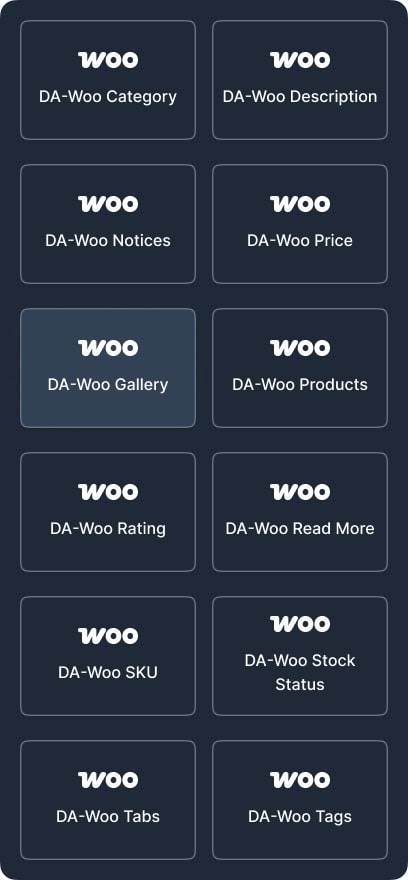
- In the Elementor widget panel, you will find many new widgets to design every section of the product page.
Selecting Product Layouts for Individual Products
In case you need multiple product layouts for the different types of products, you can create multiple Dynific Addon Templates using the procedure mentioned above. After creating the layouts, you can select them individually for each product.
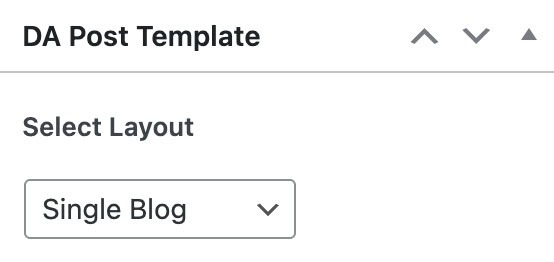
For this, just go to the Product edit page in WooCommerce. On the right top, you will get the option “Dynific Addon Post Template.” This will show you all the layouts you have created. Select your desired layout here.
The following options are available there
- None – If you don’t want any layout override and want to show the default WooCommerce layout.
- Global – This will show the layout, which is set with Auto Apply as True (Checked)
- All other templates – List of All layouts created in DA Templates.
Conclusion
By combining DA Templates with Elementor, you can take full control of your WooCommerce product pages. Whether you want one global layout or multiple layouts for different products, this setup gives you complete flexibility without writing a single line of code.