
How to Use Shortcode in Dynific Addons for Elementor
Shortcodes in Dynific Addons allow you to display any template anywhere on your website with just a simple code.
When you create a template, a shortcode is automatically generated for it. You can copy this shortcode and paste it into any page, post, or widget area, and the template design will be rendered at that location.
With the introduction of the post-id attribute, you can now also control which post’s dynamic data should be displayed inside the template. This is especially useful when your template includes dynamic data, as it allows you to render content from a specific post using the shortcode.
In short, shortcodes make it easy to reuse templates and display dynamic content anywhere without recreating the design.
Step 1: Create a Template in Dynific Addons
Follow these steps to create a template:
- Navigate to Dynific Addons Template -> Add New.
- Create any template.
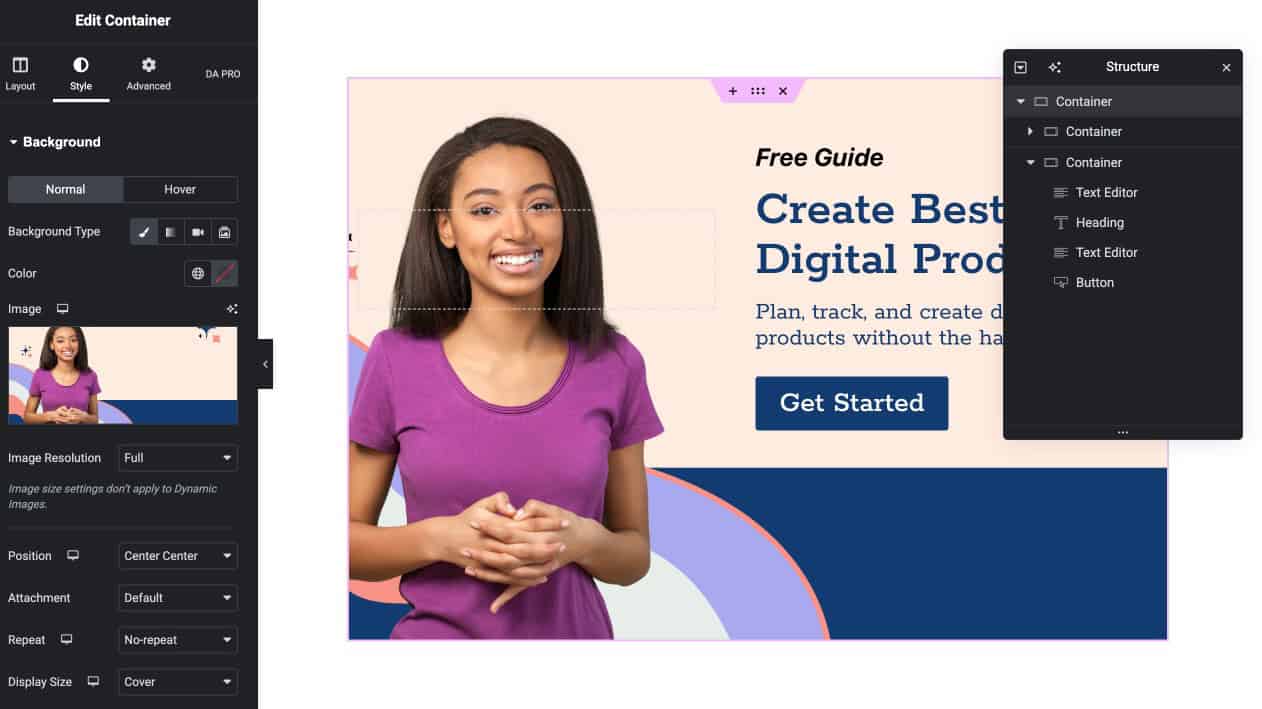
- Click on Edit with Elementor
- Design your template using Elementor or Dynific widgets
- Click Publish
Step 2: Where to Find the Shortcode
Once your template is created:
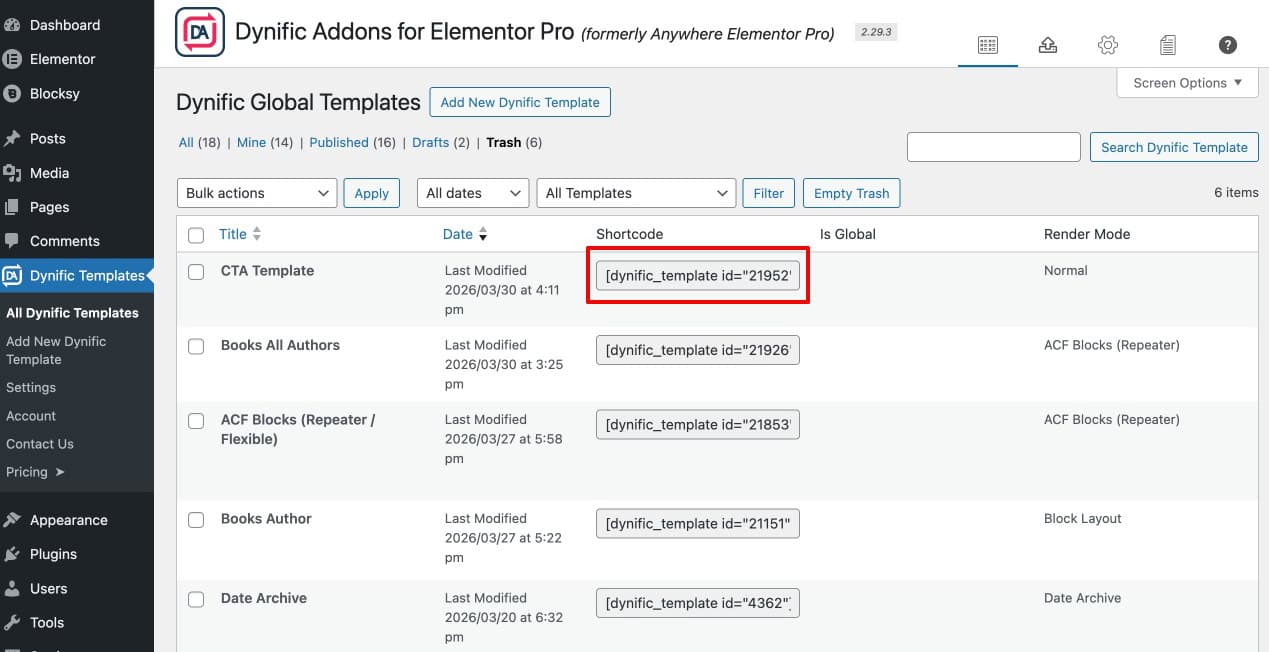
- Go to Dynific Addons → All Templates
- You will see a list of all created templates
- Locate your template and copy its shortcode
Each template has its own unique shortcode.
Step 3: Add Shortcode to Page or Post
- Go to Pages or Posts
- Open any page where you want to display the template
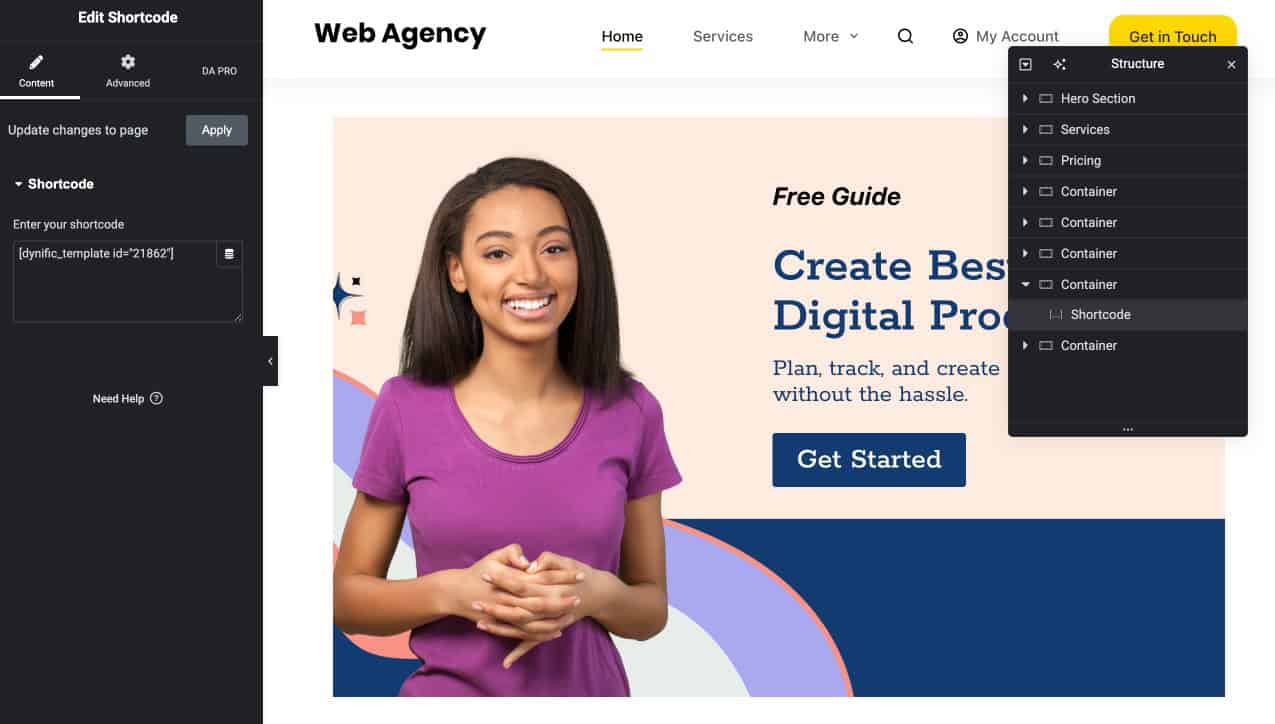
- Add a Shortcode block (Gutenberg) or Shortcode widget (Elementor)
- Paste the copied shortcode
Step 4: Preview the Page
- Click Update / Publish
- Open the page on the frontend
The template will be rendered dynamically at that location.

Using the post-id Attribute in Shortcode
In the new shortcode format, a post-id attribute has been introduced to provide better control over dynamic data.
[dynific_template id="1704" post-id="157"]
- id → Represents the template ID
- post-id → Specifies the post from which dynamic data will be fetched
This is especially useful when your template contains dynamic data, and you want to render data from a specific post.
How to Find the Post ID in WordPress
To find the Post ID:
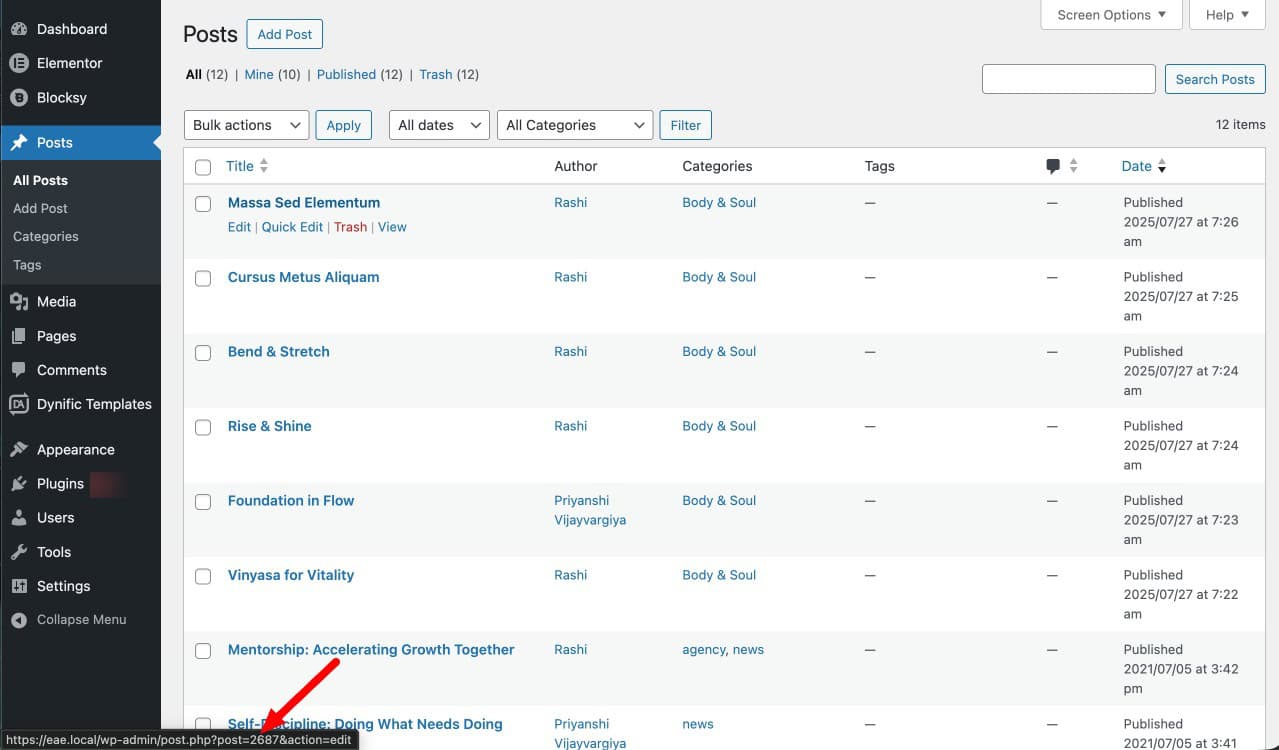
- Go to Posts → All Posts
- Hover over any post
- Look at the URL shown at the bottom of your browser
- You will see something like: post=157
That number is your Post ID.
Shortcode Format Update
Previously, Dynific Addons used the following shortcode format:
[INSERT_ELEMENTOR id="14395"]
Now, an updated shortcode format has been introduced:
[dynific_template id="21984"]
However, if you are already using the old shortcode, it will continue to work without any issues.