DA – ACF Fields
The Advanced Custom Field widget allows you to fetch data from the fields you have created using the Advance Custom Field plugin.
It gives various options through which you can retrieve data from the fields.
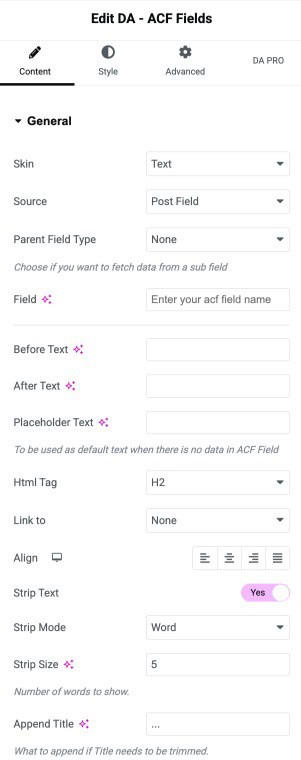
Content
General
- Field Type: Here, you need to specify the type of field from which you want to retrieve the data.
- Source: Select the data source. This is basically where your field group is attached.
- Post Field: Retrieve data from the Post Fields. (To be used in Post/CPT singular template. It can also be used in designing loop-in Block Layouts for the Post Block widget.)
- Term Field: Displays data from Term Fields (To be used on Taxonomy Archive Templates)
- User: Select this to display data from User meta fields. (To be used on Author Archive Templates)
- Option: Use this to display data from Settings pages created using Pods.
- Parent Field Type: Choose if this field is a Sub Field (Repeater Field, Flexible Content field). It will be needed if you are using it in ACF Block Layout(Repeater/ Flexible Content). Or select the Group field option.
- Parent Field: On selecting the field type as Group field, you also need to mention its parent field.
- Repeater Field: On selecting Repeater in the field type, you need to first select the parent Repeater name or nested Repeater. Then specify the subfield.
- Field: Specify the field name/slug.
- Before Text: Add some prefix text.
- After Text: Add suffix text to your content.
- Placeholder Text: You can use it to show the default text to be displayed if the field is empty.
- Html Tag: Select the HTML tag that you want to be wrapped around the content.
- Links To: You can assign an action to your retrieved field data by clicking on it. As soon as you click on the field, you will be redirected to some specific section. For example, you can link your ACF Fields to post, static URL, and custom field.
- Alignment: Set content alignment (Left, Center, Right, Justified).
- Strip Text: Enable it to strip longer content
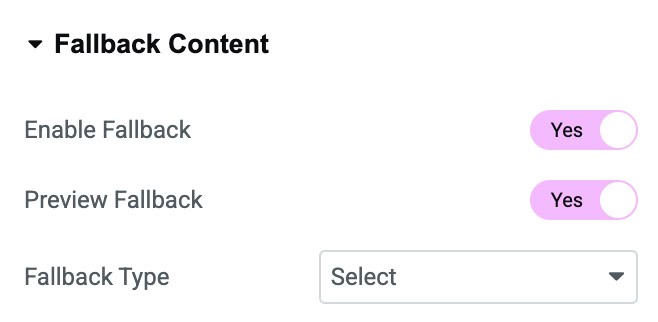
Fallback Content
- Enable Fallback: Enable it to display any additional content if the custom field is empty.
- Preview Fallback: Enable to get a preview of the fallback content.
- Fallback Type: You can choose content like an Image, text, or a template to be displayed if the field is empty.
Style
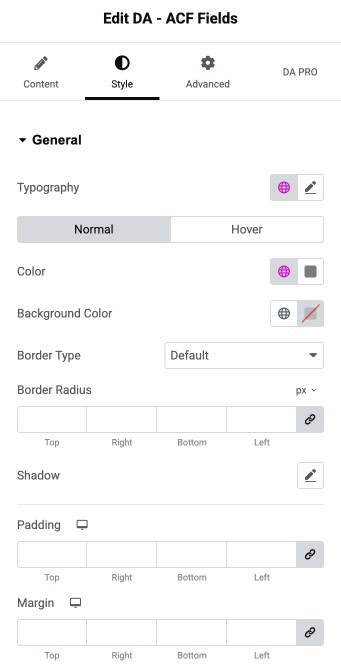
General
- Typography: Customize font style, size, weight, and other text properties for both normal and hover states.
- Color: Set the text color.
- Background Color: Define the background color of the element.
- Border Type: Choose the type of border.
- Border Radius: Set the border radius.
- Shadow: Apply box-shadow effects to add depth.
- Padding: Control the padding.
- Margin: Set the margin.
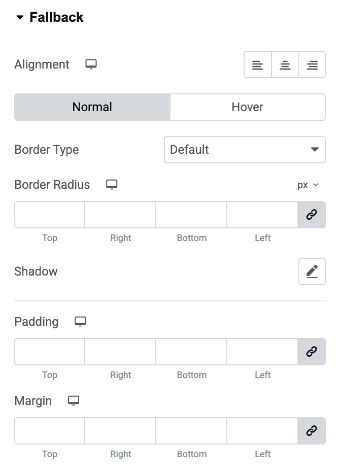
Fallback
- Alignment: Set the horizontal alignment of the fallback content.
- Border Type: Choose the border style for the fallback container.
- Border Radius: Set the border radius.
- Shadow: Apply a box shadow around the fallback container.
- Padding: Set the inner spacing between the content.
- Margin: Control the outer spacing around the fallback container.