
DA – Custom Field
To display data from Custom Fields, you can use the DA – Custom Field widget. It supports popular custom field plugins like ACF and Pods.
You can even use it to fetch data from your custom-coded custom field. All you need is the meta key that has been used to save data in wp post_meta table.
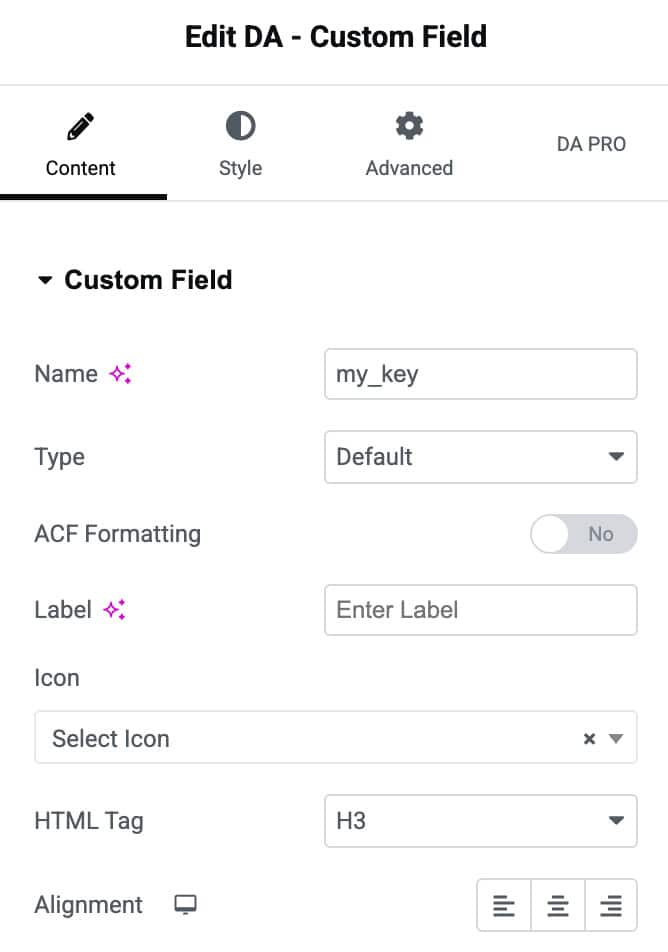
Content
- Name: Name/Key of the custom field. Some custom field also calls it as Field Slug. If you are using a custom-coded custom field, this will be your custom field’s meta key.
- Type: It defines how this custom field data will be displayed on the front end.
- Default: It refers to the default text mode. Whatever is saved in that field will be displayed as such.
- HTML: It is used to render data on the frontend while maintaining Html formatting. It is very useful in case you are adding data in the custom field using the WYSIWYG editor.
- Link: This option is when your custom field contains a URL. You can use it to display an anchor link on the front end. It can also be used on the frontend to display a link on a dynamic text (fetch from another custom field).
- Image: It is useful when your custom field is returning the image path or image id. The best way is to configure your field to return the image id. Some custom field plugins like ACF allow you to set the return mode of the field.
- Video: Use it if your custom field has Youtube or Vimeo video URL. After selecting this option, you will get further options to customize player UI.
- Audio: It renders a native audio player with an Audio file URL entered in the custom field.
- oEmbed: It is used to embed videos, images, tweets, audio, and other content. Your custom field should return a valid oEmbed URL. Check here for a list of all WordPress-supported oEmbed providers.
- Date: It is useful when your custom field contains Dates in the fields.
- Label: Enter the label.
- Icon: Choose the icon that display with custom field.
- HTML Tag: Select the HTML tag.
- Alignment: Choose the alignment from left, right, or center.
Style
Custom Field
- Color: Set the default text color for the custom field value.
- Text Hover Color: Choose the text color that appears when hovering over the custom field.
- Typography: Customize the typography.
- Background Color: Set the background color for the custom field container.
- Border Type: Select the style of the border.
- Border Radius: Control how rounded the custom field container corners appear.
- Item Shadow: Apply shadow effects to the custom field.
- Padding: Add inner spacing around the custom field to adjust layout and spacing.
- Label Spacing: Adjust the distance between the label and the field value for better readability.
