
How to Add Custom Icons in Elementor (Step-by-Step Guide)
To add custom icons in Elementor, open any icon setting and choose Upload SVG to use your own icon file, which works in free Elementor. For a full icon set, Elementor Pro lets you upload a .zip from Fontello, IcoMoon or Fontastic under Elementor > Editor > Custom Elements > Icons, and the icons appear in the Icon Library next to the built-in ones.
This guide explains both methods, how to use your icons in the editor, how to set a favicon for your site, and what to check when custom icons do not show up.
Key takeaways
- One icon, free Elementor: use Upload SVG in any icon picker to add a single custom icon.
- A full icon set, Elementor Pro: upload a .zip from Fontello, IcoMoon or Fontastic under Elementor > Editor > Custom Elements > Icons, and the set appears in the Icon Library.
- Favicon: the small icon in the browser tab is set separately, in Site Settings > Site Identity.
What Are Custom Icons in Elementor?
Custom icons in Elementor are icons you add yourself instead of choosing from the built-in Icon Library. They can be brand symbols, icons designed for your site, or sets from free libraries such as Fontello and IcoMoon, and you use them in the same widgets as regular icons: Icon, Icon Box, Icon List, Button and more.
Custom icons keep your design consistent, match your brand better than generic icons, and let you use styles the default library does not include.
Which Way Should You Add Custom Icons in Elementor?
Choose Upload SVG when you need one or a few icons, and an icon set when you want a whole family of matching icons available in the Icon Library. Upload SVG works in free Elementor, while icon sets need Elementor Pro.
| Upload SVG | Custom icon set | |
|---|---|---|
| Elementor version | Free | Pro |
| Best for | One or a few icons, such as a logo mark | A full family of matching icons |
| File type | A single .svg file | A .zip from Fontello, IcoMoon or Fontastic |
| Where icons appear | Media Library | Its own tab in the Icon Library |
| Reuse | Pick the SVG again from the Media Library | Choose from the set in any icon picker |
How Do You Upload a Single SVG Icon in Elementor?
To upload a single SVG icon, add a widget with an icon, such as the Icon widget, open its icon setting and choose Upload SVG. Select an SVG from your Media Library or upload one from your computer, and Elementor uses it as the icon. This works in free Elementor.
- Add an Icon widget, or select any widget with an icon setting.
- Hover over the icon preview in the Content tab and click Upload SVG.
- Choose or upload your .svg file and click Insert Media.
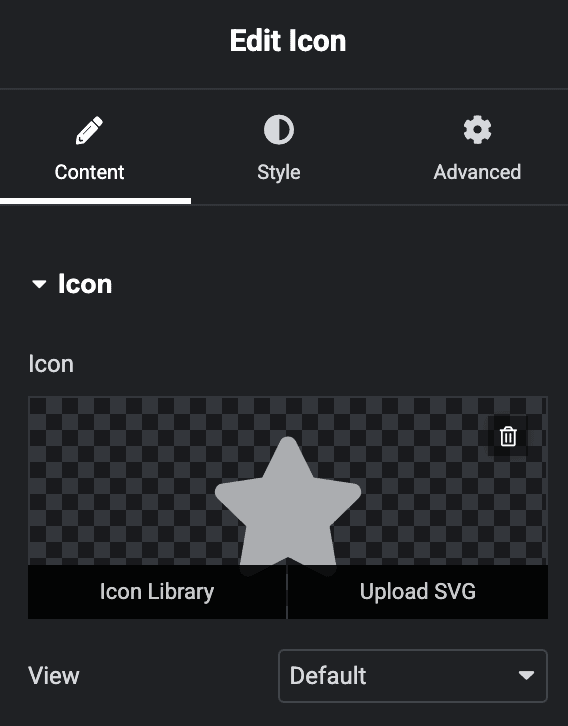
The first time you upload an SVG, Elementor may ask you to confirm SVG uploads. Only use SVG files from sources you trust. Our guide on how to upload SVG files in Elementor covers this in more detail.
Important: Only upload SVG files from sources you trust. An SVG file can contain code, so avoid icons downloaded from unknown websites.
How Do You Upload a Custom Icon Set With Elementor Pro?
To upload a custom icon set, download the icons as a .zip from Fontello, IcoMoon or Fontastic, then go to Elementor > Editor > Custom Elements > Icons, click Add New, name the set, upload the .zip and click Publish. The set then appears as its own tab in the Icon Library.
Note: Custom icon sets are an Elementor Pro feature. In Elementor 4, you find them under Elementor > Editor > Custom Elements > Icons, not the older Elementor > Custom Icons menu.
Download an icon set
Go to Fontello, click the icons you want to include, and click Download webfont. Keep the .zip file as it is, because Elementor reads the files inside it.
Tip: Keep the .zip exactly as Fontello downloads it. If you unzip it and zip it again, Elementor may not be able to read the icons.
Upload the set to Elementor
- In the WordPress dashboard, go to Elementor > Editor > Custom Elements > Icons and click Add New.
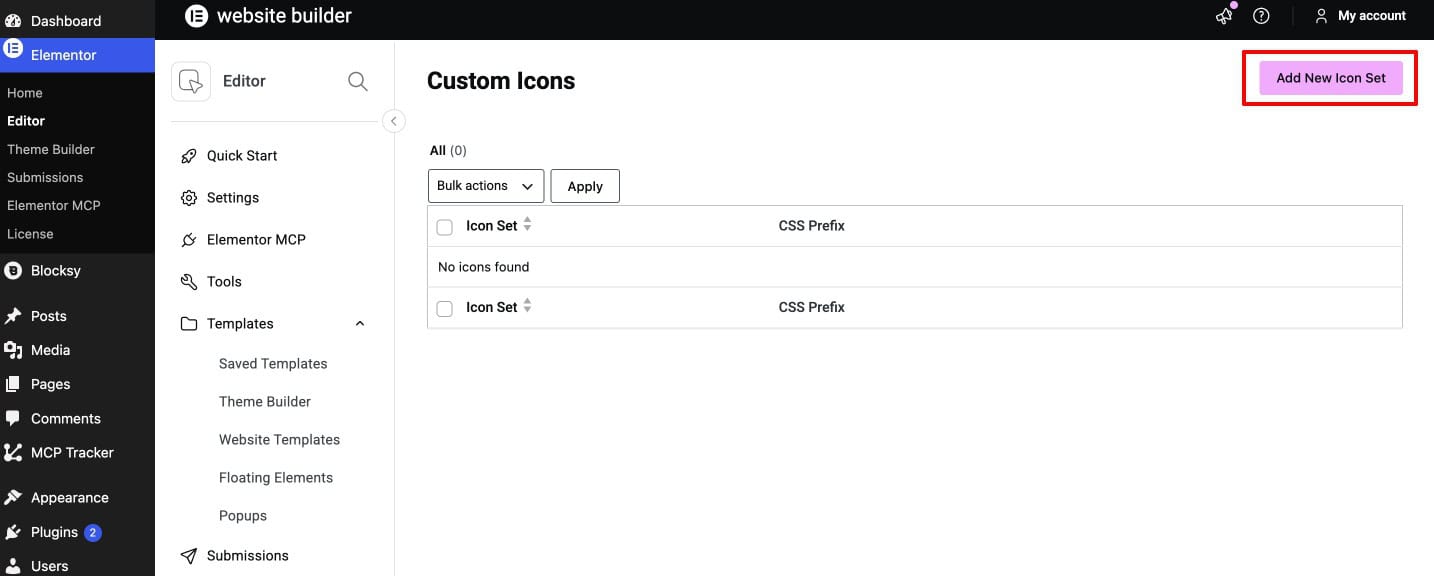
- Enter a name for the icon set.
- Upload the .zip file you downloaded.
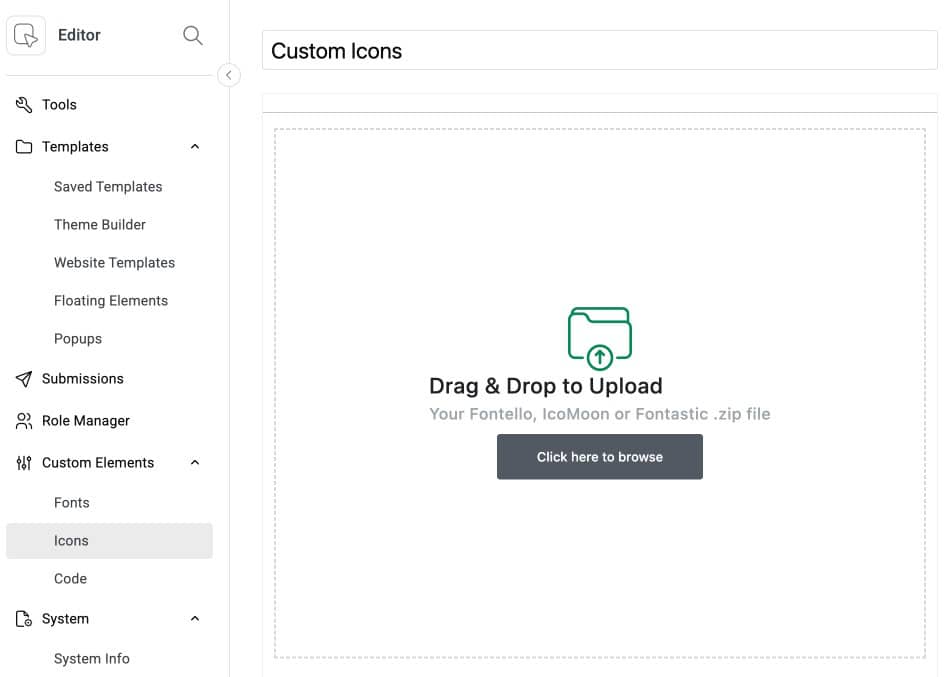
- Check the preview of your icons and click Publish.
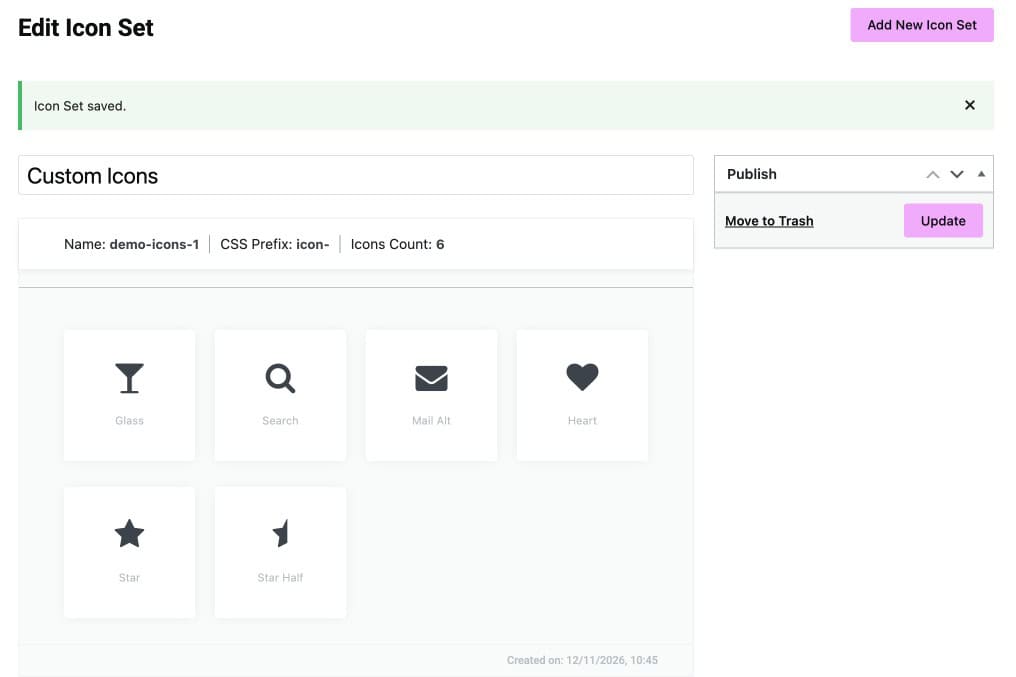
How Do You Use Custom Icons in the Elementor Editor?
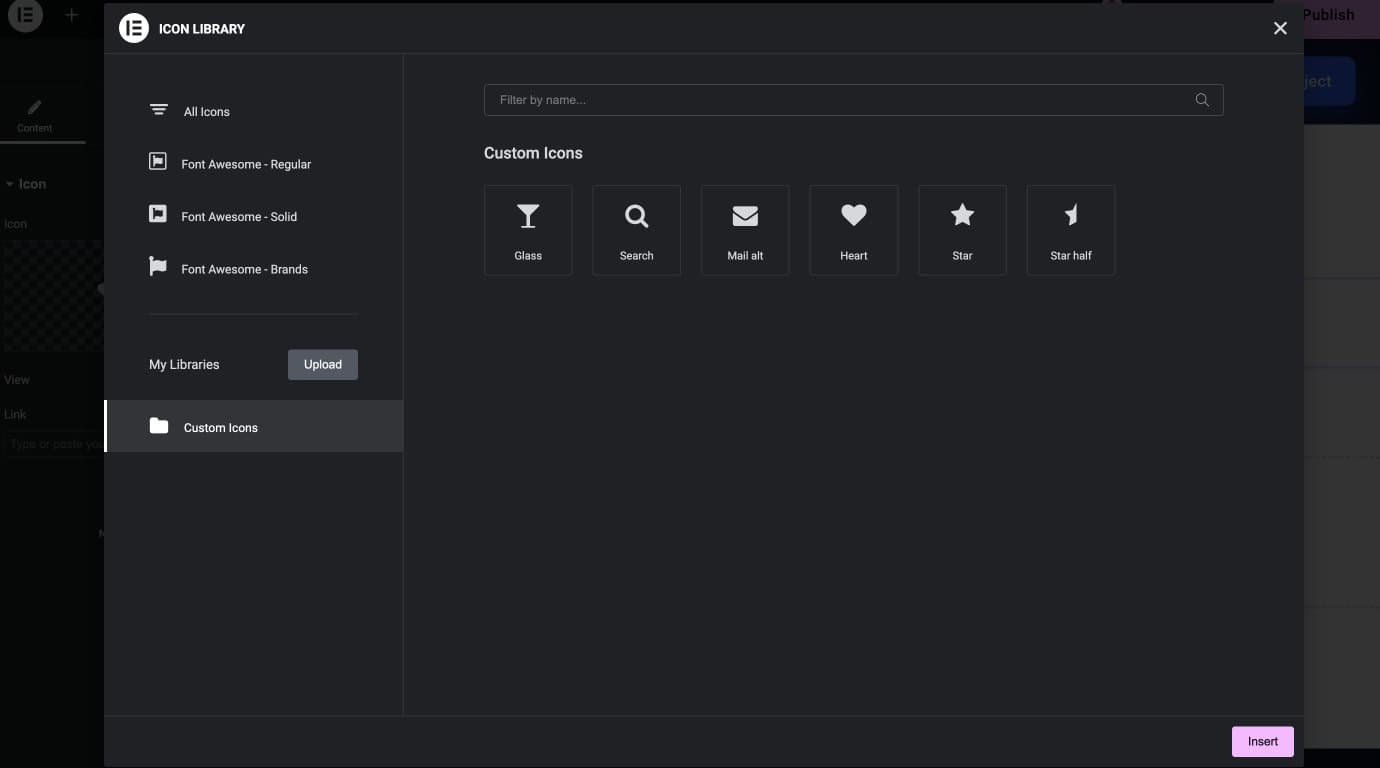
To use a custom icon, open the page in Elementor, add an Icon widget or any widget with an icon, click the icon preview to open the Icon Library, choose your custom set’s tab and click Insert. You can then style the icon like any other, with color, size and hover effects.
How Do You Add a Favicon in Elementor?
To add a favicon, the small icon shown in browser tabs, open any page in Elementor, open Site Settings, go to Site Identity and upload an image in the Site Favicon field. Use a square image of at least 512 by 512 pixels, then click Save Changes.
Tip: Use a simple square mark, such as your logo icon without the text, because favicons display very small in browser tabs.
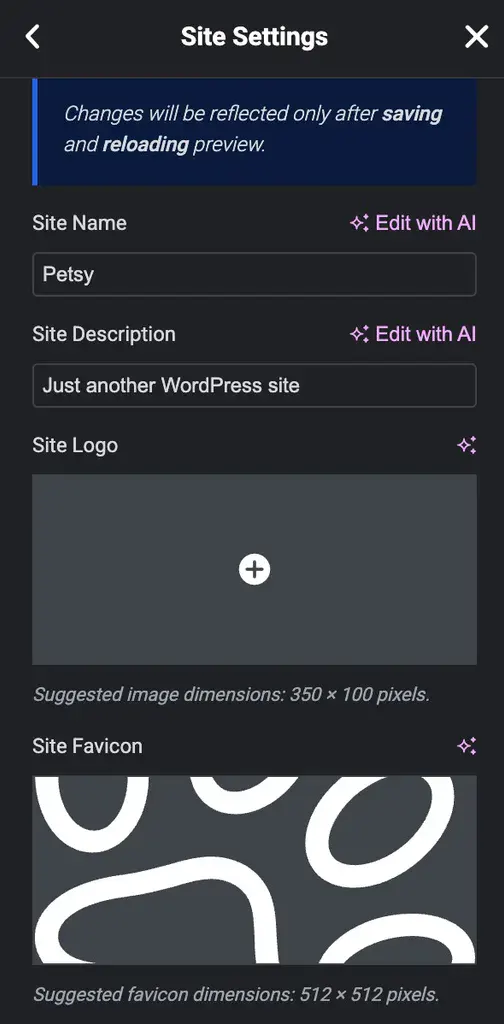
The favicon is a site-wide setting, separate from the icons you place inside page designs. Browsers cache favicons, so the new one can take a little while to appear.
Why Are Your Custom Icons Not Showing in Elementor?
Custom icons usually fail to show because the icon set was not published, the .zip was changed or came from an unsupported source, or a cache is still serving the old page. The table below lists the common causes and fixes.
| Problem | Likely cause | Fix |
|---|---|---|
| The custom set has no tab in the Icon Library | The icon set is still a draft | Open it under Elementor > Editor > Custom Elements > Icons and click Publish |
| Upload fails or shows no icons | The .zip was unzipped and re-zipped, or comes from an unsupported site | Upload the original .zip from Fontello, IcoMoon or Fontastic |
| Icons show in the editor but not on the live page | A caching plugin or CDN is serving an old version | Clear the site cache and regenerate files under Elementor > Tools |
| An uploaded SVG looks blank | The SVG uses a fill color that matches the background, or was cleaned on upload | Set the icon color in the Style tab, or re-export the SVG with simple shapes |
Frequently Asked Questions
Do I need Elementor Pro to add custom icons?
Only for icon sets. Uploading a full icon set under Elementor > Editor > Custom Elements > Icons is an Elementor Pro feature. In free Elementor, you can still add a single custom icon with the Upload SVG option in any icon picker.
Can I upload an SVG file instead of an icon pack?
Yes. In any Elementor icon control, choose Upload SVG and pick an SVG from your Media Library or computer. This works in free Elementor and suits one or two icons. For a large, consistent set that appears in the Icon Library, use an icon pack with Elementor Pro.
Are custom icons responsive on all devices?
Yes. Icon set icons are web fonts and SVG icons are vector files, so both stay sharp at any size and on every screen. You can set different sizes for desktop, tablet and mobile in the widget’s Style tab.
Can I use these custom icons inside buttons or menus?
Yes. Custom icons work anywhere Elementor offers an icon control, including the Icon, Icon Box, Icon List and Button widgets, and menus that support icons.
Will the uploaded icons be available globally across my website?
Yes. An uploaded icon set appears in the Icon Library on every page and template of the site. A single uploaded SVG is stored in the Media Library, so you can reuse it from there too.
Can I delete or replace icon sets later?
Yes. Go to Elementor > Editor > Custom Elements > Icons, open the set to update it, or move it to the trash to remove it. Before deleting a set, replace its icons on your pages, because removed icons stop showing.
What Should You Do Next?
Start with Upload SVG for a few brand icons, and move to a custom icon set when you need many matching icons across the site. Pair your icons with matching typography; our guide to adding custom fonts in Elementor shows how.
For layouts that combine icons and headings, the Text and Icon Separator widget in Addon Elements for Elementor adds a styled divider with an icon in the middle.

This is an awesome tutorial. For some days, I am trying to add a custom icon but can’t. Now after reading this tutorial I was able to add a custom icon easily. Thanks for sharing.