
How to Save Elementor Pro Form Submissions in the Database?
Elementor Pro comes with an awesome widget – Forms. With this, you can create forms and style them with great ease. It also provides you the option to send an email on form submission. You can also connect to many third-party services like Active Campaign, Drip, Mailchimp, etc.
In spite of all these goodies, many users still miss the option to save form submission into the database. But the good thing is that there are plugins available to fill this gap.
Form Vibes allows you to save Elementor Pro Form submission into DB (database).
It is a simple plug ‘n’ play plugin. Just install it on WordPress websites and it will start capturing form submissions.
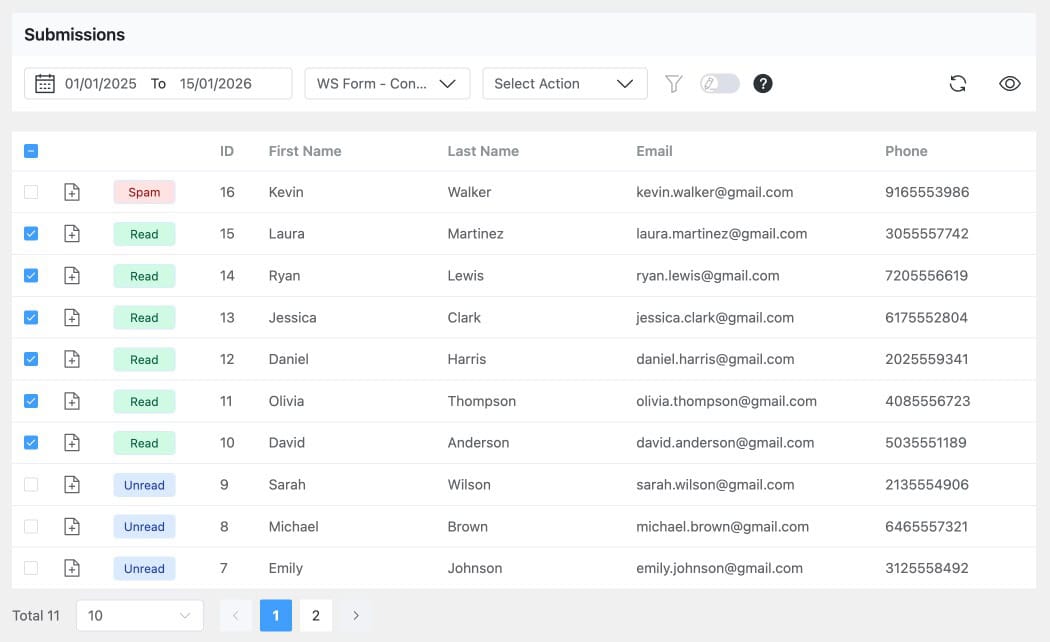
To view the submissions, click on “Form Vibes” from the WordPress admin menu and it will display all the submissions in a tabular format.
Form Vibes is the ultimate tool to capture leads. Get it for Now!
Key Features of Form Vibes
When you save Elementor Pro form submissions using Form Vibes, you get access to several powerful tools that make managing form data easier and more efficient. Below is a detailed explanation of each feature.
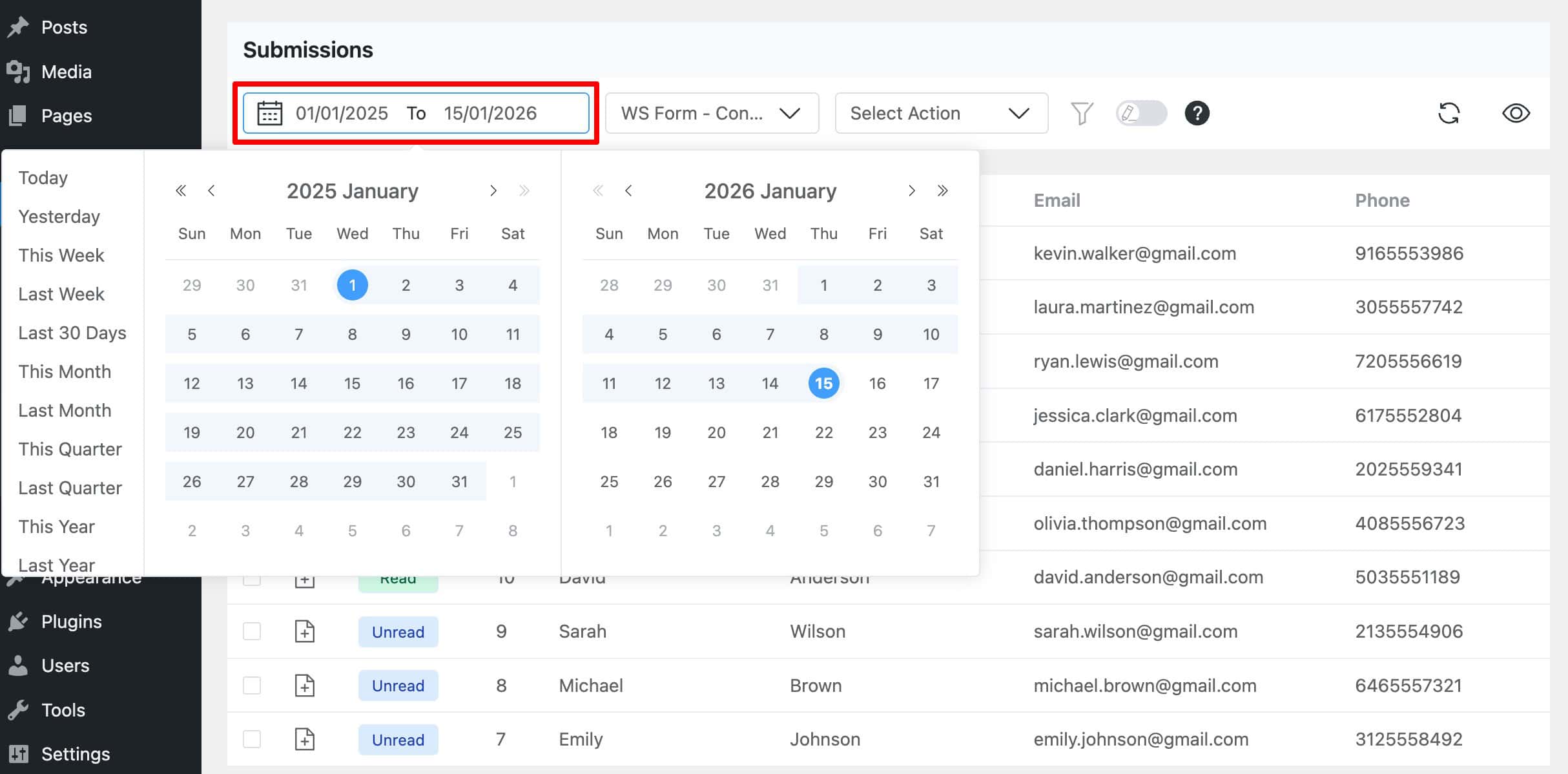
Date Range Presets & Custom Date Range
Form Vibes allows you to filter submissions using predefined date ranges such as daily, weekly, or monthly. This helps you quickly analyze recent form activity without manual filtering.
If you need more control, you can also select a custom date range to view submissions between specific dates. This is especially useful when:
- Reviewing campaign performance
- Checking submissions from a particular time period
- Exporting data for reports
Choose the Form in Elementor
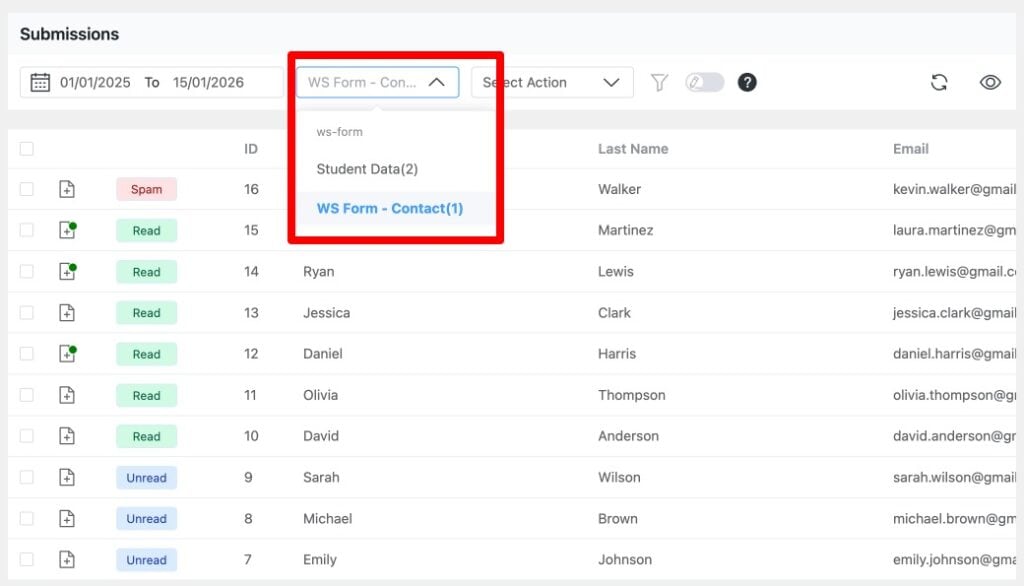
Each Elementor Pro form is saved separately in Form Vibes.
Using the Select Form option, you can choose a specific form (for example, Contact Form, Newsletter Signup, or Request a Quote). Once selected, only the submissions related to that form are displayed in the table.
This helps keep your data organized and makes it easier to manage submissions when your website has multiple forms.
Select an Action to Perform
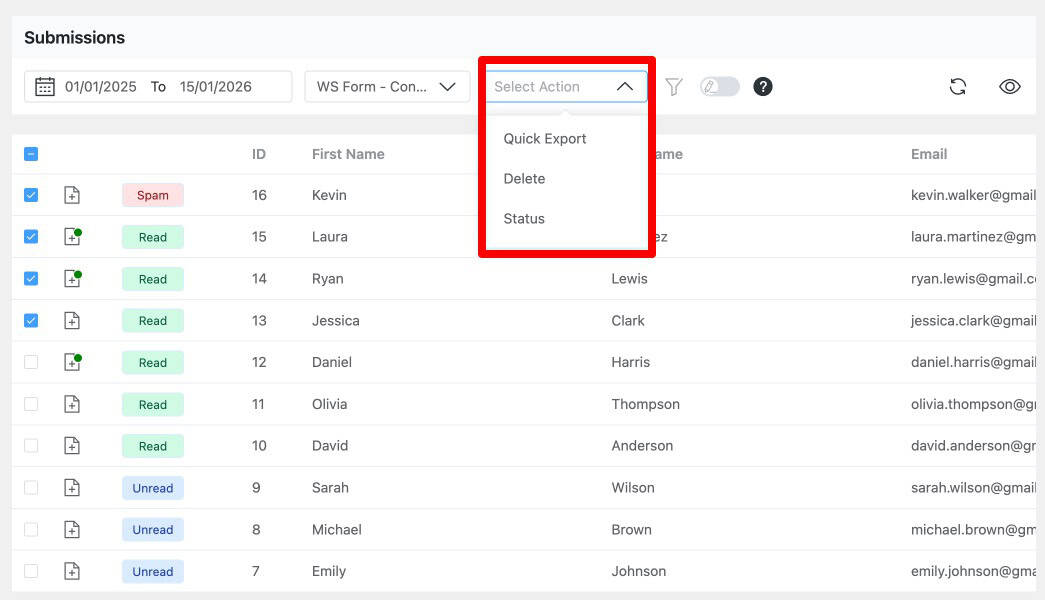
The Select Action option lets you perform bulk actions on form submissions.
From here, you can:
- Change the status of submissions (Read, Unread, or Spam)
- Export selected submissions in CSV
- Delete unwanted form entries
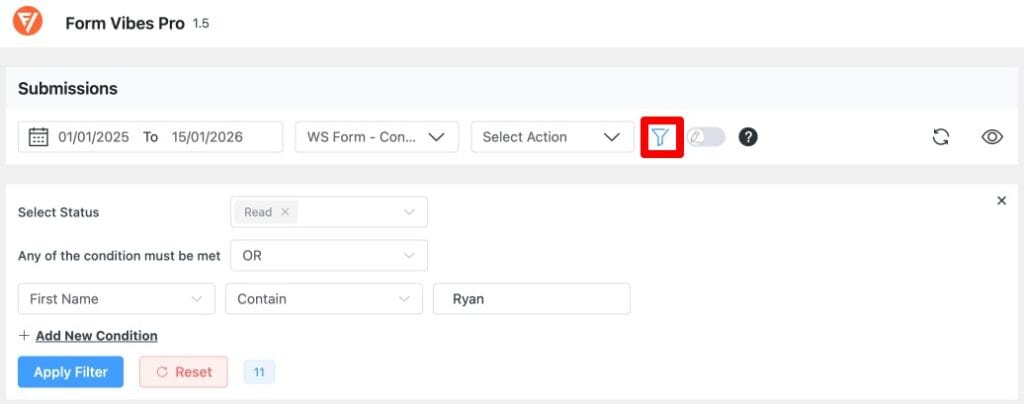
Apply Filter to Form Fields
The Apply Filter feature helps you narrow down submissions based on specific conditions.
You can filter entries using:
- Status
- Form fields, and other available parameters
This is useful when you want to find specific entries, such as submissions from a particular user, campaign, or page.
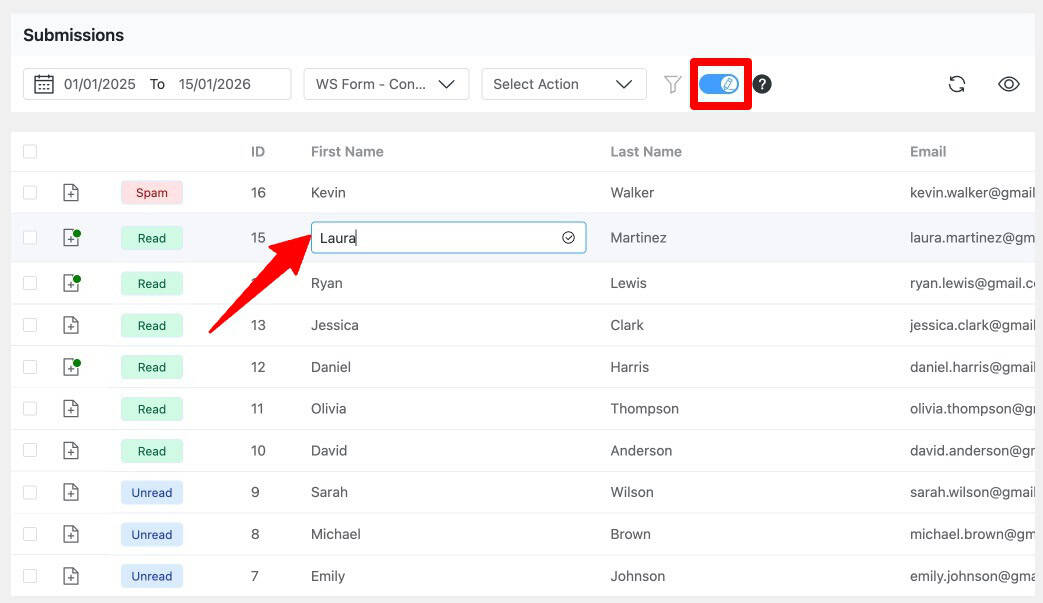
Edit Form Fields
The next feature, Form Vibes allows you to edit and rename form field labels after submissions are captured.
This is helpful when:
- Field names are unclear or technical
- You want cleaner column names for reports
- You need better readability while exporting data
Editing field labels does not affect the actual form, only how the data is displayed inside Form Vibes.
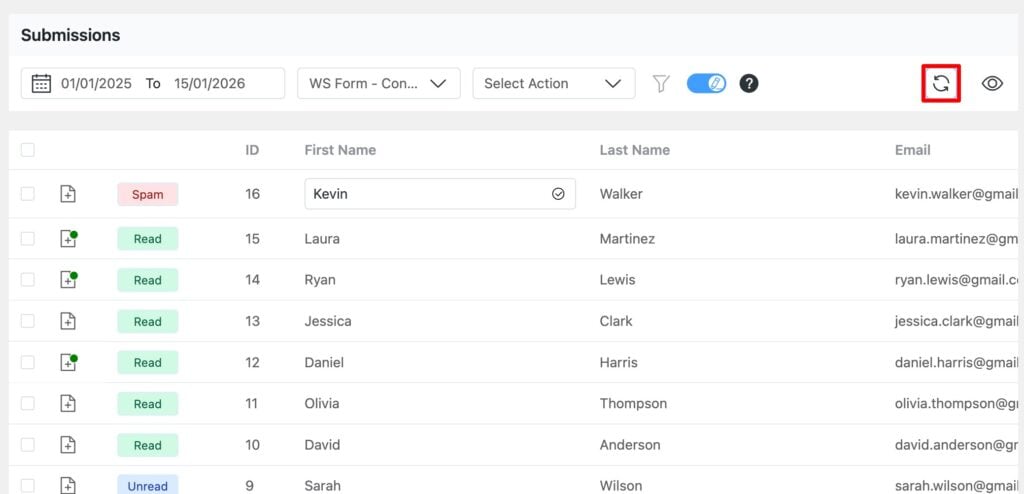
Refresh Icon to Get Latest Submissions
The Refresh icon lets you instantly fetch the latest form submissions.
Instead of reloading the entire page, you can click the refresh option to update the submissions table and view new entries in real time. This is especially useful when monitoring active forms.
This feature saves time by allowing you to manage multiple submissions at once instead of handling them individually.
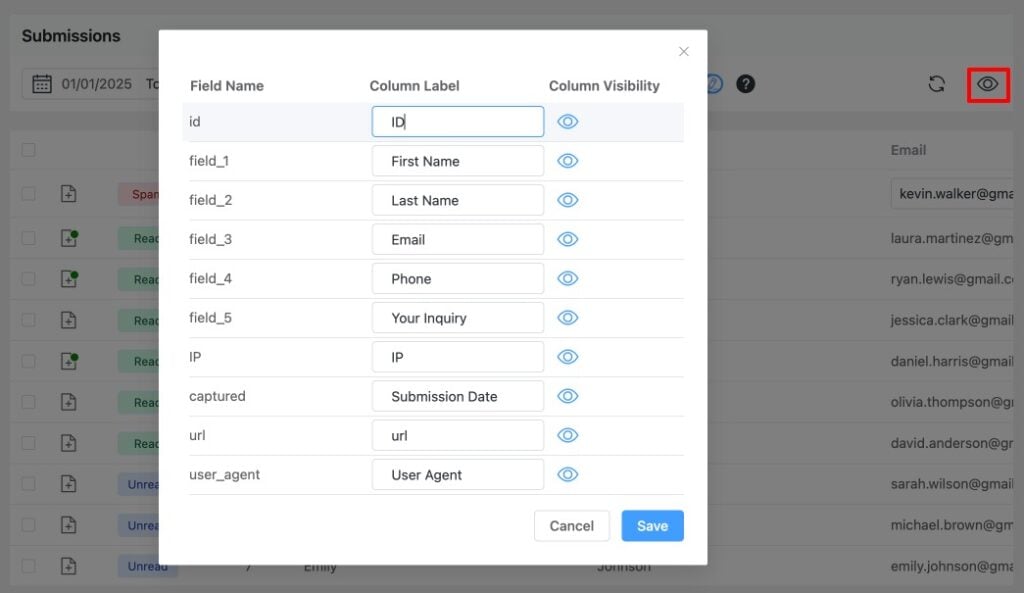
Manage Form Fields & Column Visibility
Form Vibes gives you full control over how submissions are displayed in the table.
You can:
- Enable or disable specific form fields
- Choose which columns are visible
- Rearrange columns for better readability
This allows you to focus only on the data that matters most and keep the submissions table clean and organized.
Form Vibes Analytics
Form Vibes includes built-in analytics and visual reports to help you track form performance. To do navigate to Form Vibes -> Analytics section.
Using analytics, you can:
- Monitor submission trends over time
- Compare form performance
- Identify high-performing or underperforming forms
This helps you understand how users interact with your Elementor Pro forms and make data-driven improvements.
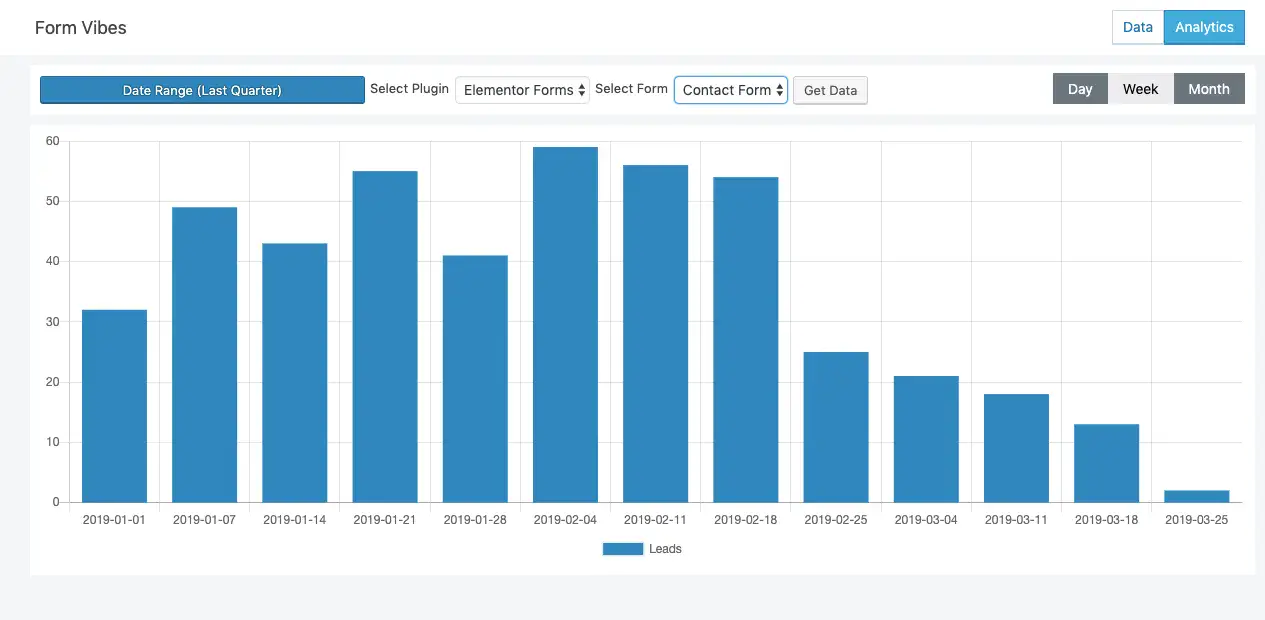
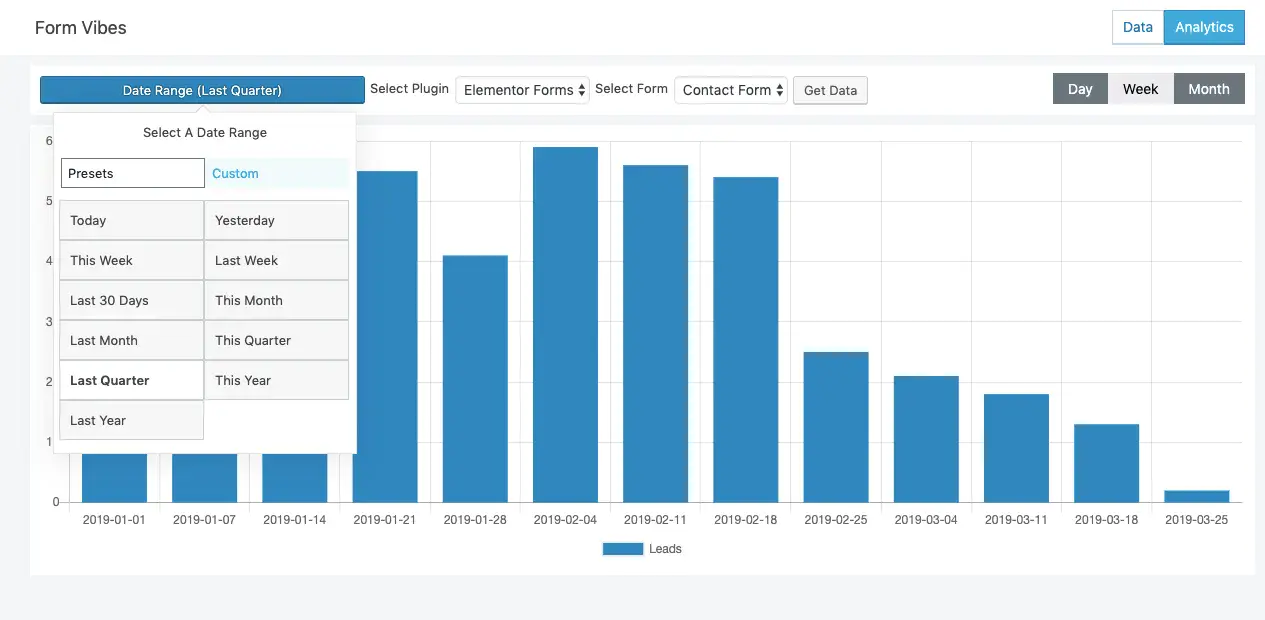
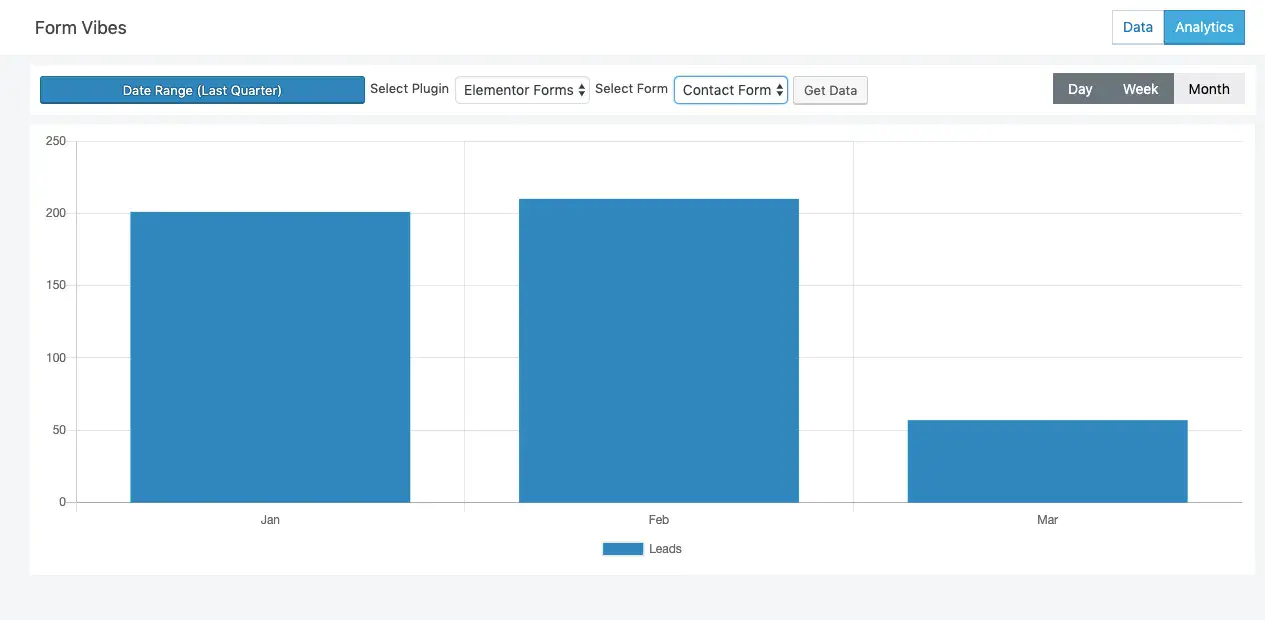
Let’s start capturing Elementor Pro form submissions in the database.
Elementor Pro comes with a powerful Forms widget that lets you easily create and style forms. With the Addon Elements for Elementor integration, you can even create and update WordPress posts directly using an Elementor form. If you’re new to this setup, check out our guide on how to create a post using an Elementor form.
Used it for the first time on a political candidates website and it performs as advertised… extremely impressed so far. This plugin is a gamechanger for me. No more having to use Ninja Forms or Contact 7. This plugin’s interface with Elementor is seamless. I have been looking for a plugin like this since I started using Elementor 2 years ago and I am thrilled it’s finally here. Great job.
Can I then use the data from the form to display as dynamic content in Elementor?
EG use a form to update a company details such as email, telephone number, address etc and then use dynamic content to show that info on various pages and templates?
Hi Mark,
This feature is not available.
can you back date emails that you received before installing the plugin?
No that’s not possible.
Hi, can I enable to only capture certain forms, but not all? I’m using elementor pro. Thanks
For now it is enabled for all forms. We will add option to enable it for specific forms soon.
Hi, each submission generate an ID I can use to add it to email notification (admin and user)? I wonder if can be used as ticket submission, generating a track ticket number . Thanks
No this option is not available for now. We will surely explore the possibility of adding this feature.
ok, thank you for you reply. Please, let me know if you add this feature in future.
It does not detect the elementor form in the popup. Is there a possible way to get the data of form in the popup built with elementor?
Hi
It works fine with the elementor forms in popup. Have you made any submissions after activating our plugin? Try to make a submission and see if form stats reflecting.
If you still face the issue, then you can send a support request here https://wpbuilderaddons.com/contact-us/