How to Add a Scroll Back to Top Button in Elementor
To add a back to top button in Elementor, add a Button or Icon widget, set its position to Fixed in the Advanced tab so it stays on screen, then link it to a CSS ID on your top section, such as #scroll-to-top. Clicking the button scrolls the page smoothly back up, and you need no plugin or code.
This guide covers why a back to top button helps, how the scroll works, how to build and place the button, how to show it only after visitors scroll, and how to use the same trick to scroll to any section of a page.
Key takeaways
- No plugin needed: a Button or Icon widget, a fixed position and an anchor link are all part of free Elementor.
- The link points to a CSS ID on your top section, such as #scroll-to-top, and the page scrolls smoothly back up.
- Showing the button only after scrolling uses Motion Effects, which needs Elementor Pro.
Why Add a Back to Top Button to Your Site?
A back to top button lets visitors return to the top of a long page in one click instead of scrolling all the way up. It matters most on long blog posts, product listings and landing pages, and especially on phones, where long pages take many swipes to scroll through.
It also keeps your navigation menu within easy reach, so visitors are more likely to keep exploring the site rather than leave. If your theme does not include a back to top button, Elementor lets you build one that matches your design exactly.
How Does a Smooth Scroll to Top Button Work?
A smooth scroll to top button is a link that points to an element at the top of the page. When a visitor clicks it, the page glides upward to that element instead of jumping instantly, which feels more natural and helps visitors keep their sense of place on the page.
Imagine reaching the end of a long product list. Instead of scrolling back up, you see a small arrow in the bottom right corner of the screen, click it, and the page gently scrolls back to the top, where the menu and filters are.
Addon Elements for Elementor
Want more small touches like this without code?
Addon Elements for Elementor adds widgets such as floating elements, modal popups, timelines and comparison tables that you style inside the Elementor editor.
How Do You Add a Back to Top Button in Elementor?
To add the button, open the page in Elementor, add a Button or Icon widget, style it, set its position to Fixed so it floats on screen, and link it to a CSS ID on your top section. Each part is shown below, using a product page with a heading at the top as the example.
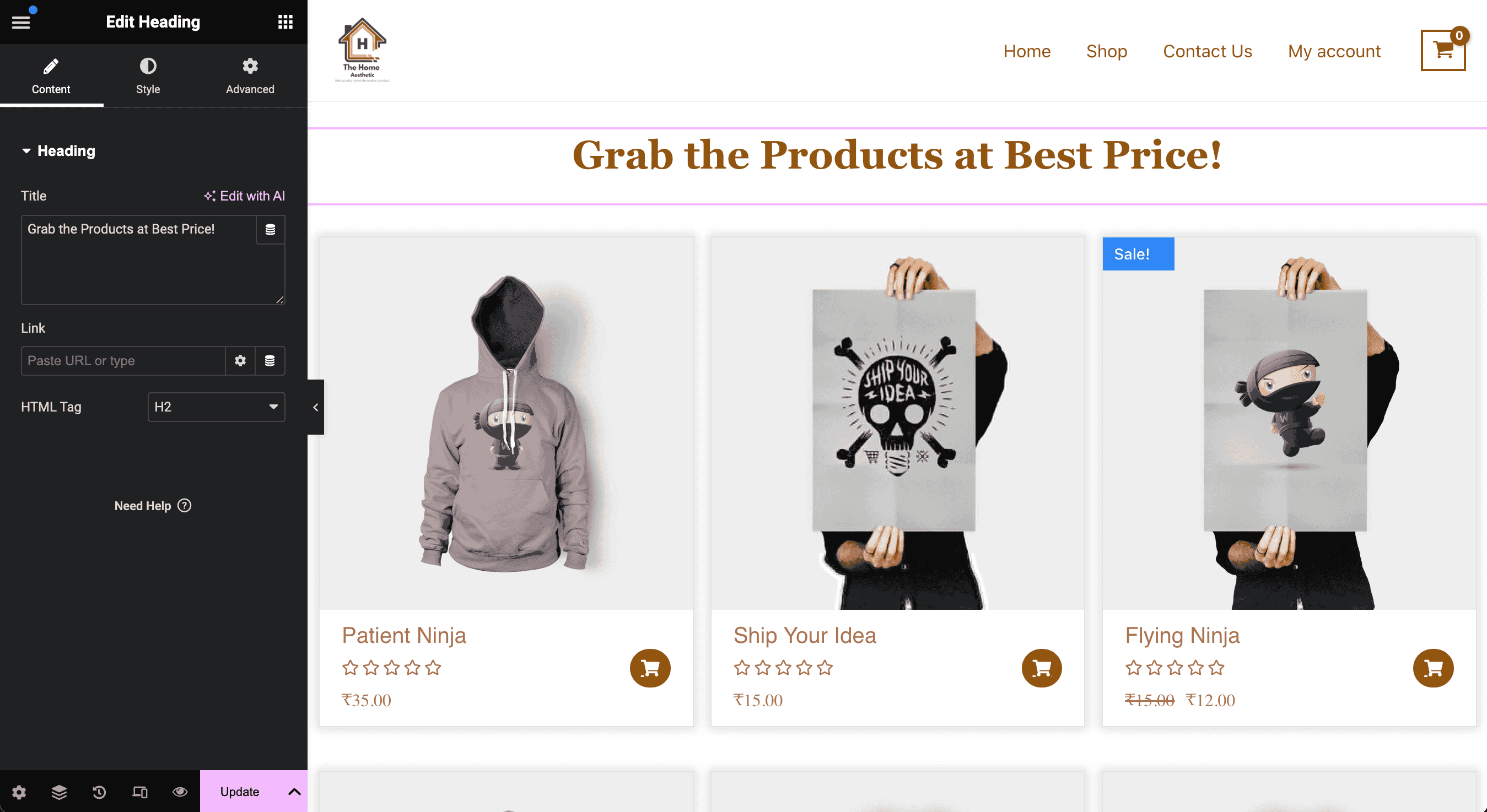
Choose the right widget
Use the Button widget if you want text and an icon, such as “Back to top” with an arrow. Use the Icon widget for a simpler, icon-only button that takes up less space. Both work the same way for scrolling.
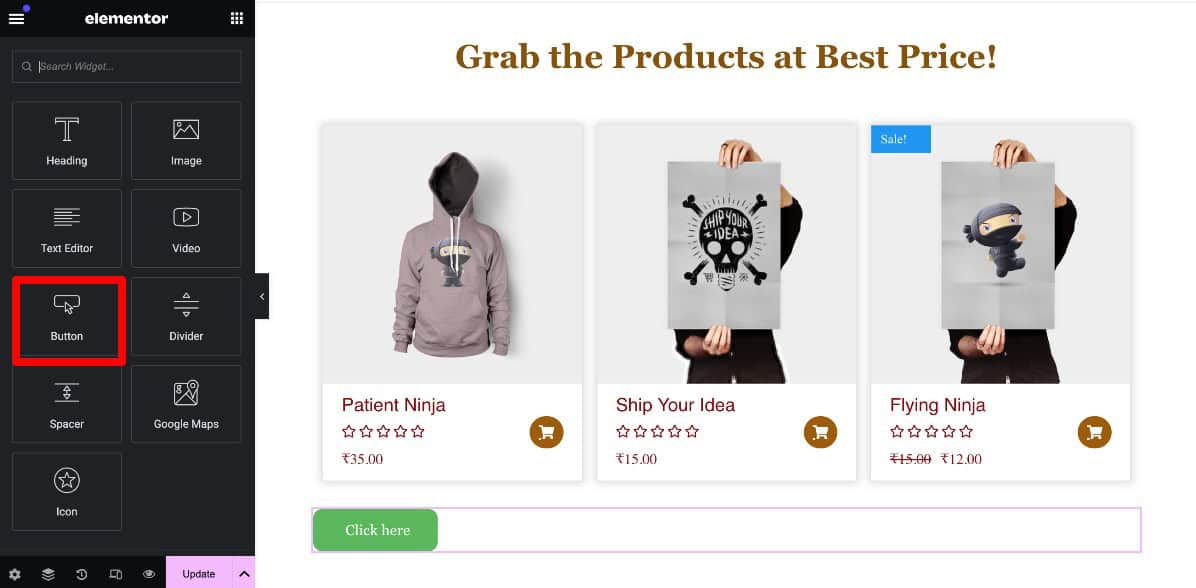
Design and customize the button
Remove the button text if you want a clean, minimal look, and choose an upward arrow from the icon library, or upload your own SVG icon. Then adjust the colors, size and border so the button matches your site.
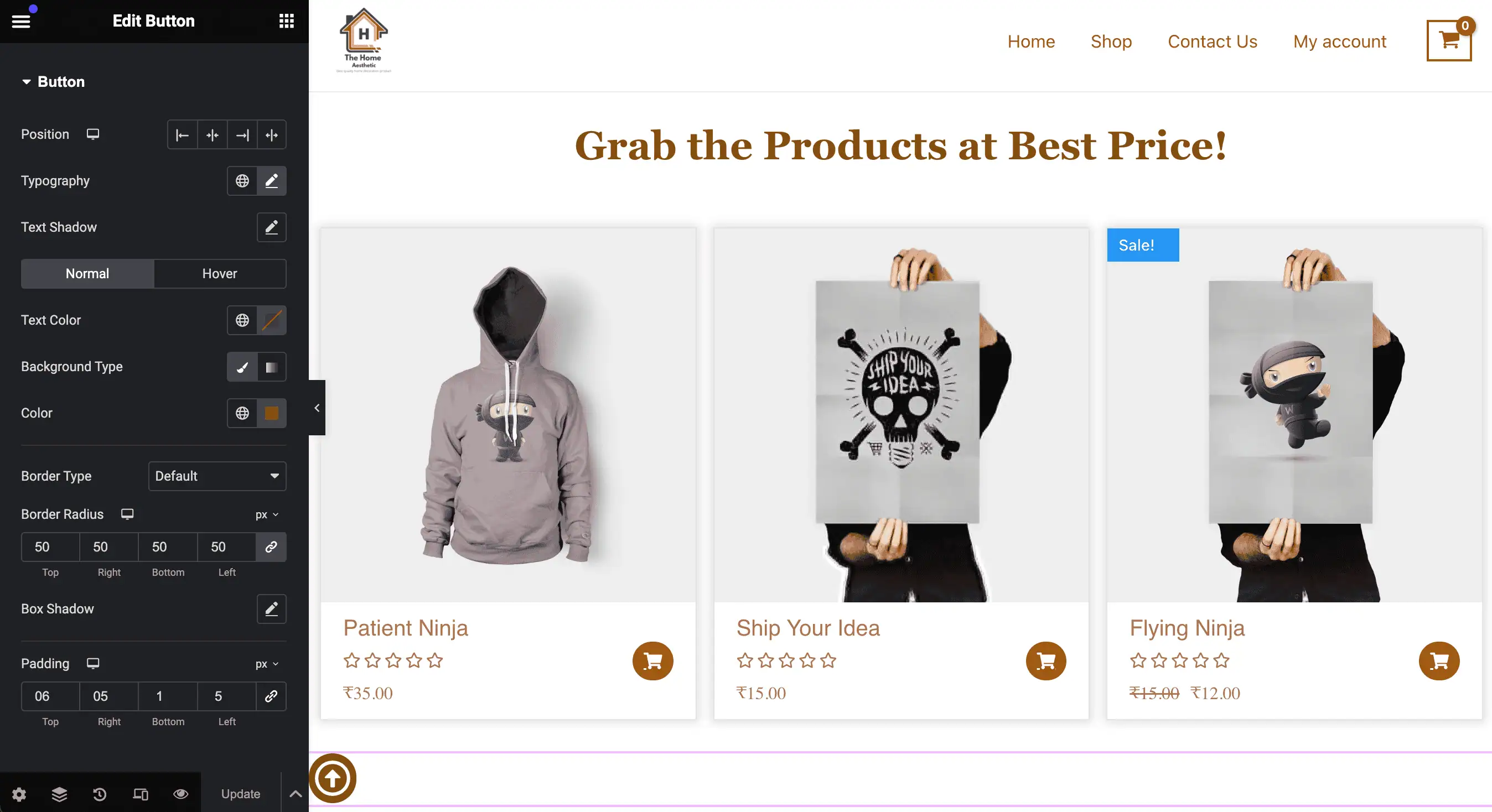
Make the button position fixed
Open the button’s Advanced tab and, under Positioning, set Position to Fixed so the button stays visible while visitors scroll. Set Horizontal Orientation to Right and Vertical Orientation to Bottom, then use the offsets to fine-tune the spacing from the screen edges.

Link the button to the top of the page
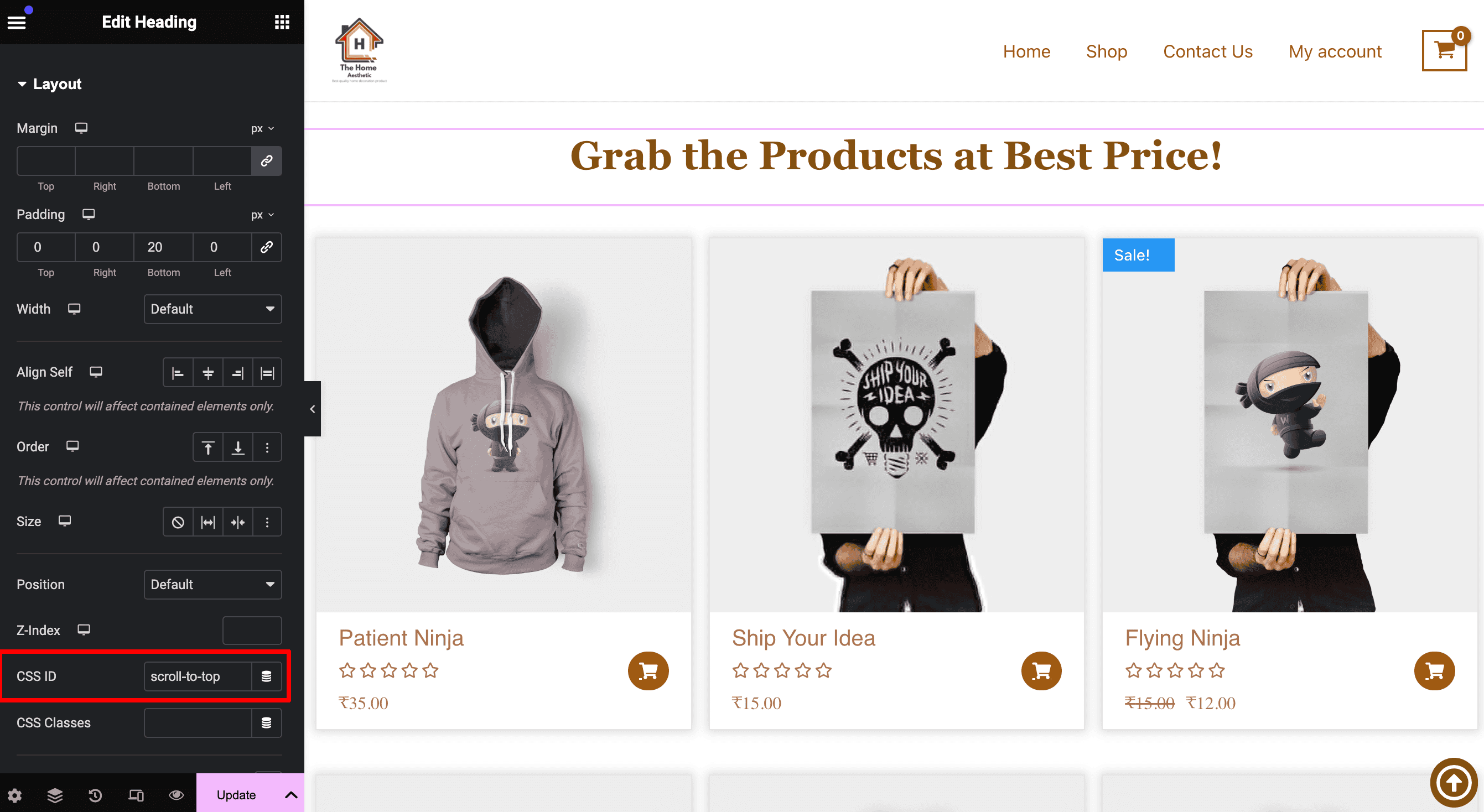
- Select the section or element at the top of the page, such as your header or first heading.
- Open its Advanced tab and type a unique name in the CSS ID field, such as scroll-to-top, without a # symbol.
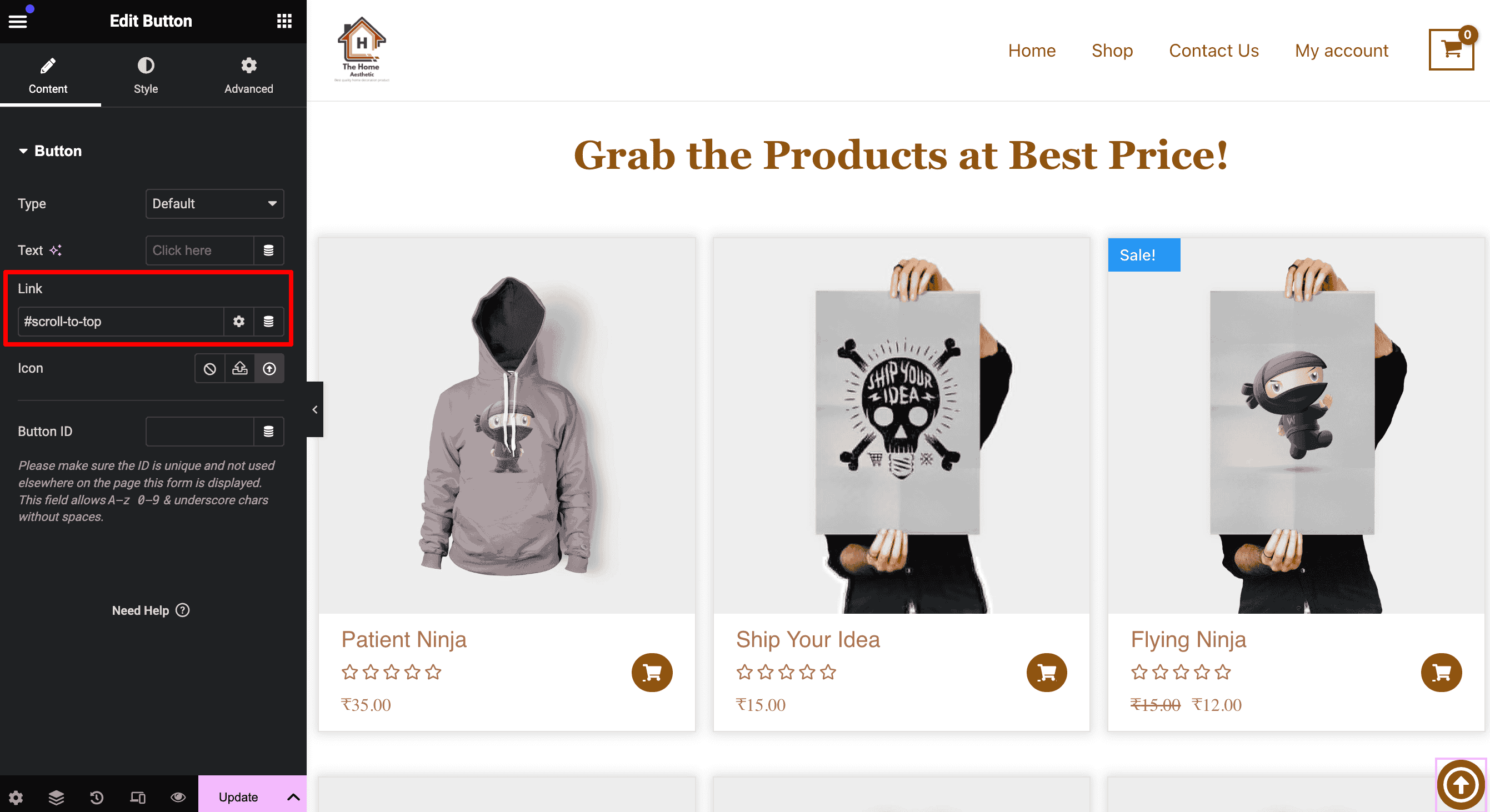
- Select the button and, in its Content tab, enter #scroll-to-top in the Link field, with the # symbol this time.
- Click Update, preview the page, scroll down and click the button to check that it glides back to the top.
How Do You Show the Button Only After Scrolling?
To show the button only after visitors scroll down, use Elementor’s Motion Effects on the button. Turn on Scrolling Effects and set the transparency so the button fades in as visitors move down the page, which keeps the top of the page clean.
- Open the button’s Advanced tab and expand Motion Effects.
- Turn on Scrolling Effects and enable Transparency.
- Set the direction to fade in, and adjust the viewport range to decide how far visitors scroll before the button appears.
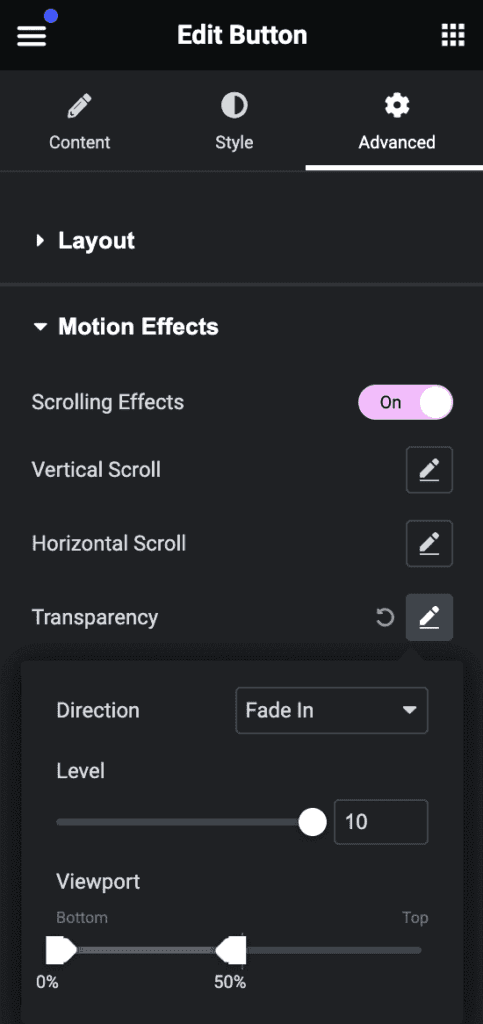
Note: Motion Effects are part of Elementor Pro. In free Elementor, the button works the same way but stays visible all the time.
How Do You Make a Button Scroll to Any Section?
To make a button scroll to any section, give that section a CSS ID and link the button to it with a # in front. The method is exactly the same as the back to top button, so you can add “Jump to pricing” or “See features” buttons, or link menu items to sections on a one-page site.
- Select the target section, open its Advanced tab and enter a CSS ID, such as pricing.
- In the button’s Link field, enter #pricing.
- Update the page and test the button on the live page.
If you want a whole card or box to link to a section instead of a button, our guide on how to make a container clickable in Elementor shows three ways to do it.
Frequently Asked Questions
Can I create a Scroll to Top button in Elementor without extra plugins?
Yes. A back to top button only needs Elementor’s Button or Icon widget, a Fixed position from the Advanced tab, and a link to a CSS ID on your top section. All of these are part of free Elementor, so no extra plugin or code is required.
Is it possible to show the Scroll to Top button only after scrolling a certain distance?
Yes, with Elementor Pro. Open the button’s Advanced tab, go to Motion Effects and turn on Scrolling Effects, then set the transparency so the button fades in after visitors scroll down. In free Elementor, the button stays visible all the time.
Do I need Elementor Pro to add a scroll to top button?
No. You can build and link the button with Elementor Free using the Button or Icon widget and the CSS ID setting. Elementor Pro is only needed if you want the button to fade in after visitors scroll, using Motion Effects.
Can I use a custom icon for the scroll-to-top button in Elementor?
Yes. Elementor allows you to use icons from its built-in icon library or upload your own custom SVG icon for a more personalized look.
Can a button scroll to a specific section instead of the top?
Yes. Give the target section a CSS ID in its Advanced tab, such as pricing, then set the button’s link to #pricing. Clicking the button scrolls the page to that section. The same method works for menus and table of contents links.
Why does my back to top button jump instead of scrolling smoothly?
Elementor scrolls smoothly to anchor links on the same page, so a jump usually means the link is not matching. Check that the CSS ID has no # in the section settings, that the button link starts with #, and that both use exactly the same spelling.
What Should You Do Next?
Add the button to one long page first, test it on desktop and mobile, then reuse it across your site. To avoid rebuilding it on every page, save it as a template, which our guide on managing Elementor templates explains.
For more design touches like this, Addon Elements for Elementor adds widgets you style right inside Elementor, from floating elements to timelines, without custom CSS.