
DA – Post Image
DA – Post Image widget is used to display the image that you have on your post. It has various settings through which you can change the layout of the image.
Content
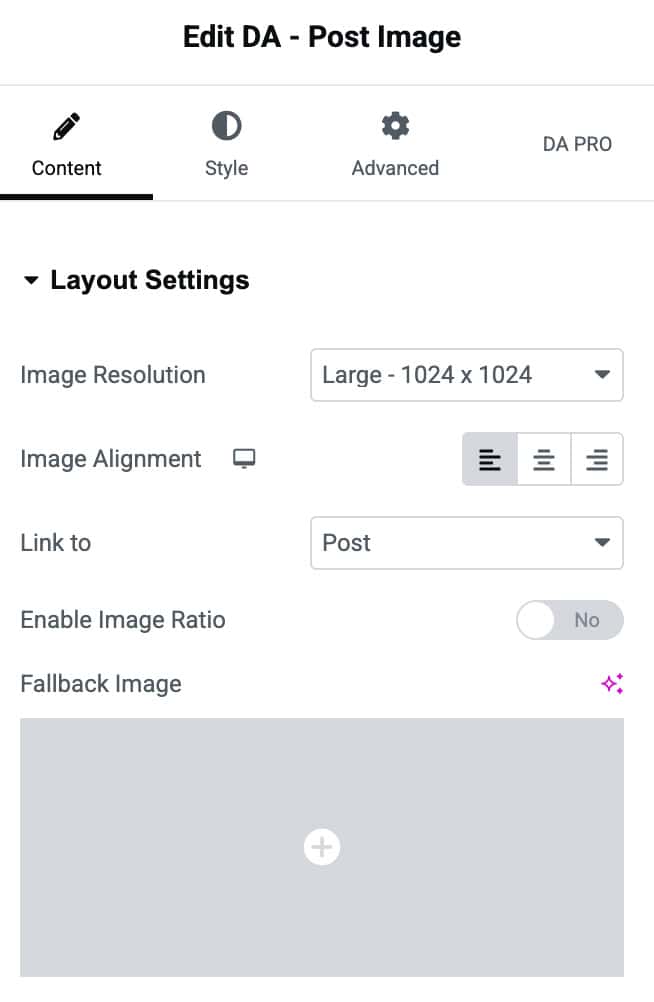
Layout Setting
- Image Resolution: Through this, you can select the resolution of the image using various predefined formats and the custom size option displayed in the drop-down menu.
- Image Alignment: The positioning of the image can be set as Left, Right, and Center.
- Link to: You can define an action to your image by clicking on it. An image can be linked to your post or you can view the full-size image.
- Enable Image Ratio: Through this, a ratio can be set between the height and widget of the image.
- Fallback Image: Upload an image that will display as a fallback image.
Overlay
- Show Overlay: If you want an effect on your image you can use this option. It provides you with three options Always, On Hover and Never.

Style
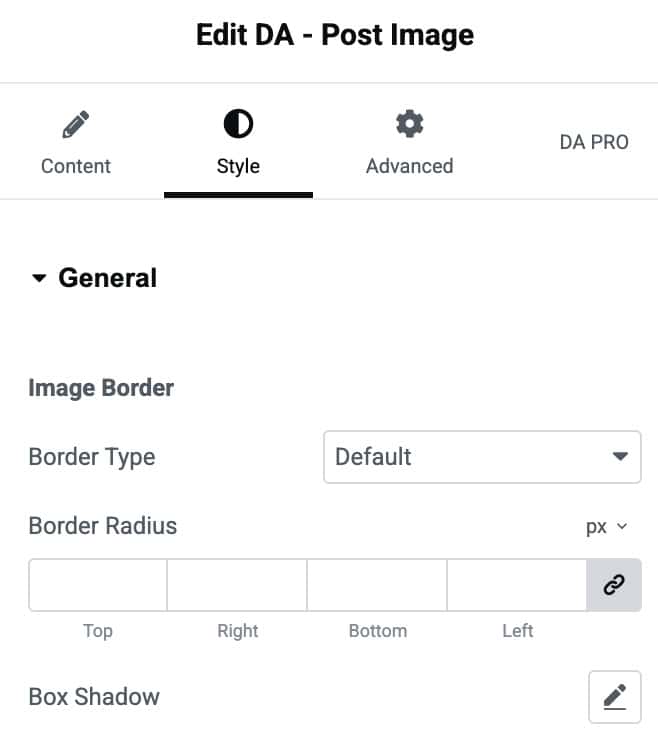
General
Image Border
- Border Type: Choose the border style.
- Border Radius: Set the border radius.
- Box Shadow: Adjust the box shadow.
Overlay
- Background Type: Select the background type from classic or gradient.
