Display Posts from ACF Reverse Relation Using Post Blocks Adv
Displaying posts connected through ACF Reverse Relationship becomes incredibly easy with the Post Blocks Adv widget of Dynific Addons for Elementor. When working with related content such as Authors and Books, Team Members and Projects, or Courses and Instructors, the reverse relationship feature lets you pull posts linked to the current post, perfect for building dynamic single post layouts.
In this guide, you’ll learn how to fetch and display reverse relationship posts inside Elementor using the DA – Post Blocks Adv widget with ACF Relation Fields.
Example
Let’s consider an example of Books and Authors. One Author can write many books. Similarly, a book can be written by more than one Author. Therefore, we can set up a direct relationship between Books and Authors and can display the details. But what if you want to display the details of all the books written by a specific author on the Author Detail page? We can get data for this reverse query using the Reverse Relationship feature.
This will require you to create a Relationship Field for Post/Page/CPT using the Advanced Custom Fields (ACF) plugin.
You can find more details about the ACF – Relationship Field here
Display Reverse Relationship on Single Post Layout
Follow the steps below to show Posts from Reverse Relationships on a Single Post Layout.
- Drag the “DA – Post Block Adv” widget to the desired location in your Dynific Addon Template. Do the following configuration:
Under the Layout Section:
- Skin: Select the layout style to display the post blocks.
- Block Layout: Select the Block Layout you have created to use in this widget. Learn more about creating block layouts.
Under the Query Section, do the following configuration.
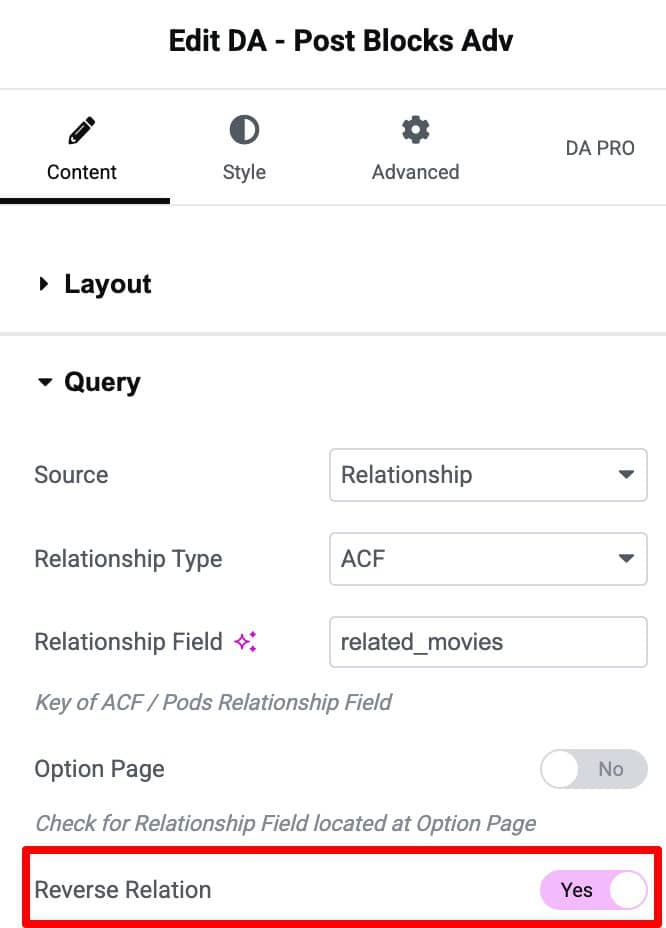
- Source: Relationship
- Relationship Field: Name of the Relationship Field that you have created in ACF.
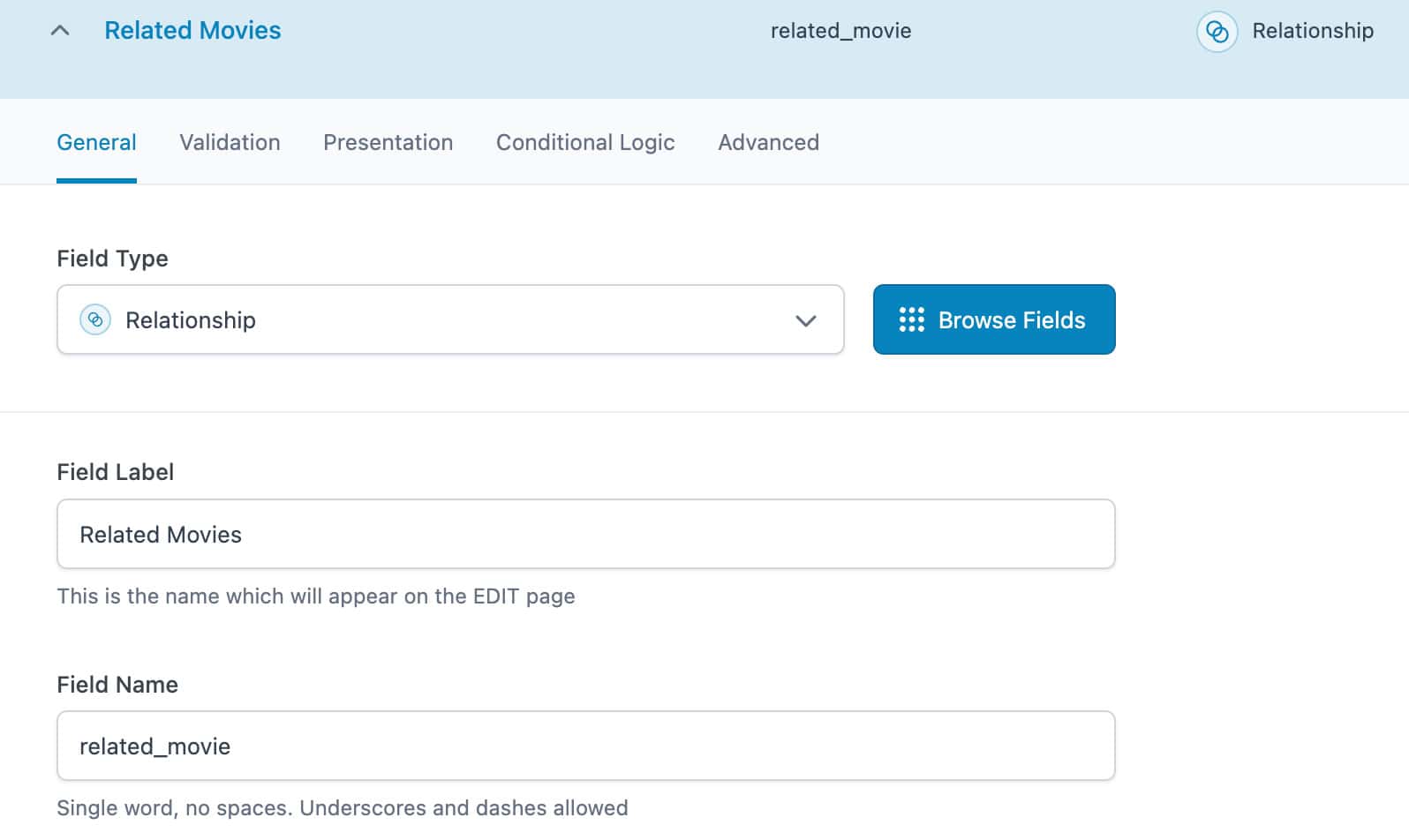
- Also, set “Return Format” to “Post ID.” By default, it is set to Post Object.

- Reverse Relation: Enable the Reverse Relation option, to get reverse relationship data.
- Do rest of the settings like order by, layouts, etc., as required.
- See the following screenshot for the configuration setup.