Preset Query
A Preset Query is a saved, reusable query configuration – build a filter, sort, and pagination recipe once (for example, “5 newest Products in the Featured category, excluding sold-out items”) and reuse it across multiple widgets and templates, instead of re-configuring the same filters on every page.
Saved presets can be applied to the plugin’s own DA – Post Blocks Adv widget and to Elementor’s native query widgets (Posts, Portfolio, Loop Grid, Loop Carousel, WooCommerce Products).
Note: Preset Query is a Pro feature.
Where to find it
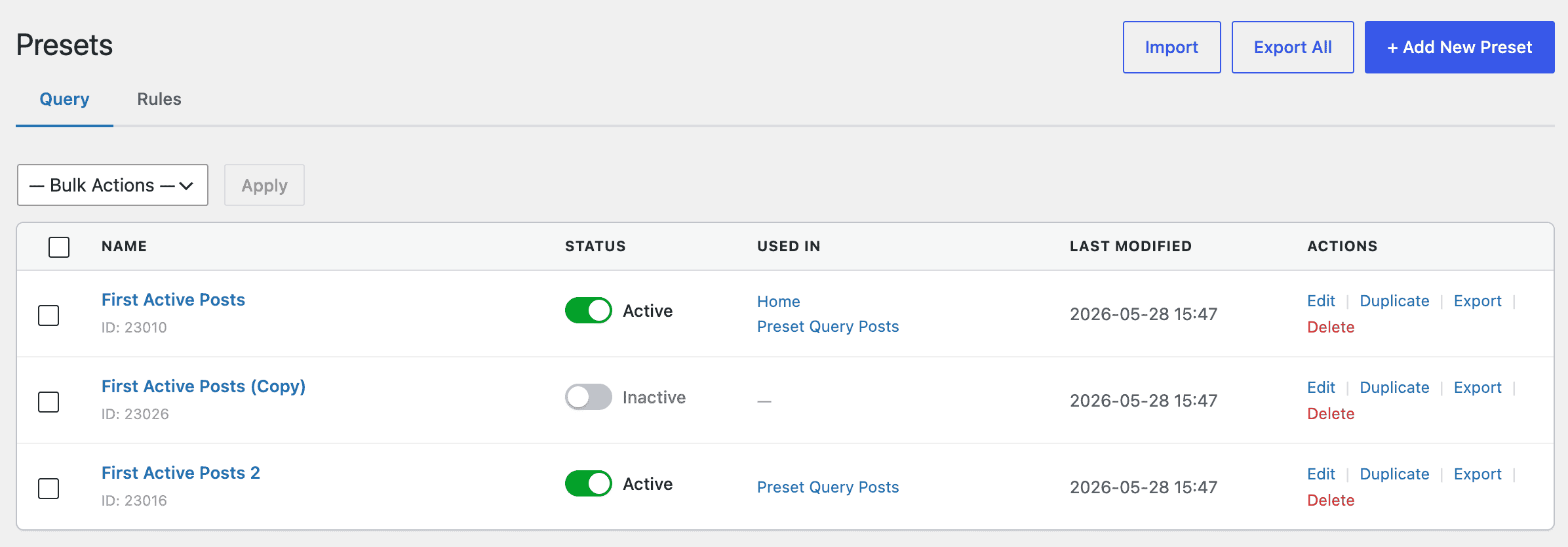
Go to Dynific Templates → Presets and stay on the Query tab (the Rules tab next to it opens Preset Rules — see that article).
Creating a Preset Query
Click Add New Preset, give it a name, then configure the query using the accordion sections below. Each section is collapsible; sections that already have data open expanded by default.
Basic Query
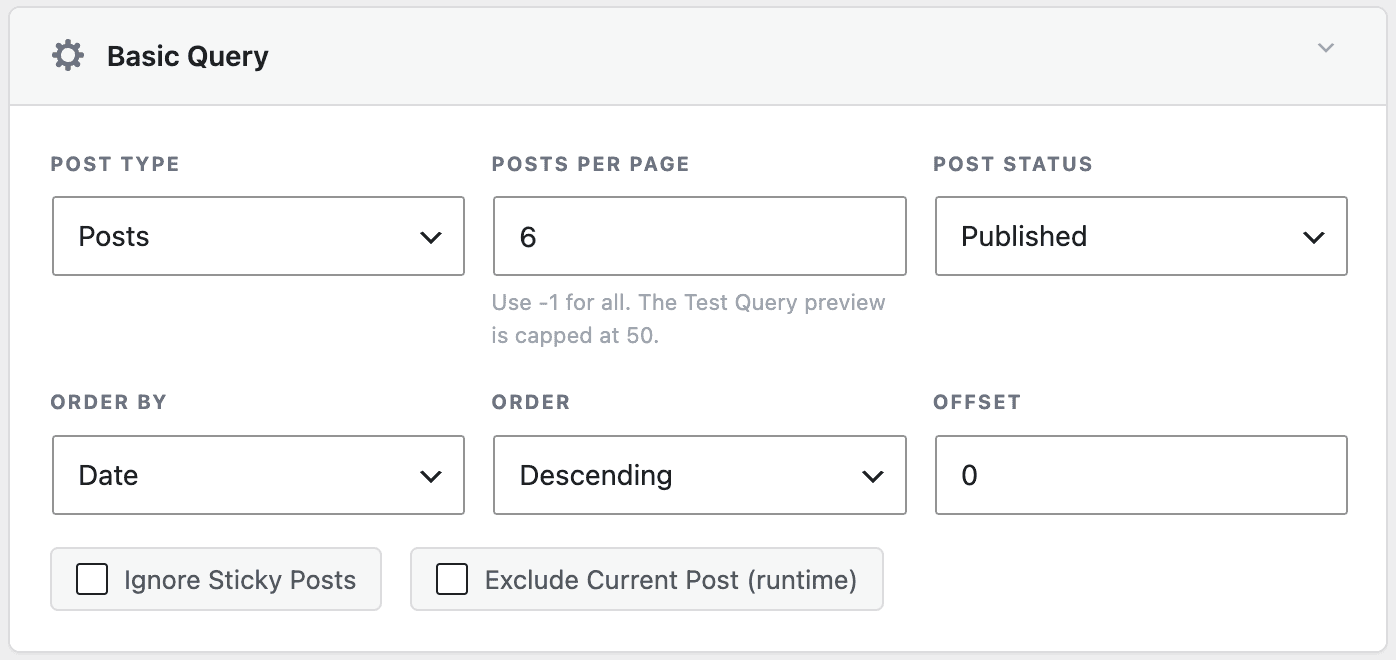
- Post Type: Choose which post type this preset queries.
- Posts Per Page: How many results to return. Use -1 for all (note: the Test Query preview is still capped at 50 results regardless of this setting).
- Post Status: Published, Draft, Private, or Any.
- Order By: Date, Title, Last Modified, Menu Order, Random, Comment Count, or a Meta Value (text or numeric).
- Order: Descending or Ascending.
- Offset: Skip a set number of results before returning any.
- Meta Key: Only shown when Order By is set to a meta-value option — the custom field to sort by.
- Ignore Sticky Posts: Prevents sticky posts from being pinned to the top of results.
- Exclude Current Post: Excludes whatever post the query happens to run on. This is resolved live wherever the preset is used, rather than baked into the saved preset.
Posts
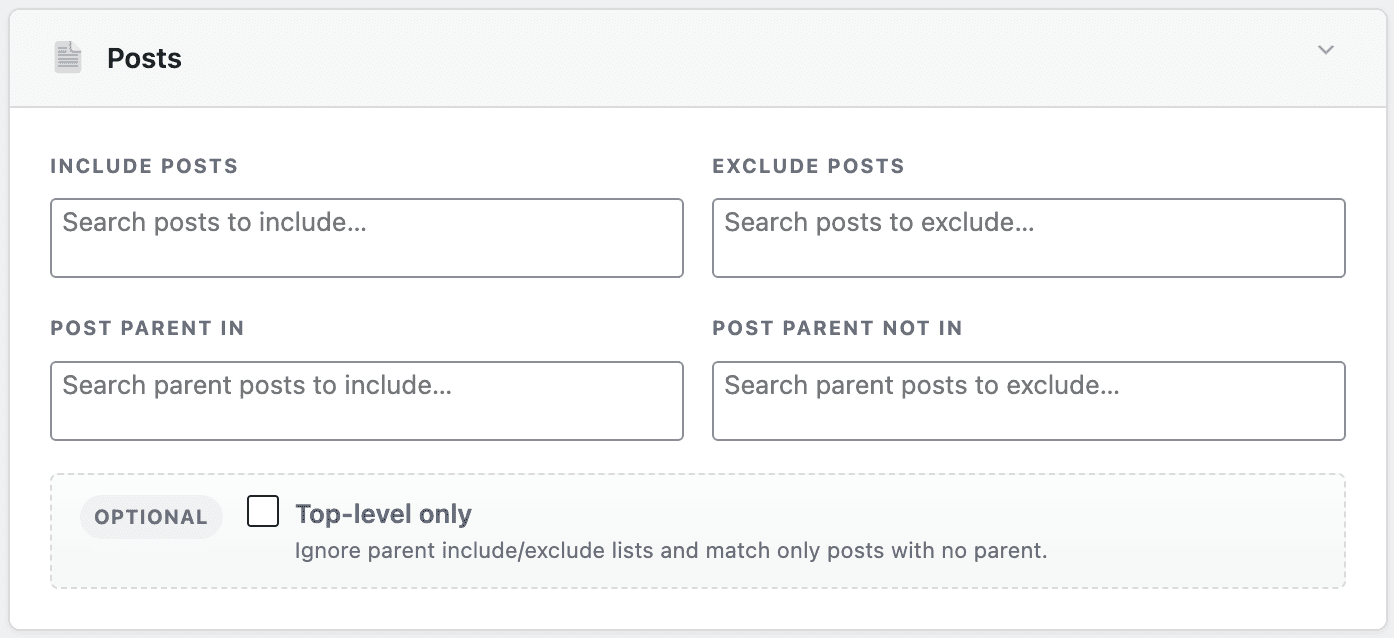
- Include Posts / Exclude Posts: Pick individual posts to always include or always exclude.
- Post Parent In / Post Parent Not In: Limit results to (or exclude) children of specific parent posts.
- Top-level only: Ignores the parent lists above and matches only posts that have no parent.
Taxonomy Query
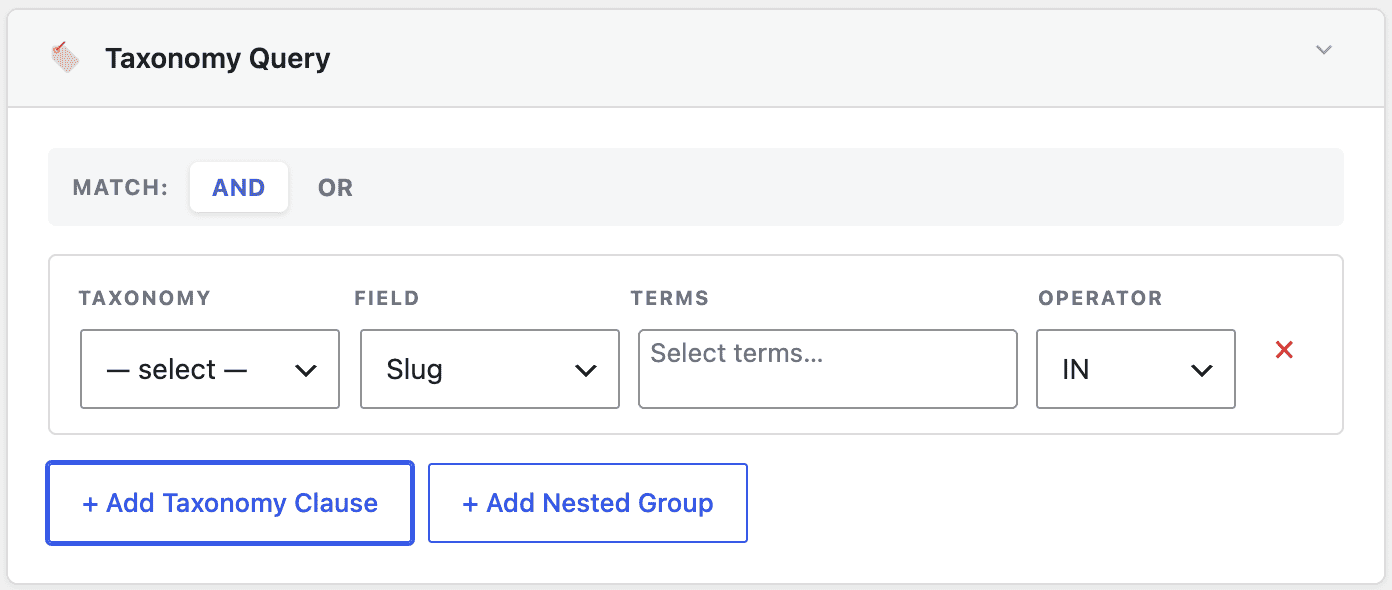
Add one or more taxonomy filter rows, each with a taxonomy, an operator (IN / NOT IN / AND / EXISTS / NOT EXISTS), and a list of terms. When you add more than one row, choose whether all rows must match (AND) or any row can match (OR).
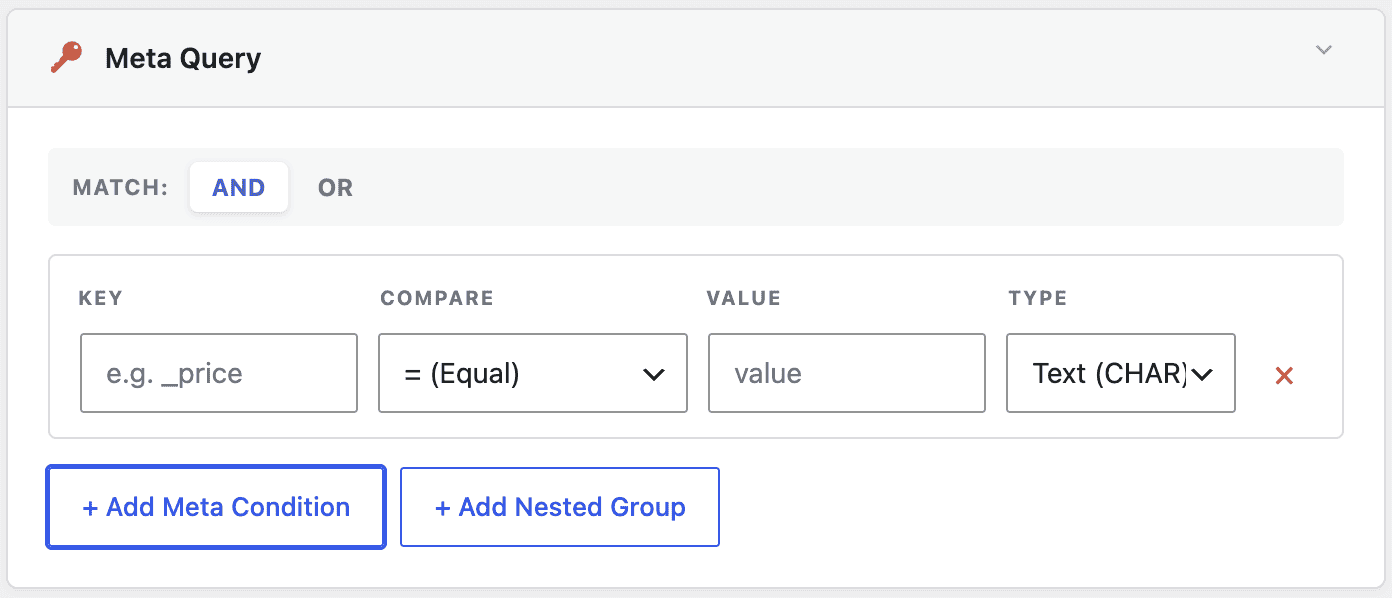
Meta Query
Add one or more custom field conditions, each with a meta key, a compare operator (=, !=, >, >=, <, <=, LIKE, NOT LIKE, IN, NOT IN, BETWEEN, NOT BETWEEN, EXISTS, NOT EXISTS, REGEXP, NOT REGEXP), and a value type (Character, Numeric, Decimal, Date, Time, Date/Time, Binary). As with Taxonomy Query, choose AND/OR when there’s more than one row.
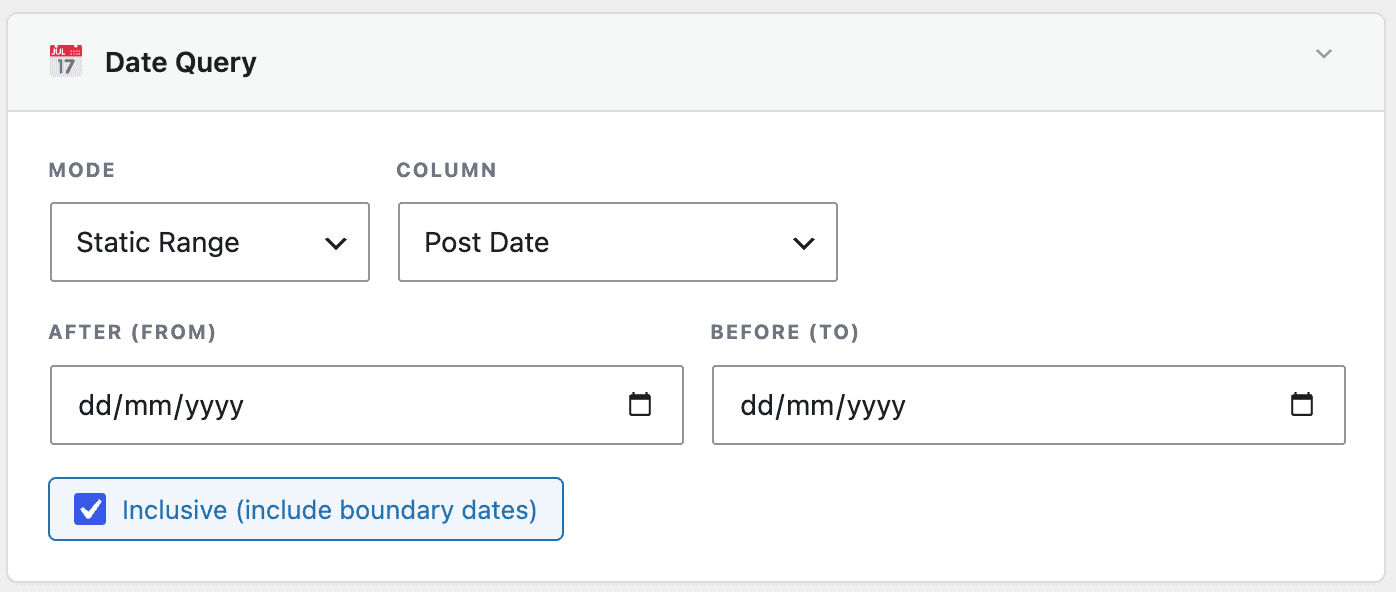
Date Query
- Mode: Static Range or Relative.
- Column: Post Date or Post Modified.
- Static mode: pick After / Before dates.
- Relative mode: choose from Last 7/30/90 days, This month, Last month, or This year.
- Inclusive: Include the boundary dates in the results.
Author
Pick one or more users, and whether the query should Include or Exclude them.
Search
Search Keywords: Only return results matching this free-text search term.
Previewing your query
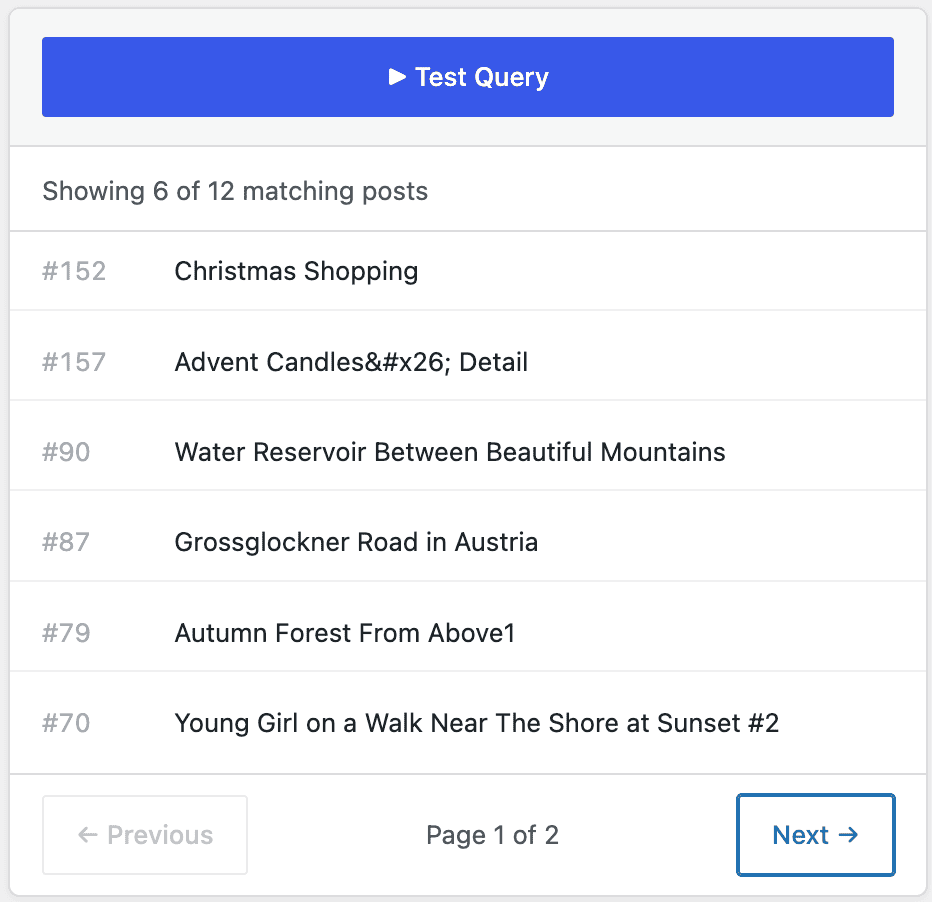
Before saving, click Test Query in the sidebar to run your current settings against real data. You’ll see a “found X posts” count, a list of matching post titles, and Previous/Next pagination to page through the results — all without leaving the editor.
The sidebar also includes a code panel with PHP Array, WP_Query, and Use Preset tabs, showing the generated query arguments, a ready-to-paste WP_Query snippet, and (once the preset is saved) a short snippet showing how to reference this preset’s ID — each with a Copy button.
Applying a saved preset
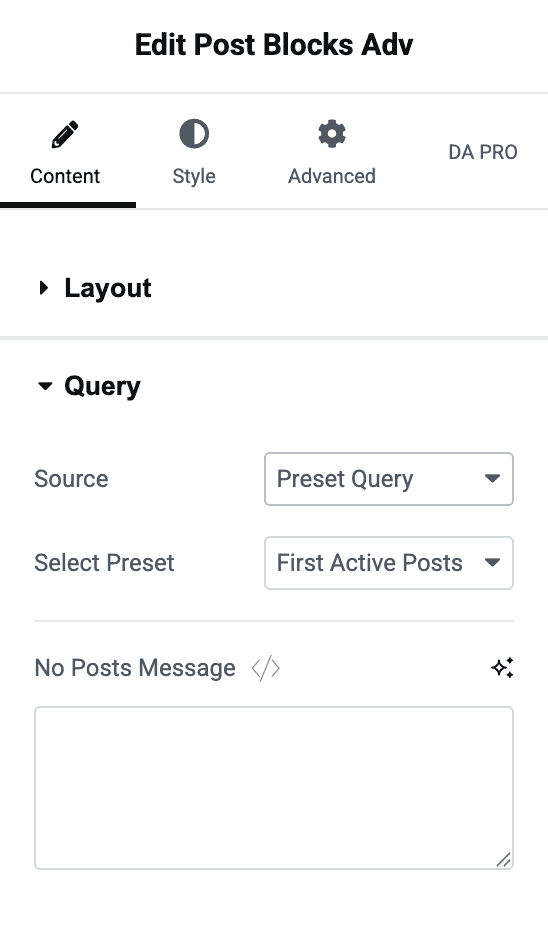
In DA – Post Blocks Adv: open the widget’s Query section and set Source to Preset Query, then choose your saved preset from the Select Preset dropdown that appears. The widget will use the preset’s settings instead of its own filter/sort controls.
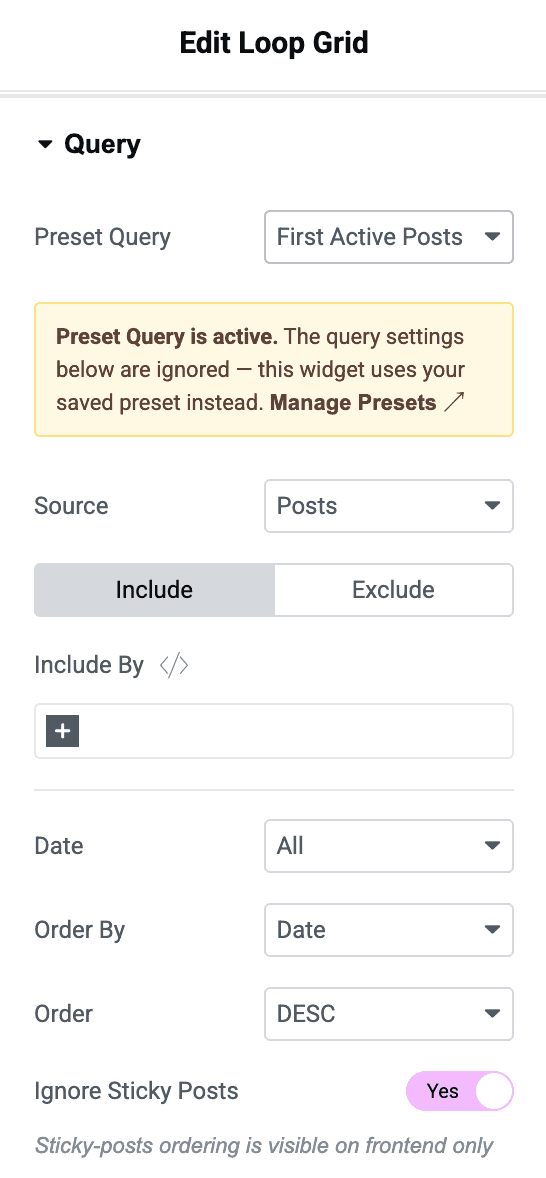
In Elementor’s native query widgets (Posts, Portfolio, Loop Grid, Loop Carousel, WooCommerce Products): a Preset Query dropdown appears at the top of the widget’s own Query section, above Elementor’s built-in source/post-type controls. Choosing a preset here shows a notice that the settings below are now ignored in favor of the saved preset. Elementor’s own pagination and “Load More” behaviour continue to work as expected.
If no presets exist yet, both locations show a “No query presets found — Create one” link that takes you straight to the preset creator.
Managing your presets
The Query tab’s list table shows: Name (with preset ID), Status (click the Active/Inactive pill to toggle it), Used In (up to 3 pages/templates using this preset, plus a “+N more” count), Last Modified, and row actions — Edit, Duplicate, Export, Delete.
Above the dropdown you’ll find bulk actions (Activate, Deactivate, Export, Delete) once you select one or more rows, plus Import (upload a .json preset file) and Export All buttons.