How to Add Conditional Display in Elementor Without Elementor Pro
Neither Elementor free nor Elementor Pro gives you a general-purpose way to show or hide a section, column, or widget based on a condition. Elementor Pro’s “Display Conditions” only control when an entire Popup appears – there’s nothing built in for “hide this banner outside business hours” or “only show this pricing table to logged-in members.” For that, you’ve traditionally needed a separate visibility plugin.
Preset Rules, part of Dynific Addons for Elementor Pro, adds that missing conditional-display layer directly into Elementor and it works on Elementor free, not just Pro. You build a condition once, save it as a named preset, and attach it to any Section, Column, Container, or Widget.
What you need before Starting
- Elementor (free or Pro – Dynamic Rule is added to every Section, Column, Container, and Widget regardless of edition)
- Dynific Addons for Elementor Pro installed and activated
What Is a Preset Rule?
A Preset Rule is a saved set of one or more conditions, built under Dynific Templates → Presets → Rules tab. Conditions are grouped into categories, and you combine them with AND (“all must match”) or OR (“any can match”) logic.
| Category | Example Rules |
|---|---|
| User | Login Status, User Role, Specific User |
| Content | Post Type, Post ID, Featured Image, Page Template |
| Query Context | Singular, Archive, Search Results, 404, Front Page |
| Date & Time | Business Hours, Day of Week, Scheduled Visibility |
| Device | Desktop / Tablet / Mobile |
| Advanced Custom Fields | ACF Text, ACF True/False, ACF Post, and more |
| Cookie / Session | Cookie exists, equals, or contains a value |
| URL | Query String, URL Contains |
The full rule list covers quite a bit more than this table – see the documentation for the complete set. Let’s build two real examples.
How Do You Show Content Only to Logged-In Visitors?
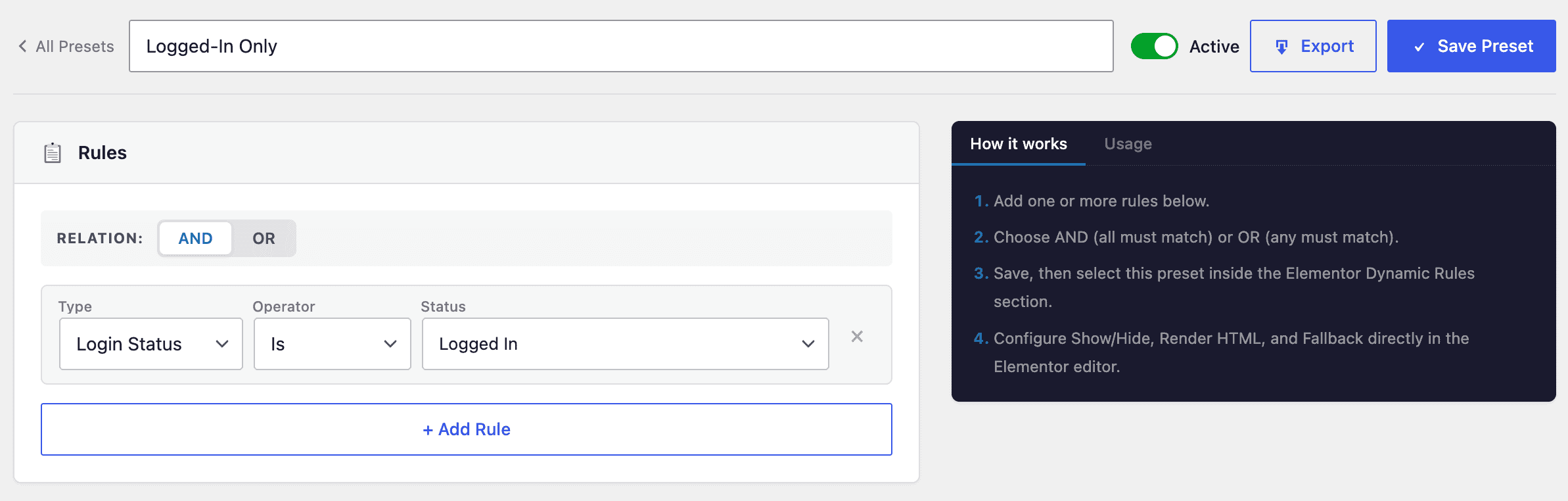
- Go to Dynific Templates → Presets → Rules tab and click Add New Preset. Name it “Logged-In Only”.
- Leave Relation on AND — with just one rule, it doesn’t matter which you pick.
- Click + Add Rule. Set Type to User → Login Status, Operator to Is, Value to Logged In.
- Save the preset.
Now attach it to whatever you want only members to see – a widget, a section, an entire container:
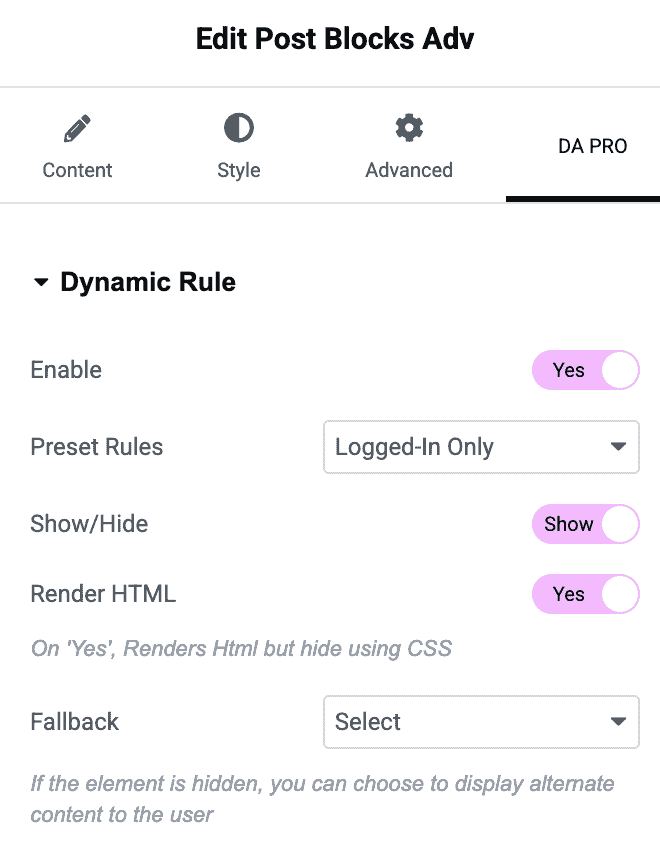
- Select the element in Elementor. Open its DA Pro tab (for Sections/ Columns/ Containers/ Widgets) and find Dynamic Rule.
- Toggle Enable to Yes.
- Set Preset Rules to “Logged-In Only”.
- Set Show/Hide to Show – the element shows when the condition matches, and stays hidden otherwise.
- Save the page.
How Do You Hide a Section Outside Business Hours?
This is the kind of condition that’s basically impossible without a plugin like this one – Elementor has no concept of “the current time” at all.
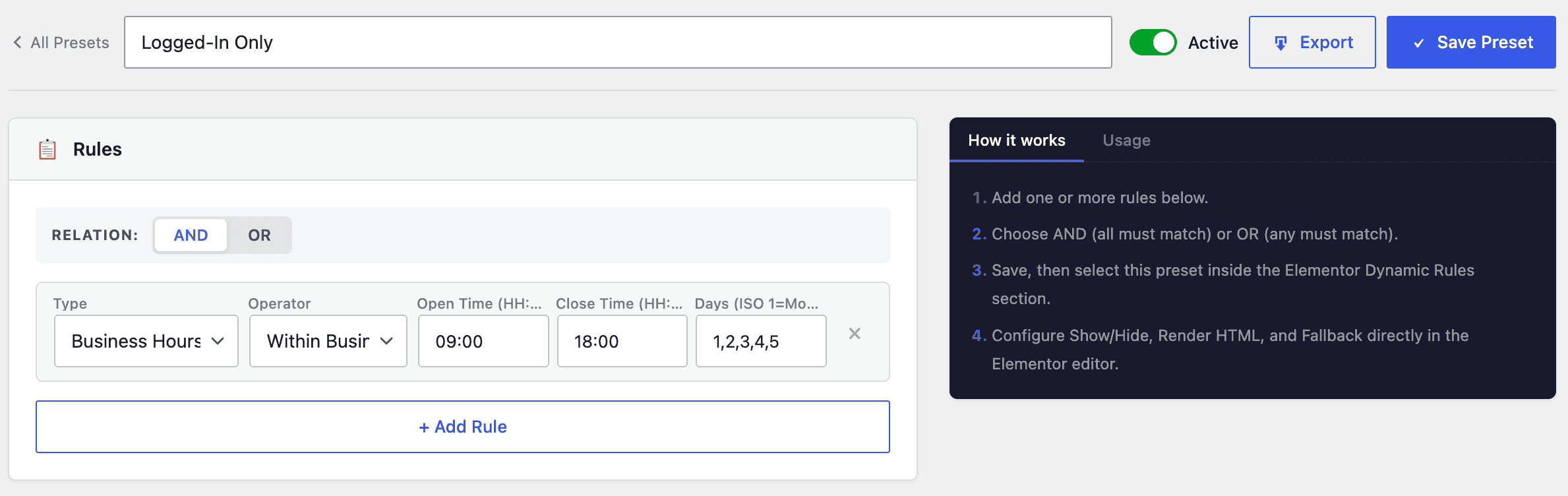
- Create a new preset called “Business Hours Only”.
- Add a rule: Type = Date & Time → Business Hours. Set Open to 09:00, Close to 18:00, and Days to Monday–Friday.
- Save, then attach it to your “we’re online now, chat with us” section the same way as before — Dynamic Rule → Enable → Preset Rules = “Business Hours Only” → Show/Hide = Show.
- Optionally, set Fallback to Text and enter something like “We’re currently closed – back at 9am Monday,” so visitors outside business hours see a message instead of nothing at all.
Pro Tip: Switch the relation to OR when any one of several conditions should reveal the content — for example, show a promo banner to logged-in Gold members OR anyone with a specific referral cookie set, all from a single preset instead of building two separate rule sets.
Frequently Asked Questions
Does this work on Elementor free?
Yes. Dynamic Rule is added to every Section, Column, Container, and Widget regardless of whether you’re running Elementor free or Elementor Pro – only Dynific Addons for Elementor Pro itself is required.
Can I reuse one rule set across many elements?
Yes – that’s the entire point of Preset Rules. Build the condition once, attach it to as many sections, columns, or widgets as you like, and editing the preset updates every attached element at once.
What happens to the element’s HTML when it’s hidden?
That’s controlled by the Render HTML option. Set it to No and the markup isn’t output at all when hidden. Set it to Yes and the markup still renders but is hidden with CSS – useful if something else on the page depends on that element existing in the DOM.
Conclusion
Preset Rules brings the conditional visibility that neither Elementor nor Elementor Pro offers natively – build a condition once, from a library covering user state, content, query context, dates and times, ACF fields, cookies, and more, then attach it anywhere you need it. Change the condition later, and every element using it updates automatically.