How to Insert Dynamic Text Into Any Elementor Field Without Dynamic Tags
Elementor’s Dynamic Tags only work in the specific fields Elementor decided to support, and several of the most useful ones – ACF sub-fields, WooCommerce product data, post meta — are locked behind Elementor Pro. Even where they are available, you have to click through a picker every single time you want to insert one value.
Smart Tokens, part of Dynific Addons for Elementor Pro, takes a different approach: typed placeholder syntax you can drop directly into almost any text field. Type {{post.title}} or {{user.email}}, and it’s swapped for the live value the moment the page renders. No Dynamic Tags menu required.
What you need before starting
- Elementor (free or Pro – Smart Tokens works in any edition)
- Dynific Addons for Elementor Pro installed and activated, with the Smart Tokens module enabled (it’s on by default under the plugin’s Modules screen)
What Is a Smart Token?
A Smart Token is a {{group.key}} placeholder that resolves to a live value at render time. There are built-in groups covering the site, the current post, the logged-in user, the URL, the current date and time, the active query, ACF fields, and WooCommerce data.
| Group | Example Token | Resolves To |
|---|---|---|
| Post | {{post.title}} | The current post’s title |
| User | {{user.display_name}} | The logged-in visitor’s display name |
| URL | {{url.parameter.ref}} | The value of a ?ref= query-string parameter |
| ACF Fields | {{acf.price}} | Any ACF field on the current post |
| WooCommerce | {{woo.cart_count}} | Number of items currently in the cart |
That’s a small sample — see the documentation for the full token catalogue.
How Do You Insert a Token Into a Field?
There are two ways, and both work in the same supported fields: plain Text, URL, Search, and Textarea/code controls.
- Click into any supported field in Elementor. Look for the small “Insert Token (</>)” icon in the control’s title row and click it.
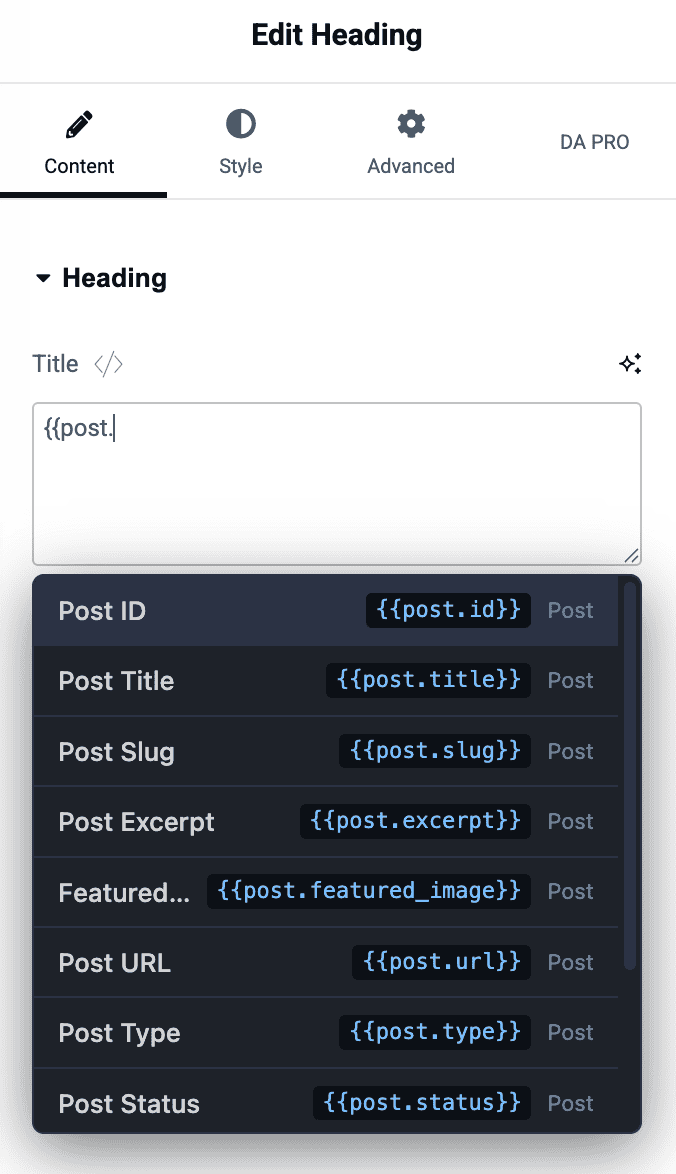
- A floating Smart Tokens panel opens with a search box and a categorized list. Search for what you need, e.g. “title”, and click the token to insert it.
Or skip the panel entirely: type {{ directly into the field, and a live autocomplete dropdown appears under your cursor. Keep typing to filter it, use the arrow keys to highlight a token, and press Enter to insert it.
How Do You Personalize a Heading With the Visitor’s Name?
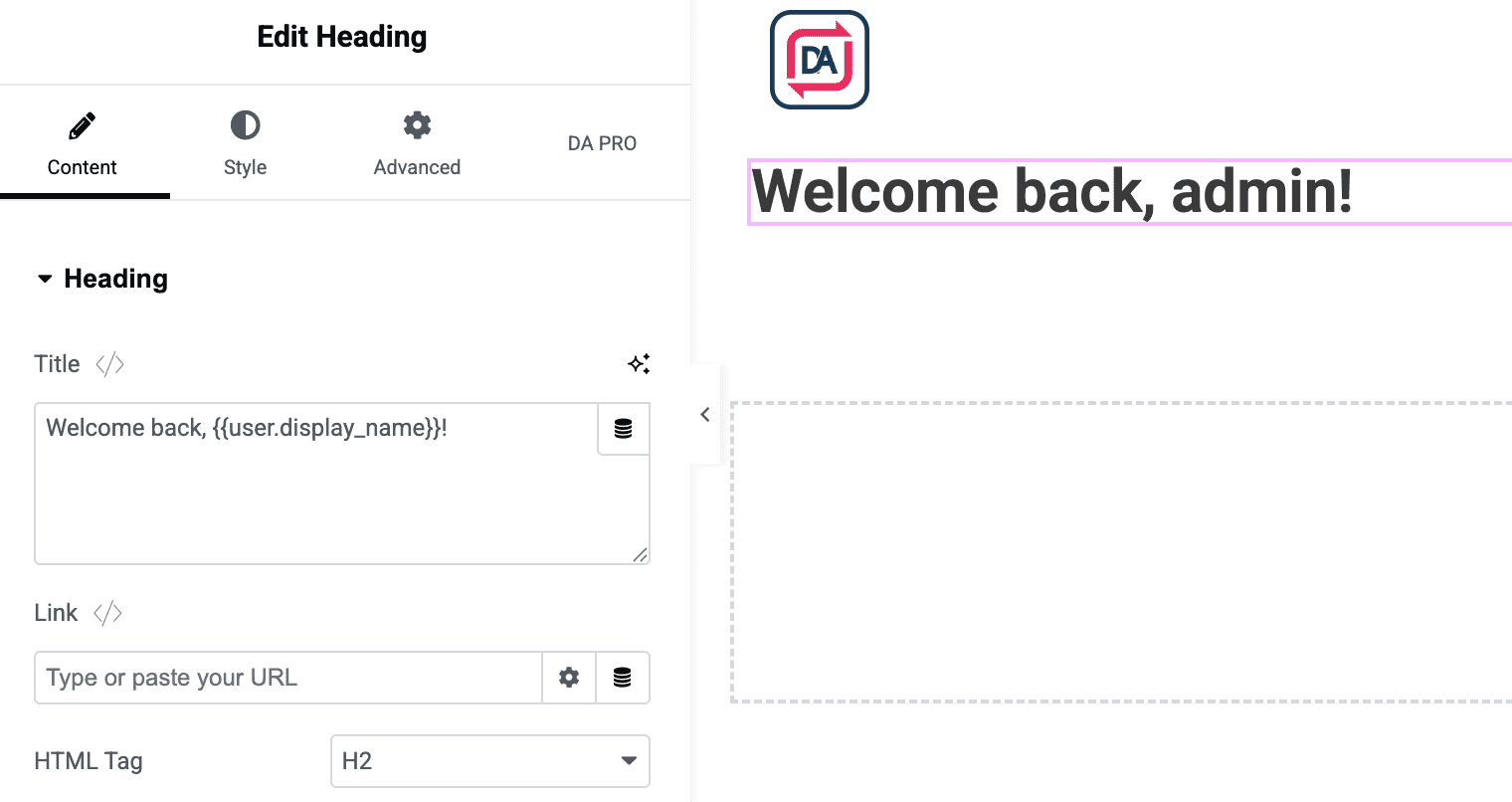
- Add a Heading widget to your page, e.g. on a members-only dashboard page.
- In the Title field, type:
Welcome back, {{user.display_name}}! - Preview the page while logged in — the heading shows your actual display name in place of the token.
If a visitor isn’t logged in, {{user.display_name}} resolves to an empty string, so the heading would read “Welcome back, !” – not great. The cleanest fix is to pair this with a Preset Rules “Logged-In Only” condition on the same widget, so logged-out visitors never see the greeting at all.
How Do You Add Dynamic Values to a Button’s URL or CSS Class?
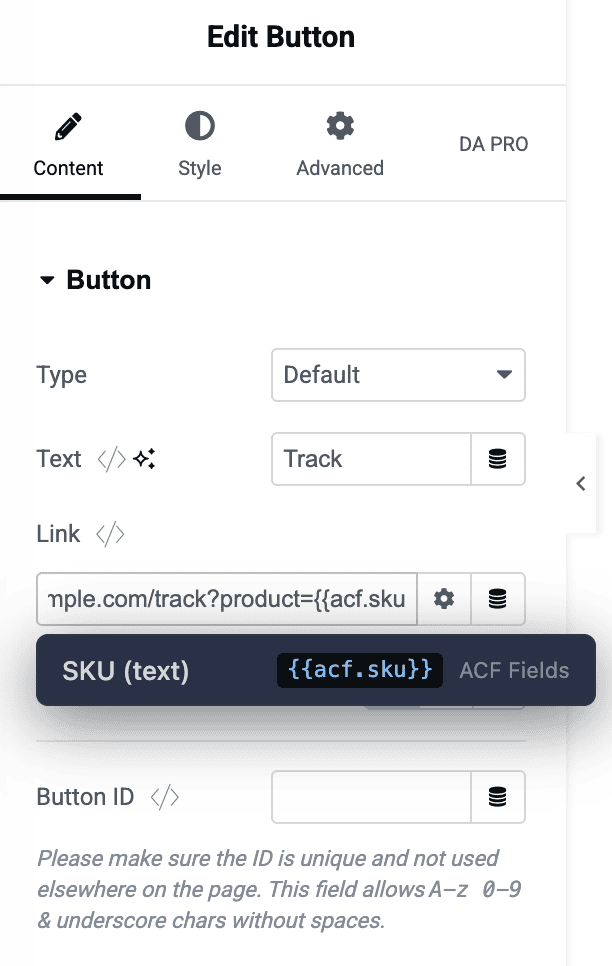
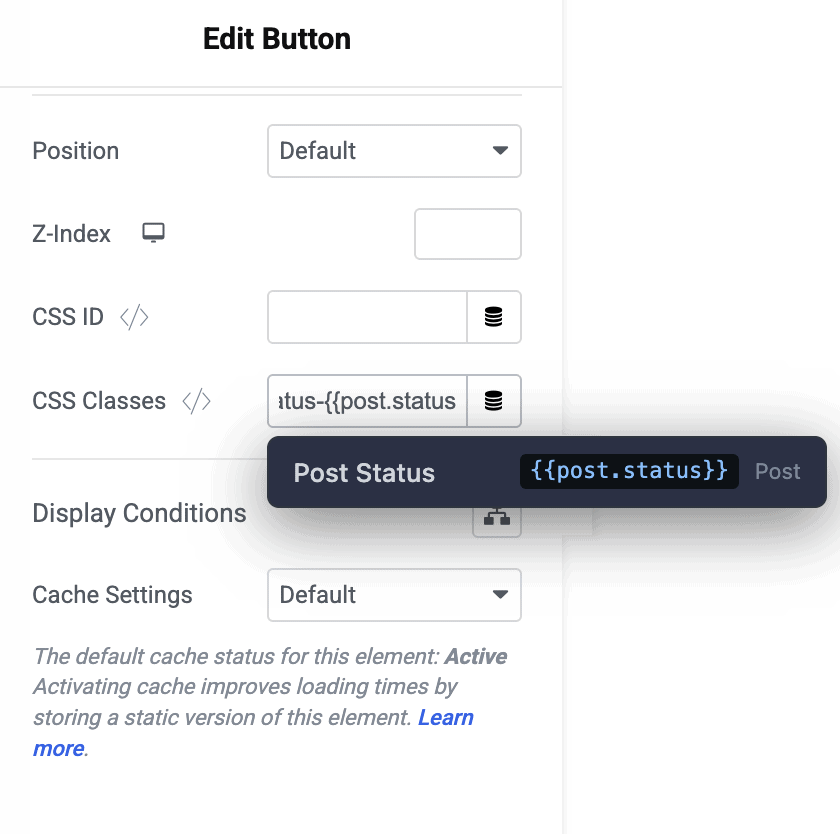
Tokens aren’t limited to visible text. They also resolve inside a Link control’s URL field, Custom CSS Classes, Custom CSS ID, and Custom Attributes — useful for things Elementor’s own Dynamic Tags don’t reach.
- On a Button widget, set the Link URL to something like
https://example.com/track?product={{acf.sku}}— the SKU from an ACF field is appended automatically, per post. - On the same or any other widget, add a Custom CSS Class of
status-{{post.status}}to style published vs. draft content differently, without any per-post manual class assignment.
Pro Tip: Combine Smart Tokens with Preset Rules whenever a token can resolve to an empty value — a visibility condition prevents visitors from ever seeing a broken “Welcome back, !” state.
Frequently Asked Questions
Do tokens work on Elementor free?
Yes. Smart Tokens resolves anywhere the module attaches — Text, URL, Textarea, Custom Attributes, CSS Classes, and CSS ID — regardless of whether you’re on Elementor free or Pro.
Do tokens work inside a post grid or other loop widget?
Yes — a token like {{post.title}} correctly re-resolves for each item as the loop advances, so it shows the right value per card, not just the first post’s value repeated.
Can I use a token in a Color, Number, or Media field?
No — those aren’t free-text fields, so there’s nowhere for the placeholder syntax to resolve into. See the documentation for the complete list of supported and unsupported field types.
Conclusion
Smart Tokens gives you a faster, more flexible way to insert dynamic values into Elementor than Dynamic Tags allow — typed directly into the field, resolving in text, URLs, CSS classes, and custom attributes alike, with no per-field picker required and no Elementor Pro dependency.
See the full Smart Tokens documentation for the complete token catalogue, or read our tutorial on reusing the same filtered query across multiple widgets to see another way Dynific Addons cuts down repeated setup work.
Get Dynific Addons for Elementor Pro and start inserting dynamic content anywhere Elementor lets you type.