How to Import/Export Templates in Dynific Addons for Elementor (formerly AnyWhere Elementor)
Have a stunning and eye-catching Dynific Addons for Elementor (formerly AnyWhere Elementor) template that you spent hours creating for one project. Imagine you can use that template for future web development tasks with just a few clicks.
With Dynific Addons import and export template feature, you can save your designs as JSON or ZIP files and reuse them anytime, saving hours of work and maintaining design consistency across sites.
In this guide, you’ll learn how to export and import Anywhere Elementor templates (individually or in bulk) in just a few clicks, no coding required.
Key Takeaways: What You’ll Learn
- How to export individual or multiple Dynific addon(DA) templates in JSON or ZIP format
- How to import DA templates into any WordPress site
- Save time and effort by reusing your best designs across projects
- Backup or share DA templates with your team or clients
- Streamline your Elementor workflow with DA template portability
Why Use the Import/Export Feature in Dynific Addons for Elementor (formerly AnyWhere Elementor)?
The ability to import and export DA templates helps:
- Maintain design consistency across multiple websites
- Reuse complex dynamic layouts like archive pages, custom loops, and templates
- Share designs with clients or team members
- Save your DA templates as backups in case of website issues
This feature is especially useful if you’re building websites at scale or managing multiple client projects.
If you’re using the Elementor, we’ve got you covered too!
Check out our detailed guide on how to import and export Elementor templates to reuse designs and boost your workflow.
How to Export Templates in Dynific Addons for Elementor (Step-by-Step)
With access to pre-designed DA templates, you can focus on other aspects of the project, such as content, functionality, and user experience, ultimately resulting in higher productivity.
So, let’s learn how to reuse your personalized DA templates easily!
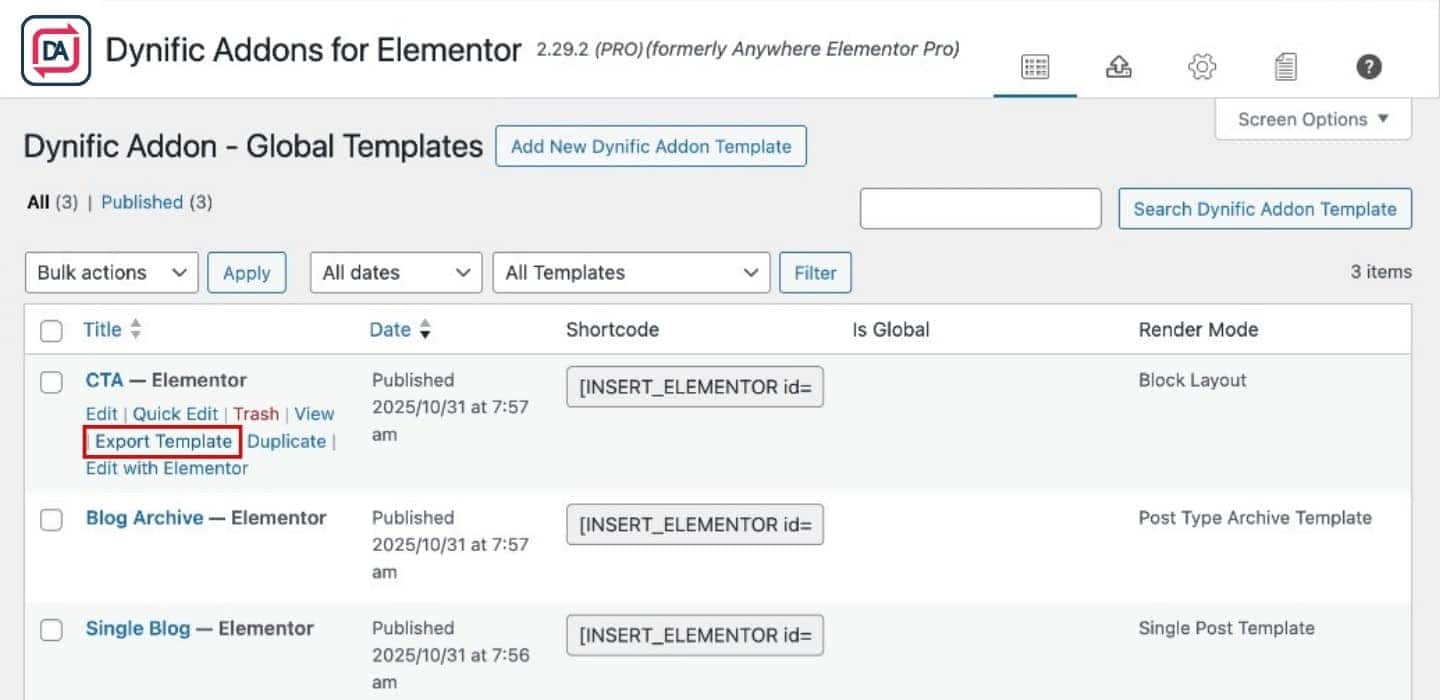
Export a Single DA Template (JSON Format)
Here’s how you can export a single template:
- Go to your WordPress Dashboard → Dynific Addon Templates
- Hover over the template you want to export
- Click on “Export Template”
- Your DA template will be downloaded as a
.jsonfile, ready to be imported elsewhere.
Export Multiple DA Templates in Bulk (ZIP File)
If you want to export multiple templates at once:
- Navigate to DA Templates in your dashboard
- Select the checkboxes for all the templates you want to export
- In the Bulk Actions dropdown, choose Export, and click Apply
A .zip file containing all the selected templates will be downloaded to your system.
![Export [ae_plugin_name] templates in Bulk](https://cdn.shortpixel.ai/spai/q_lossy+ret_img+to_webp/bunny-wp-pullzone-qhcm26njoe.b-cdn.net/wp-content/uploads/2023/04/multiple-export.gif)
How to Import Templates into Dynific Addons for Elementor (formerly AnyWhere Elementor)
Whether you’re switching sites or reusing layouts, importing DA templates is simple:
- Go to WordPress Dashboard → Dynific Addon Templates
- Click on the “Import Template” icon at the top
- Upload your
.jsonfile (for single template) or.zipfile (for multiple templates) - Click “Import Now”
That’s it! Your templates are now available in your DA Template Library.
![Import [ae_plugin_name] template](https://cdn.shortpixel.ai/spai/q_lossy+ret_img+to_webp/bunny-wp-pullzone-qhcm26njoe.b-cdn.net/wp-content/uploads/2023/04/Import-DA-Templates-1024x498.jpg)
FAQs on Importing & Exporting Dynific Addons for Elementor Templates
What file format are DA templates exported in?
DA templates are exported as .json files when exporting a single template, and as .zip files when exporting in bulk.
Can I import DA templates to a different website?
Yes, you can easily import DA templates into any other WordPress site running Dynific Addons for Elementor (formerly AnyWhere Elementor) .
Do I need Elementor Pro to use DA templates?
No, Anywhere Elementor Pro works with Elementor Free. You only need DA Pro to access template import/export features.
Will importing templates overwrite my existing content?
No. Imported templates are saved as new DA templates and won’t replace any existing content unless you choose to apply them to a live layout.
Can I use these templates as backups?
Absolutely. Export your templates regularly to keep a backup or share designs across your client sites.
Boost your productivity by optimizing your Elementor design workflow with these practical tips
Reuse DA Templates for Better Productivity
As you’ve seen, the ability to import export templates in Anywhere Elementor Pro is a huge time-saver. Whether you’re reusing designs, backing up DA templates, or sharing layouts with clients—this feature gives you the flexibility to scale your workflow efficiently.
Start using this feature today and enjoy a more organized, faster, and smarter way to build websites with Elementor and Dynific Addons for Elementor.