Understanding Block Layouts
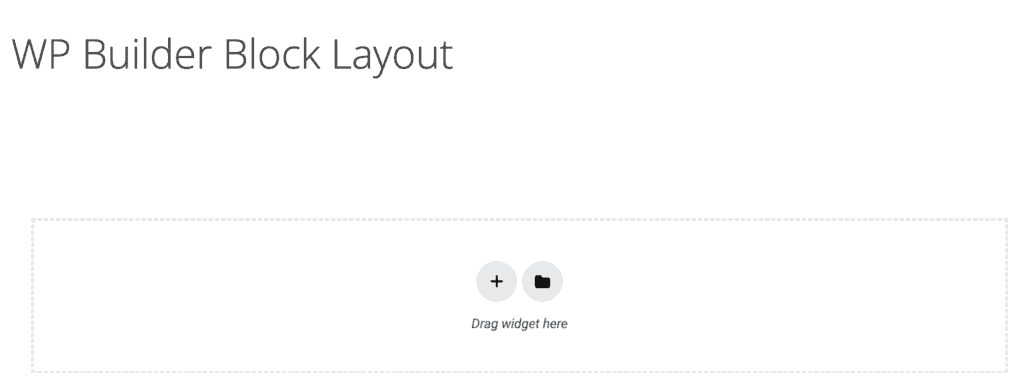
A Block Layout is a Dynific Template built for one purpose: to be the design for a single repeating item — a card, a row, a popup — inside a loop, rather than a whole page. You design it once in Elementor with dynamic tags, then hand it to a listing widget to repeat once per post, product, term, or ACF row.
Creating a Block Layout
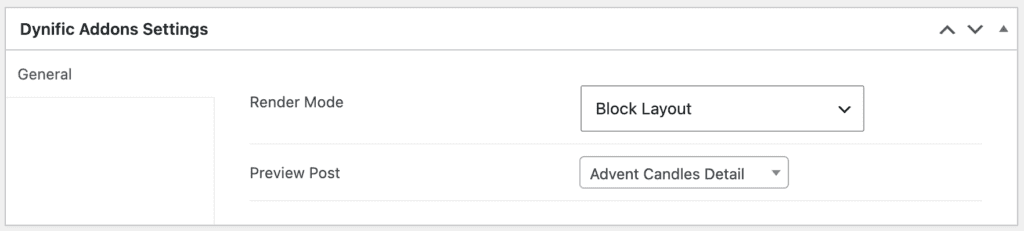
Go to Dynific Templates → Add New, build your card design, then set Render Mode → Block Layout in the Dynific Addons Settings panel. Because a Block Layout isn’t tied to a URL or post type, most of the page-routing fields (Post Type, Auto Apply, Template frame) disappear — the only setting left is Preview Post, which picks a sample post to show while you design.
Where You Use It
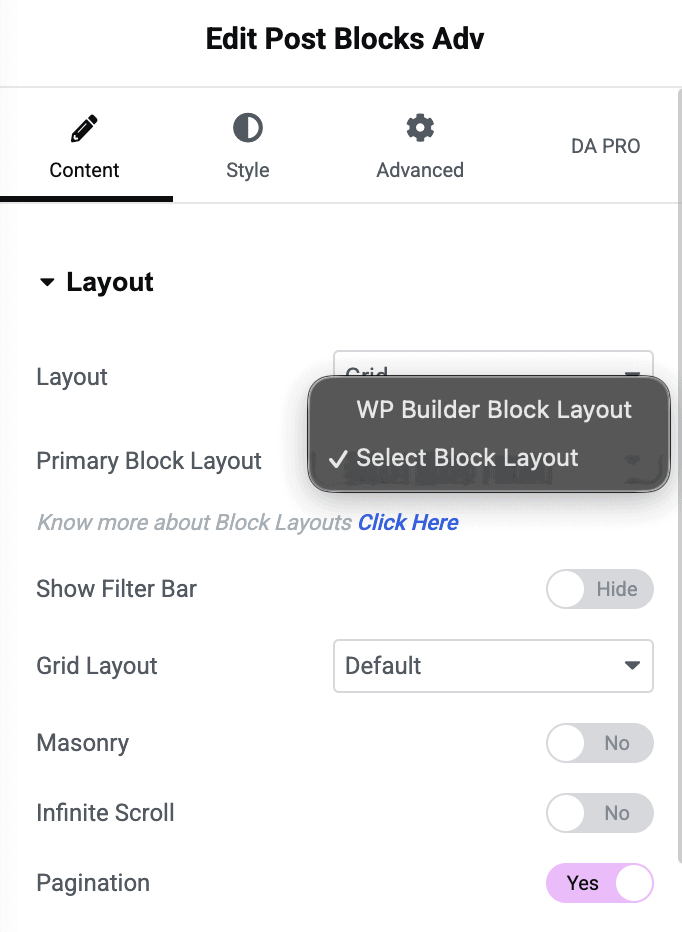
Once created, a Block Layout becomes selectable wherever a widget offers a “Block Layout” control instead of built-in card design options:
- Post Blocks Adv — the main listing/loop widgets. Post Blocks Adv also supports an Alt Block Layout for checkerboard/alternating grid designs.
- Taxonomy Blocks (post-loop skin) — for showing posts inside a term listing.
- WooCommerce Products — for custom product cards.
- Dynamic Map — for marker popups and info windows.
Each of these swaps in your Block Layout in place of its default card layout, so you get full Elementor design control over that repeating item.
How It Works
As the widget loops through its results, it briefly makes each post/product “current” and renders your Block Layout against it — so any dynamic tag inside the layout (title, image, price, ACF field, etc.) resolves to that specific item, not the page you’re viewing. You don’t need to do anything to enable this; it happens automatically as long as the dynamic tags in your layout reference the type of data the loop is producing.
Reusing Across Widgets
A Block Layout isn’t locked to one widget or post type — the same layout can be picked in a Posts listing widget and a Products listing widget alike. That flexibility comes with one caveat: the plugin won’t stop you from picking a mismatched layout, so if your card uses a WooCommerce “Price” tag but the loop is showing regular posts, that tag will simply come up empty. Design each Block Layout with a specific data type in mind.
ACF Repeater & Flexible Content Layouts
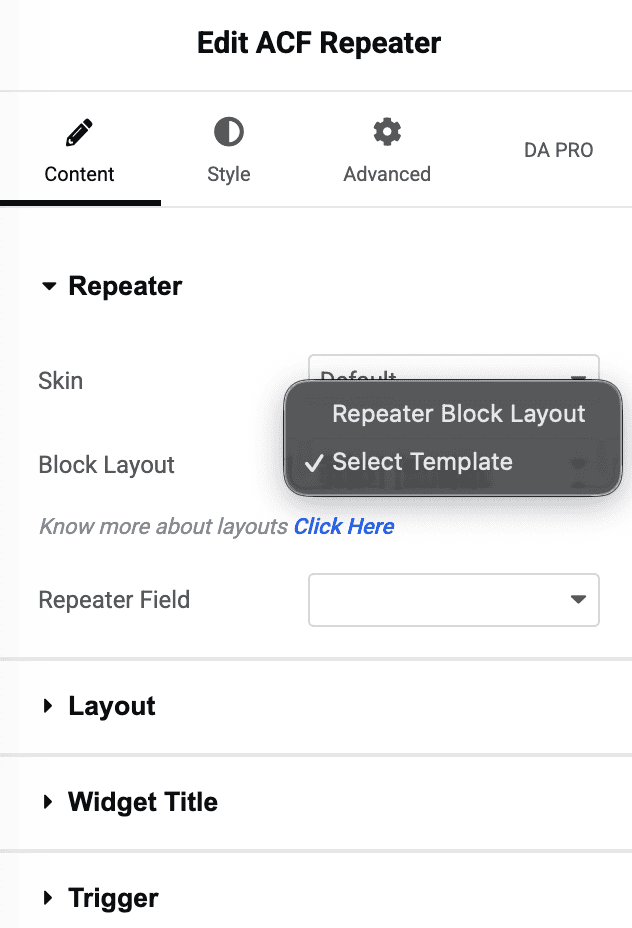
A related but separate option is ACF Blocks (Repeater / Flexible) as the Render Mode — used specifically to design one row of an ACF Repeater or Flexible Content field.
- Bind it to a Repeater field, and the ACF Repeater widget will render your layout once per row, with ACF field tags inside automatically pulling from the current row instead of the whole post.
- Bind it to Flexible Content, and the ACF Flexible Content widget renders a different layout per flexible-content layout type — so you design one Block Layout for each layout your client can add.
These are scoped by field type (Repeater vs. Flexible Content) rather than by post type, so a repeater-bound layout only shows up when picking a repeater layout, and likewise for flexible content.