Let Visitors Save Events Using Add to Calendar in Elementor
Most event pages don’t fail because people aren’t interested. They fail because people forget.
A visitor might sign up for your webinar, check your event details, or even plan to attend, but without a reminder, your event simply disappears from their mind.
That’s where an “Add to Calendar” button changes everything.
Instead of relying on memory, you place your event directly into your visitor’s calendar complete with reminders, time, and details.
In this guide, you’ll learn how to add an “Add to Calendar” in Elementor using a simple no-code widget and more importantly, how to use it effectively to improve event attendance and user experience.
Key Takeaways
- Add to Calendar helps reduce no-shows by adding automatic reminders
- Works with Google, Outlook, Yahoo, and ICS calendars
- No coding required using Addon Elements for Elementor
- Ideal for webinars, bookings, product launches, and live sessions
- A small feature that can significantly improve event engagement
Step-by-Step: Add “Add to Calendar” Button in Elementor
Here are the steps you should follow to add the Add to Calendar button in your Elementor website.
Step 1: Install Required Plugins
First, ensure that you have both plugins installed & activated on your website.
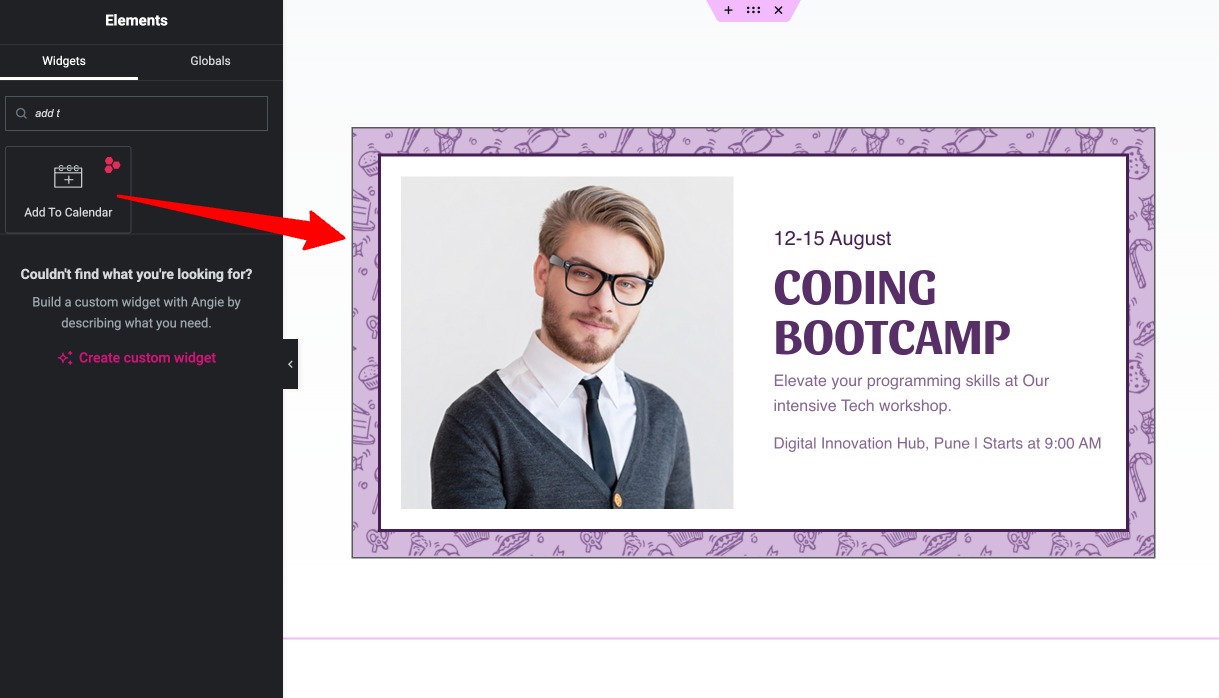
Step 2: Add the Widget in Elementor
- Open the page where you want to add the button and click Edit with Elementor.
- In the widget panel, search for the Add to Calendar widget and drag it onto your page.
Step 3: Choose the Calendar Platform
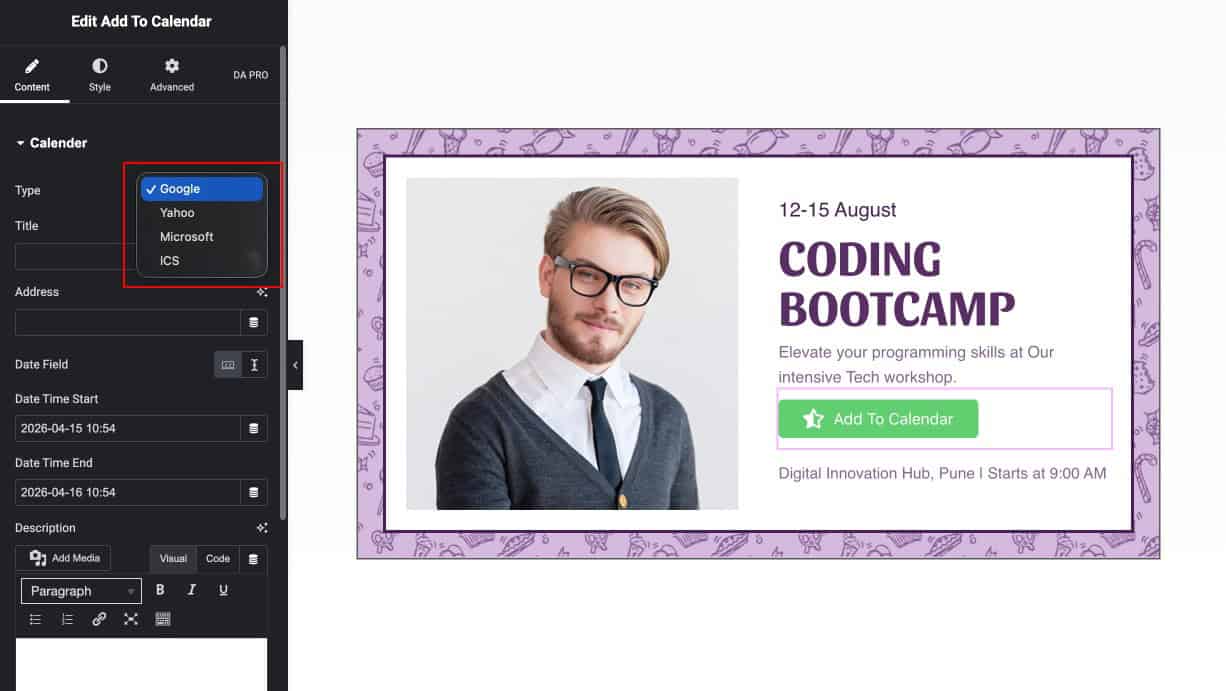
Start by choosing the calendar platforms where visitors can save your event. You can select from:
- Google Calendar
- Outlook Calendar
- Yahoo Calendar
- ICS Calendar
Step 4: Add Your Event Details
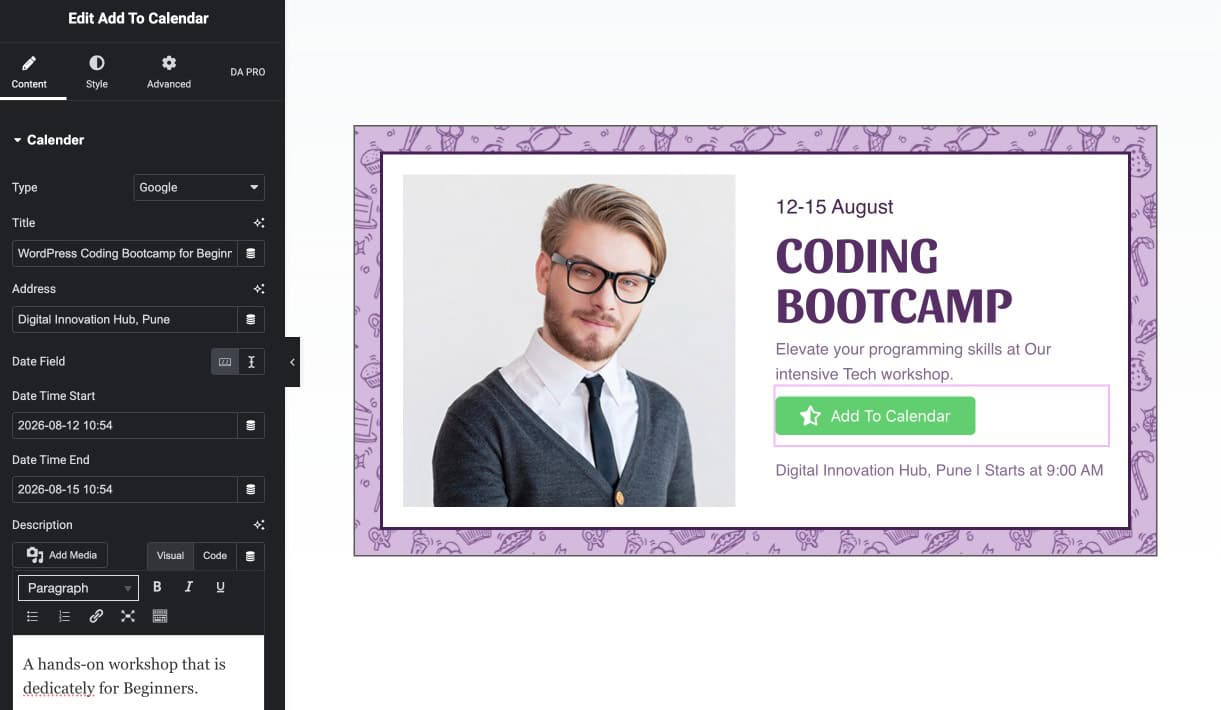
Once you’ve picked your calendar platforms, add the event information that will show up when users click the button. Here’s what you can include:
- Event Title: The name of your event
- Event Address: Location or venue of the event
- Event Date & Time: Choose how you want to set this:
- Date Time Picker: Select date and time using a visual calendar
- Dynamic String: Manually enter date and time using this format: Y:m:d H: i
- Event Description: Add a short description of what your event is about
These fields ensure that your audience receives all the relevant details when they save the event, improving clarity and engagement.
Step 5: Customize the Add to Calendar Button
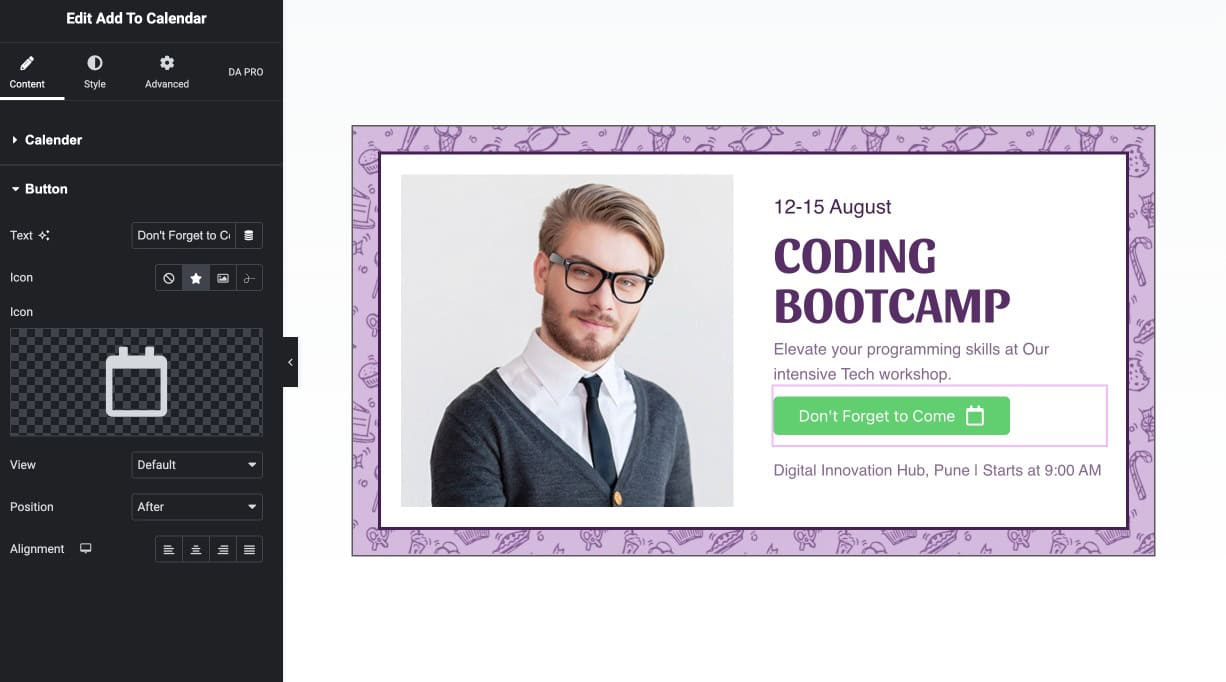
Now that your event content is in place, let’s proceed to customizing the Add to Calendar button to match the style of your website.
You can customize the following:
- Change the button label to something that matches your brand tone, like “Save This Event,” or “Add to Calendar”.
- Choose whether to use a regular icon, a fun animated Lottie animation, or even an image of your choice.
- Decide if the icon should appear before or after the button text.
- You can position the button to the left, center, or right side of the container for better layout control.
This flexibility ensures that the button not only works well but also looks appealing and blends seamlessly into your design.
Step 6: Apply Styling to the Button
Once your button is configured, it’s time to style it. Under the Style tab, you’ll find numerous customization options to fine-tune the button’s appearance in both normal and hover states.
You can:
- Adjust the text color, background color, and border radius
- Style the icon size and color
- Apply hover effects to make the button & icon more interactive, and so on.
Documentation
To explore additional styling options and advanced configurations, refer to our Add to Calendar widget documentation.

Step 7: Save & Preview Your Page
Once everything is set, go ahead and save or update your page. Click “Preview” to test the button and ensure it behaves as expected.
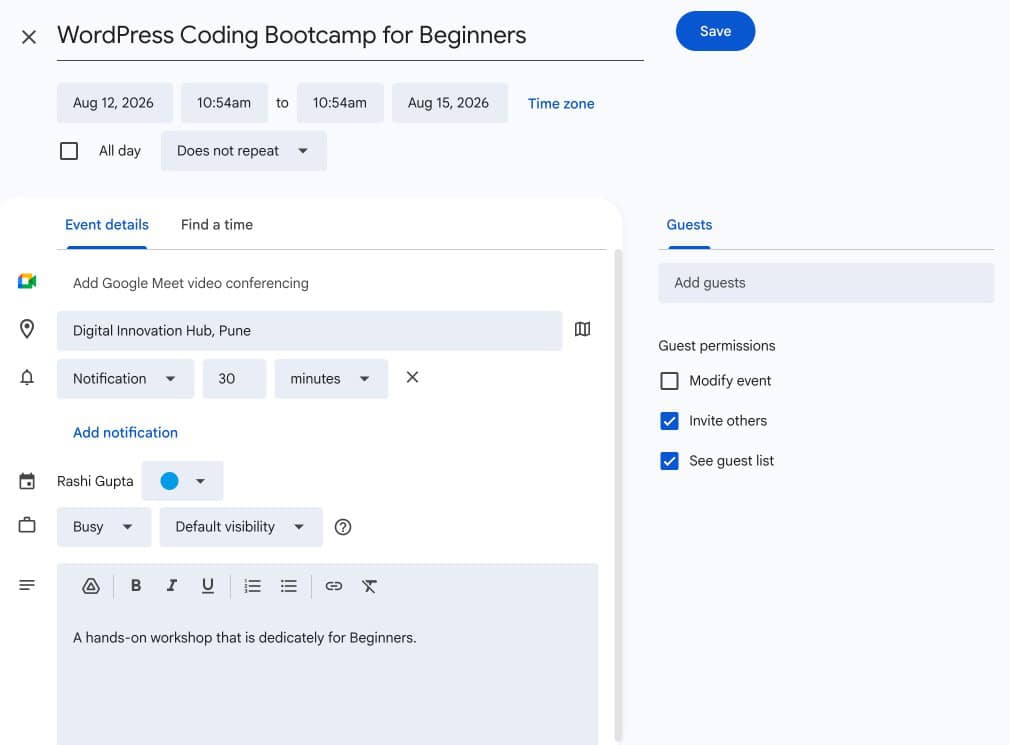
When users click the Add to Calendar button, a popup will open based on the platform you’ve enabled, whether it’s Google, Yahoo, Outlook, or ICS. The popup will display all the event information you added earlier.
From there, users can easily save the event with just a click, making it visible in their calendar app. This small feature can significantly boost event engagement and improve the user experience on your site.
What are the Benefits of Using Add to Calendar in Elementor
Adding an “Add to Calendar” option in your Elementor event pages isn’t just a great feature, it’s a powerful way to boost engagement, attendance, and user experience. Here’s how it helps:
- Helps increase event engagement by letting users save the date with just one click.
- Makes it easier for visitors to remember your event, reducing no-shows.
- Supports all major calendar platforms like Google, Outlook, ICS, and Yahoo.
- Improves user experience by saving time, as there is no need to copy and paste event details.
- Work smoothly on both mobile & desktop devices.
- Adds a professional touch to your event page, making it more interactive and user-friendly.
Displaying FAQs on your event page helps answer common questions and reduce confusion. You can easily do this using the FAQ widget in Elementor, which also supports the schema option, thereby boosting your SEO.
Best Use Cases For Elementor Add to Calendar Widget
The Add to Calendar feature isn’t just useful for one type of website, it’s a powerful widget that fits perfectly across a wide range of event-focused or engagement-driven websites. Here are some common and creative use cases where this widget can really make a difference:
- If you’re running an event-based website, whether it’s for webinars, product launches, or community meetups, you can place the Add to Calendar button right below your event details to let visitors save them instantly.
- Online educators or course creators can use it to remind students of upcoming live sessions or workshops.
- Businesses that rely on bookings or appointments, such as consultants, fitness trainers, or therapists, can add the calendar option after a booking confirmation, helping clients remember their sessions.
- Even WooCommerce store owners hosting special sales, limited-time offers, or event-based products can benefit by letting users save key dates.
- Regardless of your website niche, if your page includes any type of time-based content, the Add to Calendar widget can make it easier for users to remember and show up.
FAQs on Add to Calendar in Elementor
Which calendar platforms are supported by Add to Calendar widget?
Google Calendar, Outlook, Yahoo Calendar, and ICS are supported.
Can I use this widget on multiple events across my site?
Definitely! You can use the widget for each individual event on different pages. Each instance can have its own calendar settings and event information.
Will the calendar popup show event details like location and description?
Yes, all the details you add, like title, venue, date, and description are included in the calendar entry popup when the user clicks the Add to Calendar button.
Is it mobile responsive?
Yes, the Add to Calendar button is fully responsive and works across desktop, tablet, and mobile devices. It adapts to your page layout automatically.
Final Thoughts: A Small Feature That Drives Real Results
Adding an “Add to Calendar” button might seem like a minor detail but it directly impacts whether users show up or not.
If your website includes events, webinars, or time-based actions, this feature is not optional, it’s essential.
With the Add to Calendar widget from Addon Elements for Elementor, you can implement it in minutes without writing a single line of code.
Start using it today and make sure your visitors don’t just see your event… they actually attend it.