How to Add a Scrolling News Ticker in Elementor
Want to highlight announcements, offers, or important updates without disrupting your website layout?
A scrolling news ticker is one of the most effective ways to grab attention while keeping your design clean. Instead of overwhelming visitors with popups or banners, a content ticker lets you showcase multiple updates in a smooth, interactive format.
In this guide, you’ll learn how to create a fully customizable news ticker in Elementor using the Content Ticker widget from the Addon Elements for Elementor plugin.
What You’ll Learn
- How to add a Content Ticker in Elementor step by step
- Ways to customize ticker behavior, speed, and layout
- Practical use cases to boost engagement
- Common mistakes to avoid
- Pro tips to make your ticker actually get clicks
Why Use a News Ticker on Your Website?
Whether you’re running a blog, an eCommerce store, or any website, keeping your visitors updated is essential. And one of the simplest ways to do that is by displaying new tickers, small, animated text strips that highlight announcements, updates, or important headlines.
By adding a content ticker in Elementor, you can:
- Share trending news without cluttering your homepage.
- Highlight sales or event countdowns in a visually appealing way.
- Keep users engaged with scrolling headlines that grab attention without interrupting their browsing.
- Display essential notices or custom messages on your website easily.
It’s an effective, non-intrusive method to enhance your site’s user engagement and ensure your audience never misses out on key information.
How to Display News Using Content Ticker in Elementor
Follow these steps to create your ticker easily:
Step 1: Install & Activate Required Plugins
Make sure you have the following plugins installed and activated on your website.
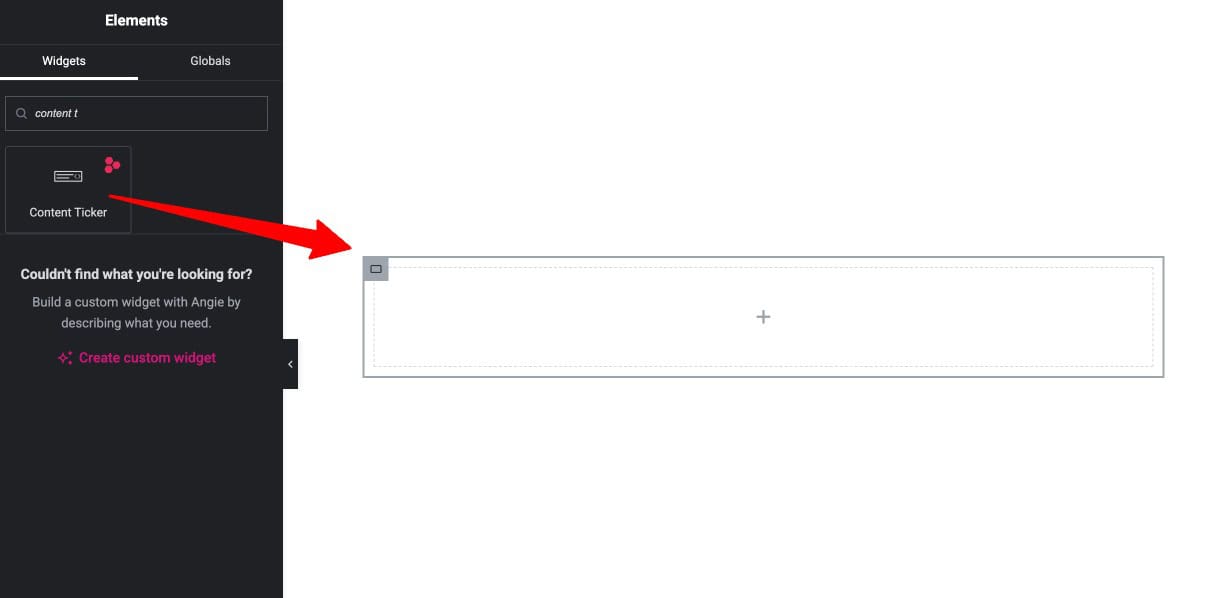
Step 2: Add Content Tickers Widget to Your Page
- Open the page in Elementor Editor where you want to display your news or updates.
- In the Elementor sidebar, search for Content Ticker widget.
- Drag and drop the Content Ticker widget into your desired part.
Step 3: Configure Content Settings in Elementor
Now let’s configure the basics of your Elementor news ticker:
- Choose an Icon that appears with each news item, this could be a speaker, bell, or any symbol of your choice.
- Add a heading or label for the ticker (e.g., “Latest News” or “Updates”).
- Decide whether the icon should appear before or after the heading text.
- Enable the arrow navigation option, and you can also choose to stack ticker items vertically on mobile devices for a cleaner, responsive layout.

Step 4: Add and Manage News List
Now it’s time to fill in the content:
- Click on the “Add Item” button to add multiple news items or announcements.
- Type in the text you want to display for that item.
- Optionally, add a URL if you want the item to link to a blog post, announcement page, or external source.
- Repeat this for all the items you want to display in your news ticker.

Step 5: Enable Navigation or Slider Controls
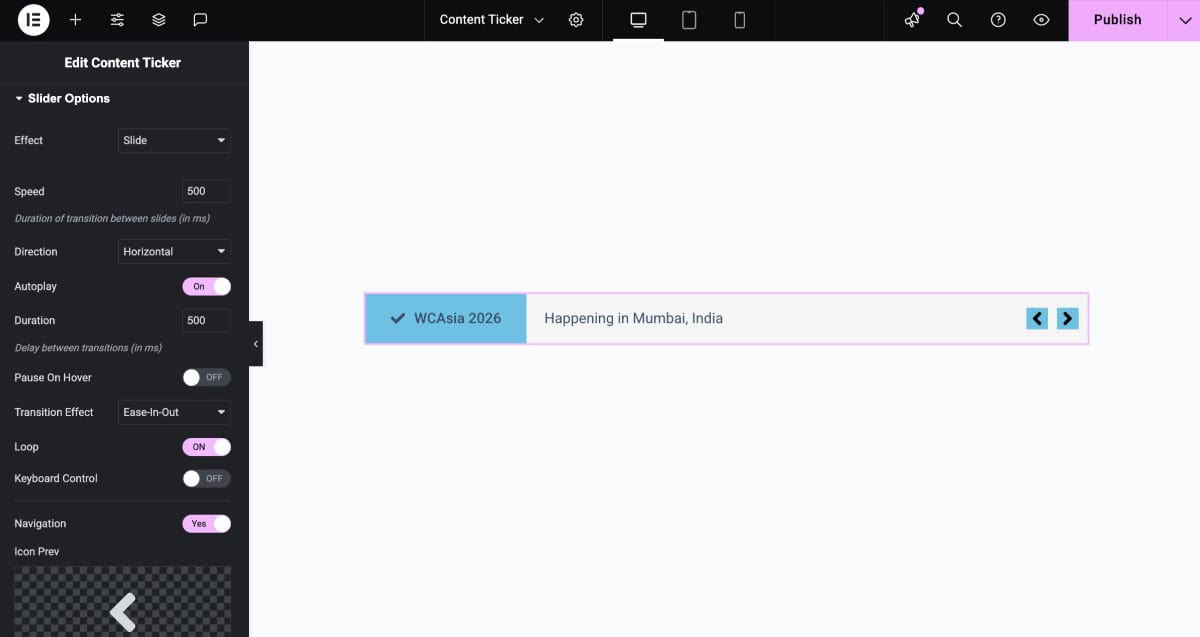
To make your news ticker more interactive, head to the Slider Settings tab:
- Choose how the ticker items transition, pick between fade or slide effects.
- Adjust the scrolling speed, direction, and even enable autoplay so the items change automatically.
- If you want users to control the ticker with their keyboard, enable the keyboard navigation option.
- Also, turn on looping to make the ticker cycle through items continuously.
- You can also display navigation icons(arrows) on your ticker. Select the icon styles that suits your website design.
- Decide the position of these navigation icons from top and right.
- If needed, you can choose to hide the ticker on mobile devices for a cleaner mobile view.
Step 6: Style Your Elementor News Ticker
Now let’s make your Content Ticker match your website’s design:
- Go to style tab.
- Here, you have full control over the appearance of each element in the ticker.
- Customize the heading style, change font, size, spacing, color, and so on.
- Style the slider box, including its shadow, padding, and border.
- Modify the navigation icons and heading icon for both normal and hover states.
- Fine-tune every detail to ensure your ticker looks clean, modern, and visually appealing.

Documentation
Want to explore all styling options in detail? Check out the Content Ticker Documentation to learn more about design settings.
Step 7: Preview Your News Ticker Before Publishing
Once you’ve added and styled your ticker:
- Click the Preview button in Elementor to see how it looks on the frontend.
- Make sure the news items scroll smoothly and the icons, heading, and navigation all look as expected.
- Test it on different devices (desktop, tablet, and mobile) to ensure it’s fully responsive and visually consistent.
Tips to Make Your News Ticker Stand Out
Want your Content Ticker in Elementor to grab attention and actually get clicked? Here are some quick and effective tips to help your news ticker stand out on your website:
- Keep It Short and Snappy: Write short, to-the-point headlines. Long messages can get cut off or become hard to read as they scroll. Aim for clarity and impact in just a few words.
- Highlight Urgent or Trending News: Use the ticker to showcase time-sensitive updates, breaking news, or trending posts. It keeps your website feeling dynamic and up to date.
- Use Contrast and Colors: Choose bold background colors and high-contrast text so your ticker is readable at a glance. Don’t forget to match it with your site’s theme for a polished look.
- Enable Looping or Autoplay: Turn on the loop or autoplay feature so your content scrolls continuously. It ensures users won’t miss out on older messages.
- Use Animation Smartly: Play with animation speed and direction, but don’t overdo it. Too fast and users won’t read it, too slow and it feels boring.
- Check Mobile Responsiveness: Always preview your ticker on mobile and tablet. Adjust font size, spacing, and alignment to ensure it works smoothly on all devices.
- Add Interactivity: Want to make your ticker more engaging? You can link headlines to full articles or trigger popups for more info when clicked.
FAQs on Content Ticker in Elementor
Do I need Elementor Pro to use the Content Ticker widget?
No, you don’t need Elementor Pro. The Content Ticker widget is available in the Addon Elements for Elementor plugin, which works with the free version of Elementor.
Can I customize the direction and speed of the ticker?
Yes. You can control the scroll direction, speed, and even loop behavior from the widget settings.
Can I link each ticker item to a different URL?
Yes. You can add a clickable link to each item, making it perfect for linking to blog posts, updates, product pages, or external resources.
Is the Content Ticker mobile responsive?
Absolutely. The widget is fully responsive and can be customized separately for desktop, tablet, and mobile views within the Elementor editor.
Display WordPress News Effortlessly
Adding a news or announcement ticker is one of the simplest ways to make your WordPress site more dynamic and informative. With the Content Ticker widget from Elementor Addon Elements, you don’t need any technical skills, just drag, drop, and customize.
Try it out today and give your Elementor website the professional, interactive edge it deserves!