How to Add Global Colors in Elementor
Elementor global colors let you set your brand colors once and reuse them across your whole site. Open the editor, click the E menu, go to Site Settings > Global Colors, and add your colors there. The feature is free, and when you change a global color later, every element that uses it updates automatically.
This guide shows how to add global colors, apply them to widgets, and how they work alongside the new Variables in Elementor 4.
Key takeaways
- Elementor global colors live in the E menu > Site Settings > Global Colors and are free to use.
- Add a custom color once, then apply it to any widget with the globe icon. Change it later and every element using it updates.
- In Elementor 4, atomic elements use Variables instead, and you can sync a variable to Global Colors.
Why Should You Use Global Colors in Elementor?
Global colors save you from changing the same color by hand on every button, heading and background. You define your palette once, such as primary, secondary, text and accent colors, and use it everywhere.
Say a brand switches to a slightly different shade of blue a few months after launch. Instead of editing each element, you update one global color, and the new shade appears on every page at once.
How to Add Global Colors in Elementor
You add global colors from Site Settings inside the Elementor editor.
Open any page or template in Elementor, click the E menu in the top left corner and choose Site Settings.

Under Design System, click Global Colors.

You will see four System Colors: Primary, Secondary, Text and Accent. Change their values to match your brand. The Show global settings switch overlays the canvas with a style guide, so you can preview your palette while you edit.
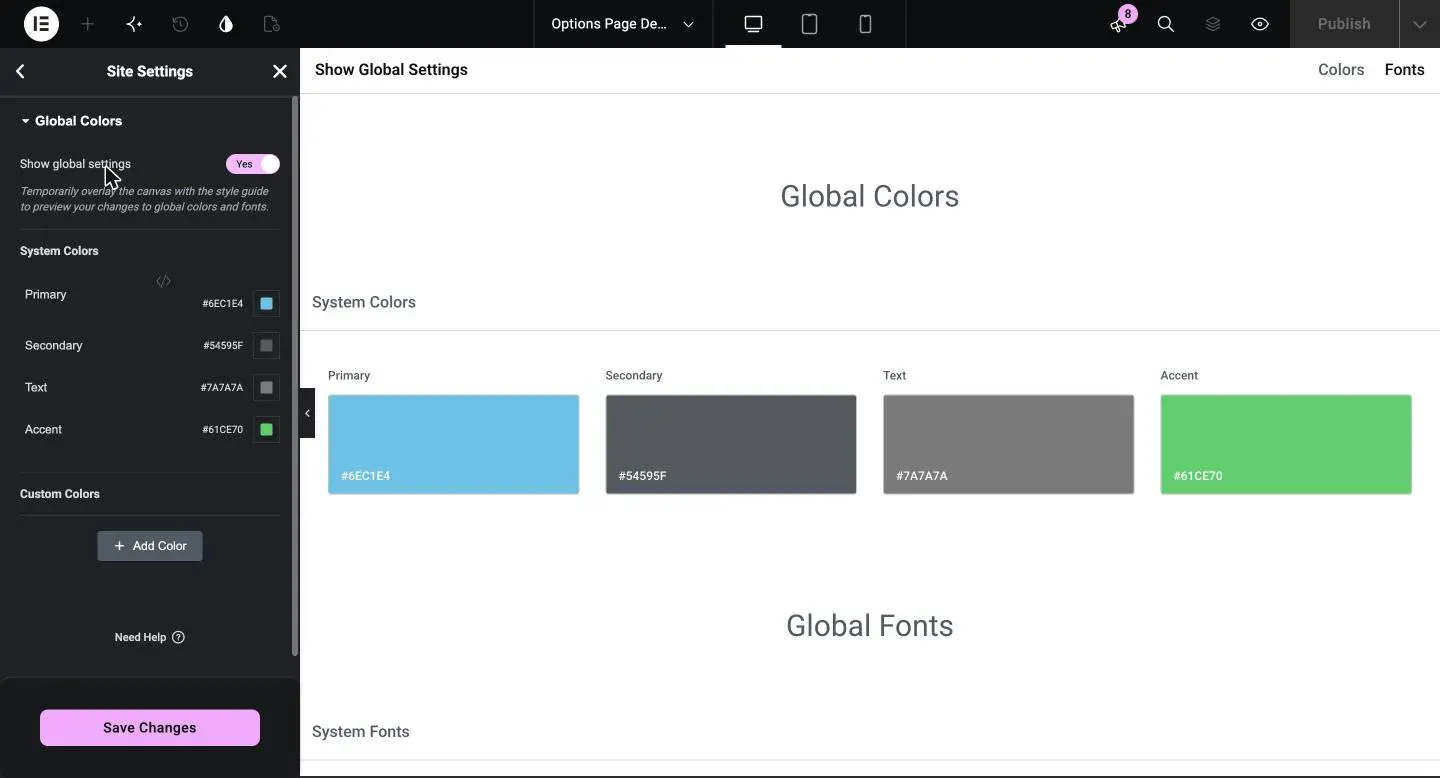
To add your own color, click Add Color under Custom Colors. Give the color a clear name, such as Brand Navy, then click the swatch and pick a color or type its hex code.
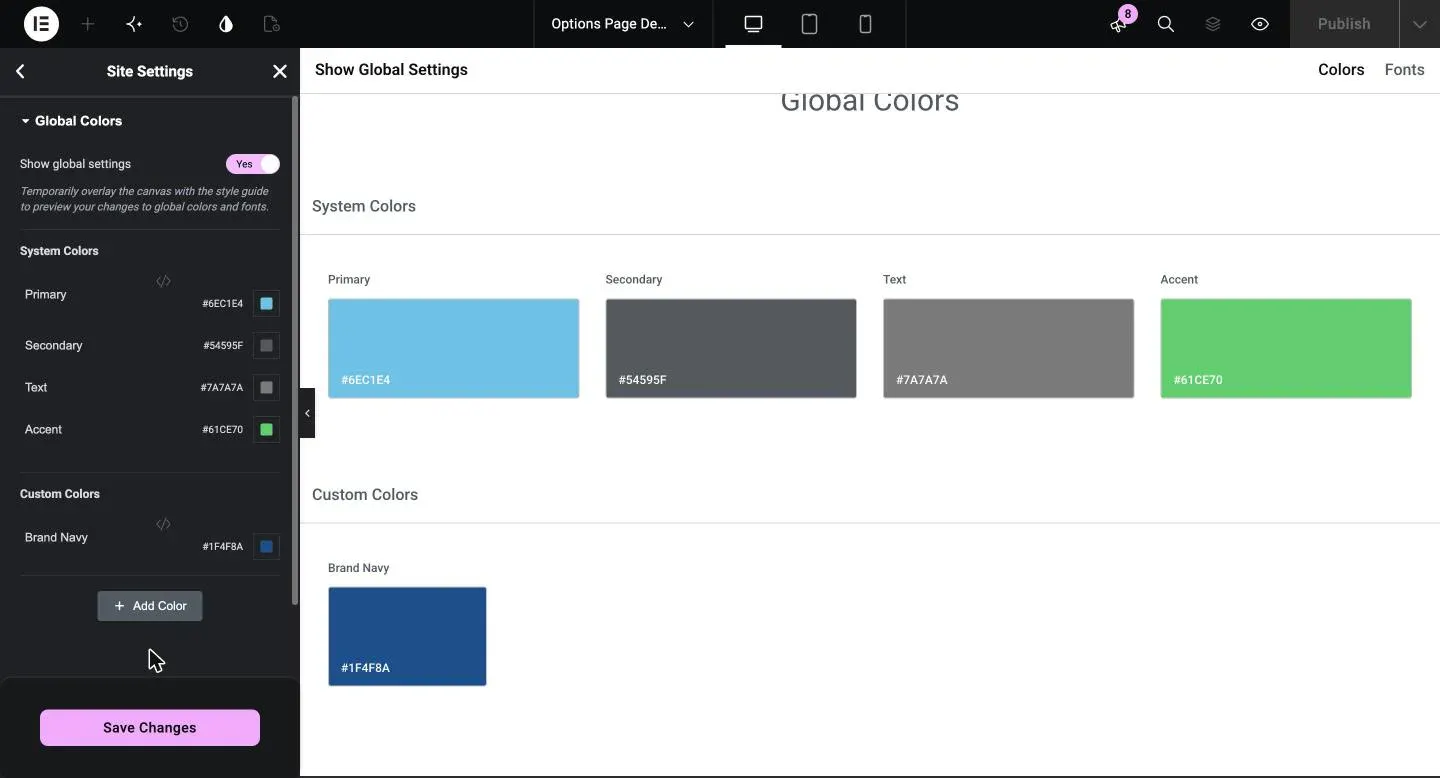
Click Save Changes when you are done. Repeat the same steps for every color in your palette.
Tips: Name colors by their role, such as Brand Navy or Button Hover, instead of Color 1 or Color 2. Clear names make the right color easy to find later.
How Do You Apply Global Colors in Elementor?
Select a widget, open a color control and click the globe icon next to it. Then pick your global color from the list.
For example, select a Heading widget, open the Style tab and click the globe icon next to Text Color. The Global Colors list shows your system and custom colors.

Choose a color and the widget updates straight away. The globe icon stays highlighted, which tells you the widget is linked to a global color.

Notes: Only elements linked through the globe icon update when you change a global color. A color picked by hand stays as it is.
How Do Global Colors Work With Variables in Elementor 4?
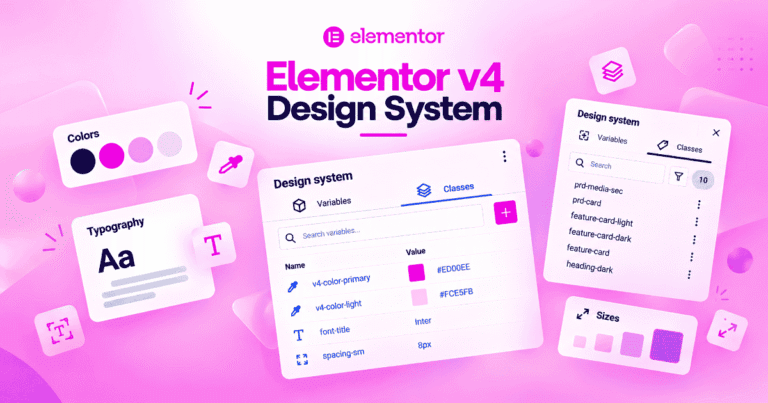
In Elementor 4, classic widgets still use Global Colors, while the new atomic elements use Variables from the Design System panel. You can sync a color variable to Global Colors so both kinds of elements share the same colors.
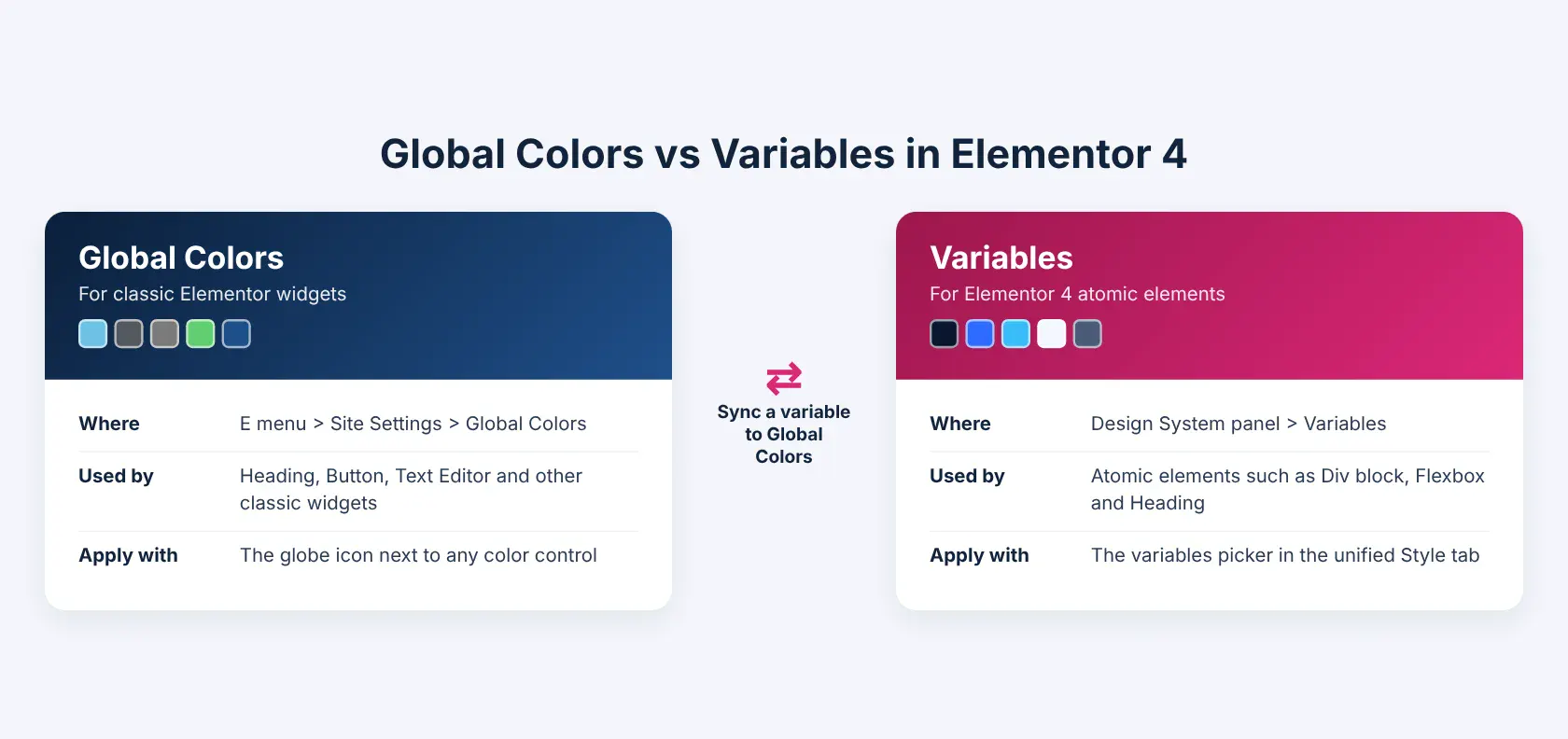
To sync a variable, open the Design System panel from the droplet icon in the top bar and go to the Variables tab. Click the three dots next to a color variable, choose Sync to Global Colors, then save your changes. The variable now appears in the Global Colors list of classic widgets.

Elementor explains the full process in its guide on syncing variables and global elements.
What Should You Do Next?
Set up your color palette before you start building pages, so every new section uses the right colors from the start. To complete your brand style, you can also add custom fonts in Elementor.
Frequently Asked Questions
What are Global Colors in Elementor?
Global Colors are a feature in Elementor that allows you to define and reuse color values throughout your site. Changing a global color updates all elements using it automatically.
Can I add my own custom colors as Global Colors?
Yes, you can define your own custom colors using HEX codes or the color picker and name them for easy identification in future edits.
Can I delete a Global Color after it’s used?
Yes, but any element using it will no longer be linked to that global color. If a color is already in use, update its value instead of deleting it.
Are Elementor global colors free?
Yes. Global Colors are part of Site Settings in the free version of Elementor, so you do not need Elementor Pro to use them.
How many global colors can I define in Elementor?
You can keep adding custom colors with the Add Color button as your design needs. A small palette with clear names is easier to manage and apply.
How do I add a Global Color in Elementor?
Click the E menu in the editor, choose Site Settings, then Global Colors. Click Add Color, pick a color, give it a name and click Save Changes.
What is the difference between global colors and variables in Elementor 4?
Global Colors style classic widgets, while Variables style the new atomic elements. You can sync a color variable to Global Colors so both kinds of elements share it.
Why are my global colors not showing on a widget?
Check that the widget uses the global color and not a plain custom value. In the color control, the globe icon should be highlighted. Also make sure you clicked Save Changes in Site Settings.