Elementor v4 Variables: How to Create and Use Them
When the same color, font, or spacing value is used across multiple pages, changing it manually can take a lot of time. You have to find every place where that value is used and update it individually.
Elementor v4 Variables make this easier. You can define a value once, use it across your site, and update it later from one place. Any element using that Variable updates automatically.
In this guide, you’ll learn how Elementor v4 Variables work, how to create your first Variable, and how to use Variables on actual Elementor elements. We’ll then build a simple set of color, typography, and spacing Variables that you can reuse throughout your site.
What You Need Before Setting Up Variables
Before following the steps in this guide, make sure you have:
- Elementor Pro: Variables require Elementor Pro.
- Elementor v4.0 or later: Variables are part of Elementor’s v4 design system.
- Basic Elementor familiarity: you should know how to open the Elementor editor and select an element.
Elementor v4 uses the Atomic Editor, which is where Variables are available. Existing non-atomic elements can still work alongside the newer v4 features, so you don’t need to rebuild an existing site just to start using Variables.
Notes: If you’re using Elementor Free, you can use Global Classes, but Variables specifically require Elementor Pro.
What Are Elementor v4 Variables?
A Variable is a named value defined once and referenced everywhere. Instead of typing #3B82F6 into 40 different color pickers across a site, create a Variable called color-primary-dark and set its value to #3B82F6. Every element that needs that color references the Variable instead of the hex code.
When the color needs to change, update the Variable value from #3B82F6 to #2563EB. Every element referencing that Variable updates automatically. No hunting, no missed elements, no manual find-and-replace.
Design system professionals call these design tokens. Elementor calls them Variables. Same concept, more approachable name.
Elementor v4 supports three types of Variables:
Colors
hex values used in any color picker (backgrounds, text, borders, shadows)
Typography
font families used in any font-family field
Sizes
numeric values with units, used for spacing, font sizes, borders
This gives you one place to manage commonly reused design values instead of setting them manually on individual elements.
How to Set Up Your First Variables
Let’s start by creating a single color Variable and using it on an Elementor element. This will help you understand how the complete Variables workflow works before you create a larger set for your site.
Step 1: Open the Variables Manager

- Inside the Elementor editor:
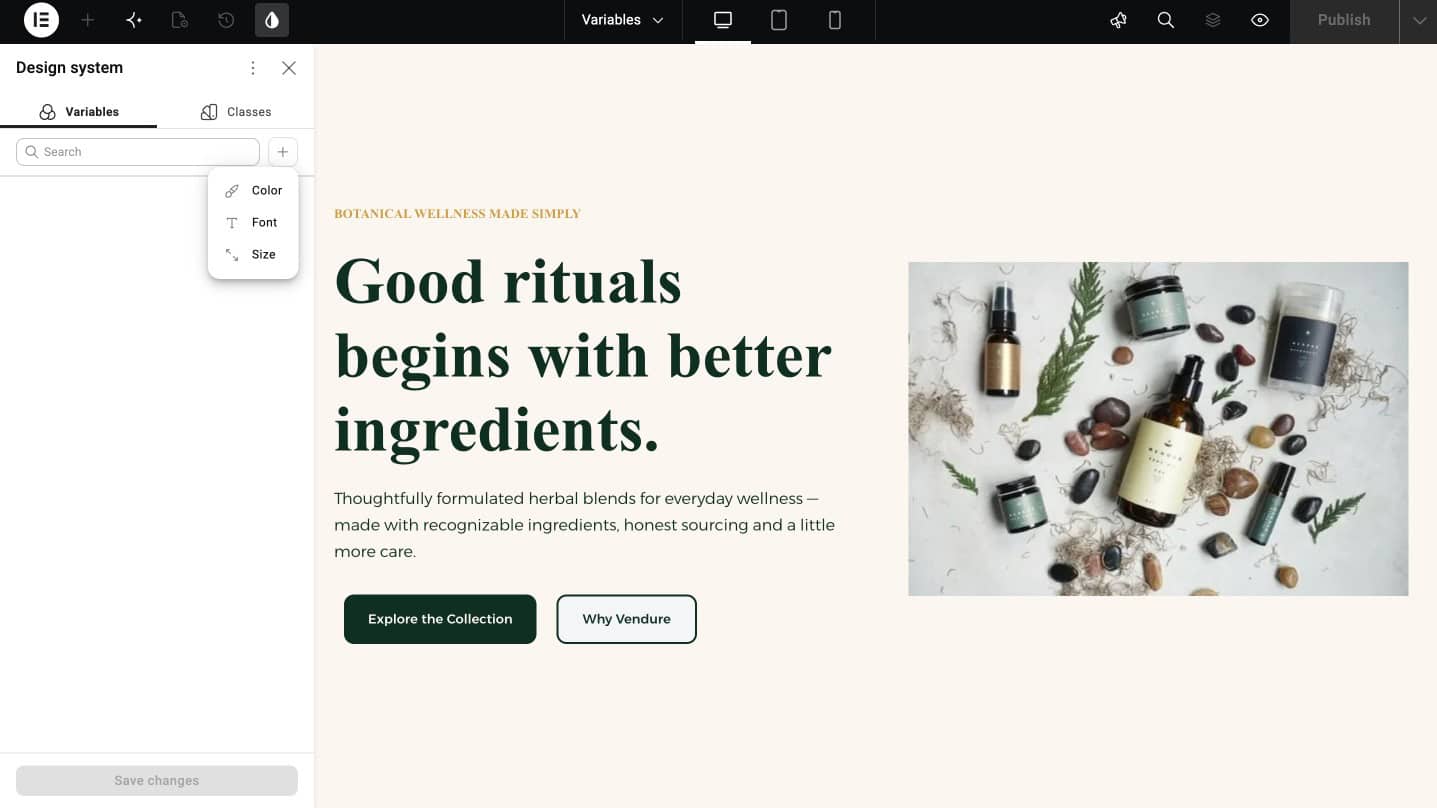
- In the top toolbar, click the Design System icon (the droplet-shaped icon on the right).
- Clicking this icon opens the Variables Manager, a dedicated panel where every Variable used across your site lives in one place. From here you can create new Variables, rename or edit existing ones, and adjust their values.
Step 2: Create Color Variables
Colors are the most-used Variable type. Start with a six-Variable core set that covers most brand needs:
- color-primary-dark: main brand color, buttons, links, accents
- color-primary-light: lighter variant for hover states, subtle backgrounds
- color-secondary-dark: secondary brand color, complementary accents
- color-secondary-light: lighter secondary variant
- text-dark: primary text color (usually dark gray, not pure black)
- text-light: text color on dark backgrounds (usually white or near-white)
To create each Variable:
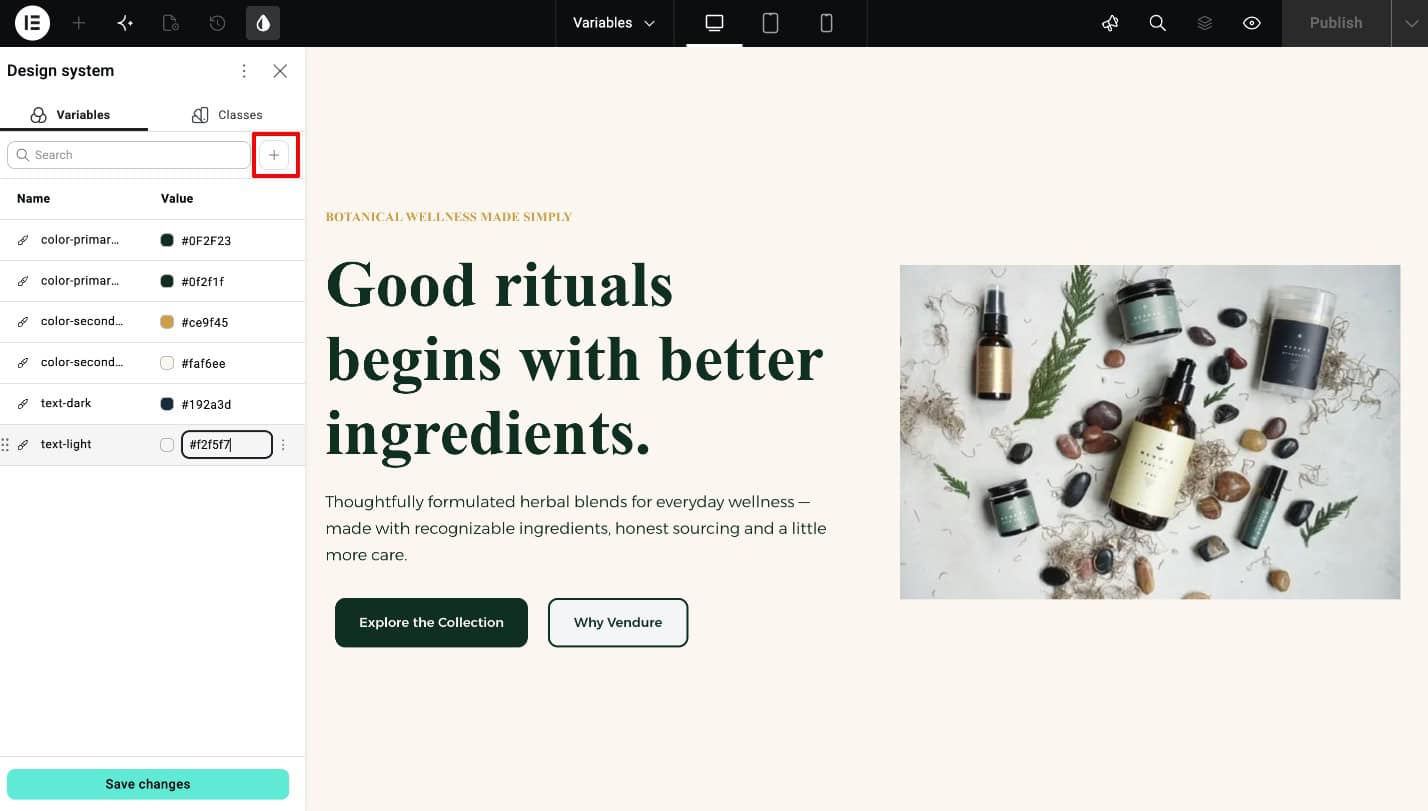
- Click the + (add) button inside the Variables Manager.
- Select Color as the type, since we’re creating color Variables in this case, and enter a clear, descriptive Variable name, for example
color-primary-dark. - Set the exact hex value using the color picker, either by typing the hex code or dragging the picker to color, click Save. Repeat this same process for all six Variables.
Step 3: Create Typography Variables
Typography Variables let a font family change site-wide from one place. Three Variables cover most needs:
- font-heading – font family for all headings (h1 through h6)
- font-body – font family for body text and paragraphs
- text-base-size – base body font size (usually 16px or 18px)
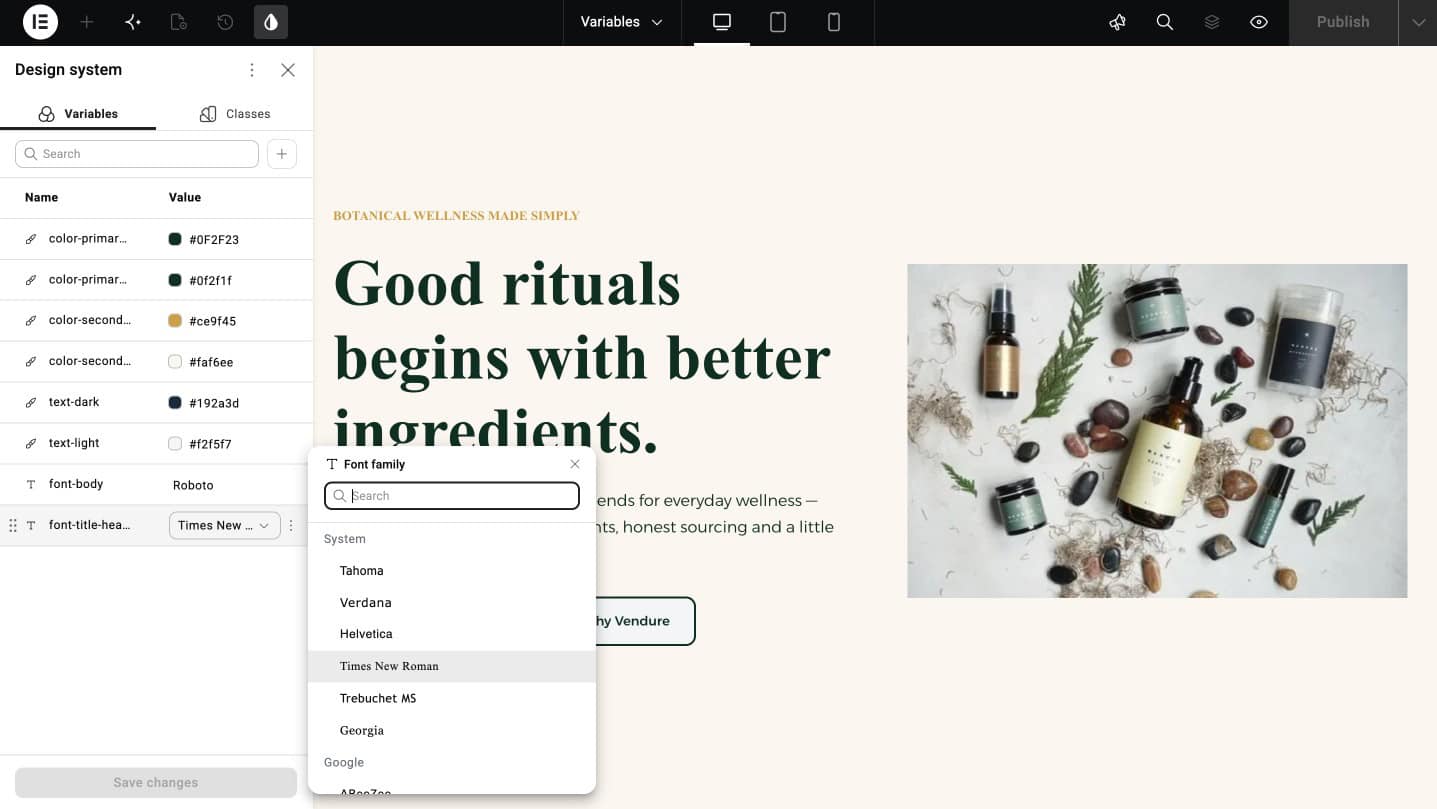
- Create these using the same workflow you just followed for the color Variables. Click the + button inside the Variables Manager, but this time select Typography.
- Enter a clear, descriptive name for each Variable. Set the corresponding value (a font family or weight), then click Save.
- Repeat this for every Typography Variable you need.
Step 4: Create Size Variables
Size Variables are useful for values that you repeatedly use for spacing or text sizes. Four spacing Variables handle it:
- space-section – vertical padding between major sections (80-120px on desktop)
- space-block – space between content groups within a section (40-60px)
- space-element – space between individual elements (16-24px)
- space-small – tight spacing for icon gaps, tag margins (8-12px)
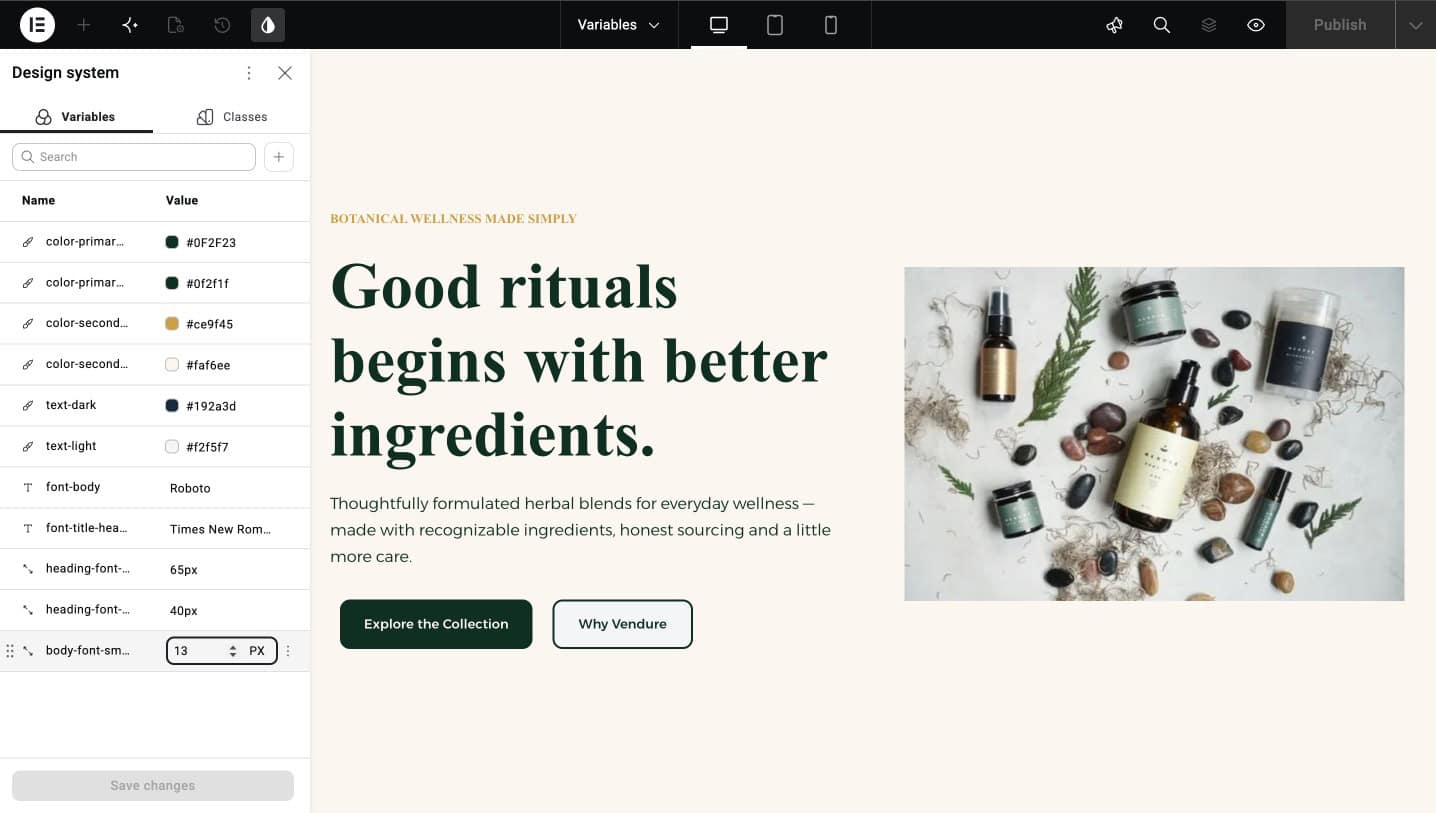
- Start creating a Size Variables by selecting the Size as the type from the options shown.
- Enter a clear, descriptive name for the Variable, for example
spacing-section-lgorradius-card, following the same naming pattern as your other Variables so it stays easy to find later. - Set the value in pixels (or rem, depending on what you’re defining), then click Save. Repeat this for each Size Variable you need.
How to Use Variables on Elementor Atomic Elements
Creating Variables is only the first part. Now you need to connect them to the properties of your Elementor elements.
The general process is:
- Select an element in the Elementor editor.
- Open the property you want to style.
- Click the Variables icon next to the property field.
- Select the Variable you want to use.
The property will now reference the Variable instead of relying on a manually entered value.
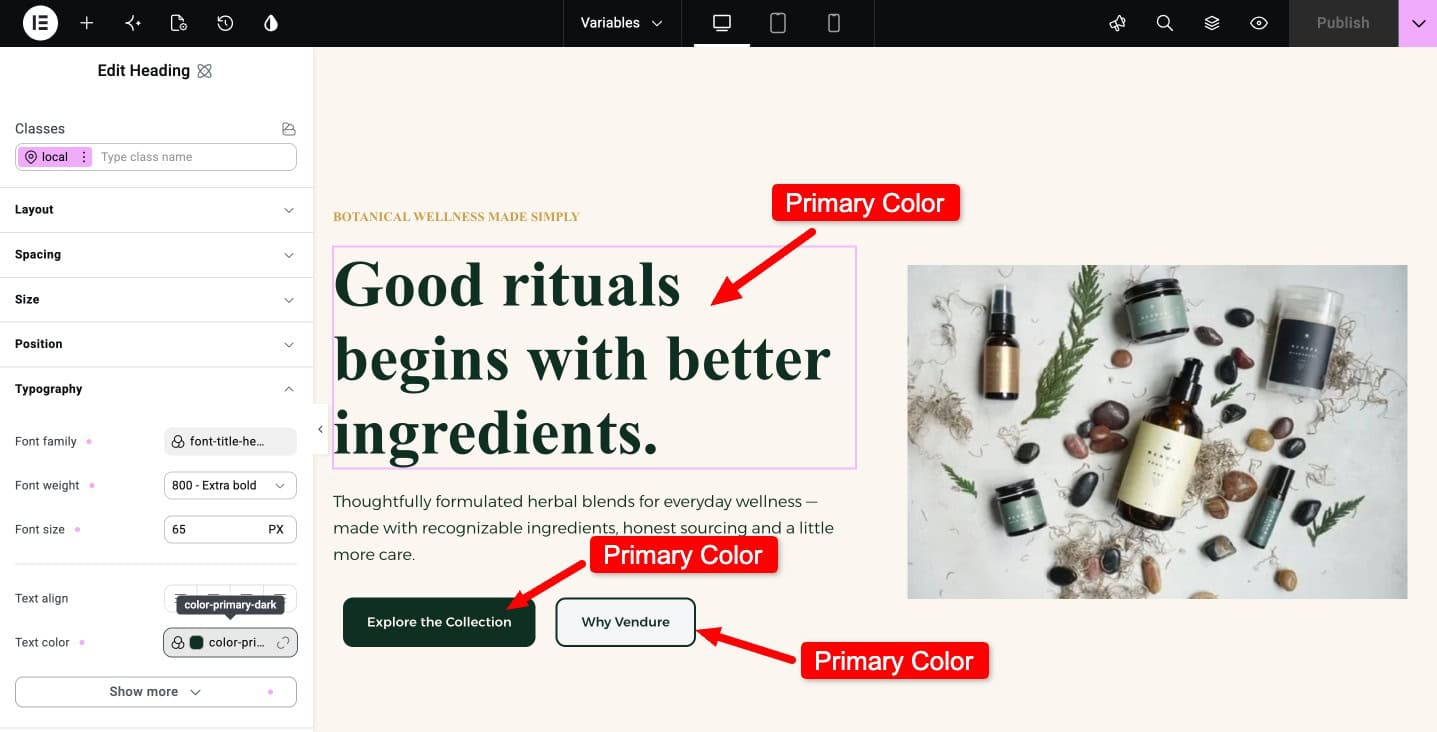
Use a Color Variable on a Button
Suppose you want all your primary buttons to use color-primary-dark.
Select your button and open its background color setting.
Instead of entering a HEX value manually, select: color-primary-dark.
The button background is now connected to that Variable. You can use the same Variable for other primary buttons across your website.
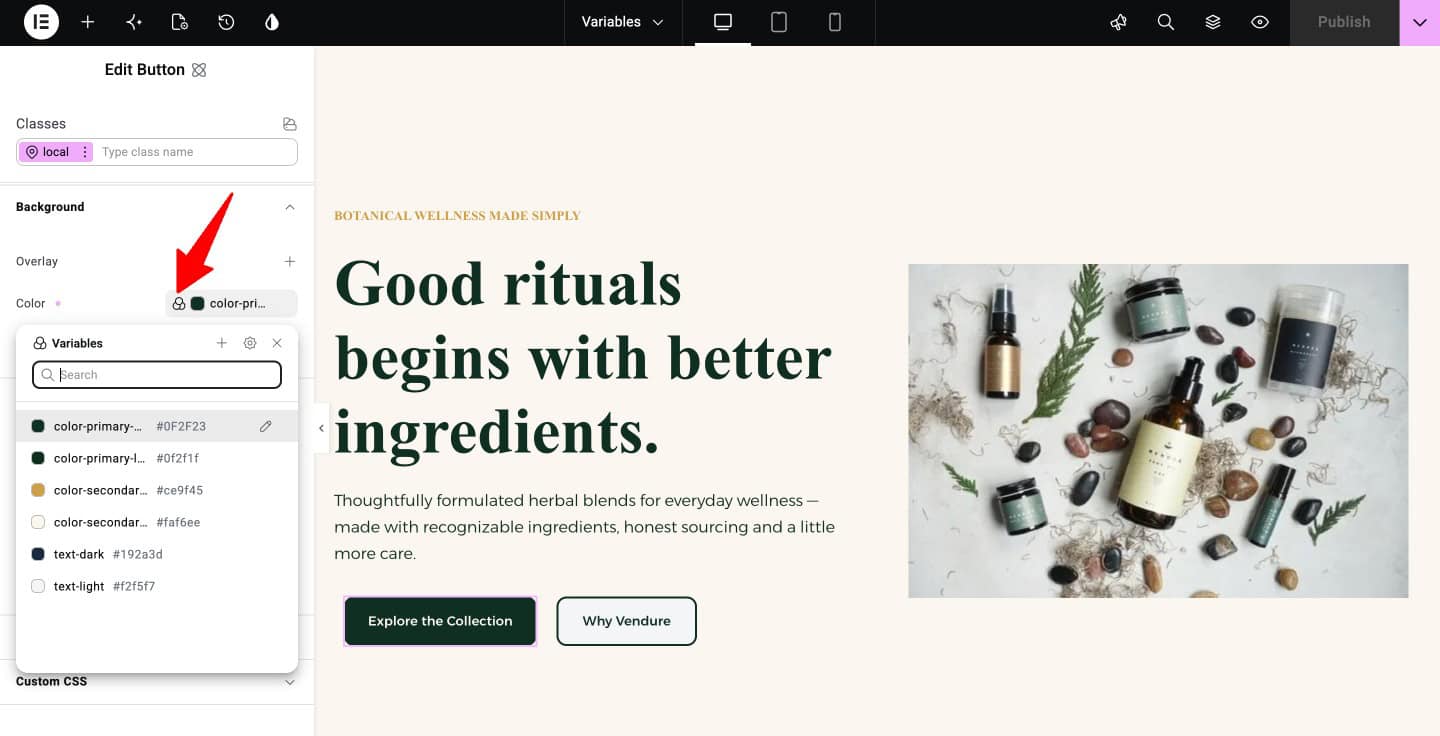
Notes: The same process works for Typography and Size Variables. Open the relevant property, click the Variables icon, and select the Variable you want to use.
Building a Hero Section with Variables
Here’s the demo scenario – a hero section built entirely using Variables:
| Property | Variable |
|---|---|
| Section background | color-secondary-light |
| Main heading text | text-dark |
| Button background | color-primary-dark |
| Button text | text-light |
| Button hover background | color-primary-light |
Every color decision on that hero section references a Variable instead of a hardcoded hex value. Nothing is inline. Nothing is one-off.
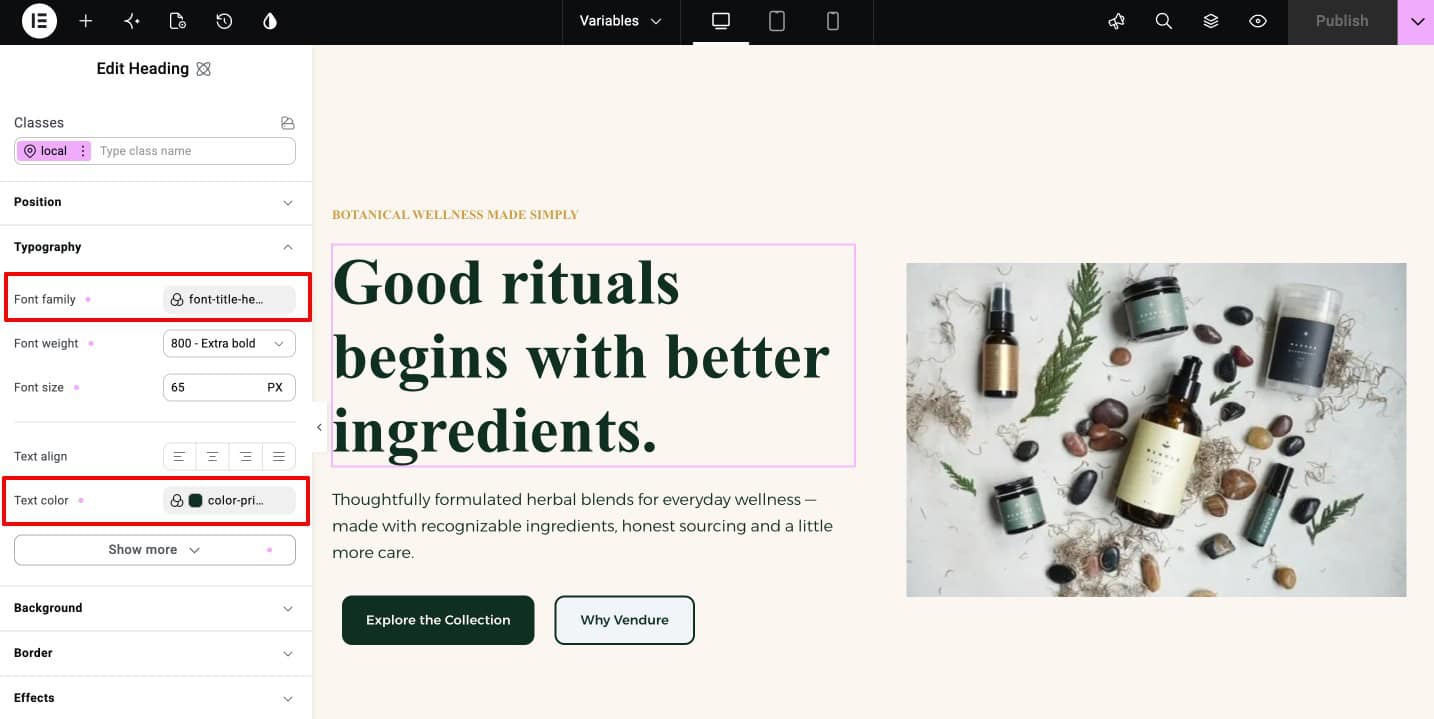
Repeat this pattern for every section on the page. Buttons use color-primary-dark. Headings use text-dark. Section backgrounds alternate between color-bg and color-secondary-light. Nothing is hardcoded.
What Happens When You Change a Variable?
This is where Variables become especially useful.
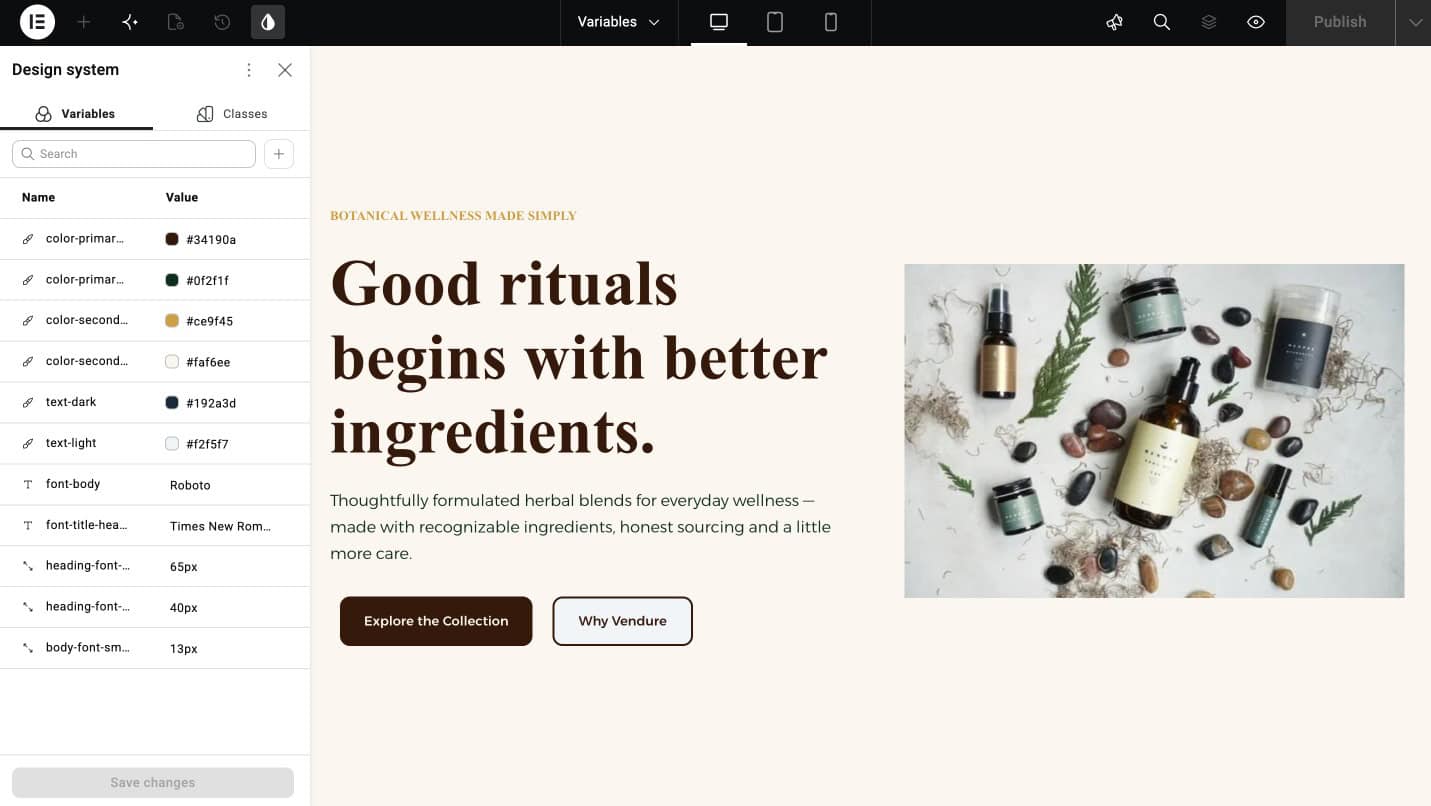
Open the Variables Manager. Change color-primary-dark from its current hex value to a different color and save.
Every element on the page that references color-primary-dark – the button, the heading accents, the icon colors, the link hover states – updates instantly. No page reloads. No hunting. No missed elements.
Now multiply this across a 20-page site. A brand color change that used to take hours now takes seconds.
That is why Variables matter.
Recommended Starter Variable Set
The Variables used above cover the basics. Here’s a fuller starter list for a real site, enough for most business websites without going overboard.
Colors
| Variable Name | Purpose |
|---|---|
| color-primary | Main brand color – buttons, links, primary accents |
| color-primary-dark | Darker variant – hover states, active states |
| color-primary-light | Lighter variant – subtle backgrounds, highlights |
| color-secondary | Secondary brand color – complementary accents |
| color-text | Main text color – usually dark gray like #1F2937 |
| color-text-light | Secondary text – captions, metadata |
| color-bg | Page background – usually white or near-white |
| color-bg-alt | Alternate section background – slight tonal difference |
| color-border | Borders and dividers – light gray |
| color-white | Pure white – for text on dark backgrounds |
Typography
| Variable Name | Purpose |
|---|---|
| font-heading | Font family for headings |
| font-body | Font family for body text |
| text-base-size | Base body font size – 16 or 18px |
Spacing
| Variable Name | Purpose |
|---|---|
| space-section | Section vertical padding – 80-120px |
| space-block | Content group spacing – 40-60px |
| space-element | Individual element spacing – 16-24px |
| space-small | Tight spacing – 8-12px |
Common Mistakes to Avoid
Five mistakes worth knowing before they cost time:
1. Naming Variables by appearance instead of purpose. A Variable called blue-primary becomes wrong the moment the brand changes to green. color-primary is always correct regardless of the actual color. Name by function, not appearance.
2. Creating too many Variables upfront. It’s tempting to plan a huge Variable library on day one. Resist. Start with 15-20 Variables, add more only when a real repeating pattern demands them. Fewer, well-named Variables beat 50 half-remembered ones.
3. Mixing two naming styles. Some people name Variables by purpose, like color-primary. Others name them by value, like blue-600. Both work, but pick one style and stick with it. Mixing the two gets confusing fast.
4. Forgetting Variables need Pro. The single most common frustration for Free users following v4 tutorials is discovering Variables aren’t available in their version. If a project is Free-only, Classes work but Variables don’t. Plan for this before onboarding a client on Free.
5. Not using Variables inside Classes. Variables and Classes are designed to work together. A button Class should reference color-primary as its background value, not a hardcoded hex. This two-layer system is what makes the v4 design system powerful.
Frequently Asked Questions
Do Variables work in Elementor Free?
No. Variables require Elementor Pro. The free version supports Classes but not Variables. This is the most common frustration among Free users trying to follow v4 tutorials.
What happens to my old v3 Global Colors when I migrate to v4?
Your old v3 Global Colors and Fonts keep working as they are. v4 also lets you link your new Variables back to those old colors and fonts, so both can work side by side while you switch over.
How many Variables should I create for a typical site?
Enough to cover your colors, a font or two, and a few spacing sizes, without repeating yourself. The starter list earlier in this guide is a good template. Add more only when you need to.
What’s the difference between Elementor Variables and v3 Global Colors?
Both allow you to reuse values, but Variables are part of Elementor v4’s broader design system. They are designed to work alongside features such as Global Classes.
Can I rename a Variable after creating it?
Yes. Elementor updates references automatically when a Variable is renamed. There’s no orphaning of elements that were using the old name.
Can I use Variables inside custom CSS?
Yes. Elementor outputs Variables as standard CSS custom properties (--e-color-primary-dark, for example). Custom CSS can reference them directly with var(--e-color-primary-dark).
Do Variables work with the free Atomic Editor?
The Atomic Editor is available in Free, but Variables are Pro-only. Free users can build atomic pages with; they can’t use Variables inside those Classes.
Wrapping Up
Elementor v4 Variables replace the old way of hunting through pages to update one color. Setup takes less time than you’d think, and it pays off more with every page you build.
The takeaways:
- Start with a small set of color Variables: primary and secondary colors, each in a light and dark version, plus text colors for light and dark backgrounds
- Add font and spacing Variables for a full starter set
- Name Variables by what they do, not what they look like
- The real value is that one change updates everything
- Variables come first. Everything else builds on them