
Methods to Add Dynamic Data in Dynific Addons for Elementor
Dynific Addons for Elementor lets you add dynamic content to posts, pages, and Templates. The Dynamic Content functionality plays a key role when designing Post Templates, where you need to pull content directly from the WordPress post, page, or custom post.
There are two methods through which you can get dynamic content in Elementor:
Using Dynific Addons for Elementor Widgets
To get dynamic content, you can directly use widgets provided by the Dynific Addons for Elementor plugin. There are various DA widgets available for each functionality, like title, content, featured image, etc., that will help you get specific data. See the complete list of widgets provided by DA.
Using Elementor’s Native Widgets
With this method, you can use the default Elementor widgets like Heading, Image, etc., to get dynamic content using the functionality provided by Dynific Addons for Elementor.
- Add any Elementor widget to the section.
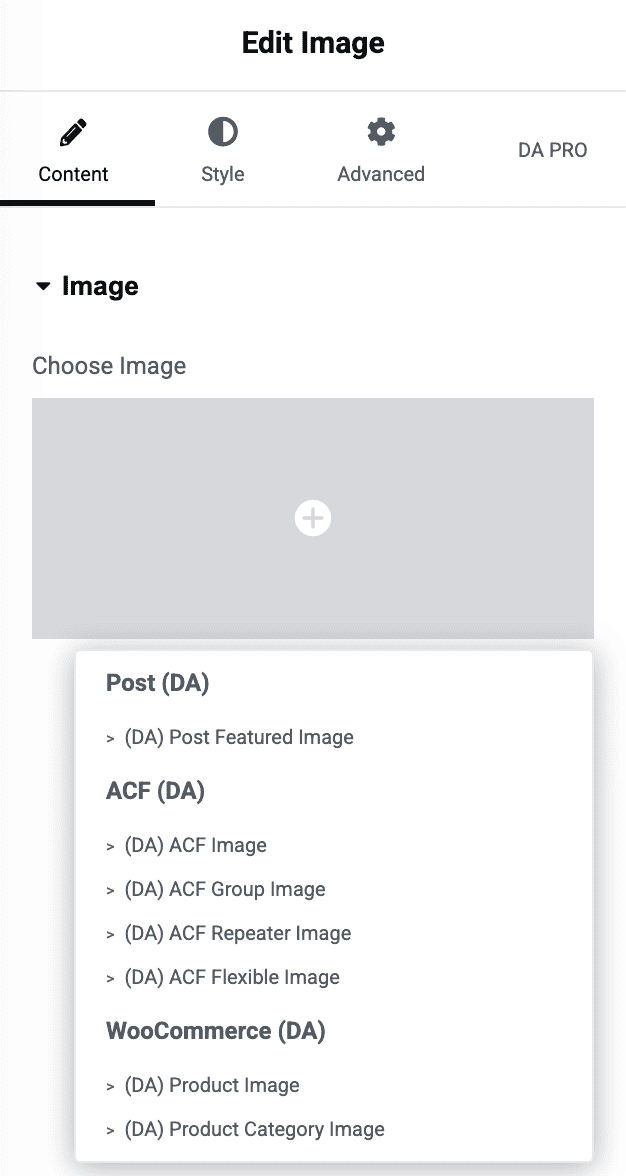
- Click on the Dynamic Tag icon, then select the dynamic option under the DA tag group.
Current Object Context
Every DA widget and every DA dynamic tag pulls from a “current object” — the post, term, author, or product it treats as the active context. Which object that is depends on where the design is running:
| Context | Current object comes from |
|---|---|
| Live frontend | Whatever WordPress is actually rendering — the post being viewed, the term archive being browsed, the author page, etc. |
| Designing a template in the Elementor editor | The Preview Post / Preview Term / Preview Author field set on that template’s Dynific Addons Settings panel (see Understanding DA Templates) — used purely so you have real sample data to look at while designing, since there’s no live frontend request to pull from. |
| Inside a loop item (Block Layout used by Post Blocks, Post Blocks Adv, Taxonomy Blocks, WooCommerce Products, etc.) | The specific post/product the loop is currently on, for that one repeated item — this temporarily overrides the page-level object just for the duration of rendering that item, then moves to the next. See Understanding Block Layouts. |
| Inside an ACF Repeater or Flexible Content Block Layout | The current repeater row / flexible-content layout being iterated — ACF field tags resolve against that row specifically, not the whole post. See ACF Repeater Dynamic Tags and ACF Flexible Content Dynamic Tags. |
| ACF Options Page fields | Not tied to any object at all — these are global values, the same everywhere they’re used regardless of current post/term/author. See ACF Options Page Dynamic Data. |
Why this matters: If a dynamic tag shows unexpected data while editing but looks correct on the live site (or vice versa), it’s almost always a Current Object mismatch — check the template’s Preview Post/Term/Author setting, or confirm the tag is inside the right loop context.