
How to Create a Search Template in Elementor
A Search Template allows you to improve user experience by displaying search results in a more structured, interactive, and branded layout.
With Dynific Addon Templates and Elementor, you can fully control how search results appear including the searched keyword, result count, layout style, and how each item is presented without writing any code.
Steps to Create Search Template
Here are the steps you can follow to create a search template using Dynific Addons for Elementor.
Step 1: Create a Block Layout
Before creating the search template, you need a Block Layout. This layout will define how each result item (product/post) is displayed.
- Go to Dynific Addon → Add New Template
- Choose Block Layout
- Select Post Type (e.g., Products)
- Choose a Preview Post
- Design your layout using Elementor
- Publish the template

Step 2: Create the Search Template
- Go to Dynific Addon Template -> Add new to create a new DA Template, which will be used for search layout.
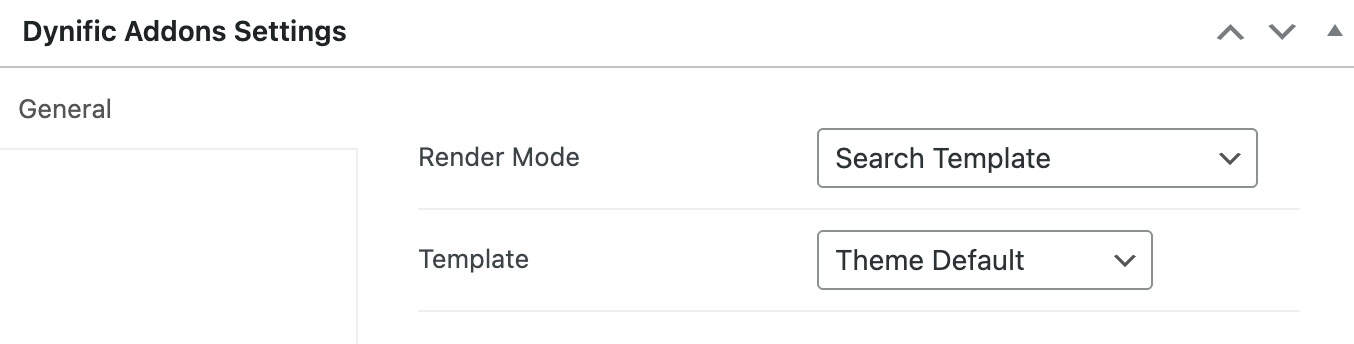
- Do the following settings for DA Template.
- Render Mode: Search Template
- Template: Select this if you want to use the Elementor canvas for the search page.
Add Search Information
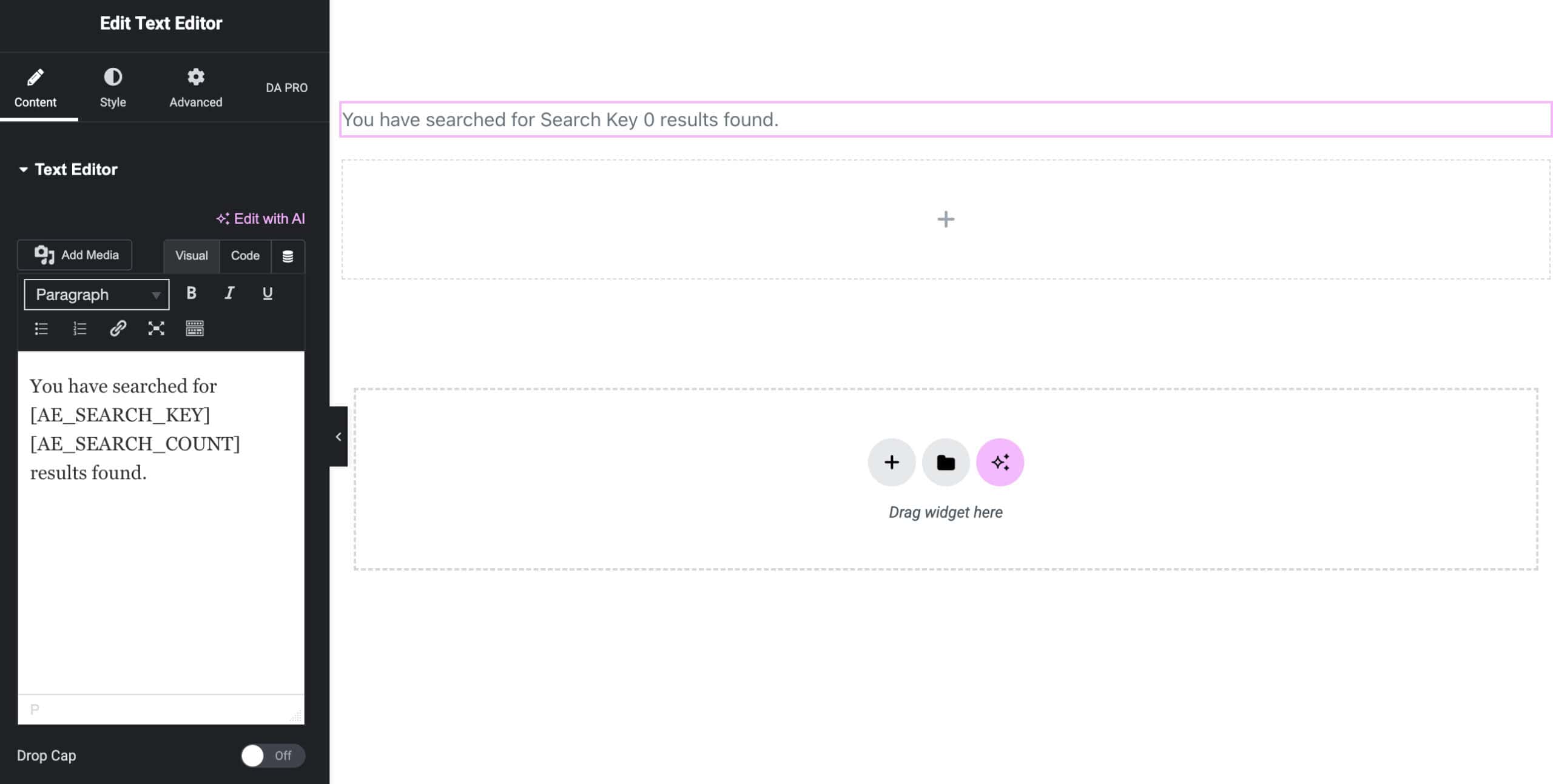
At the top of your template, add shortcodes in the text editor field to display search details:
- [AE_SEARCH_KEY] → Displays the searched keyword
- [AE_SEARCH_COUNT] → Displays the number of results found
Add and Configure Post Block Advanced Widget
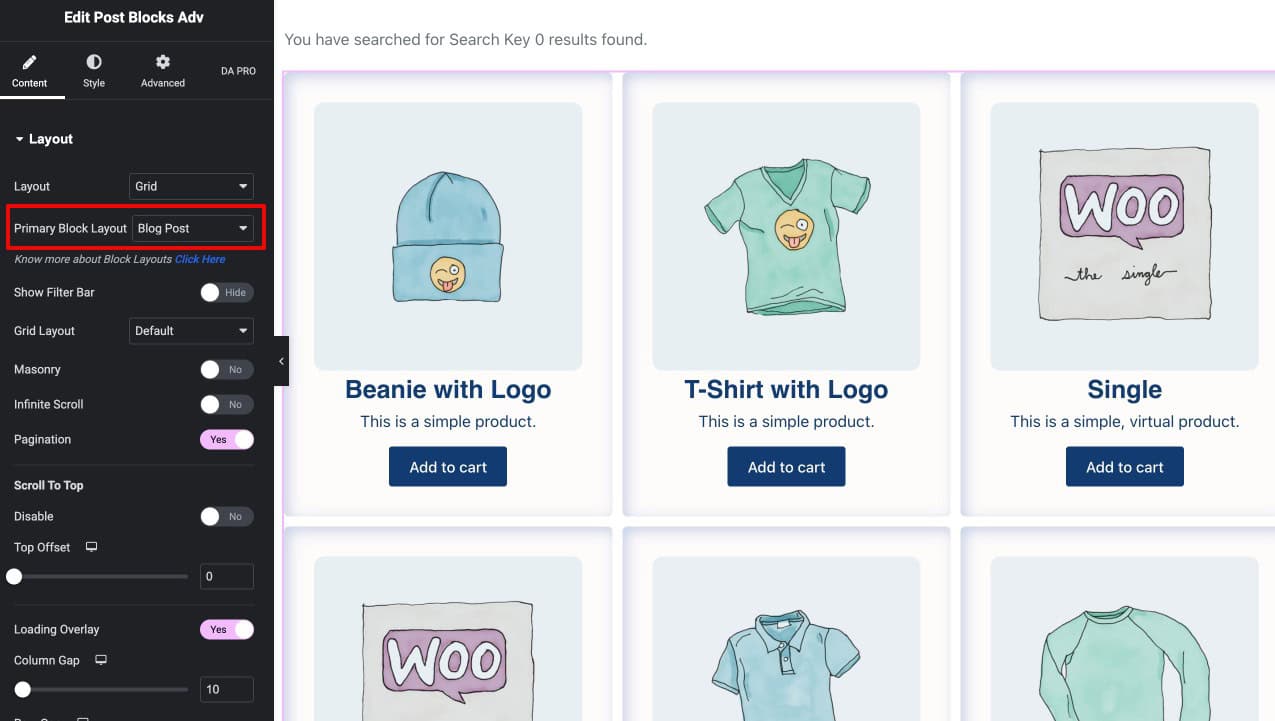
- Add the Post Block Adv widget
- Select the Block Layout you created earlier.
- Set layout options like Grid, Masonry or set Columns, Gap, etc.
- In Query Settings:
- For preview: select Products (or any post type) based on your needs
- For final result: select Current Archive to display dynamic search results

Additonal Settings
You can further enhance the layout using:
- Pagination
- Overlay and hover effects
- Style settings
If you are displaying WooCommerce products, additional options are available:
- Show Sale Badge / Ribbon
- Hide Out of Stock Products
- Customize product display settings

Step 3: Preview the Search Template
- Go to your website frontend
- Use the search bar and enter any keyword
- You will see:
- The searched keyword displayed
- The number of results found
- Dynamic results based on your query
