
Creating a Repeater Block Layout
When using ACF Repeater fields, each row of data needs a design to control how it appears on the front end. With Dynific Addons for Elementor, you can create this design using a Repeater Block Layout. This layout works as a reusable template for a single repeater item, which is then applied to all items automatically through the ACF Repeater widget.
Here, we will understand how to create an ACF Block Repeater template using Dynific Addons for Elementor by taking a real example of Books and their Authors.
Before You Start
Make sure you have already completed the following setup:
- Installed and activated ACF (Advanced Custom Fields)
- Created a Custom Post Types (e.g., Books)
- Added custom fields including a Repeater Field (e.g., Author Details)
- Added multiple entries (authors) inside each book post
Steps to Create ACF Block Repeater Layout
Here, we will build a complete flow in 3 main steps:
Step 1: Create a ACF Block Repeater Layout
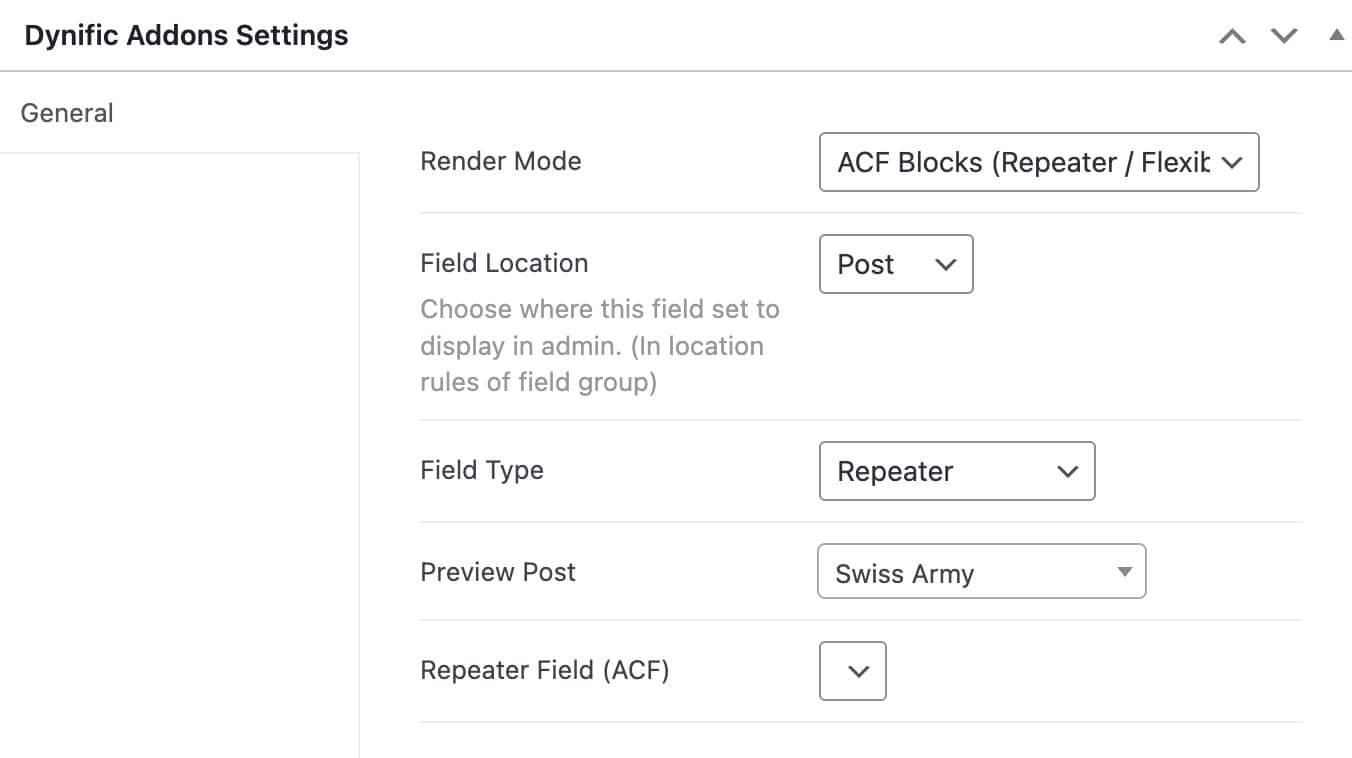
- Now under Dynific Addons Setting, do the following configuration.
- Render Mode: ACF Blocks (Repeater/Flexible)
- Field Location: Select if the repeater field is applied on a Post or an Option Page
- Field Type: Select the Repeater field option
- Preview Post: Select a post to be used as a preview while designing a layout in the Elementor editor.
- Repeater Field(ACF): Select either the parent Repeater or Nested Repeater name for which you are designing this layout.
- Then Save the template and edit it with Elementor.
Step 2: Design a Template Using Elementor
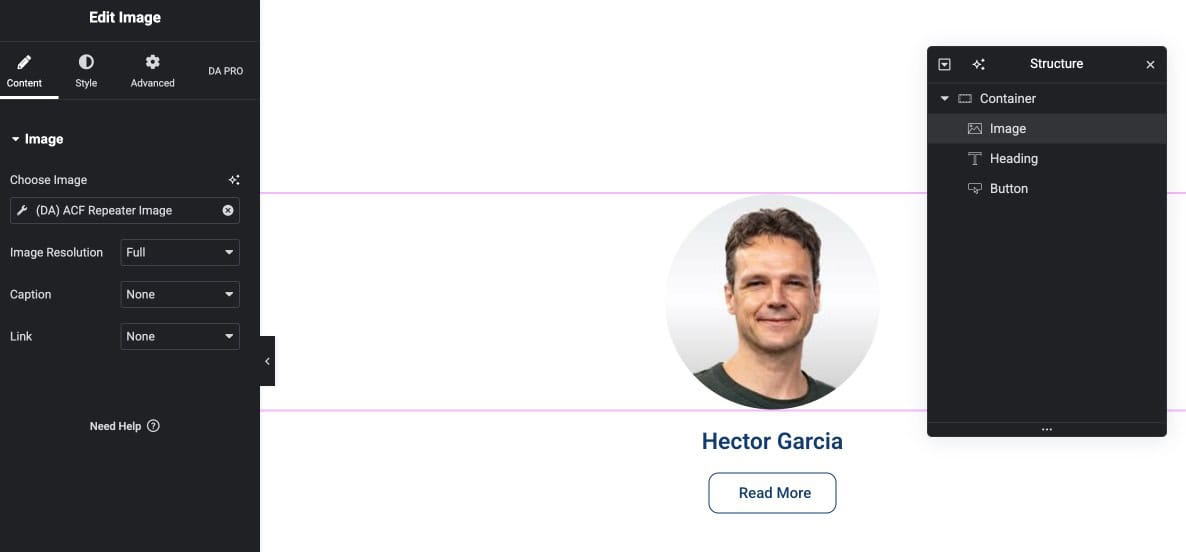
Now edit the template with Elementor and inside this layout, we will:
- Add image, name, and other details
- Connect them with ACF fields dynamically
Step 3: Create Single Post Template
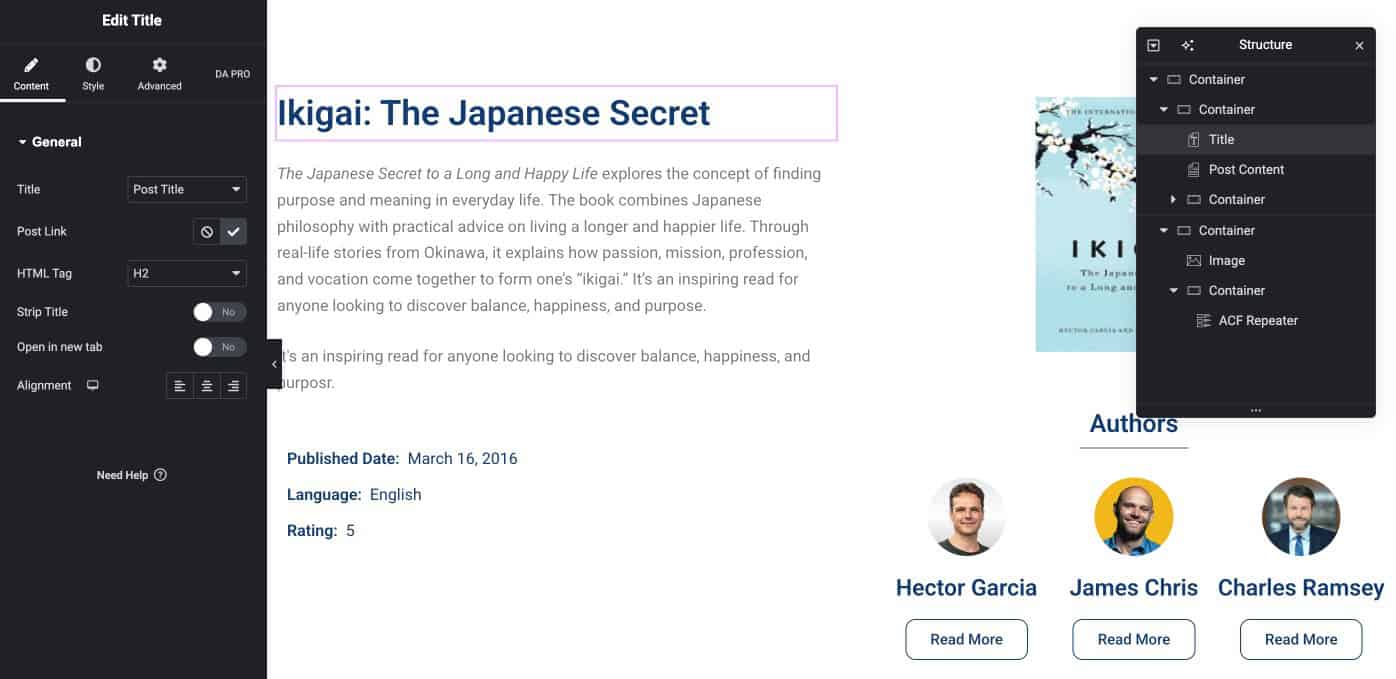
Next, we will design the Single Post Template for Books. This is the template where full book details will be displayed
Here, we will:
- Show book title, image, and content
- Add the ACF Repeater Widget.
- Then, select the block layout that we created earlier.
- After that choose the repeater field(authors)
This will automatically loop through all authors and display them.
Step 4: How It Works on Frontend
We will preview the frontend to check how all authors are displayed automatically for each book so, once everything is set:
- Open any book post on the frontend
- You will see all authors displayed automatically using the same block layout
- Each author will follow the same design

If you want to show all books in a listing page, create a Post Type Archive Template. Then use a Post Block Adv widget to display books. When users click on any book, It will open the Single Post Template and display all authors for that book