ACF Group Field: A Complete Guide in WordPress
The ACF Group field is a field type in Advanced Custom Fields that holds several related sub-fields together under one label. Instead of a long list of loose fields, editors see one tidy block, such as a Hero Section group with an image, heading, description and button, which is easier to fill in and easier to display.
This guide explains what the Group field does, how it differs from a field group, how to create one step by step, which layout to choose, and how to show Group field data on your site with no code.
Key Takeaways
- A Group field is one ACF field that holds several sub-fields together, such as an image, a heading and a button for a hero section.
- A field group is the container you create under ACF > Field Groups. A Group field is one field that lives inside it.
- To show Group field data without code, use Dynific Addons for Elementor: its DA dynamic tags and DA – ACF Fields widget read sub-fields directly, with no Elementor Pro needed.
What Is the ACF Group Field?
The ACF Group field is a container field. It does not store a value of its own; it holds sub-fields, and those sub-fields store the content. All of them are edited together in one place on the post screen, which keeps related content side by side.
A common example is a hero section. Without a Group field, the hero image, title, description and button sit among every other custom field on the post. With a Group field called Hero Section, they appear together, so editors know exactly which fields belong to the hero.
When a theme or template reads a Group field, it receives every sub-field value together as one set, labelled by sub-field name. Developers can find the technical details in the official ACF Group field documentation.
What Is the Difference Between a Field Group and a Group Field?
A field group is the container you create under ACF > Field Groups, and it decides where its fields appear, such as on all posts or on one custom post type. A Group field is a single field inside a field group that bundles sub-fields together. Every Group field lives inside a field group, but most field groups have no Group field at all.
| Field group | Group field | |
|---|---|---|
| What it is | A collection of custom fields with its own location rules | One field type that holds sub-fields |
| Where you create it | ACF > Field Groups > Add New | Inside a field group, with Add Field and Field Type set to Group |
| What it controls | Where the fields appear (post type, page, block, options page) | How related sub-fields are grouped and laid out on the edit screen |
| Stores content | No, its fields do | No, its sub-fields do |
| Typical example | “Post Fields” shown on every blog post | “Hero Section” holding an image, title, description and button |
Dynific Addons for Elementor
Want to Show Group Fields on Your Site Without Code?
Dynific Addons for Elementor pulls every Group sub-field into native Elementor widgets with ACF (DA) dynamic tags, with no Elementor Pro and no PHP.
How Do You Create an ACF Group Field?
To create an ACF Group field, open or create a field group, add a new field, set its Field Type to Group, then add sub-fields inside it. The whole process happens in the WordPress dashboard under ACF and takes only a few minutes. You need the free Advanced Custom Fields plugin installed and active.
Create or Open a Field Group
Go to ACF > Field Groups and click Add New, or open an existing field group if you already have one. Give the field group a clear name. This example uses “Post Fields”.

Add a Field and Set Its Type to Group
Click Add Field. Enter a field label, such as Hero Section, and ACF fills in the field name for you. Then choose Group as the Field Type, because this field will hold the other fields.

Add Sub-Fields Inside the Group
Inside the Group field, click Add Field again to create each sub-field. The Hero Section example uses four: an Image, a Title, a Description and a Button link. Add whichever sub-fields your section needs.

Set the Location Rules and Save
Scroll to the Settings area of the field group and open Location Rules. Choose where the fields should appear. For example, Post Type is equal to Post shows the Hero Section on every blog post, while a custom post type rule limits it to that post type.

Click Save Changes. The Group field now appears on every post that matches your rule. If you work on more than one site, our guide to importing and exporting ACF field groups saves you rebuilding them.
Which Layout Should You Choose: Block, Table or Row?
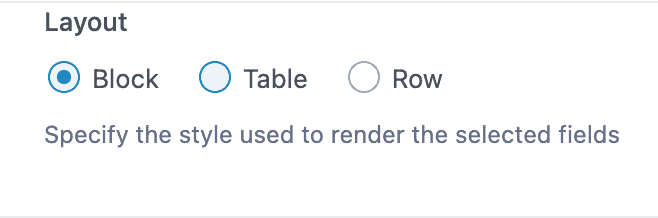
The Layout setting only changes how sub-fields look on the post edit screen, not on your live site. Block suits most groups, Table suits a few short fields, and Row suits groups where labels should sit beside their inputs. You can change the layout at any time without losing data.
Block Layout
Block layout stacks each sub-field one below the other, with its label on top. It is the clearest option for groups with images, long text or many sub-fields.

Table Layout
Table layout shows the sub-fields side by side in a single row, like a table. It works best when the group has only a few short fields, such as a label, a number and a link.

Row Layout
Row layout places each label on the left and its input on the right. It keeps long groups compact while still showing every label clearly.

How Do You Display ACF Group Field Data Without Code?
To display ACF Group field data without code, use Dynific Addons for Elementor. It adds ACF (DA) dynamic tags that work in native Elementor widgets such as Heading, Image and Text Editor, and a DA – ACF Fields widget that reads sub-fields inside a Group. Neither option needs Elementor Pro.
- Open your single post template or page in Elementor.
- Add a native widget for each sub-field, for example an Image widget for the hero image and a Heading widget for the title.
- Click the Dynamic Tags icon next to the field you want to fill, and choose the matching option under the ACF (DA) tags.
- In the tag settings, select the Group field and the sub-field to show.
- Repeat for each sub-field, then preview a post that has data filled in.
If you prefer a dedicated widget, the DA – ACF Fields widget does the same job with extra options, such as a fallback for empty fields. Our tutorial on how to display ACF fields in Elementor without Elementor Pro covers both approaches in detail, and the Dynific Group field documentation shows the settings.
Why Does ACF Say “This Block Contains No Editable Fields”?
ACF shows “This block contains no editable fields. Assign a field group to add fields to this block.” when an ACF block has no field group assigned to it. The block exists, but no field group’s location rule points at it, so there is nothing to edit.
- Go to ACF > Field Groups and open the field group meant for that block, or create a new one.
- In Location Rules, set the rule to Block is equal to and pick your block.
- Click Save Changes, then reload the post editor. The block now shows its fields.
What Should You Do Next?
Use a Group field whenever several custom fields belong to the same part of a page, keep the field group’s location rules tight, and pick the layout that makes editing easiest. If you are still new to custom fields, our complete ACF guide for beginners covers the basics.
When your Group fields are filled in, Dynific Addons for Elementor lets you place every sub-field into your Elementor design, straight from the editor, without touching a template file.
Dynific Addons for Elementor
Turn your custom fields into real page layouts
Display ACF fields, repeaters and other dynamic content in Elementor without writing code.
Frequently Asked Questions
Is the Group field available in free ACF?
Yes, the Group field is part of the free Advanced Custom Fields plugin. You can create a Group field, add sub-fields and choose a layout without ACF Pro. Some field types you may want inside a group, such as the Repeater field, need ACF Pro.
What does an ACF Group field return?
An ACF Group field returns all of its sub-field values together as one set, with each value labelled by its sub-field name. Developers read it as an array. If you display the data with Dynific Addons for Elementor, you pick each sub-field from a list instead, so there is nothing to code.
Can you put a Repeater field inside a Group field?
Yes. A Group field can hold any field type as a sub-field, including a Repeater, as long as you have ACF Pro, because the Repeater field is a Pro feature. This is useful when a section has a fixed heading plus a list of items that can grow.
Can you nest one Group field inside another?
Yes, a Group field can contain another Group field as a sub-field. Nesting helps when a section has its own smaller parts, such as a hero section with a separate button group. Keep nesting shallow, though, because deep groups are harder to edit and to display.
How do you move field groups to another site?
Use the export and import tools in ACF. Export the field group as a JSON file from ACF > Tools, then import that file on the other site. Our guide on importing and exporting ACF field groups walks through each step.
Can you show Group field data in Elementor without Elementor Pro?
Yes. Dynific Addons for Elementor adds its own ACF (DA) dynamic tags and a DA – ACF Fields widget, so you can show Group sub-fields in Heading, Image, Text Editor and other widgets without Elementor Pro and without writing code.