Best Elementor Popup Ideas to Engage Visitors and Increase Conversions
Popups can do much more than collect email addresses. You can use them to promote an offer, answer common questions, highlight free shipping, collect quote requests, re-engage visitors, or show the next step after someone submits a form.
But creating the popup is only one part of the process.
The bigger question is: when should it appear?
A newsletter offer might work well a few seconds after someone lands on your website. A free shipping offer may be more relevant after they reach your products. And a quote form probably shouldn’t appear automatically at all.
Elementor Popup Builder gives you several ways to control this. The challenge isn’t finding a trigger, it’s choosing the one that fits the purpose of your popup and the visitor’s current action.
In this guide, we’ll look at seven practical Elementor popup examples, the trigger that makes sense for each one, and where you might position the popup so it gets attention without unnecessarily interrupting the visitor.
On Page Load
Newsletter Discount
On Scroll
FAQ help
Scroll to element
Free shipping
CTA Click
Request a quote
After Inactivity
Re-engagement
Exit Intent
New arrival
After Submit
Welcome discount
What You’ll Need
Elementor Popup Builder is available with Elementor Pro. This guide assumes you already know how to create and design a basic popup, so we’ll focus mainly on choosing the right trigger, position, and setup for each use case.
Tips: If you haven’t created a popup before, our complete guide covers that first: Elementor Popup Builder: How to Create Popups That Don’t Annoy Visitors.
What Are the Different Ways to Trigger a Popup in Elementor?
Elementor gives you several ways to decide when a popup should appear.
You can automatically show a popup:
- after the page has been open for a specified amount of time,
- after the visitor scrolls through part of the page,
- when they reach a particular element,
- after a certain number of clicks,
- after they stop interacting with the page, or
- when they appear ready to leave.
You can also open a popup after a more specific visitor action, such as clicking a particular button or link, or successfully submitting a form.
The important part isn’t simply knowing that these options exist. It’s understanding which one fits the popup you’re creating.
For example, showing a newsletter offer on Page Load can make sense because it’s relevant to most visitors. But a Request a Quote form should usually wait until someone actually asks for a quote.
We’ll see both types of situations in the examples below.
What Are All the Elementor Popup Triggers?
When the Popup Opens:
After the page loads and the specified delay passes
Often Useful For:
Newsletter signup, welcome offer
Suggested Position:
Center

When the Popup Opens:
After the visitor scrolls a specified amount
Often Useful For:
FAQ, help prompt, secondary CTA
Suggested Position:
Bottom-right

When the Popup Opens:
When the visitor reaches a specific element
Often Useful For:
Contextual offers, product promotions
Suggested Position:
Right-middle

When the Popup Opens:
After a specified number of clicks
Often Useful For:
Engagement-based offers
Suggested Position:
Depends on the popup

When the Popup Opens:
After the visitor stops interacting for a specified time
Often Useful For:
Reminder, re-engagement offer
Suggested Position:
Bottom-left

When the Popup Opens:
When mouse activity suggests the visitor may leave
Often Useful For:
Last-chance message, re-engagement offer
Suggested Position:
Center

When the Popup Opens:
When an ad blocker is detected, after a set delay.
Often Useful For:
Ad-blocker notices, requests to whitelist the site
Suggested Position:
Center

These positions aren’t fixed rules. They are practical starting points based on how much attention the message needs and how much it should interrupt the visitor.
A centered popup demands more attention, while a popup in the corner lets visitors continue viewing most of the page. The right combination depends on what you’re showing and how important the message is.
In the examples below, we’ll look at different popup scenarios and choose the trigger, opening method, and position that best fit each one.
Before You Choose a Trigger: Conditions, Triggers, and Advanced Rules
There are three Elementor settings you’ll regularly see when publishing a popup: Conditions, Triggers, and Advanced Rules.
Conditions
Where can the popup appear?
For example, across your entire site, only on the homepage, or on specific pages.
Triggers
What visitor behavior makes it appear?
This could be Page Load, Scroll, Inactivity, or Exit Intent.
Advanced Rules
Are there additional requirements?
For example, limit how often it appears or show it after a set number of page views.
So a popup setup might look like this:
Condition -> On Home Page
Trigger -> On Page Load after a delay
Advanced Rule -> Limit how often it appears
With that distinction clear, let’s look at some actual popup scenarios.
1. Newsletter Discount Popup: On Page Load
Trigger:
On Page Load
Position:
Center
Suppose you’re running a clothing store and want to encourage first-time visitors to join your email list. In return, you’re offering 10% off their first order.
Why Use On Page Load?
The newsletter offer isn’t tied to a particular product or section of the page. It’s something that could be relevant to almost any visitor.
That makes On Page Load a good starting point. However, Page Load doesn’t mean the popup needs to appear the moment the page opens. Instead, give visitors a little time to look around: visitor lands on page, browses briefly, newsletter popup appears.
Where Should You Position It?
For this kind of offer, a centered popup works well because the discount is the primary message and requires an action from the visitor.
Keep the design focused. A short headline, one clear benefit, an email field, and a CTA are usually enough.
Set the Trigger in Elementor

- Once your popup is ready, click Publish and configure the Display Conditions for the pages where you want it to be available.
- Go to Triggers and enable On Page Load. Set the number of seconds you want Elementor to wait before showing the popup.
- Use Advanced Rules if you want more control over how frequently the popup appears.
Works well for: newsletter signup offers, first-order discounts, welcome offers, and site-wide promotions. If the message only becomes relevant after someone starts exploring the page, a scroll-based trigger can be more useful.
2. FAQ Help Popup: On Scroll
Trigger:
On Scroll
Position:
Bottom-right
Visitors browsing an online store often have quick questions about shipping, returns, sizing, or orders. Instead of making them leave the page and search for an FAQ section, you can bring a few common answers directly to them.
For this example, we’ll use a chatbot-style FAQ popup that appears after the visitor has scrolled through 50% of the page.
Why Use On Scroll?
Someone who has just landed on the page probably doesn’t need an FAQ prompt yet.
But once they’ve scrolled through part of the page, they’ve shown some level of engagement. At that point, offering additional help feels more natural: visitor starts browsing, scrolls through the page, FAQ popup appears.
Where Should You Position It?
The FAQ prompt is useful, but it isn’t the main purpose of the page.
Putting it in the bottom-right corner allows the visitor to notice the help option while continuing to see the content behind it.
Configure the Scroll Trigger

- Publish the popup and open Triggers. Enable On Scroll.
- For someone scrolling down the page, choose the appropriate direction and decide how much of the page they should explore before the popup appears.
- The exact scroll amount depends on your page. Test the trigger on the actual page instead of choosing a percentage in isolation.
Works well for:On Scroll is useful for FAQ prompts, help options, related content, secondary CTAs, and offers on long pages.
3. Free Shipping Offer: On Scroll to Element
Trigger:
On Scroll to Element
Position:
Right-middle
Sometimes a popup is related to a specific section, not a percentage of the page.
Suppose our clothing store homepage has a New Arrivals section. When visitors reach those products, we want to tell them:
Why use On Scroll to Element?
When someone reaches New Arrivals, they’re actively looking at products. That’s a better time to introduce a purchase-related incentive.
Instead of “show the popup after the visitor scrolls 50%,” this becomes “show the popup when the visitor reaches the New Arrivals section.” The flow: visitor browses homepage, reaches New Arrivals, Free Shipping popup appears.
Why position it on the right-middle?
We placed the popup on the right-middle side so the shipping offer remains visible alongside the product section without taking over the entire screen.
Unlike a centered promotional popup, it lets visitors continue looking through the New Arrivals while still noticing the offer
Set Up the Target Element

- Edit the page containing the New Arrivals section, select that section, and add an identifier under its Advanced settings → CSS Classes.
- Return to the popup and open its Triggers. Enable On Scroll to Element, since this tells Elementor to fire the popup based on a specific part of the page rather than a scroll percentage.
- Add the same selector you added in the CSS Classes field.
On Scroll vs. On Scroll to Element
On Scroll
Use it when the idea is “show this after the visitor has scroll the page.”
On Scroll to Element
Use it when the idea is “show this when the visitor reaches this specific content.”
4. Request a Quote Popup: Open It on a Specific CTA Click
Opening Method:
Popup Dynamic Tag
Position:
Left or right, depending on page layout
Not every popup needs to appear automatically. Sometimes it should open only when a visitor specifically asks for it.
For this example, we have a Request a Quote button in the Custom Clothing section. When a visitor clicks this button, a quote request form opens on the left side of the page.
Why Open It on a Specific CTA Click?
A quote form is useful only for visitors who are interested in placing a custom or bulk order. Showing it automatically while someone is casually browsing would interrupt visitors who may not need it.
Connecting the popup directly to the Request a Quote CTA keeps the interaction intentional.
Why Position It on the Left Side?
We designed the quote form as a larger side popup since it needs more room than a small promotional message. For this example, we placed it on the left, but the best side depends on your layout: open the popup from whichever side covers the least important content, especially the CTA the visitor just clicked. Treat left or right as a choice, not a fixed rule.
Connect the Request a Quote Button to Popup

- For this example, you don’t need to enable Elementor’s regular On Click trigger.
- Edit the Request a Quote button and click the Dynamic Tags icon next to its Link field.
- Select Popup, then open its settings and configure: Action: Open Popup, Popup: Request a Quote – so the popup opens only when a visitor clicks this specific button, not before.
Notes: Elementor’s built-in On Click trigger and clicking a specific CTA are different. The On Click trigger waits for a configured number of clicks on the page, while the Popup Dynamic Tag lets you connect a particular button or link directly to a popup.
5. Re-engagement Offer: After Inactivity
Trigger:
After Inactivity
Position:
Bottom-left
A visitor who stops interacting with the page hasn’t necessarily decided to leave. They may be comparing products, reading something, or simply taking a moment before continuing.
For this example, we’ll use a small re-engagement popup that appears after the visitor has been inactive for a while.
Why Use After Inactivity?
After Inactivity works well when a visitor hasn’t scrolled, clicked, or otherwise interacted with the page for a specified period.
They haven’t necessarily decided to leave, so a strong last-chance message may be unnecessary.
A small reminder gives them a reason to continue browsing without interrupting the entire page.
Why Position It at the Bottom-left?
We placed this popup in the bottom-left corner so it acts as a gentle reminder rather than taking over the screen.
The visitor can notice the message and choose to continue shopping while the page they’re browsing remains visible.
Configure the After Inactivity Trigger
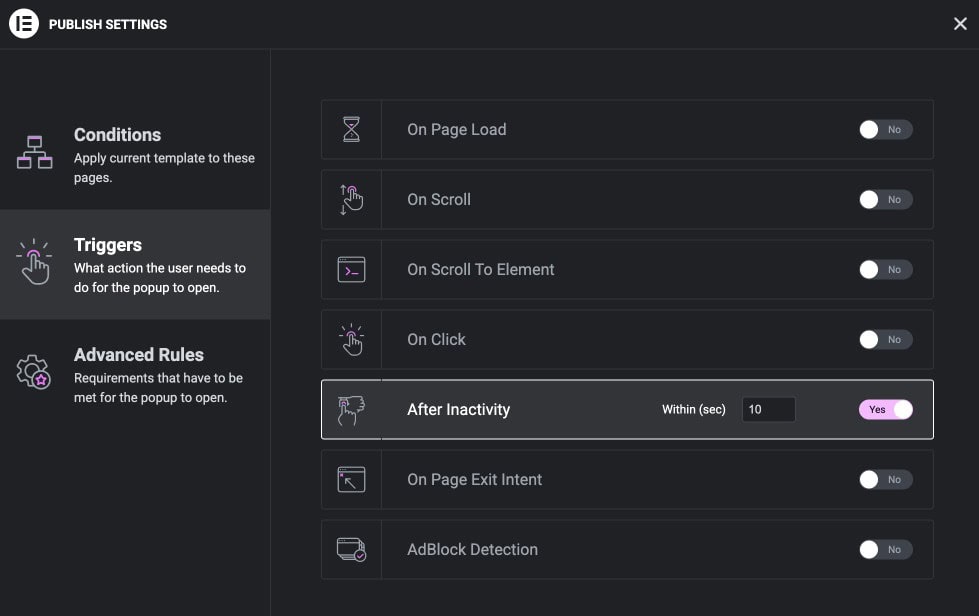
- Open the popup’s Triggers settings and enable After Inactivity.
- Set how long the visitor should remain inactive before the popup appears.
- Use Advanced Rules if you want more control over how frequently the popup appears to the same visitor.
6. New Arrivals Reminder: On Page Exit Intent
Trigger:
On Page Exit Intent
Position:
Center
Inactivity isn’t the only sign that a visitor may need another reason to engage. Sometimes they’re actively browsing but then move toward leaving the page.
For this situation, we’ll use an Exit Intent popup to give visitors one last opportunity to explore the store’s latest products.
Why Use Exit Intent?
This popup is meant for someone who appears ready to leave, so the message can be more direct than the inactivity popup.
Instead of showing another generic discount, we’re giving the visitor one more opportunity to explore the New Arrivals they may have missed.
Why Position It in the Center?
Unlike the subtle inactivity reminder, an exit-intent popup has only a short opportunity to get the visitor’s attention.
A centered popup makes the final message more noticeable and gives the CTA a clear focus before the visitor leaves.
Configure the Exit Intent Trigger
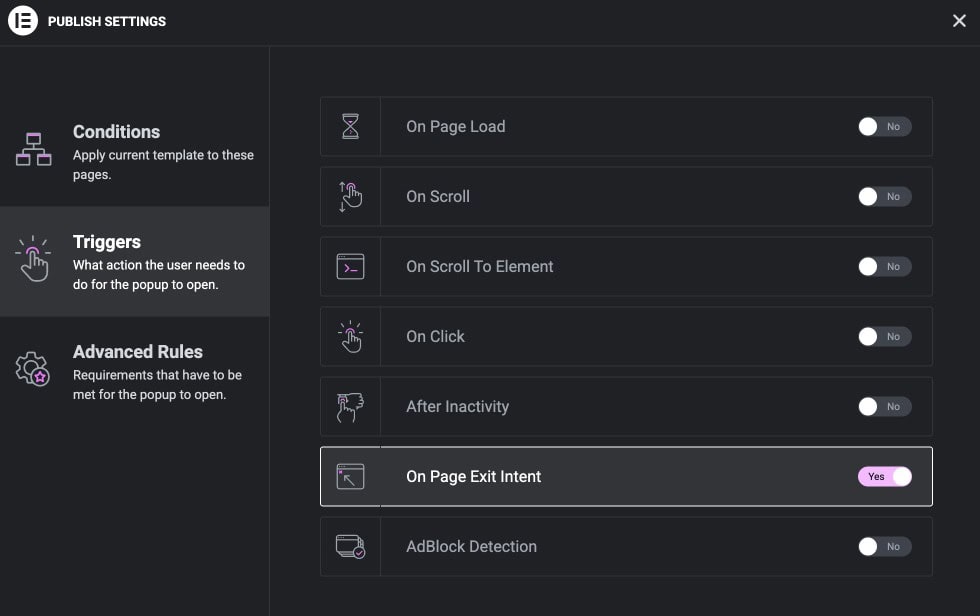
- Open Triggers in your popup’s settings.
- Enable On Page Exit Intent.
- Once enabled, Elementor keeps an eye on the cursor, and when it senses the mouse moving toward the top of the browser window or the tab bar. It fires the popup so you get one last chance to catch their attention
7. Welcome Discount Popup: After Form Submission
Opening method:
Actions After Submit
Position:
Center
Sometimes a popup should appear only after a visitor completes an action.
For this example, our newsletter popup promises 10% off the first order. Instead of showing the discount code before signup, we’ll reveal it in a second popup after the visitor successfully submits the form.
Why Use a Separate Popup?
You could display a simple success message inside the form, but a separate popup gives the discount code more visibility and provides a clear next step.
In our design, the visitor sees the WELCOME10 code along with a Start Shopping button, so they can immediately return to browsing products.
Why position it in the center?
Unlike the FAQ or inactivity popups, this message is the direct result of an action the visitor just completed.
A centered popup works well here because the visitor is already expecting feedback after submitting the form. It also keeps the discount code and next CTA clearly visible.
Open the Popup After the Form Is Submitted

- Edit your newsletter form with Elementor. Select the Form widget.
- Go to Content > Actions After Submit. Add Popup.
- Then, under the Popup settings, choose Action > Open Popup, and select the Welcome Discount Popup.
Elementor’s own documentation covers the exact steps here: Open a Popup When a User Submits a Form.
You Can Close a Popup After Submission Too
If the form itself is already inside a popup and you simply want to dismiss it after a successful submission, choose Action > Close Popup. For example: newsletter popup, submit form, close popup. A similar two-step effect can also be built without Elementor Pro at all, using the free Modal Popup widget from Addon Elements for Elementor, covered in our guide on creating a two-step modal popup.
Other Popup Positions You Can Consider
The examples above use several common popup positions, but you can adjust the placement based on the type of message you’re showing.
For example, the bottom-center position can work well for compact, time-sensitive messages such as a countdown timer, limited-time sale, or shipping deadline.
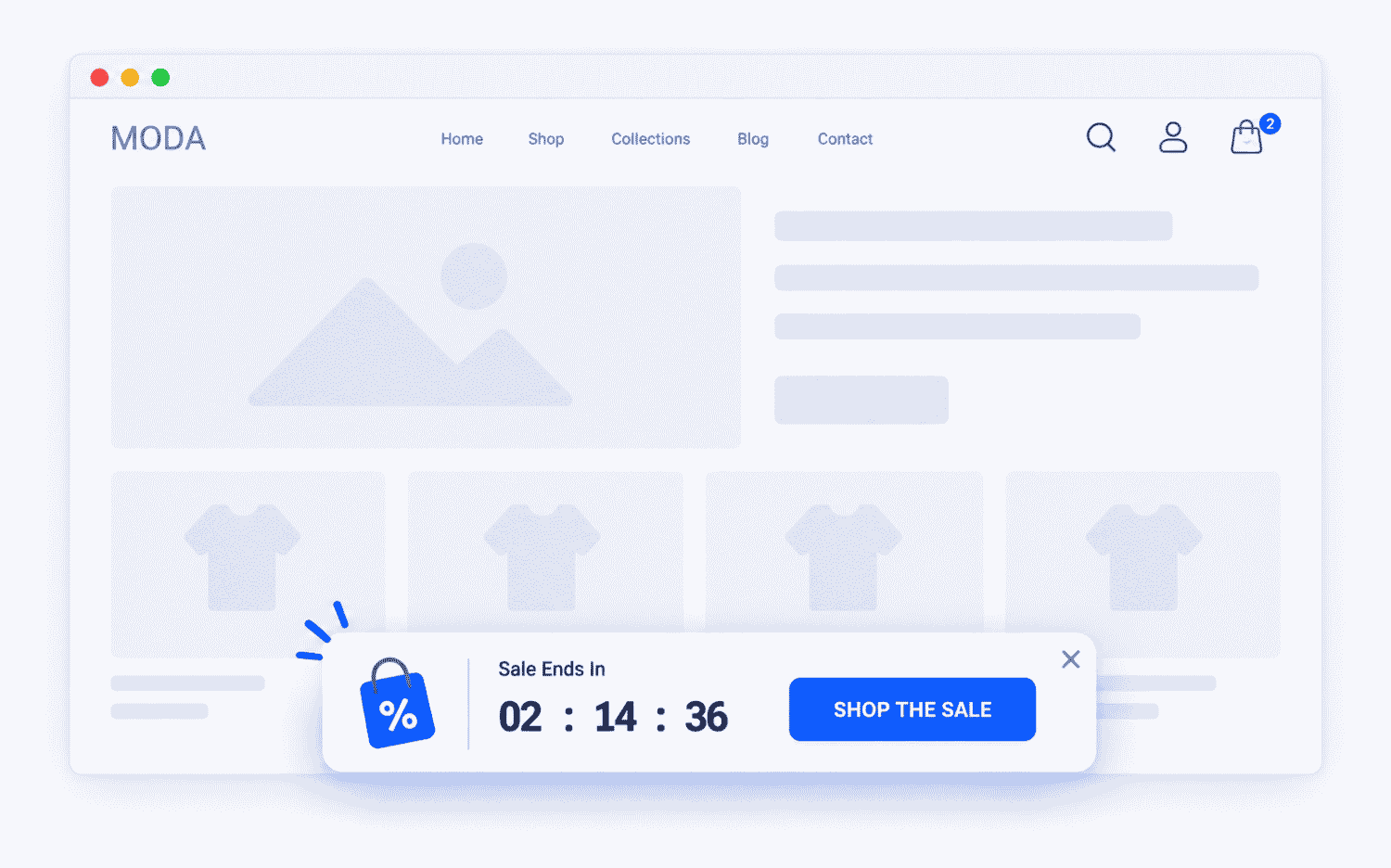
Keeping this type of popup compact lets the message remain noticeable while visitors continue browsing.
Which Elementor Popup Trigger Should You Use?
Instead of asking “which Elementor trigger is best,” ask “what should the visitor be doing when this popup becomes useful?”
| Popup | Recommended Trigger | Position | WHY |
|---|---|---|---|
| Newsletter Discount | On Page Load with delay | Center | Introduces the signup offer early without showing it immediately |
| FAQ Help | On Scroll at 50% | Bottom-right | Makes help available after the visitor has explored part of the page |
| Free Shipping Offer | On Scroll to Element | Right middle | Shows the shipping incentive when the visitor reaches relevant products |
| Request a Quote | Specific CTA click | Left | Opens the quote form only when the visitor requests it |
| Re-engagement | After Inactivity | Bottom left | Gently brings attention back when the visitor stops interacting |
| New Arrivals Reminder | On Page Exit Intent | Center | Gives visitors one more reason to explore before leaving |
| Welcome Discount | After Form Submission | Center | Reveals the promised discount after the visitor completes signup |
Even similar offers can need completely different timing.
Before signup: “Get 10% Off” triggers On Page Load. After signup: “Here’s Your 10% Discount” triggers After Form Submission.
That’s why context matters more than the popup type itself.
A Few Things to Keep in Mind When Choosing a Popup Trigger
Don’t Interrupt Visitors Earlier Than Necessary
If a popup isn’t immediately relevant, wait. An FAQ prompt can wait until the visitor scrolls. A product-related offer can wait until they reach the products. A quote form can wait until they request it.
Match the Position to the Importance of the Message
Use more prominent positions for actions that deserve full attention. Center: signup offers, quote forms, post-submit messages, exit offers. Use less intrusive positions for supporting messages. Side or corner: FAQs, contextual offers, gentle reminders. These are recommendations rather than fixed rules.
Don’t Make Visitors See the Same Popup Constantly
Use Advanced Rules where appropriate to control how often a popup is displayed.
Keep the Popup Focused
Keep the message simple, use a clear CTA, and make the popup easy to close. A visitor should understand why the popup appeared and what they’re expected to do next without having to read a long explanation.
Frequently Asked Questions
What is the best trigger for an Elementor popup?
There isn’t one trigger that’s best for every popup. Choose based on when the content becomes useful. Page Load can work for a broad welcome offer, Scroll for secondary prompts, Scroll to Element for contextual offers, and Exit Intent for a last-chance message.
Should I show a popup immediately on Page Load?
Not necessarily. If you’re using On Page Load, consider adding a short delay so visitors have time to see the page before the popup appears.
What is the difference between On Scroll and On Scroll to Element?
On Scroll is based on how far the visitor has moved through the page. On Scroll to Element waits until they reach a particular element or section.
How do I open an Elementor popup from a specific button?
For an Elementor element with a Link field, use Dynamic Tags > Actions > Popup, select Open Popup, and choose the popup you want to display.
Is Elementor’s On Click trigger the same as opening a popup from a button?
No. Elementor’s standard On Click trigger is based on a specified number of clicks. If one specific button or link should open a particular popup, connecting that element directly through the Popup Dynamic Tag or using Open By Selector gives you more precise control.
Can I open an Elementor popup from a navigation menu?
Yes. You can use Open By Selector to connect a matching navigation menu link to a popup.
Can I show a popup after an Elementor form is submitted?
Yes. Add Popup under the Form widget’s Actions After Submit, then choose Open Popup and select the popup you want to show. You can also use Close Popup if you want to close the current popup after a successful submission.
Where should I position my Elementor popup?
It depends on the importance of the message. Centered popups work well when you need focused attention, while side and corner positions are generally less intrusive for supporting messages.
Conclusion
Choosing an Elementor popup trigger isn’t really about finding the most advanced setting. It’s about showing the right message at the moment it becomes useful.
A newsletter offer can appear after a visitor has had a little time to explore. An FAQ prompt can wait until they’ve started scrolling. A free shipping incentive can appear when they reach your products. A quote form can stay hidden until they request it. And a promised discount can appear only after they successfully subscribe.
So before configuring your next popup, ask what the visitor should be doing when this message becomes relevant, then choose the trigger and position around that moment. That’s a much better starting point than simply making every popup appear as soon as possible.