Duplicate Pages and Posts in WordPress: 3 Methods That Work
WordPress does not have a built-in duplicate button. If you want to reuse a page layout, clone a post template, or copy a service page for a new location, you have to know where to look.
This guide covers three methods on how you can duplicate a WordPress Pages & Posts using a plugin in one click, duplicating without any plugin using the Gutenberg editor, and duplicating Elementor pages and templates. All three work in 2026 with the current version of WordPress.
Method 1: Duplicate With a Plugin
A plugin is the right choice for most people because it copies everything: the content, featured image, categories, tags, custom fields, SEO metadata, and any Elementor design data. The Gutenberg-only method copies content but not metadata, so you have to fill in those gaps manually.
Yoast Duplicate Post is the most widely used plugin for this. It is free, actively maintained (updated
March 2026), and works with Gutenberg, Elementor, and custom post types out of the box.
Setting up Yoast Duplicate Post
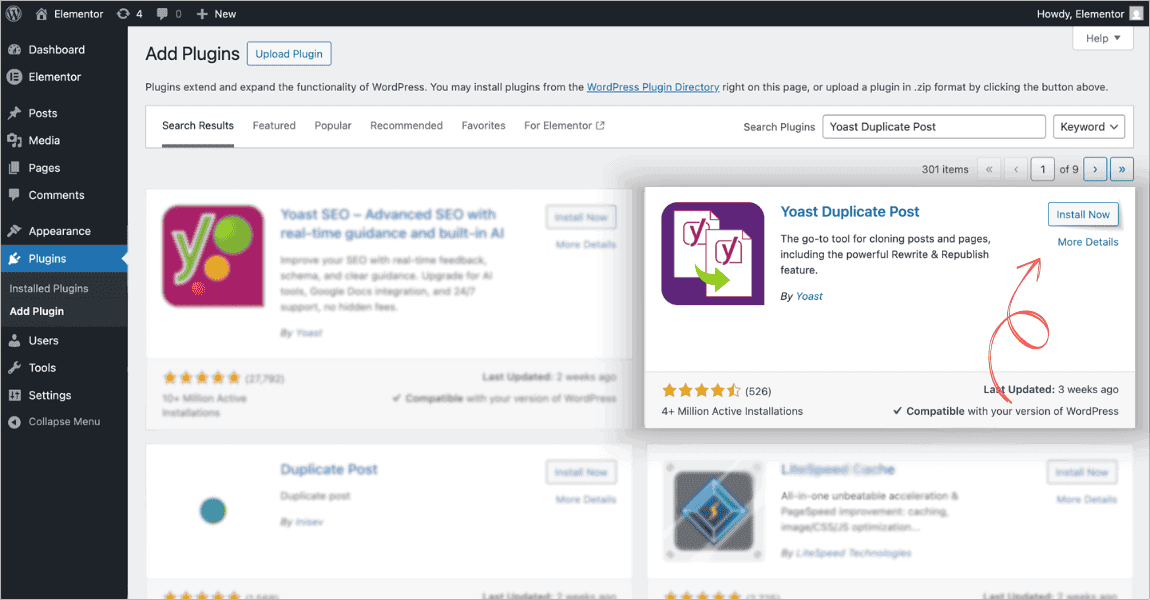
- In your WordPress dashboard, go to Plugins > Add New
- Search for Yoast Duplicate Post
- Click Install Now, then Activate
No configuration is needed to start duplicating posts and pages. The plugin works immediately.
Yoast Duplicate Post is one of the most popular options available, with over 4 million active installs and regular updates. That said, plenty of solid alternatives exist if you prefer a different approach or a lighter plugin.
| Duplicate Page wordpress.org/plugins/duplicate-page | Post Duplicator wordpress.org/plugins/post-duplicator |
Duplicate Page has 3 million active installs and a simple one-click interface. Post Duplicator is well
maintained and copies all taxonomies, custom fields, metadata, and featured images cleanly. All three are free. The steps below use Yoast Duplicate Post since it is the most widely used, but the core experience is similar across all of them.
How to Duplicate a Post or Page
- Go to Posts > All Posts (or Pages > All Pages)
- Hover over the post or page you want to duplicate
- You will see three options appear below the title: Clone, New Draft, and Rewrite and Republish
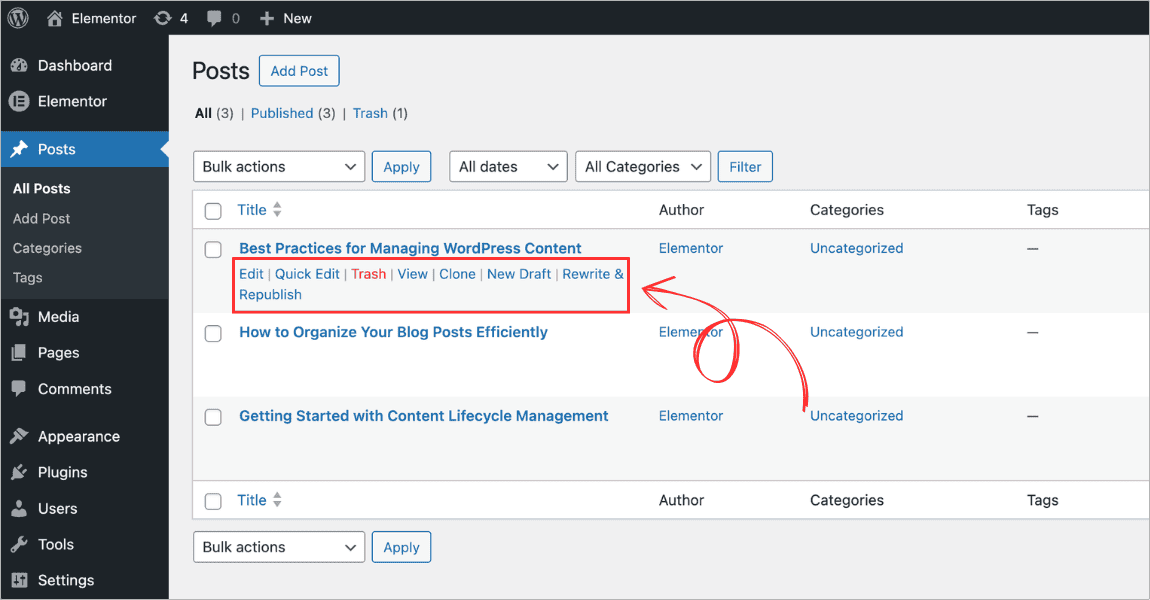
Understanding the three options
| Clone | Creates an exact copy immediately and returns you to the post list. Duplicate is saved as a draft. | Creating a new page based on an existing layout, such as a new service area page. |
| New Draft | Creates a copy and opens it in the editor straight away. | When you want to start editing the duplicate immediately, such as writing a similar blog post. |
| Rewrite and Republish | Creates a working copy. When you publish it, the changes merge back into the original post at the same URL. The copy is deleted automatically. | Refreshing published content without changing the URL or publication date. |
PRO TIP
For most use cases, Clone is what you want. It creates the duplicate instantly without opening the editor.
Configuring what gets copied
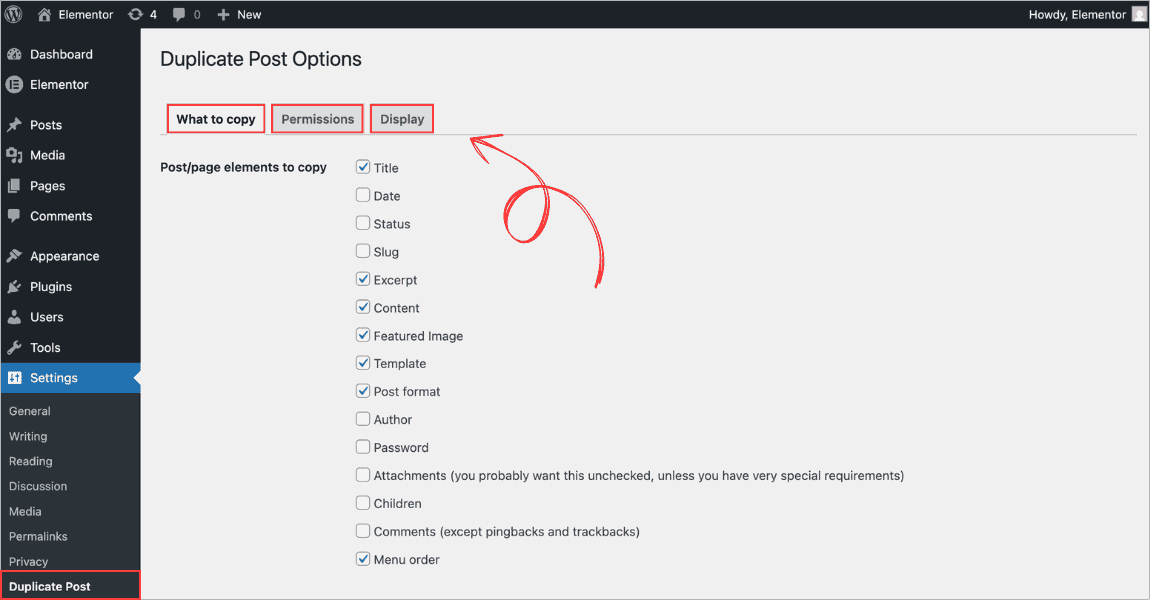
By default, Yoast Duplicate Post copies all content, metadata, and settings. Go to Settings > Duplicate Post to control exactly what gets duplicated.
| What to Copy | Choose which elements to include: title, date, excerpt, content, featured image, categories, tags, custom fields, and more. |
| Permissions | Choose which user roles can duplicate content. Also choose which post types to enable, including custom post types and WooCommerce products. |
| Display | Choose where the duplicate links appear: post list, edit screen, admin bar, and bulk actions. |
Method 2: Duplicate Without a Plugin
If you do not want to install a plugin, you can duplicate content using the Gutenberg editor’s built-in copy function. This method copies all blocks and formatting but does not copy the featured image, categories, tags, or SEO metadata. You will need to add those manually on the new page.
Steps to duplicate using Gutenberg
- Go to Pages > All Pages (or Posts > All Posts)
- Open the page or post you want to duplicate in the editor
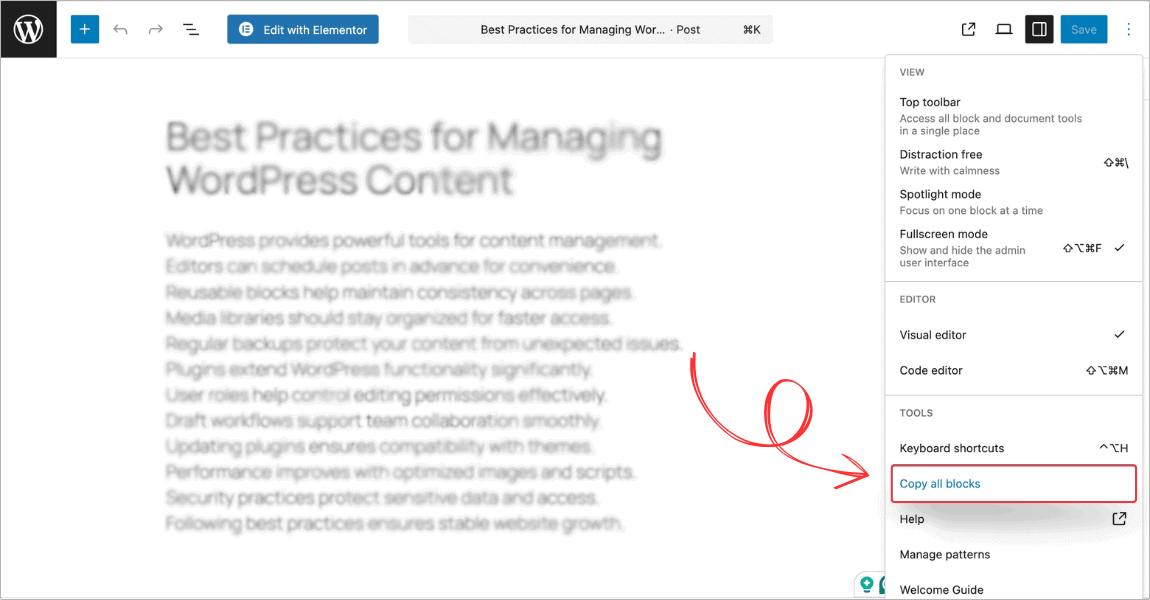
- Click the three-dot menu icon (Options) in the top right corner of the editor
- Select Copy all Blocks
- Go to Pages > Add New to create a new page
- Click into the editor area and paste with Ctrl+V (Windows) or Cmd+V (Mac)
What you still need to add manually
- Page title
- Featured image
- Categories and tags
- Permalink (URL slug)
- SEO title and description if you use an SEO plugin
IMPORTANT NOTE
This is why the plugin method is usually more efficient for anything beyond a quick one-off copy. The Gutenberg method works perfectly when you have just built a page and want to reuse its layout with different content.
Method 3: Duplicate an Elementor Page or Template
If your pages are built with Elementor, you have three options depending on what you need.
Option A: Use Yoast Duplicate Post (simplest)
If you have Yoast Duplicate Post installed, it works with Elementor pages the same way it works with regular WordPress pages. Hover over the page in Pages > All Pages and click Clone. The duplicate includes all Elementor design data and opens in the Elementor editor straight away.
Option B: Save as template and insert on a new page
This is Elementor’s native method. Use it when you want to save a design to reuse across multiple pages, or transfer a design to another site.
Saving the page as a template
- Open the page in the Elementor editor
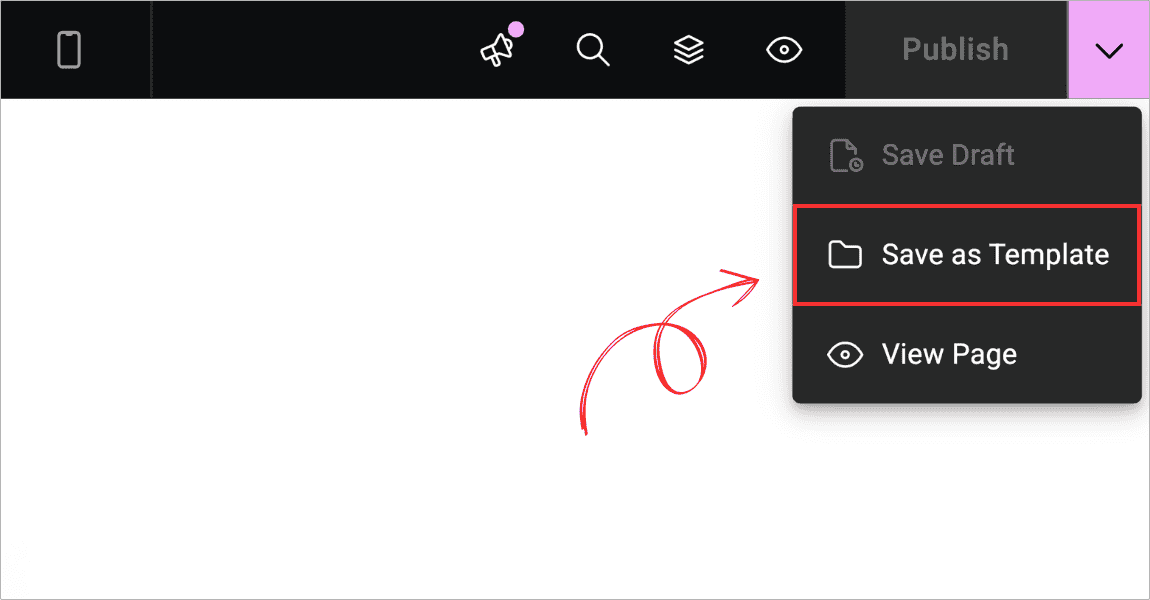
- Click the down arrow next to the Update button in the top bar
- Select Save as Template
- Give the template a descriptive name
- Click Save
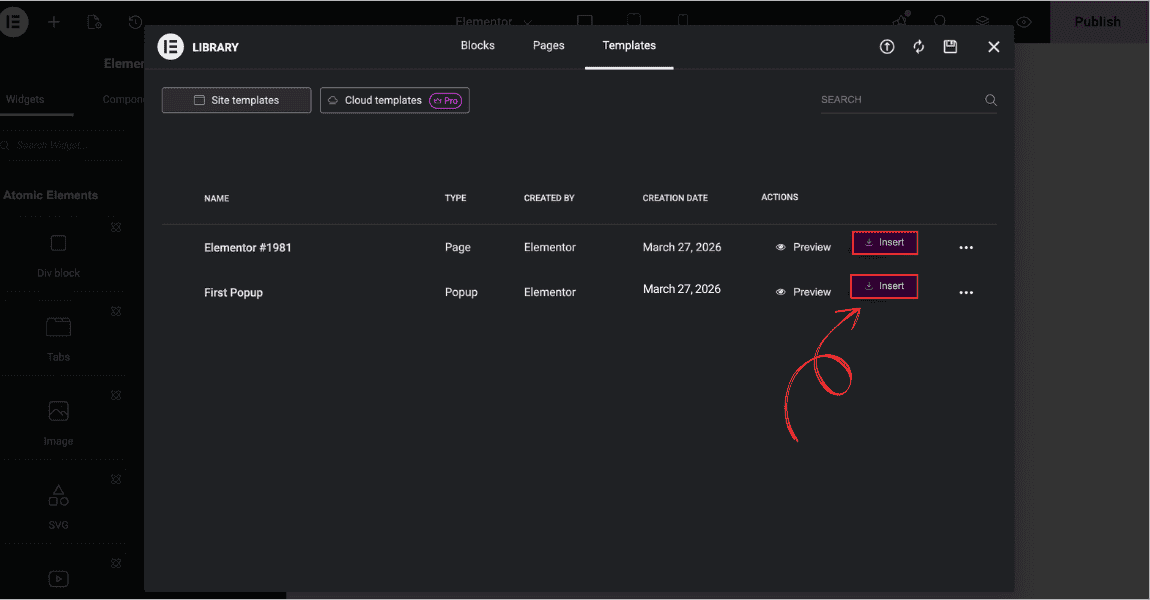
Inserting the template on a new page
- Create a new page and open it with Elementor
- Click the Folder icon in the bottom panel to open the template library
- Go to the My Templates tab
- Find your saved template and click Insert
Option C: Duplicate a Saved Elementor Template Directly
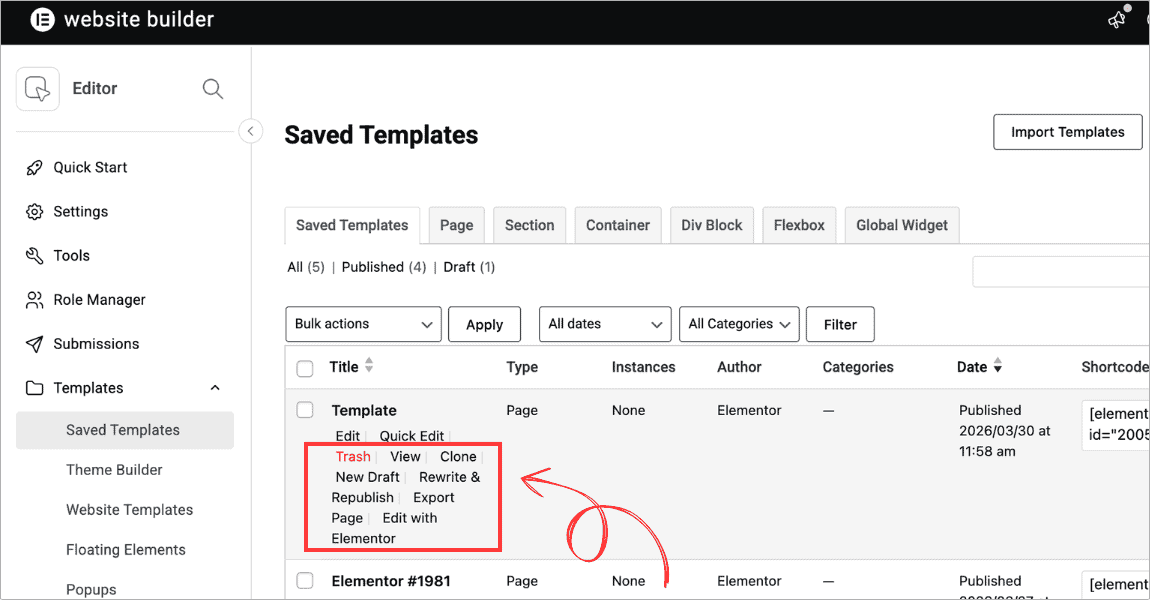
If you want to duplicate a saved template rather than a page, enable Yoast Duplicate Post for templates:
- Go to Settings > Duplicate Post
- Click the Permissions tab
- Under Enable for these post types, check My Templates
- Save the changes
Now go to Elementor > Templates > Saved Templates. Hover over any template and you will see the same Clone, New Draft, and Rewrite and Republish options as on posts and pages.
Bulk Duplicate Multiple Posts or Pages
When you need to duplicate several posts or pages at once, you do not have to clone them one by one.
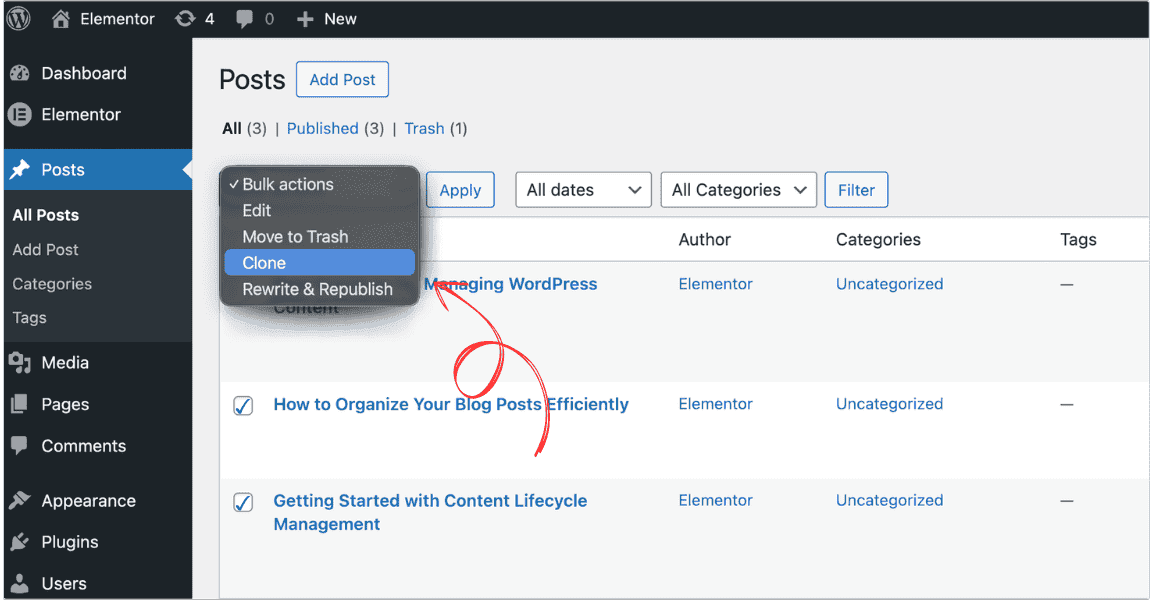
- Go to Posts > All Posts (or Pages > All Pages)
- Check the boxes next to each post or page you want to duplicate
- Open the Bulk Actions dropdown at the top of the list
- Select Clone or Rewrite & Republish
- Click Apply
All selected items will be duplicated as drafts simultaneously.
SEO Note: When Is It Safe to Duplicate Content?
Duplicating for internal workflow purposes is completely safe. Problems only arise if you publish two pages with identical content and the same intent, with no meaningful differences between them.
When you duplicate a page to create a new piece of content, always update the title, permalink, and body content before publishing. If you are keeping similar content across pages, such as near-identical service area pages, make sure each page has enough unique content to justify its own URL. Leaving duplicate drafts unpublished causes no SEO issues at all.
FAQs on Duplicating WordPress Pages and Posts
Does WordPress have a built-in duplicate option?
No. WordPress does not include a native duplicate button. You need either the Gutenberg copy method(content only) or a plugin like Yoast Duplicate Post (full copy including metadata) to duplicate pages and posts.
What is the best plugin to duplicate WordPress pages?
Yoast Duplicate Post is the most widely used option. It is free, works with Gutenberg and Elementor, supports custom post types, and was updated in March 2026. Other solid options include Duplicate Page (3M+ installs) and Post Duplicator.
Will duplicating a page hurt my SEO?
Not if you use the duplicate as a starting point and update the content before publishing. Duplicate drafts have no impact on SEO.
Can I duplicate an Elementor page without a plugin?
Yes. Open the page in Elementor, click the arrow next to the Update button, and select Save as Template. Then create a new page, open it in Elementor, and insert the saved template from the My Templates tab.
How do I duplicate multiple posts at once?
Check the boxes next to the posts you want to copy, open Bulk Actions, select Clone, and click Apply. This requires the Yoast Duplicate Post plugin.
What is the difference between Clone and New Draft in Yoast Duplicate Post?
Clone creates a copy immediately and returns you to the post list. New Draft creates a copy and opens it in the editor straight away. Both save the duplicate as a draft.
What is Rewrite and Republish?
It creates a working copy of a published post for you to edit. When you publish the copy, it merges back into the original post at the same URL and the copy is deleted.
Can I duplicate WooCommerce products?
Yes. In the Yoast Duplicate Post settings, go to the Permissions tab and enable the plugin for WooCommerce Products. You can then clone products the same way you clone posts and pages.
Work Faster in Elementor With the Right Tools
Duplicating pages is just one way to speed up your Elementor workflow. If you want more design
capabilities without starting from scratch, Addon Elements for Elementor adds 60+ widgets to your
Elementor editor: comparison tables, video galleries, FAQ sections, thumbnail sliders, filterable galleries, and more. Every widget works with Elementor’s Save as Template system, so layouts you build with Addon Elements can be saved, duplicated, and reused across your entire site.