How to Create a WooCommerce Product Category Page in Elementor
A customer finds your clothing store through Google. He searches “men’s sneakers,” clicks your Sneakers category link, and lands on your site. What he sees is a plain product grid with no brand personality, no visual hierarchy, and no reason to stay. He leaves.
The default WooCommerce product category page inherits your theme’s layout, ignores your Elementor design, and gives you almost nothing to work with. Dynific Addons for Elementor fixes this. Using DA Templates, you can replace the default category page with a fully custom Elementor layout: your product cards, your grid structure, your brand. No Elementor Pro required. No code.
This tutorial walks through the complete setup for a clothing store with product categories. By the end, the WooCommerce product category page will be a fully custom layout that automatically applies to every other category on your store.
What you need before starting
- Elementor (free version is fine)
- WooCommerce with at least one product category and a few products set up
- Dynific Addons for Elementor Pro installed and activated
Why Does the Default WooCommerce Category Page Need Customising?
When a customer clicks on any category in your store, WooCommerce serves the category archive page using your active theme’s template, a PHP file that Elementor has no access to. You cannot open it in the Elementor editor, drag in widgets, or change how products display without editing theme files or accepting whatever layout your theme provides.
The result is always the same: a product grid in whatever style your theme chose, with no control over card layout, no custom banner per category, and no ability to show different information for different categories. Your Sneakers page looks identical to Men, which looks identical to Accessories.
This is not a WooCommerce problem. It is a theme architecture limitation. And it is exactly what Dynific Addons for Elementor was built to solve.
How Does Dynific Addons for Elementor Handle WooCommerce Category Pages?
Dynamic Addons for Elementor removes theme dependency for category pages and lets you build them entirely with Elementor using a two-template system in DA Templates.
Your category page has two distinct design problems. First, you need to control how one product card looks: the image, the title, the price, the button. Second, you need to control how the full page is structured: the heading, the grid, and the layout around it. These are two separate things, so Dynific Addons for Elementor handles them with two separate templates that work together.
The first template is a Block Layout. It defines how one product card looks. You design it once in Elementor and Dynific Addons for Elementor repeats it for every product in the category automatically. Think of it as a stamp: you design it once and it prints on every product.
The second template is a Category Archive Template. It controls the full page structure. It uses the DA – Post Blocks Adv widget to loop through the category’s products and render each one using the Block Layout. Connect the two and your theme template is replaced by a fully custom Elementor page.
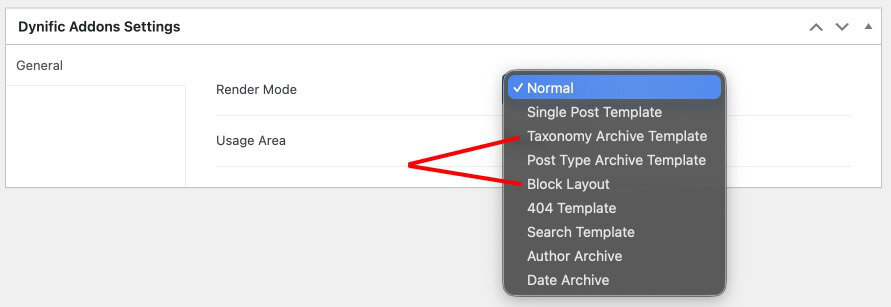
Step 1: How Do You Create the Product Block Layout?
The Block Layout defines how a single product card looks inside the grid. You design it once and Dynific Addons for Elementor repeats it for every product in the category. The goal is a clean, focused card: image at the top, title and price in the middle, add to cart button at the bottom.
Go to DA Templates > Add New. Name it “WooCommerce Product Block” and configure the following under Dynific Addons for Elementor Settings:
- Render Mode: Block Layout
- Preview Post: type the name of a product from your Sneakers category and select it. A Color
sneakers, grey shoes, anything that represents the category. This product shows as the live preview while you design in Elementor.
Save and click Edit with Elementor.

Inside the Elementor editor, find the DA Template Elements widget group in the widget panel. The WooCommerce-specific widgets are listed here. Add the following four widgets and arrange them into your product card:
| Widget | What It Displays | Placement |
|---|---|---|
| DA – Post Image | Product featured image | Top of card |
| DA – Woo Title | Product name, pulled dynamically | Below image |
| DA – Woo Price | Regular price and sale price | Below title |
| DA – Woo Add To Cart | Add to cart button | Bottom of card |
Style each widget using Elementor’s Style tab: typography, colours, button style, image size. Then style the card container itself: padding, background colour, border radius, hover shadow.
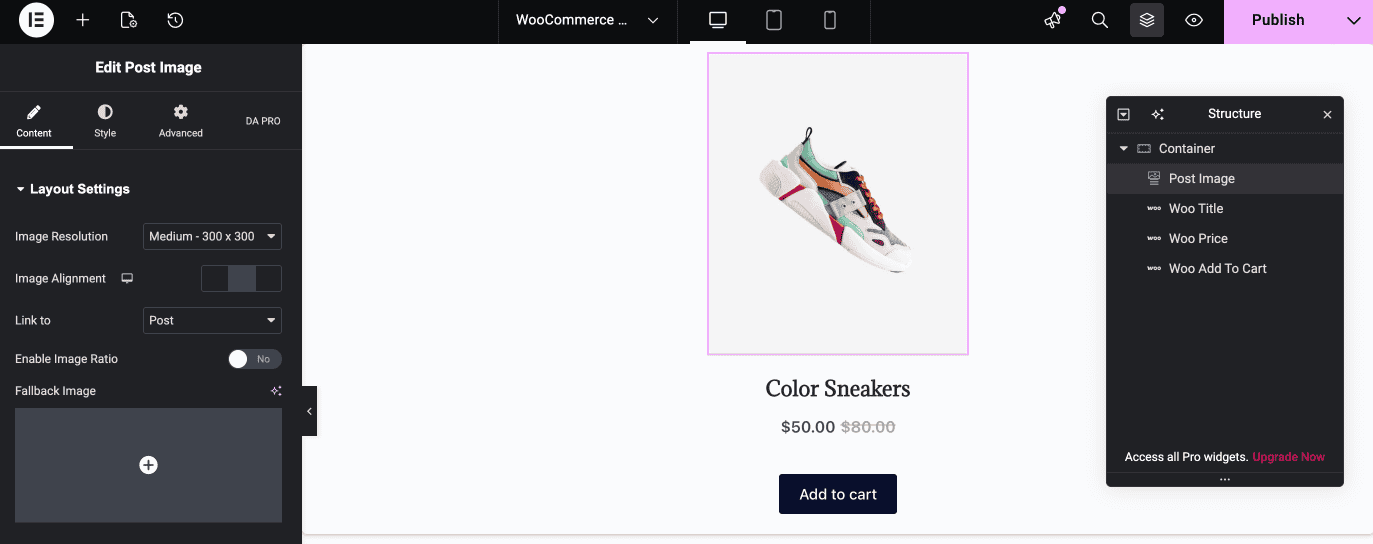
When the card looks right, save the template.
Pro Tip
Keep the Block Layout focused on the card only. Do not add page-level elements like a header, category banner, or description here. Those belong in the Category Archive Template in Step 2.
Step 2: How Do You Create the Category Archive Template?
The Category Archive Template is the full page layout for your WooCommerce category pages. It controls the page structure, the category heading, the product grid, and any additional elements like a category banner or description. This is the template that replaces your theme’s Sneakers category page entirely.
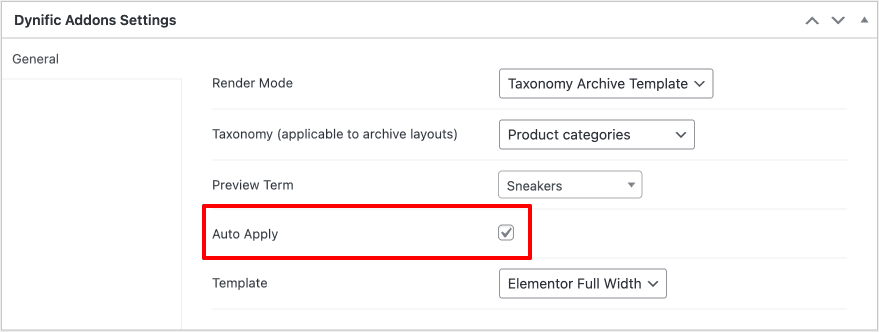
Go to DA Templates > Add New. Name it “WooCommerce Category Archive” and configure the following under Dynific Addons for Elementor Settings:
- Render Mode: Taxonomy archive template
- Taxonomy: Product Categories
- Preview Term: type “Sneakers” and select the Sneakers category. Dynific Addons for Elementor uses this category to show live product data in the Elementor editor while you design.
- Auto Apply: check this box to apply this layout to all product categories automatically. You
can override it for individual categories in Step 4 if needed. - Template: Elementor Full Width. This removes the theme’s frame from the editing canvas so
your Elementor design has full control of the page.
Save and click Edit with Elementor.
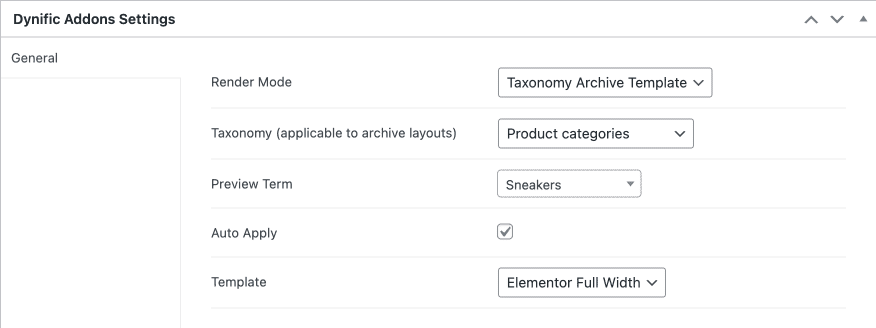
You are now inside a full Elementor canvas with the Sneakers category loaded as your live preview. Real products from the Sneakers category are ready to populate the grid as soon as you place the DA – Post Blocks Adv widget in the next step.
Step 3: How Do You Configure the DA – Post Blocks Adv Widget?
The DA – Post Blocks Adv widget is what renders the product grid on the category page. It reads the products in the current category and repeats the Block Layout from Step 1 for each one. This is the bridge that connects your two templates.
Find DA – Post Blocks Adv in the Elementor widget panel and drag it onto the canvas. Configure the following in the widget settings:
Layout section
- Layout: Grid
- Primary Block Layout: select “WooCommerce Product Block”, the card layout you designed in Step 1
Query section
- Source: Current Archive
The Source setting is the critical one. Current Archive means the widget does not display a fixed list of products. It reads whichever category the visitor is currently browsing and shows only the products that belong there. When a customer visits Sneakers, he sees shoes products. When he clicks through to Accessories, he sees Accessories products. One template, every category, correct data every time.
WooCommerce section
- Hide Out of Stock: enable this to automatically remove out-of-stock products from the grid
- Enable Sales Badge: enable this to show a sale ribbon or badge on discounted products. Set
the badge Type (Ribbon, Badge, or Custom Image) and position.
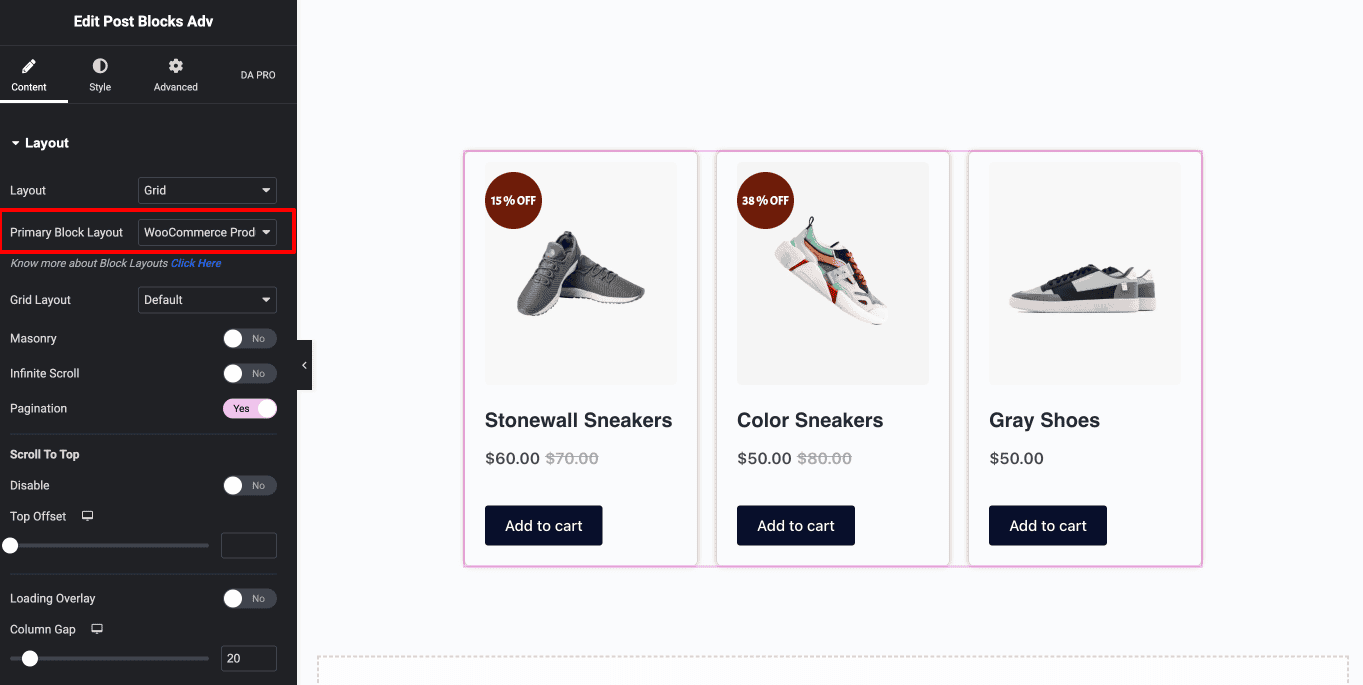
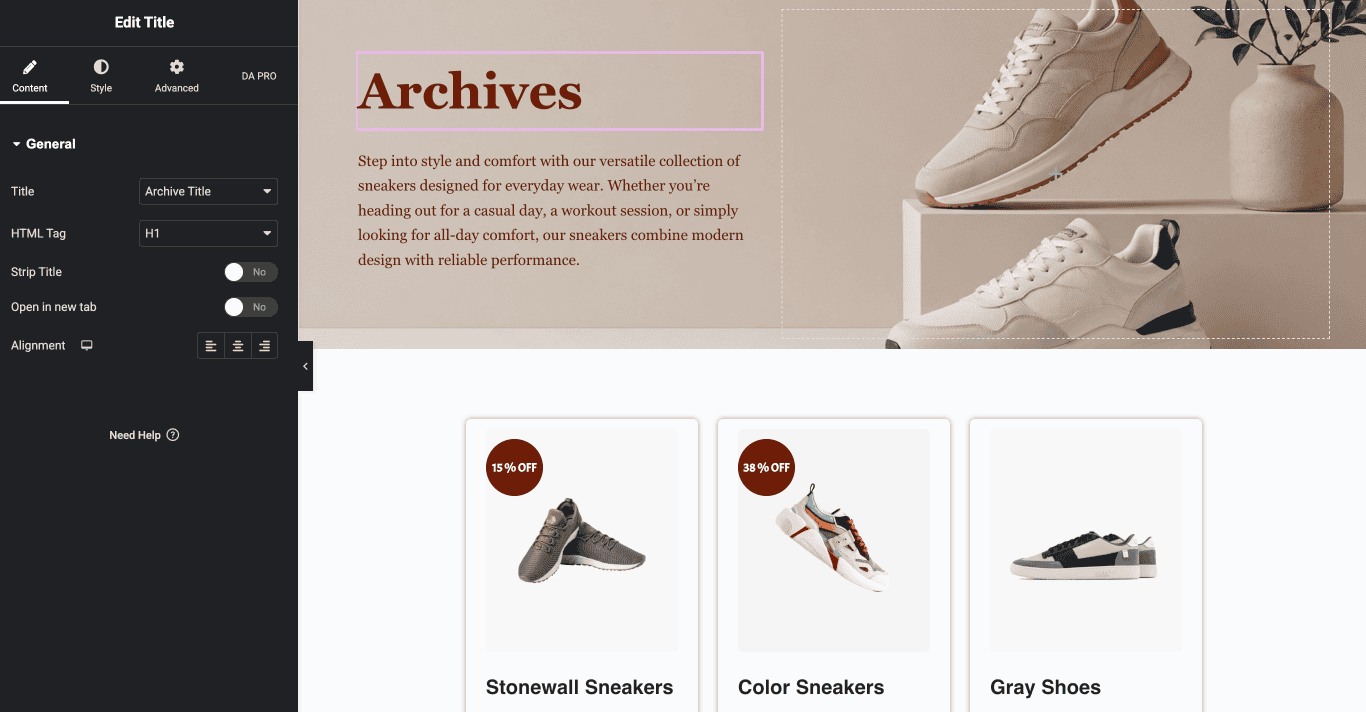
Now add a DA – Title widget above the product grid. Set it to Archive Title. This widget pulls the current category name dynamically, Sneakers, Women, Men, or Accessories, as the page heading. You never need to hardcode category names into the template. Also you can add DA – Post Content widget to show the category description, then set the container background image dynamically using the DA Dynamic Tag (DA Product Category Image).
Save the template.
Step 4: How Do You Assign the Template to Your Category Pages?
Dynific Addons for Elementor gives you two ways to assign the Category Archive Template to your WooCommerce category pages.
Option A: Auto Apply (all categories)
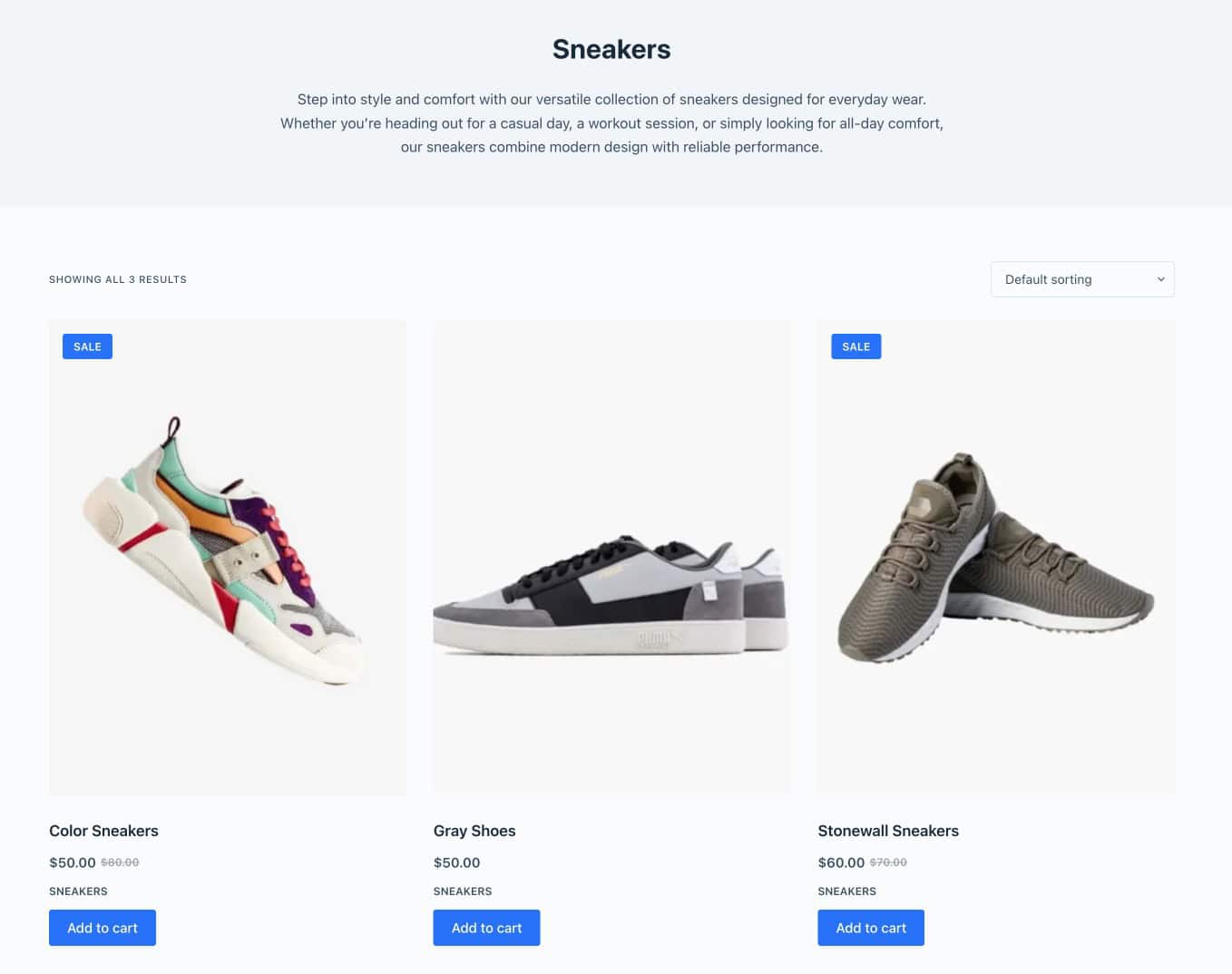
If you checked Auto Apply in Step 2, the template is already assigned to all product categories. Navigate to the Sneakers category on your store frontend. The custom Elementor layout is live: your product cards, your grid, your brand replacing the default theme layout.
Open the Men category. The heading reads “Men” and the grid shows Men products. Open Accessories. Same layout, Accessories products. One template doing the work across your entire store.
Option B: Manual assignment (specific categories)
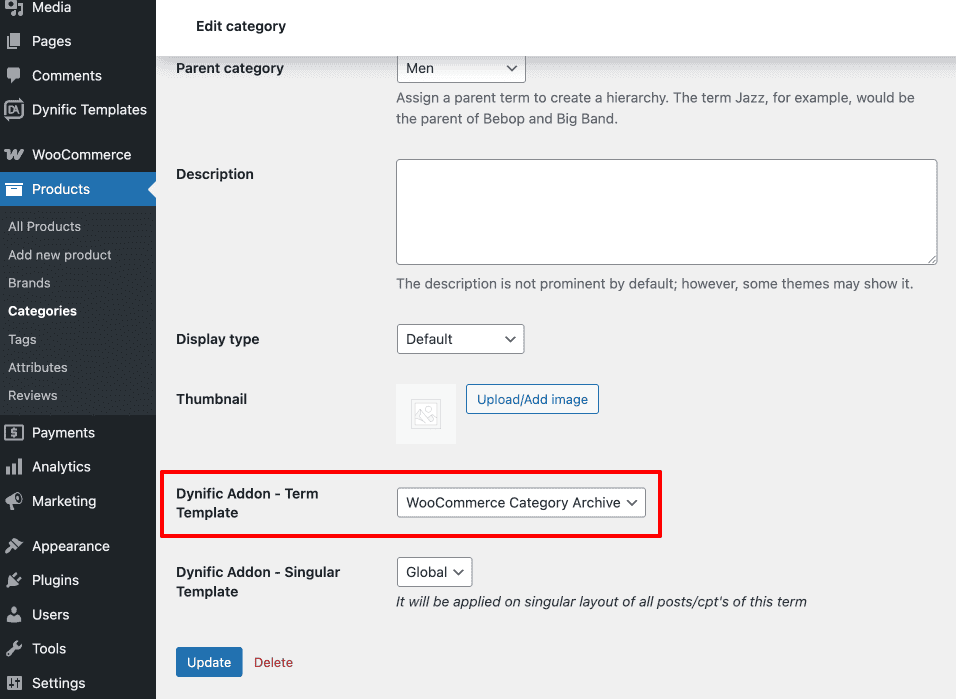
To assign a different layout to a specific category, for example a two-column grid with a promotional banner for Accessories, create a second Category Archive Template and assign it manually:
- Go to Products > Categories in the WordPress admin
- Click Edit on the category, for example Accessories
- Scroll down to the Dynific Addon – Term Template field
- Select the template you want to assign
- Save the category
Note
If the layout is not appearing on the frontend after assignment, check two things. First, confirm the Template setting in the DA Template is set to Elementor Full Width and not Theme Default. Second, confirm the DA Post Blocks Adv widget Source is set to Current Archive and not a fixed post type query.
What Does the Finished WooCommerce Product Category Page Look Like?
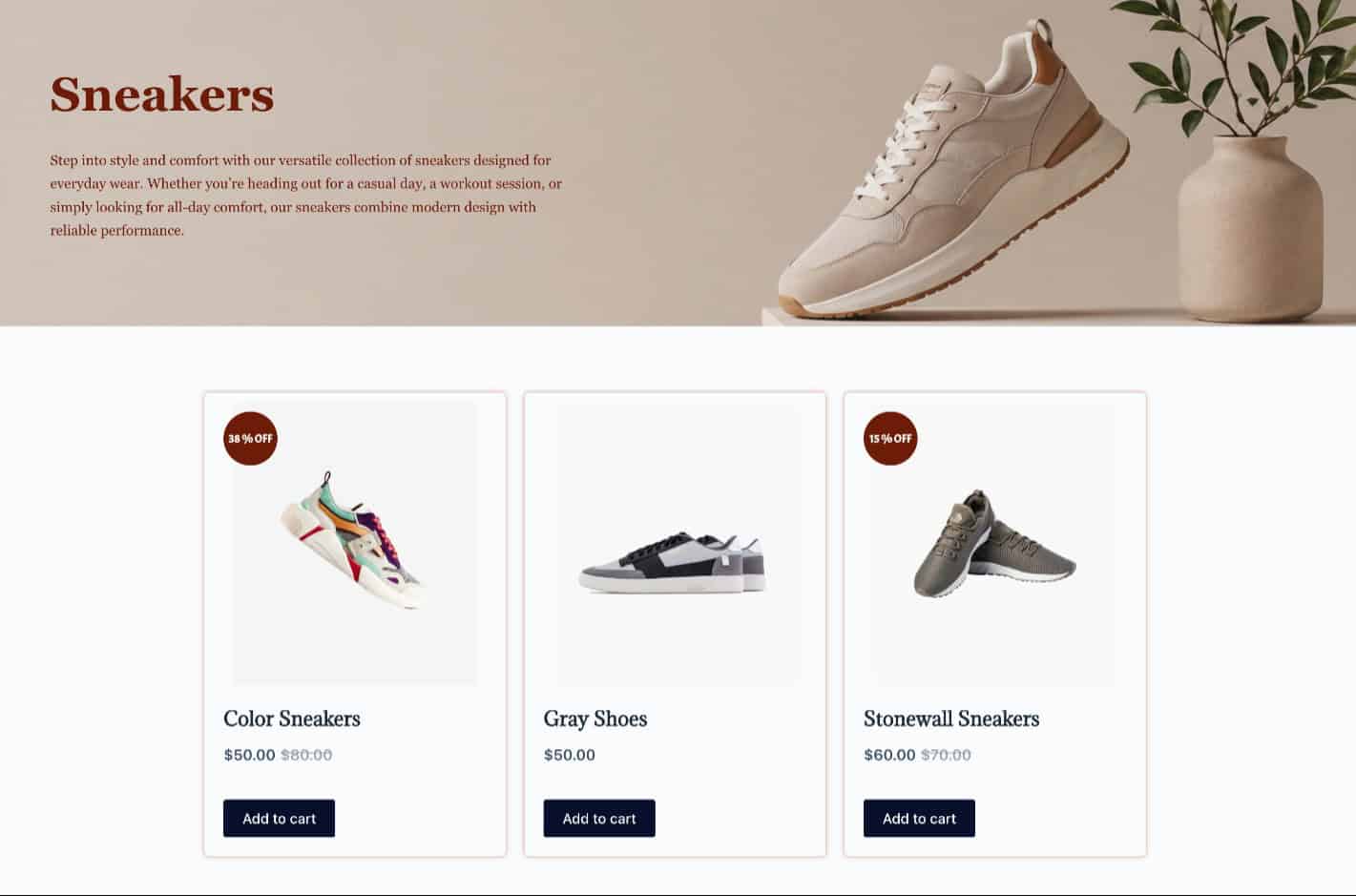
Before this tutorial, a customer landing on the Sneakers category saw a default theme grid: generic, unstyled, identical to every other store running the same theme.
Now he lands on a page you designed. Product cards with the image size you chose, the typography you set, the button colour that fits your brand. The heading pulls “Sneakers” and category description dynamically. Out-of-stock products are hidden. Sale items show a badge. And when he navigates to Accessories, the same quality follows his there.
One Block Layout. One Category Archive Template. Every category on your clothing store covered.
Frequently Asked Questions
Do I need Elementor Pro to create a custom WooCommerce category page with Dynific Addons for Elementor?
No. Dynific Addons for Elementor works with the free version of Elementor. DA Templates, the DA – Post Blocks Adv widget, and all DA Woo widgets used in this tutorial are part of Dynific Addons for Elementor Pro. An Elementor Pro subscription is not required.
Can I create a different layout for each product category?
Yes. Create a separate Category Archive Template for any category that needs its own design. In Products > Categories, edit the category and assign the relevant template using the DA Template field. The Auto Apply template acts as the default for any category without a specific assignment, so Sneakers and Women can share one layout while Accessories uses something different.
What happens when I add a new product to the Sneakers category?
It appears in the grid automatically. The DA Post Blocks Adv widget reads the category dynamically on every page load. Add a product, assign it to the sneakers category in WooCommerce, and it shows up on the category page without any changes needed in Elementor.
Can I add a banner or promotional section above the product grid?
Yes. Inside the Category Archive Template, add any widget above the DA Post Blocks Adv widget: an image banner, a promotional text block, a featured product highlight. The Category Archive Template is a full Elementor canvas and supports everything Elementor offers.
Will pagination work on the custom category page?
Yes. The DA Post Blocks Adv widget includes pagination controls in its settings. Choose from Standard pagination, Load More button, or Infinite Scroll. Style controls for each option are in the widget’s Style tab.
Can I display the WooCommerce category description on the category page?
Yes. Inside the Category Archive Template, add the DA Content widget and set it to display the term description. Position it between the DA Title widget and the DA Post Blocks Adv widget. The description pulls dynamically from whatever text is entered in the Description field of each category in Products > Categories.
Conclusion
Your WooCommerce category pages are some of the most visited pages on your store. They are often the first thing a customer sees after clicking a search result or a navigation link. Handing that first impression to your theme is a missed opportunity.
With Dynific Addons for Elementor, you design those pages yourself. Two DA Templates, one DA Post Blocks Adv widget, and every WooCommerce category on your store is a fully custom Elementor layout.
The Sneakers category you built today is just the beginning. The same system covers your shop page, your individual product pages, and your blog archive. Build the card, build the page, connect them. That is all it takes.
See the WooCommerce product archives guide to extend this setup across your full store. Get Dynific Addons for Elementor and start designing your WooCommerce store the way you intended it to look.