How to Reuse the Same Filtered Query Across Multiple Elementor Widgets
In Elementor, every query widget keeps its own private copy of filter, sort, and pagination settings. The Posts widget on your homepage, the Loop Grid on a category page, and the WooCommerce Products widget in your sidebar don’t share anything – even if all three are supposed to show the exact same thing, like “5 newest Products in the Featured category.”
That means if the business rule changes – say, Featured becomes Best Sellers, or 5 becomes 8 – you have to open every single widget that uses that logic and update it by hand. Miss one, and your site shows inconsistent results depending on which page a visitor lands on.
Preset Query, part of Dynific Addons for Elementor Pro, fixes this by separating the query from the widget. You build the filter logic once, save it as a named preset, and apply that same preset to as many widgets as you want – including Elementor’s own native query widgets. Change the preset once, and every widget using it updates automatically.
What you need before starting
- Elementor (free is fine for placing widgets – Elementor’s own Posts, Loop Grid, Loop Carousel, Portfolio, and WooCommerce Products widgets are Pro widgets, so you’ll need Elementor Pro to use those specific widgets)
- Dynific Addons for Elementor Pro installed and activated
- At least one post type with enough content to filter meaningfully (we’ll use a Products example below)
What Is a Preset Query?
A Preset Query is a saved WP_Query configuration you build once under Dynific Templates → Presets → Query tab. It covers everything a normal query widget would let you configure – and once saved, it shows up as a selectable option inside any compatible widget’s Query section.
| Section | What You Can Configure |
|---|---|
| Basic Query | Post type, posts per page, post status, order by/order, offset, sticky posts, exclude current post |
| Posts | Include/exclude specific posts, parent post filtering, top-level only |
| Taxonomy Query | Filter by one or more taxonomies and terms, with AND/OR relations |
| Meta Query | Filter by custom field values, with AND/OR relations |
| Date Query | Static date range or relative range (last 7/30/90 days, this month, etc.) |
| Author | Include or exclude specific authors |
| Search | Restrict results to a specific search keyword |
How Do You Build a Reusable Preset Query?
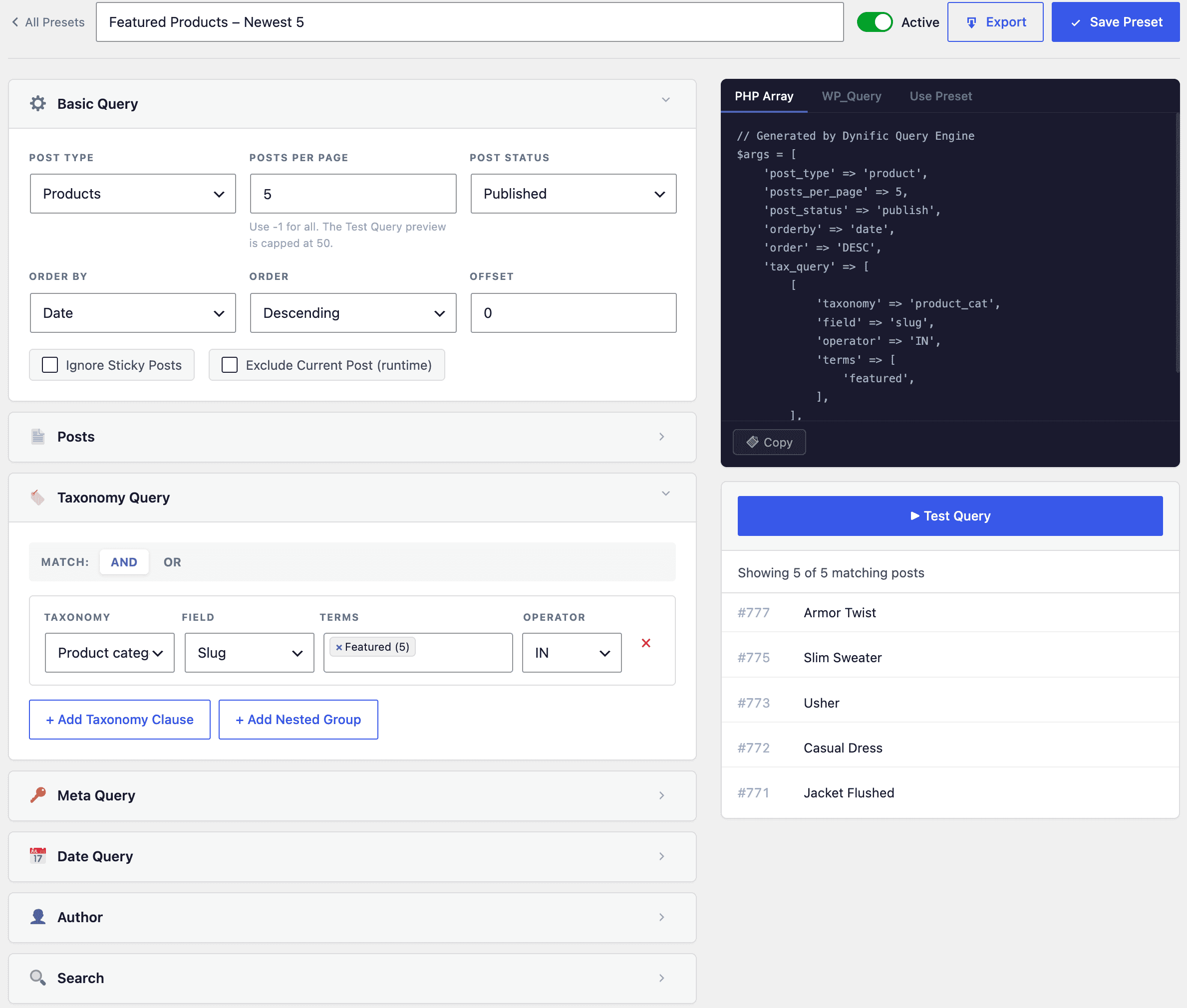
Let’s build the example from the intro: the 5 newest Products in the Featured category.
- Go to Global Templates → Presets → Query tab and click Add New Preset. Name it something you’ll recognize later, like “Featured Products – Newest 5”.
- Open the Basic Query section: set Post Type to Product, Posts Per Page to 5, Order By to Date, and Order to Descending.
- Open the Taxonomy Query section and add a row: Taxonomy = Product Category, Operator = IN, Terms = Featured.
- Click Test Query in the sidebar. You’ll see a live “found X posts” count and a list of the actual products that match – confirm it looks right before saving.
- Click Save.
How Do You Apply the Preset to Elementor’s Native Products Widget?
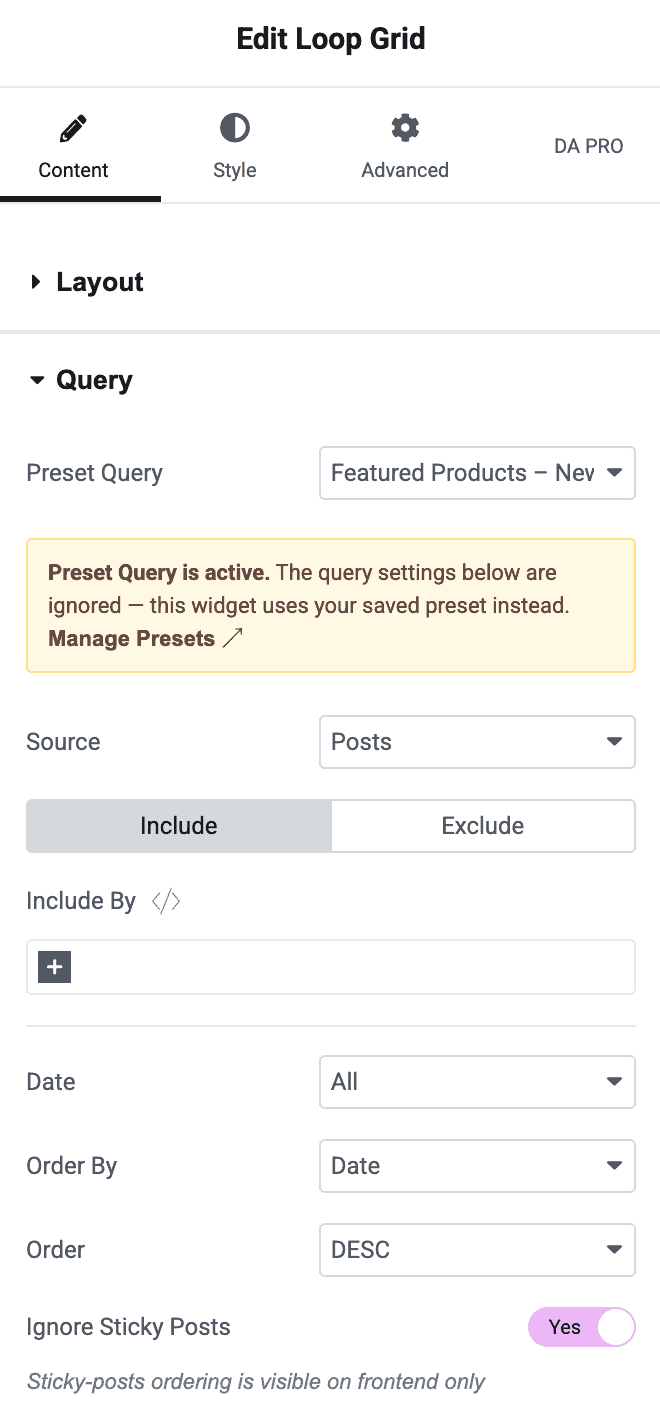
- Drag Elementor’s Loop Grid widget onto your page.
- Open its Query section. A Preset Query dropdown appears above Elementor’s own source/post-type controls.
- Select “Featured Products – Newest 5”. A notice appears confirming the settings below are now ignored in favor of the saved preset.
- Save the page. The widget renders using your preset, and Elementor’s own pagination/Load More controls keep working normally.
How Do You Apply the Same Preset to DA Post Blocks Adv?
This part doesn’t require Elementor Pro – DA Post Blocks Adv is included in Dynific Addons for Elementor Pro and works with Elementor free.
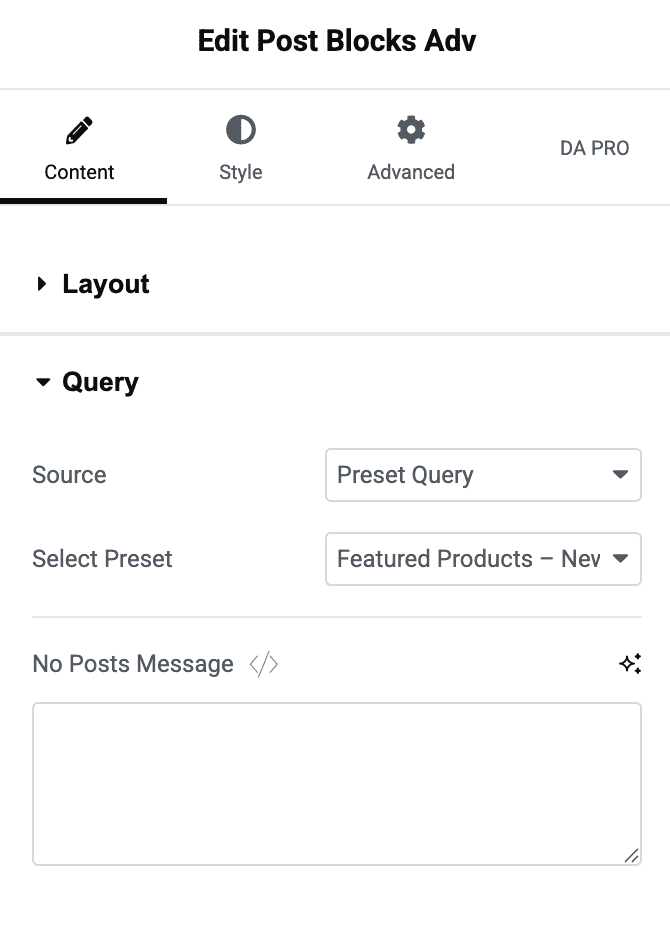
- Drag DA Post Blocks Adv onto a different page – a sidebar, a homepage section, wherever you want the same list to show up.
- In its Query section, set Source to Preset Query.
- A Select Preset dropdown appears – choose “Featured Products – Newest 5” again.
You now have two completely different widgets, on two completely different pages, both driven by the exact same saved query.
How Do You Update the Query Everywhere at Once?
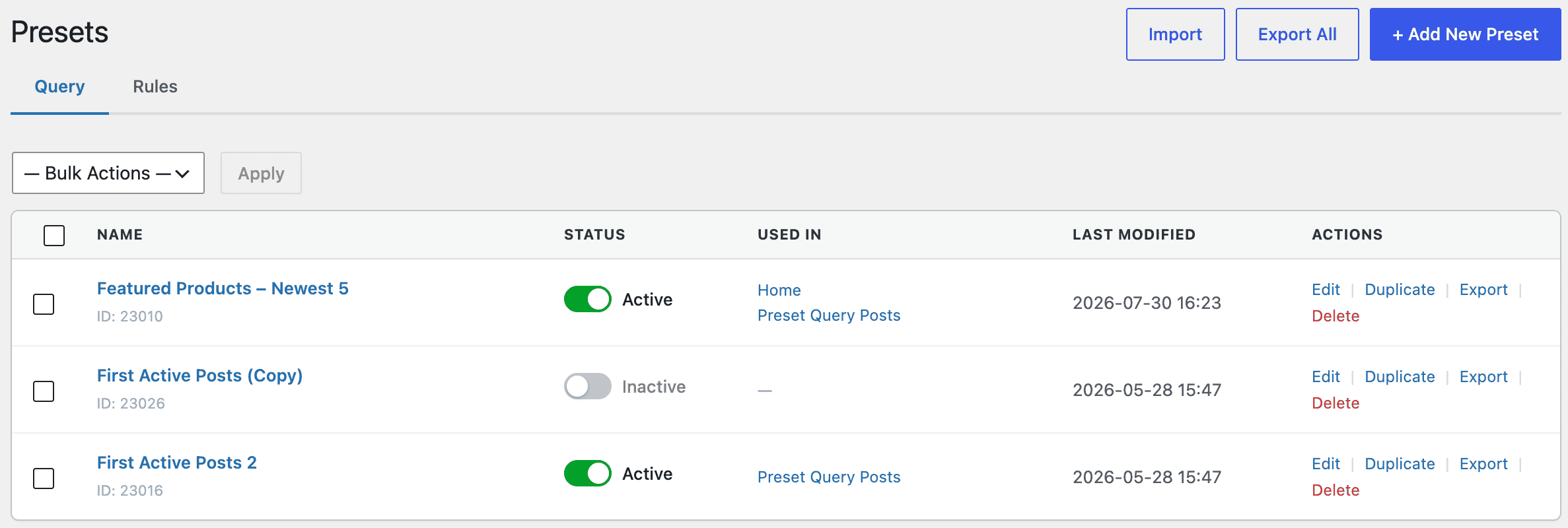
Say Featured becomes Best Sellers next quarter. Instead of editing three widgets on three pages, open the preset itself, change the Taxonomy Query row from Featured to Best Sellers, and save. Every widget referencing that preset – the WooCommerce Products widget, the DA Post Blocks Adv widget, anything else you’ve pointed at it – updates the next time the page loads. No hunting through pages, no risk of missing one.
Before you make that kind of change, check the Used In column on the preset’s list table – it shows you exactly which pages and templates currently reference this preset, so you know the full blast radius of your edit before you make it.
Pro Tip: Always click Test Query before saving changes to a preset that’s already in use. It runs against real data and shows you exactly which posts would appear – so you catch a broken filter before it goes live on every page using that preset, not after.
Frequently Asked Questions
Does editing a Preset Query affect widgets already using it?
Yes, immediately. Widgets don’t store a copy of the preset’s settings – they look up the saved preset by ID at render time, so any edit you make is reflected everywhere the preset is used the next time each page loads.
Which Elementor widgets can use a Preset Query?
Elementor’s native Posts, Portfolio, Loop Grid, Loop Carousel, and WooCommerce Products widgets, plus Dynific’s own DA Post Blocks Adv widget.
Do I need Elementor Pro for this?
Only if you want to apply a Preset Query to Elementor’s own native query widgets – those widgets themselves require Elementor Pro. DA Post Blocks Adv works with Elementor free, so you can use Preset Query without Elementor Pro if you stick to that widget.
Conclusion
Preset Query turns a query from something you configure per-widget into something you configure once and reuse everywhere. Build the filter logic a single time, apply it to as many widgets as you need across your site, and when the business rule changes, you only ever have to update it in one place.
See the full Preset Query documentation for every available filter and setting, or read our tutorial on adding conditional display to Elementor without Elementor Pro to combine saved queries with saved visibility rules.
Get Dynific Addons for Elementor Pro and stop rebuilding the same query on every page.