How to Use ACF Relationship Field
The ACF Relationship field lets you link one post to one or more other posts, such as a book to its author or a product to related products. You add it to a field group in Advanced Custom Fields, pick which posts can be linked, and then choose related posts from a searchable list on the edit screen.
This guide shows how the Relationship field works, how it differs from the Post Object field, how to set it up, which settings matter, how to make it bidirectional with no code, and how to display related posts on your site.
Key takeaways
- The Relationship field links one post to one or more other posts, such as a book to its author, and it is free in ACF.
- Since ACF 6.2, you can make a relationship bidirectional with a toggle in the field’s Advanced tab, so both sides stay linked without code.
- To show related posts without code, use the DA – Post Blocks Adv widget in Dynific Addons for Elementor with the Relationship source.
What Is the ACF Relationship Field?
The ACF Relationship field is a relational field type that stores links to other posts. On the edit screen it shows two columns: posts you can choose on the left, with search and filters, and the posts you have selected on the right. It works with posts, pages and custom post types, and it is free in ACF.
Use Case for the Relationship Field
Let’s assume that we are building a website that lists books. And for that, we are using ACF. So here we need to create two custom post types: “Book” and “Book Author.”
Now, for the “Book” post type, we create custom fields such as “published date”, “publisher”, “price”, and an ACF Relationship Field type called “Related book author”. Here in this screenshot, you can check all the custom fields we created for the Book Post type.

The book details page will display the book’s information and the related Book Author information. This information will be based on the relationship field.
Next, the “Book Author” post type will contain information such as the author’s name, image, and details, which will be connected to the books through the “Related book author” field.
Later in this guide, you will also link each author back to their books automatically with the Bidirectional setting.
What Is the Difference Between the Relationship and Post Object Fields?
Both fields link to other posts, but they suit different jobs. The Relationship field is built for picking several posts from a large list, with search and filters. The Post Object field is a simple dropdown, best when you link to one post or a short list. Both are free and both support bidirectional links.
| Relationship field | Post Object field | |
|---|---|---|
| Interface | Two columns with search and filters | A dropdown list |
| Best for | Linking many posts, such as related products | Linking one post, such as a featured author |
| Multiple selections | Yes, with minimum and maximum limits | Optional, with the Select Multiple setting |
| Bidirectional | Yes, since ACF 6.2 | Yes, since ACF 6.2 |
Dynific Addons for Elementor
Want to Show Related Posts Without Code?
Dynific Addons for Elementor displays relationship and reverse relationship data as a grid, carousel or accordion, using a block layout you design in Elementor.
How Do You Set Up an ACF Relationship Field?
To set up an ACF Relationship field, create or open a field group, add a field with the Field Type set to Relationship, choose which post types it can link to, and save. The field then appears on every post that matches the field group’s location rules.
- Install and activate the free Advanced Custom Fields plugin.
- Go to ACF > Field Groups and click Add New, or open an existing field group. Our ACF beginner guide explains field groups in detail.
- Click Add Field, choose Relationship as the Field Type, and enter a label such as Related Book Author.
- Under Post Types, select the post type to link to, such as Book Author.
- Set the Location Rules so the field group shows on your Book post type, then click Save Changes.
- Open any Book post, search for the author in the left column, and click it to add it to the selection.
Which Relationship Field Settings Matter?
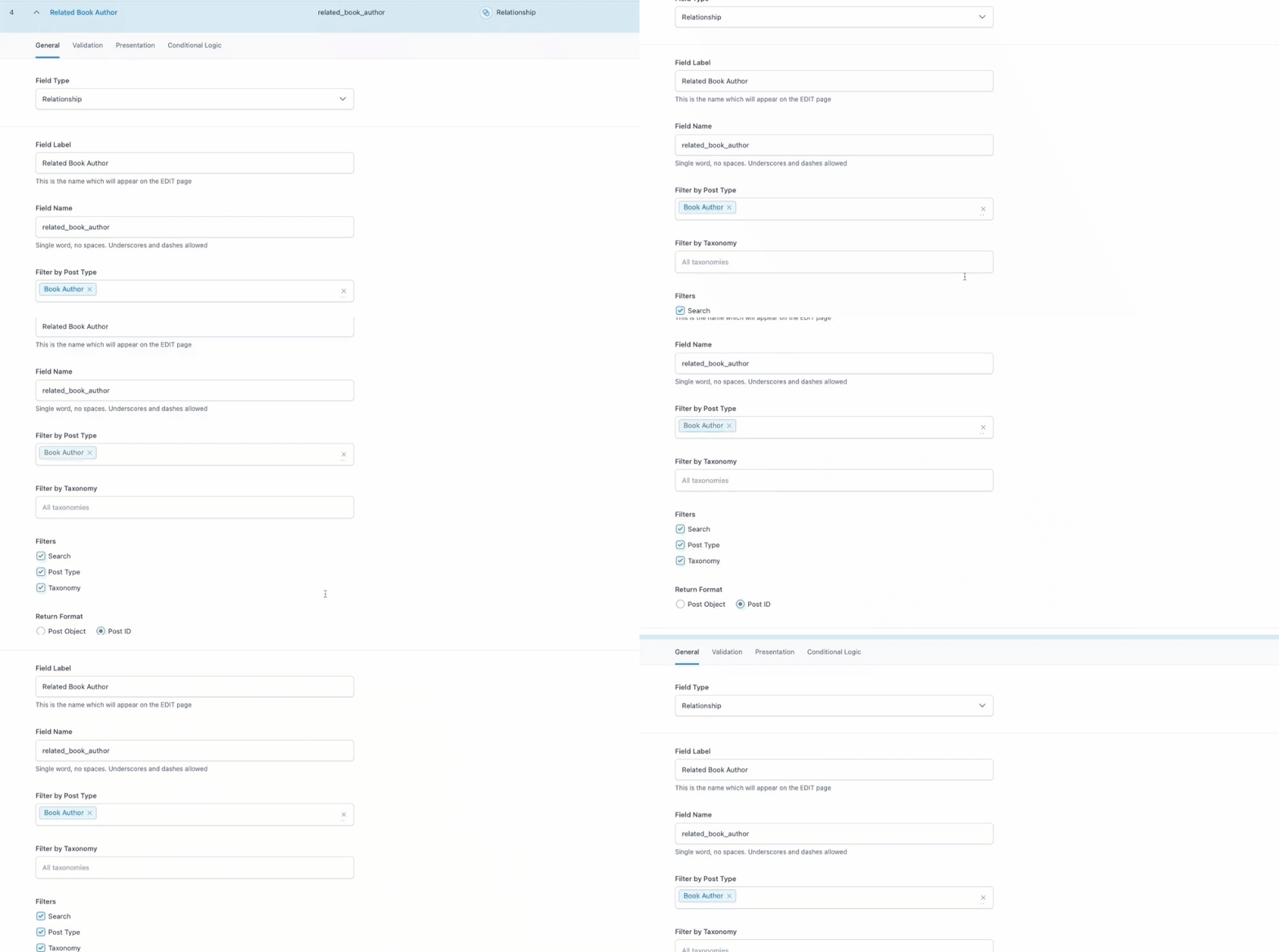
The Relationship field settings are split across tabs. The General tab decides which posts can be chosen and in what format they are returned, the Validation tab sets limits, the Presentation tab controls what editors see, and the Advanced tab holds the Bidirectional setting covered in the next section.
General Settings
Post Types limits the list to the post types you choose, such as Book Author, and Taxonomy narrows it further to posts in certain categories or terms. Filters decides which tools editors get above the list: search, a post type filter, a taxonomy filter, or all three. Return Format sets whether the field gives back full post objects or just post IDs.
Validation Settings
Minimum Posts and Maximum Posts set how many items an editor must or can select. A maximum of one, for example, makes sure each book has a single main author.
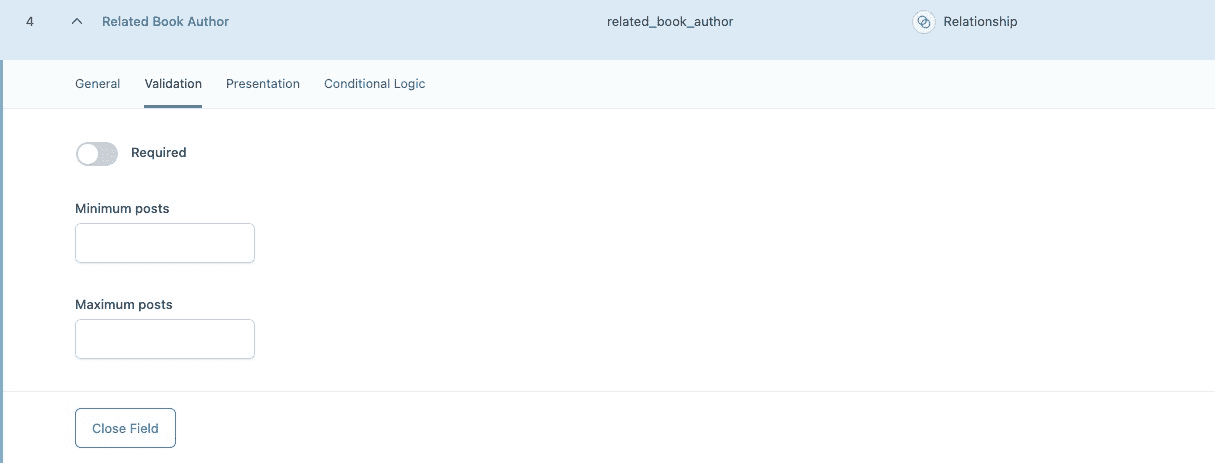
Presentation Settings
Elements adds extra details, such as a featured image, to each result in the list, which helps editors pick the right post. Instructions shows a short hint under the field, and Wrapper Attributes lets you set the field’s width or add a CSS class.

How Do You Make an ACF Relationship Bidirectional?
To make an ACF relationship bidirectional, open the Relationship field’s Advanced tab, turn on Bidirectional, and choose the matching field on the other post type as the Target Field. From then on, linking a book to an author also adds the book to that author’s field, with no code. This setting arrived in ACF 6.2.
- On the Book Author post type, create a Relationship field such as Books, set to the Book post type.
- Open the Related Book Author field on the Book post type and go to its Advanced tab.
- Turn on Bidirectional and select the Books field as the Target Field.
- Do the same on the Books field, with Related Book Author as its target, then save both field groups.
- Edit a book, pick its author and click Update. The author’s Books field now lists that book too.
Note: Bidirectional links are written when a post is saved. Books you linked before turning the setting on stay one-way until you open and update them once.
ACF explains every option in its bidirectional relationships documentation. The setting also works with the Post Object, Taxonomy and User fields.
How Do You Display Related Posts Without Code?
To display related posts without code, use the DA – Post Blocks Adv widget in Dynific Addons for Elementor. Set its query source to Relationship, enter the field name, and pick a block layout, and each post shows its own related posts as a grid, carousel or accordion. It also handles reverse relationships, such as listing all books on an author page.
- Design a block layout in DA Templates for one related item, such as an author card.
- Create a single post template for the Book post type and open it in Elementor.
- Add the DA – Post Blocks Adv widget and choose a skin, such as Grid or Carousel.
- Under Block Layout, select the layout you designed.
- In the Query section, set Source to Relationship and enter the field name, such as related_book_author.
Our full tutorial on displaying ACF relationship and reverse relationship data with Dynific walks through a complete Movies and Cast example with screenshots.
Dynific Addons for Elementor
Turn your custom fields into real page layouts
Display ACF fields, repeaters and other dynamic content in Elementor without writing code.
What Should You Do Next?
Start with one Relationship field between two post types, fill in a few posts, and turn on Bidirectional if both sides need the link. Keep the field’s post types and limits tight so editors only see the posts that make sense.
When your relationships are in place, Dynific Addons for Elementor lets you show them on single post templates and archives as grids, carousels or accordions, straight from the Elementor editor. If you also need to group related fields, read our ACF Group field guide.
Frequently Asked Questions
What is the ACF Relationship Field used for in WordPress?
The ACF Relationship Field allows users to connect one post type to another, making it easy to display related content dynamically.
What’s the difference between a relationship field and a post object field in ACF?
The Relationship field supports searching and filtering, while the Post Object field provides a dropdown list. Relationship fields are better for managing many connections.
What is a reverse relationship in ACF?
A reverse or bi-directional relationship ensures that if Post A links to Post B, Post B also automatically links back to Post A.
Is ACF Relationship Field available in the free version?
Yes. The Relationship field is part of the free Advanced Custom Fields plugin, along with the other relational fields such as Post Object, Taxonomy and User. The Bidirectional setting added in ACF 6.2 is also available in the free version.
Why is my ACF bidirectional relationship not updating old posts?
The Bidirectional setting only updates the other side when a post is saved. Posts you linked before turning it on stay one-way until you open and update them. Re-save the existing posts once, and ACF fills in the matching field on the other side.
What return format should I choose for the Relationship field?
Choose Post Object if your theme or tool needs the full post details, and Post ID if it only needs the ID. If you plan to show reverse relationships with the Reverse Relation option in Dynific Addons for Elementor, set the Return Format to Post ID, because that option requires it.