How to Show a Random Image Every Time a Page Loads in Elementor
Imagine you run a photography portfolio. A visitor lands on your homepage, sees one hero image, and leaves. They come back a week later – same image. Nothing new. They assume nothing has changed and bounce again.
Now imagine the same visitor returns and sees a completely different, striking image. They pause. They scroll. They explore.
That’s the quiet power of a random image in Elementor, and most WordPress site owners aren’t using it.
With the Random Image widget from Addon Elements for Elementor, you can display a different image on every page load without touching a single line of code. It works for portfolios, WooCommerce stores, agency websites, restaurants, anywhere that visual variety drives engagement.
This guide goes beyond the basics. You’ll get the full setup, real use case ideas, pro tips most tutorials skip, and the common mistakes that quietly break this feature.
Let’s get into it.
Key Takeaways
- How to set up the Random Image widget in Elementor step by step
- The best real-world use cases where random images actually drive results
- Pro tips to make your random images perform better
- Common mistakes to avoid before you hit publish
What Is the Random Image Widget in Addon Elements for Elementor?
The Random Image widget is part of the Addon Elements for Elementor plugin (formerly Elementor Addon Elements). It lets you upload a collection of images and randomly serves one each time the page loads.
What makes it more useful than a basic image widget:
- Multiple images, one spot: Upload as many images as you want; the widget picks one randomly per page load
- Per-image custom links: Each image can point to a different URL, so your random images can also be random CTAs
- Per-image captions: Add context to each image individually, displayed above or below
- Lightbox support: Visitors can click to open any random image in a full-screen lightbox
- Full styling control: Adjust dimensions, alignment, hover effects, animations, and caption styling from the Style tab
Important
This widget randomizes on page load, not on a timer. The image won’t cycle while the visitor is on the page, it changes when they refresh or return.
How to Add a Random Image in Elementor – Step by Step
Step 1: Install and Activate the Required Plugins
You need two plugins active on your WordPress site:
- Elementor (free version works perfectly)
- Addon Elements for Elementor – install from the WordPress plugin directory or your account dashboard
Pro Tip
After activating Addon Elements, go to Addon Elements → Modules and make sure the Random Image widget is enabled. If you’ve disabled it previously to save load time, it won’t appear in the editor.
Step 2: Open Elementor and Add the Random Image Widget
Open the page you want to edit and click Edit with Elementor. In the left widget panel, type “Random Image” in the search bar.
Drag it into your desired container.
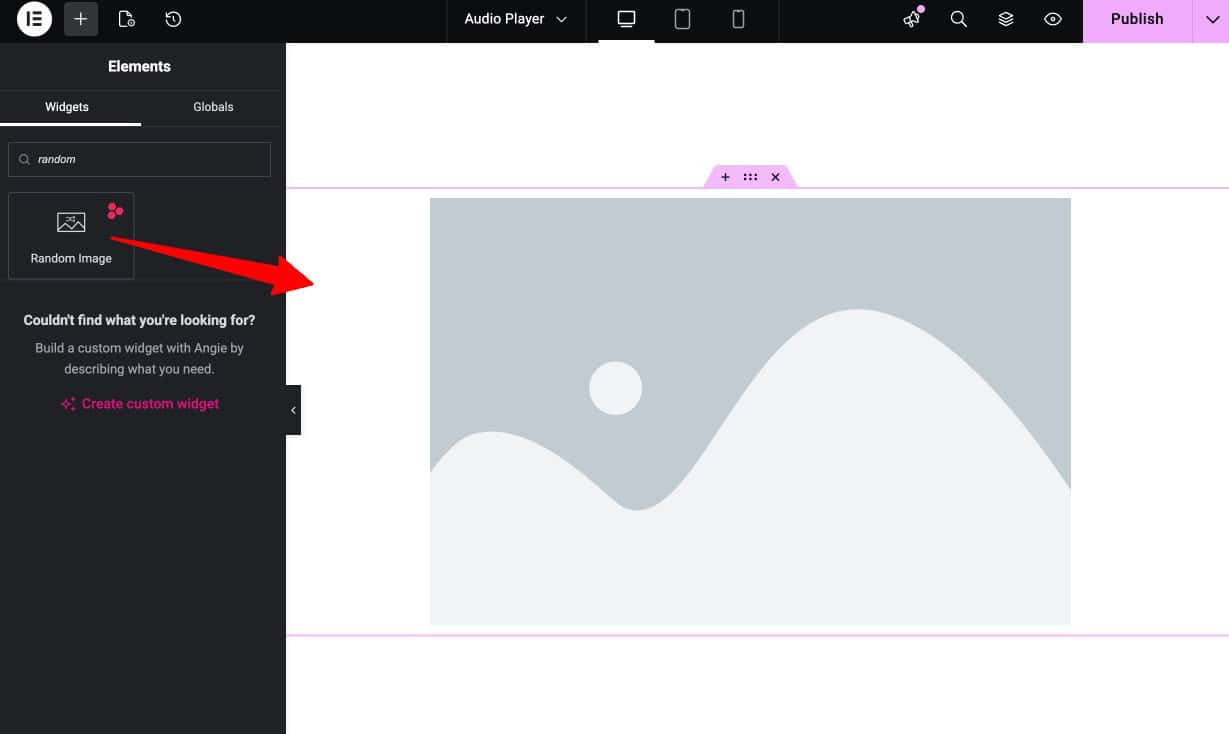
Step 3: Upload and Configure Your Images
Click the widget to open its settings. Start adding your images one by one using the image upload panel.
For each image you can set:
- A custom caption: use this to add context, alt text guidance, or a short CTA
- A custom link: point each image to a relevant product page, blog post, or landing page

Step 4: Set Up Captions and Lightbox
In the Content tab you can control:
- Caption type: show the image’s default caption or write a custom description
- Caption position: display it above or below the image
- Image alignment: left, center, or right
- Lightbox: enable this so visitors can click the image to see a full-size popup

Step 5: Customize Your Random Images in Elementor
Once your images and captions are set, go to the Style tab in the widget settings to fine-tune their appearance. Here, you can adjust the image width and dimensions to fit your page layout perfectly.

The widget also provides full control over how the image appears in both normal and hover states, and you can add animations for a more interactive feel. In addition, you can customize every aspect of the caption style.

Documentation
Want to explore all styling options in detail? Check out our complete guide on Random Image widget style settings.
Step 6: Preview and Test on the Frontend
Click Publish or Update, then open the page in a browser tab. Refresh the page 4–5 times to confirm different images are appearing in rotation.
Common Mistakes to Avoid
Here are the common mistakes to avoid while using Random Images widget.
- Using images of different dimensions The widget picks randomly, but if one image is portrait and another is landscape, your layout will jump on every load. Always use consistent image dimensions.
- Forgetting to test the randomization Sometimes a caching plugin caches the first loaded image and serves the same one every time. If randomization stops working after publishing, check your caching plugin settings and exclude the page or set the cache to clear frequently.
- No link on promotional images If you’re using random images to promote products or offers, every image should have a destination link.
- Enabling lightbox on linked images If you set both a link and lightbox on the same image, the link takes priority and lightbox won’t open. Decide which experience you want per image and configure accordingly.
FAQs About the Random Image Widget in Elementor
Does this work with Elementor Free or do I need Elementor Pro?
It works with the free version of Elementor. You only need Addon Elements for Elementor installed alongside it.
Is the Random Image widget responsive on mobile devices?
Absolutely. The widget is fully responsive and automatically adjusts your images for desktop, tablet, and mobile layouts.
Can I open random images in a lightbox?
Yes. The widget offers a lightbox option so visitors can view images in a larger, interactive pop-up window.
How often does the random image change?
The random image changes every time the page reloads or when a visitor revisits the page.
Can I redirect images to different pages?
Each image can have its own custom link, allowing you to redirect visitors to products, blog posts, or external pages.
Final Thoughts: Small Feature, Real Impact
The Random Image widget isn’t a flashy feature. It won’t redesign your website. But used correctly with consistent image dimensions, proper links, compressed files, and a clear purpose, it quietly improves engagement, gives all your visuals equal exposure, and makes your site feel alive rather than static.
Try the Random Image widget as part of the 60+ widgets in Addon Elements for Elementor and see the difference it makes on your next page refresh.